#VDM30in30–The halfway Point

Today is November 15th, and we’re halfway through the month.  That also means we’re halfway through VDM30in30.

So far, it’s been a great experience with some great content by the participants.  Some of the highlights so far are:

  • Anthony Chow’s OpenStack Deep Dive Series
  • Rob Nelson and Eric Wright explaining the Theory of Constraints
  • Gabe Maentz delivering some great content on what the Data Gravity storage array can do
  • Jonathon Frappier’s home lab upgrade series
  • James Brown’s “Keeping Up While Living in the Midwest” post that may lead to a regular podcast
  • John Price’s career recap and white board skills posts

I’m looking forward to seeing what comes in the last half of the month.

To Self-Publish…or Not To Self-Publish… #VDM30in30

At the Chicago VMUG User Conference two months ago, I happened to tweet something during Nick Marshall’s morning keynote that was inferred as volunteering to write a book.

Oh yeah, here’s the tweet:

Although that project did not pass the spouse acceptance test, and other priorities prevent me from committing the time to take on a project of that magnitude, I have been thinking about smaller writing projects.  One of the questions that I’ve been trying to work through is do I pitch ideas to various tech book publishers, or do I publish the book myself using self-publishing options from Amazon, Barnes and Noble, and other companies?

There are benefits and drawbacks to each option.  Publishers have resources for editing, reviewing, and marketing books, but the schedules can be very tight to fit the deadlines.  Self-publishing provides more freedom to write on your own schedule, but the author is responsible for finding their own editor.

There is a financial component to this model as well.  A publisher may provide an advance, but it may be a while before you see any royalties, and that is only if the book makes a profit.  Self-publishing provides no money up front, but you get to keep everything you make from the sale of the book.

These aren’t the only items that need to be considered when choosing whether to work with a publisher or self-publish.  There are a lot of factors that need to be taken into consideration.

What are your thoughts? Please share on Twitter by tweeting me at @seanpmassey.

Enabling Windows Server 2008 R2 Desktops in Horizon 6 #VDM30in30

VMware introduced support for Windows Server 2008 R2 virtual desktops in Horizon View 5.3.  This support wasn’t enabled out of the box.  It required an administrator to edit the View LDAP database to enable the feature and a special command-line only installation of the agent on the target desktop.

Horizon View 6 brought many new changes, including better support for Windows Server desktop.  The first patch set also added better support for this feature.

Why Use Windows Server 2008 R2 as a Desktop OS?

Historically, Microsoft licensing for virtual desktops has been a pain.  In the past, it required connecting endpoints to be covered under software assurance or users to be covered under expensive subscription-based licensing, and there were no service provider licensing options.

Although some of this appears to be changing with the latest per-user licensing SKUs that will be available on December 1st, 2014, the service provider side still hasn’t been fixed.

From a cost perspective, there are some benefits as well.  Windows Server Data Center licensing allows for unlimited Windows instances on licensed virtual hosts.  This can generate significant savings compared to VDA subscriptions.

Note: I am not an expert on Microsoft licensing, and the features and terms of Microsoft’s licensing can change frequently.  Please contact your Microsoft representative if you have any questions on licensing products for virtual desktop environments.

Enabling Windows Server 2008 R2 Desktop Support

Enabling Windows Server 2008 R2 desktop support have been streamlined from Horizon View 5.3, and manual edits to the LDAP database are no longer required.

The steps to enable this support are:

1. Log into the Horizon View Administrator console.

2. Go to View Configuration –> Global Settings

3. Click Edit.

4. Check the Enable Windows Server 2008 R2 Desktops checkbox and click OK.

image

Installing the Horizon View Agent

The process for installing the View Agent on Windows Server desktops has also been streamlined.  Installing the agent in View 5.3 required a command-line installation with a special switch to force the installer into desktop mode as the installer was geared for servers with the RDSH role. 

That has changed as well, and the installation process for Server 2008 R2 desktops is now the same as installing it on Windows 7/8/8.1 virtual desktops.

Horizon view 6.0 Part 12–Installing and Configuring A Security Server #VDM30in30

Horizon View provides a secure method for granting users access to their desktops from anywhere with an Internet connection on any device without needing a VPN connection.  Now that a desktop pool has been set up and desktops are provisioned, it’s time to set up that remote access.

The Security Server

The View Security Server is VMware’s method of addressing remote access.  This component of the Horizon View environment contains a subset of the Connection Server components, and it is designed to sit in a DMZ and act as a gateway for Horizon View Clients.  It’s essentially a reverse proxy for your View environment.

Each Security Server that is deployed needs a corresponding Connection Server, and they are paired during the installation process.  Because the Security Server is an optional component, each Connection Server is not required to have one, and a Connection Server cannot be paired to more than one Security Server.

Each Security Server also needs a static IP address.  If it is externally facing, it will need to have a publicly addressable static IP.  This IP address does not need to be configured on the server’s network card as both Static 1:1 NAT and PAT work with Horizon View.

Security Server Firewall Ports

In order to enable remote access, a few ports need to be opened on any firewalls that sit between the network where the Security Server has been deployed and the Internet.  If the server is deployed into a  DMZ, the firewall will also need to allow traffic between the Security Server and the Connection Server.

The rules that are required on the front-end, Internet-facing firewall are:

  • HTTP – TCP 80 In
  • HTTPS – TCP 443 In
  • HTTPS – TCP 8443 both directions (if Blast is used)
  • PCoIP – TCP 4172 In, UDP 4172 both directions

If you are deploying your Security Servers in a DMZ configuration with a back-end firewall, you need to configure your firewall to allow IPSEC traffic to the Connection Servers.  These rules depend on whether network address translation is used between the DMZ and Internal network.  For more information on the rules that need to be enabled, please see this VMware KB article.

The Security Server will also need to communicate with the Horizon View desktops.  The following ports will need to be opened to facilitate this:

  • PCoIP – TCP/UDP 4172 both directions

Note: If you’re using application-aware firewalls like Palo Alto Networks devices, make sure that any application protocols required by Horizon View aren’t blocked between the DMZ and Internal network.  Also, updates to the application signatures or the PCoIP protocol may impact users’ access to virtual desktops.

Configuring Horizon View for a Security Server

The Security Server installation will prompt for a Connection Server to be paired with and a pairing password during the install process.  This must be set up before the installation starts.  To set up the pairing password, take the following steps:

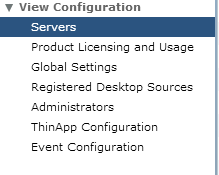
1. In View Administrator, go to View Configuration –> Servers

1. View Configuration

2. Click on the Connection Servers tab and select the Connection Server you want to pair with.

2. Connection Servers Tab

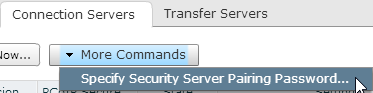
3. Click on More Commands and select “Specify Security Server Pairing Password.”

3. Specify Security Server Pairing Password

4. Specify your pairing password.  When you do this, you will also be able to configure how long that password will be valid for.  If the password is not entered in that time period, or if you encounter errors with the install that are not resolved before the timeout period expires, you will need to create a new password.

4. Password Screen

Note: Pairing passwords can time out or be invalidated by hitting the back button during the Security Server installation after the pairing password has been entered.  If this happens, the password will need to be recreated using the steps above.

Installing the View Security Server

Once the pairing password is set up, you can start the Security Server installation.

1. Double-click the installer to start the installation.

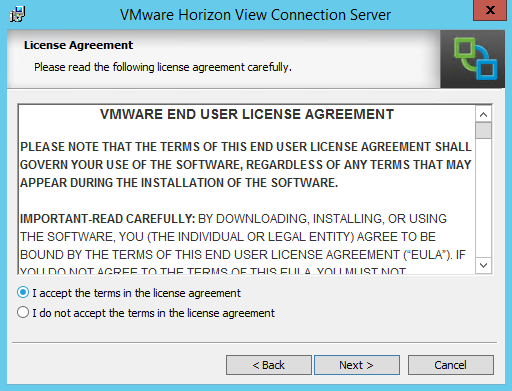
2. Accept the license agreement

1

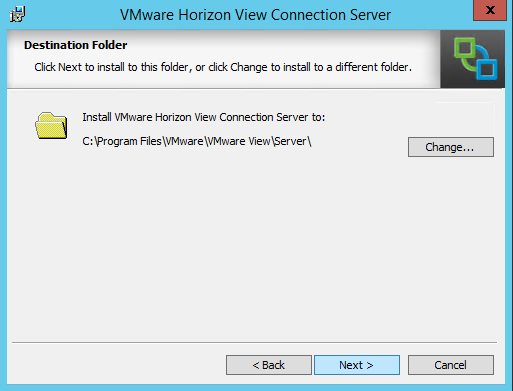
3. The next screen gives you the option to change the installation directory by clicking the Change button.  For this installation, we’ll be installing to the default location, so click Next.

2

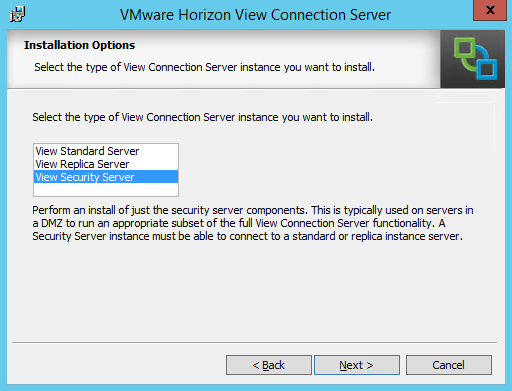
4. Select Security Server

3

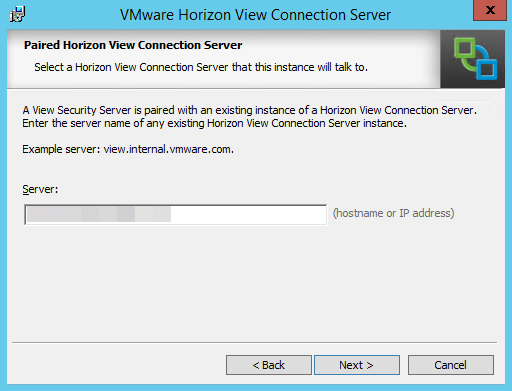
5. Enter the hostname or IP address of the Connection Server the Security Server will be paired with.

4

6. Enter the pairing password.

5

7. In order for View Clients to properly connect to the Security Server, you need to configure the External URLs for the server.  The items that need to be configured are:

  • External URL – the fully-qualified public domain name and port such as view.remotedomain.com:443
  • PCoIP External URL – the public IP address and port number.  If this server is behind a NAT, this should be the IP address that can be reached from the Internet.  Example: 4.4.4.4:4172
  • Blast External URL – the fully-qualified public domain name and port used by VMware Blast such as html5desktop.remotedomain.com:8443

6

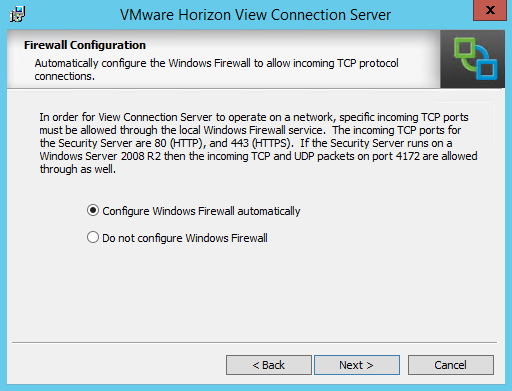
8. The View Installer will give you the option to automatically configure the Windows Firewall for View.  Click Next to allow the installer to set up the Windows Firewall.  If you do not want the installer to configure the firewall, you will need to configure these rules manually after installation.

Note: This also configures the IPSec Rules that are needed for secure communication between the Security Server and the Connection Server.

7

9. Click Install to finish the installation.

10. Click Finish to close the installer.

11. If you log back into View Administrator and go to View Configuration –> Servers –> Security Servers, you should see your newly added Security Server.

14. Security Tab

Horizon View 6.0 Part 11–Creating A Desktop Pool #VDM30in30

Every system needs a way to group entities in order to organize them, delegate administration, and control security on them.  Horizon View uses desktop pools to group desktops, apply Horizon View specific policies, and entitle access to users. 

Horizon View has a few different types of desktop pools.  Each pool handles desktops in different ways, and they each have different purposes.  The type of pool that you select will be determined by a number of factors including the use case, the storage infrastructure and application requirements.

The type of desktop pools are:

  • Full Clone Pools – Each virtual desktop is a full virtual machine cloned from a template in vCenter.  The virtual machines are managed by View Connection Servers.
  • Linked Clone Pools – Each virtual desktop is based on a snapshot and shares its disk with the parent virtual machine.  Changes to the linked clone are written to a delta disk.  The virtual machines are managed by View Composer.
  • Manual Pools – The machines that make up the manual pool consist of virtual and/or physical machines that have had the View Agent installed.  These machines are not managed by View.
  • Terminal Services Pool – The machines that make up these pools are Windows Servers with the Remote Desktop Services Role installed.

There is one other choice that needs to be selected when creating a desktop pool, and that is the desktop assignment type.  There are two desktop assignment types:

  • Floating Assignment – Desktops are assigned to users at login and are returned to the pool of available desktops when the user signs out.
  • Dedicated Assignment – Desktops are assigned to a user, and the user gets the same desktop at each login.  Desktops can be assigned automatically at first login or manually by an administrator.

For this walkthrough, I will be doing an Automatic Assignment Linked-Clone desktop pool.  These pools are usually referred to as Non-Persistent Desktop Pools.

Before you can set up a Linked Clone pool, View Composer will need to be installed and configured.

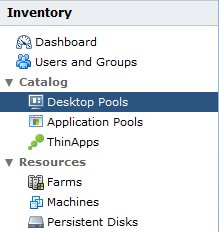
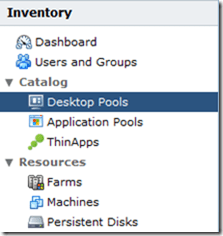
1. Log into View Administrator.  Under Catalog, select Desktop Pools.
image

2.  Click Add to add a new pool.

2

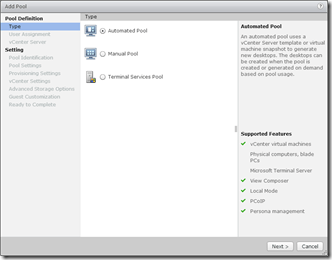
3. Select the Pool Type that you want to create.  For this, we’ll select Automated Pool and click Next.
3

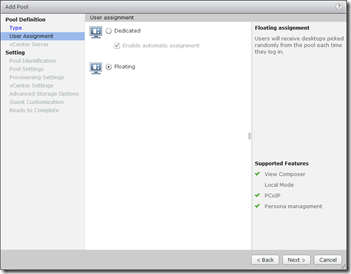
4.  Select whether you want to have Floating or Dedicated Desktops.  For this walkthrough, we’ll select Floating and click Next.
4

Note: The Enable Automatic Assignment option is only available if you select Dedicated. If this option is selected, View automatically assigns a desktop to a use when they log in to dedicated pool for the first time.

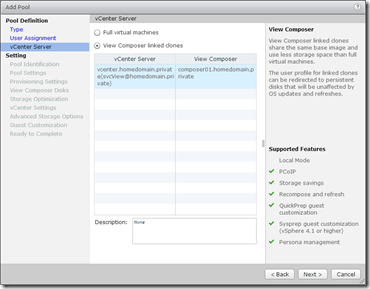
5. Choose the type of virtual machines that will be deployed in the environment. For this walkthrough, select View Composer Linked Clones and click Next.
5

6. Each desktop pool needs an ID and a Display Name.  The ID field is the official name of the pool, and it cannot contain any spaces.  The Display Name is the “friendly” name that users will see when they select a desktop pool to log into.  You can also add a description to the pool.

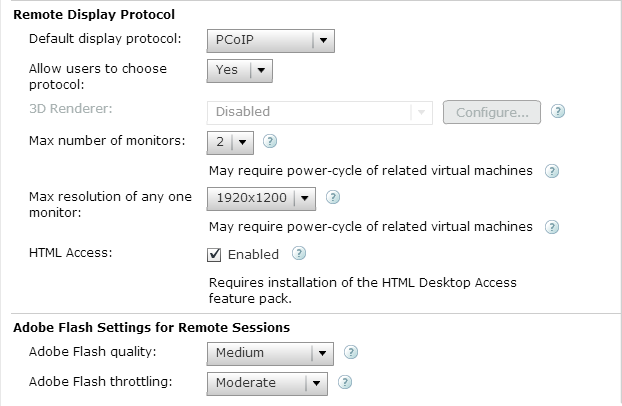
6

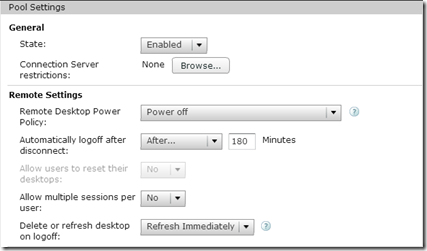
7. The next screen after setting the pool name is for the pool settings.  There are a lot of options here, that control how the pool will behave.  Some of the options are:

  • If the pool is enabled
  • Default power state of desktops
  • Display protocols
  • Adobe Flash settings

7

8

9

8. The next screen will allow you to configure the provisioning settings for the pool.  This screen allows you to control provisioning behavior, computer names, and the number of desktops provisioned in the pool.

10

9. The next screen allows you to set up a special non-persistent disk for disposable files.  Disposable files are classified as temporary files and page files.  If a disposable disk is used, these files will be redirected to here, and this disk is deleted whenever the VM is shut down.

This screen allows you to determine how the virtual desktop will handle these files.

11

10. Select the option to store Replicas on a separate datastore if you want to place them on a different storage tier.  Andre Leibovici has a good article on the benefits of placing Linked Clone replicas on a different datastore.

12

11. After you choose whether or not to place the Replica Disks on a separate datastore, you need to configure the pool’s vCenter settings.  This covers the Parent VM and the snapshot that the Linked Clones will be based on, the folder that they will be stored in within vCenter, and the cluster and datastores that will be used.

In order to configure each setting, you will need to click the Browse button on the right hand side of the screen.  Each step must be configured in order.

20

11-A. The first item that needs to be configured is the Parent VM that the Linked Clones will be based on.  Select the VM that you want to use and click OK.

13

11-B. The next step is to select the Parent VM snapshot that the Linked Clones will be based on.  Select the snapshot that you want to use and click OK.

14

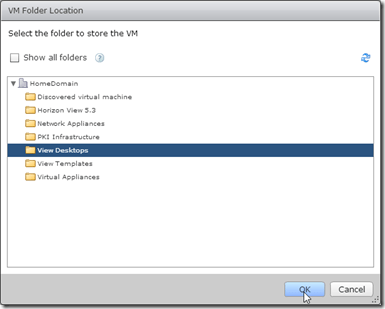
11-C. After you have selected a Parent VM and a snapshot, you need to configure the vCenter folder in the VMs and Templates view that the VMs will be placed in.  Select the folder and click OK.
15

11-D. The next step is to place the pool on a vSphere cluster.  The virtual machines that make up the desktop pool will be run on this cluster, and the remaining choices will be based on this selection.  Select the cluster that they should be run on and click OK.

16

11-E. The next step is to place the desktops into a Resource Pool.  In this example, I have not resource pools configured, so the desktops would be placed in the Cluster Root.

17

11-F. The final two steps of this section are to select the datastores where the Linked Clones and the Replicas will be stored.  Linked Clones can be stored on multiple datastores, so you can select multiple datastores in this section.  You can also configure View to allow the datastores to be overcommitted by changing the Storage Overcommit option on each datastore.

18

11-G. Replicas can only be stored on a single datastore.  Select the datastore that you want to store them on and click OK.

19

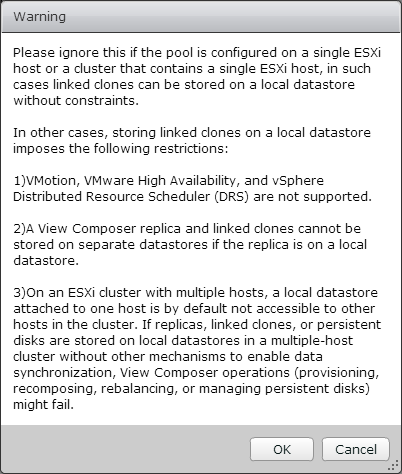
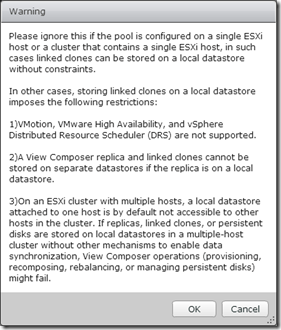
Note: After you have configured the Replica Datastore, you may receive the following warning about storing Replicas and Linked Clones on local datastores.  If you are using a SAN or a NAS and not storing any Replicas or Linked Clones on local datastores, you can ignore this message.
Warning after 18-19

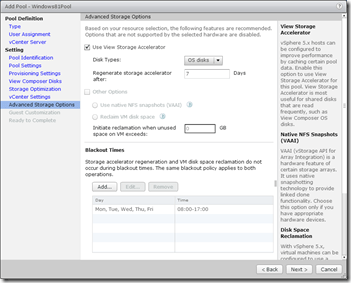
12. The next screen is for configuring the advanced storage options.  The three options that can be configured on this screen are the View Storage Accelerator, disk space reclaimation and the option to use native NFS snapshots.

If you use View Storage Accelerator or disk space reclamation, you can configure blackout times where vCenter will not run these tasks.
22

13. To set the blackout times for the pool, click the Add Button and select the days and times when you do not want these operations to run.  You can set multiple schedules.

21

14. After you have configured the advanced storage options, you need to configure the Guest Customization settings.  This screen allows you to select the domain and organizational unit for the desktops and whether Sysprep or Quickprep will be used to prepare the desktops.

24

15. Review the settings for the pool and verify that everything is correct.  Before you click Finish, check the Entitle Users checkbox in the upper right.  This will allow you to select the users and/or groups who have permission to log into the desktops.

If you need to make a change to the pool settings, the left-hand column contains links to each page in the wizard.

25

17. After you click Finish, you will need to grant access to the pool.  View allows you to entitle Active Directory users and groups.  Click Add to entitle users and groups.

27

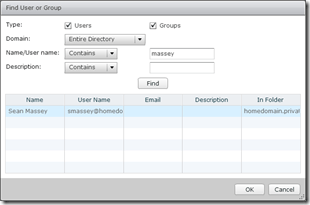
18. Search for the user or group that you want to add to entitle.  If you are in a multi-domain environment, you can change domains by selecting the domain from the Domains box.  Click on the users or groups that you want to grant access to and click OK.
26

Note:  I recommend that you create Active Directory security groups and entitle those to desktop pools.  This makes it easier to manage a user’s pool assignments without having to log into View Administrator whenever you want to make a change.

19. You can check the status of your desktop pool creation in vCenter.  If this is a new pool, it will need to clone the VM into a Replica before it can create the Linked Clone desktops. 

28

Once the desktops have finished composing, you will be able to log into them through VMware Blast or the Horizon View client. 

I realize that there are a lot of steps in the process of creating a desktop pool.  It doesn’t take nearly as long as it seems once you get the hang of it, and you will be able to fly through it pretty quickly.  These steps can also be automated using the View PowerCLI cmdlets from any Connection Broker in the environment.

Is It Time for Community Generated Magazines and EZines? #VDM30in30

One thing that the VMware Community has done well is putting together community-organized webinars by presenters who are passionate about the subjects that they are presenting on.  The topics of these weekly webinars range from basic automation to preparation for the advanced VMware Certification exams and Dev-Ops.

As far as I know, this is unique in the world of IT.  I’m not aware of any other community that has organized itself around an ecosystem and provides a plethora of education opportunities that would otherwise cost tens thousands of dollars if it were offered as professional training.

So what does vBrownbag have to do with a magazine made up of community content?

A few months ago, I listened to a VMware Communities Roundtable podcast that featured Stephen Foskett (Twitter: @SFoskett) and Howard Marks (Twitter: @DeepStorageNet).  The main focus of the podcast was about Technical Influencer/Writer/Analyst careers.  One of the things that Stephen discussed in some detail was how the medium-form written article of  about 5000-15000 words has all but disappeared as the technical magazines have folded or reduced their rates to freelance writers as advertising sales fell.  Today, there are very few technical magazines that I am aware of where the articles aren’t advertising for the IT vendors.

This change isn’t necessarily for the better.  It hurts IT as a profession, especially those who are just entering into IT who need resources to help them develop professionally. 

But while the Internet may be the cause of this problem, it also provides a solution.  It’s easy for anyone to create a digital publication.

But wait…isn’t that what blogging is?

To an extent, yes.  But while there are a ton of blogs out there that provide great content, it can be a challenge to find them if you don’t know what you’re looking for.

A solution to this may lie in the PowerShell community.  They have created, through PowerShell.org, what appears to be a community digital magazine with articles written by experts such as Don Jones and Steven Murawski.

Another great example of this is The Virtualization Practice – a news and analysis site staffed by virtualization community experts like Bob Plankers and Edward Haletky. 

Is it time for more sites like these?  I think it is. The decline of more technical related periodicals has left a gap – one that the community is uniquely suited to fill.

American Casserole #VDM30in30

It’s Sunday…and that means another recipe.

This week’s recipe is one that my grandmother used to make all the time.  It’s a very simple and delicious casserole that she called American Casserole.  Like last week’s Baked Mostacciolli, this recipe scales very well (2 pounds of ground meat to each pound of noodles), and it freezes very well.

In some ways, this recipe is like the Cheeseburger Macaroni Hamburger Helper that is layered instead of mixed together.

Ingredients:

  • 2 lbs. of ground meat (turkey, beef)
  • 1 lb. box of elbow macaroni
  • 1 Family Size can of tomato soup
  • 2 cups Milk
  • 3 Eggs, beaten
  • American cheese slices

Directions:

  1. Heat oven to 350 degrees
  2. Brown ground meat and drain fat.  Season to taste.
  3. Combine tomato soup and ground meat.  Set aside.
  4. Cook elbow macaroni to al dente per package directions.  Drain but do not rinse.
  5. Combine milk and eggs.  Add to macaroni and mix well.
  6. Place macaroni mixture in the bottom of a baking pan.
  7. Place meat and tomato soup mixture on top of the macaroni mixture. 
  8. Place American cheese slices on top of the meat layer.
  9. Bake in oven for 30 minutes.

Notes:

  • Do not use whole-wheat pasta with this recipe.  I’ve tried it, but the macaroni layer doesn’t quite bind together.
  • If you’re not a fan of American Cheese slices, you can use other cheese.  Shredded mild cheddar works well too.

Career Thoughts Pt. 1–You Can’t Let Go of Everything to Keep Up with Tech #vdm30in30

Back in September 2013, the IEEE Spectrum published an article with a very interesting statistic: technical professionals need at least 10 hours of training each week just to keep current with the changing technology.  Although this was geared more towards programmers and electrical engineers, it can just as easily be applied to systems administrators and other IT fields.

Ten hours a week doesn’t sound like a lot at first.  That’s only two hours per weekday.  Early in a career it may be easy to set aside two hours per night or a large block of time on weekends, but as your life changes, other priorities start to require that time.

There are very few ways to get that time back, and it usually comes at the expense of sleep or other hobbies and interests.  I’ve heard more than one IT person say that they’ve given up on all non-work related hobbies because they don’t have time to meet their family commitments and keep up with technology.

I’m guilty of this myself.  I’ve set aside hobbies such as photography and reading and writing on non-technical subjects because there isn’t enough time for it.  I’ve traded sleep for lab time.

Doing this is a mistake.  Trading in hobbies and interests for career may benefit your career, but you’re stealing from yourself when you do it. 

Who Are You, and What Have You Done to Microsoft? #VDM30in30

One of the cornerstones of Microsoft’s business has been Office.  Office, along with Windows, has been so successful that its profits have been able to fund a number of less-than-profitable business units over the years and allowed Microsoft to not only survive debacles like the XBox Red Ring of Death but still make a profit while writing off billions in expenses.

Although Microsoft has been pushing Office to a subscription-based service with very affordable non-commercial tiers, I was shocked to see this article from The Verge when I opened up Twitter this morning.

Starting today, you won’t need to have an Office 365 account in order to edit or save documents on IOS or Android devices.  Windows and Mac users don’t get a free version, and they will still need to pony up for an Office 365 subscription to use Office on their PCs.

Although Microsoft has given away products in the past such as the Visual Studio Express Editions and SQL Server Express, I can’t recall a time when they’ve given away one of their core products in a form that wasn’t tied to another revenue generating platform.

OK…that sentence was a little awkward.  What I mean is that while Visual Studio Express and SQL Express are feature limited versions of Microsoft products, they’re still tied to the Windows ecosystem. 

The difference here is that Microsoft is giving away a version of Office, albeit a feature limited one, on platforms that they don’t derive any direct revenue from.

This isn’t an entirely altruistic move – it’s one to ensure that Office remains the dominant productivity platform in the face of multiple mobile options.  It doesn’t really undercut any of their competitors like building Internet Explorer into Windows did to Netscape – Google and Apple already offer free mobile productivity suites as well, and users will have their choice of which suite they want to install and use.

So is this big?  Yes.  Is it shocking?  In some ways, yes.  But its also a move that Microsoft had to make in order to keep Office relevant in an era of open document standards and free alternatives on mobile devices.