Home Lab Expansions #VDM30in30

Over the last two weeks, I’ve made some significant changes to my home lab.  The changes were brought about by a steadily increasing electric bill that had been increasing significantly over the last few months.

I picked up two new servers, a PowerEdge R710 and a PowerEdge R610,  on eBay that will replace the 3-node, 2U Dell DCS6005 that I had been using for my lab.  Both servers come with dual quad-core Xeon processor and 24 GB of RAM.   The R610 will be for server workloads, and the R710 will be for testing out VDI related software.

Although I end up with fewer cores and less RAM for running virtual machines, the two new servers have a few features which make them attractive for home lab use.  The include onboard power monitoring to track electricity usage, and I easily view this within the iDRAC.  The baseboard management on the DCS6005 nodes never worked right, so the new servers had iDRAC6 Enterprise modules added for improved remote management.  The new servers are far quieter than the DCS6005, and I can barely hear them once they are running. They also have more expansion slot, which will allow me to start testing GPUs with Horizon

Election Day is Here #VDM30in30

Today is Tuesday, November 4th.  If you’re in the United States and haven’t been avoiding television (which I wouldn’t blame you if you were), you know that today is the last day of the barely truthful ads attacking candidates using half-truths and lies…I mean it’s Election Day.  It’s the day that we vote for the people who will lead our government for the next two to four years.

I’m not going to get into who I’m voting for.  That’s not important.  The important thing is to find your polling place and cast your vote. 

And then you can be thankful that the campaign ads stop tonight.

Horizon View 6 Part 10–Building Your Desktop Golden Images #VDM30in30

A virtual desktop environment is nothing without virtual desktops.  Poorly performing virtual desktops, or virtual desktops and pools that aren’t configured properly for the applications that are being deployed, can turn users off to virtual desktops and sink the project.

How you configure your desktop base image can depend on the type of desktop pools that you plan to deploy.  The type of desktop pools that you deploy can depend on the applications and how you intend to deploy them.  This part will cover how to configure a desktop base image for linked clone pools, and the next part in this series will cover how to set up a linked clone pool.

Before You Begin, Understand Your Applications

Before we begin talking about how to configure the desktop base image and setting up the desktop pools, its very important to understand the applications that you will be deploying to your virtual desktops.  The types of applications and how they can be deployed will determine the types of desktop pools that can be used.

A few factors to keep in mind are:

  • Licensing – How are the applications licensed?  Are the licenses locked to the computer in some way, such as by computer name or MAC address?  Is a hardware key required? 
  • Hardware – Does the application require specific hardware in order to function, or does it have high resource requirements?  This is usually a consideration for high-end CAD or engineering applications that require a 3D card, but it could also apply to applications that need older hardware or access to a serial port.
  • User Profile and User Installed Applications – Are user profiles being centrally managed, or are they remaining local to the virtual desktops? Are users able to install their own applications?
  • Application Remoting – Can the applications be installed on a terminal server and presented to the users using an application remoting technology such as XenApp or Horizon Application Remoting?

Once you understand the applications that are being deployed to the virtual desktops, you can start planning your pools and creating your base images.

Supported Operating Systems

Horizon View only supports virtual desktops running Microsoft Windows.  The versions of Windows that are supported are:

  • Windows 8.1 Enterprise or Professional
  • Windows 8 Enterprise or Professional
  • Windows 7 Enterprise or Professional
  • Windows Vista Business or Enterprise SP2 (32-bit only)
  • Windows XP Professional SP3 (32-bit only)

Windows Server 2008 R2 is supported as a desktop operating system.  Configuring support for Server 2008 R2 desktops is easier in Horizon 6.0, and it only requires checking a single checkbox instead of editing the Horizon LDAP database.

Terminal Server sessions running on Windows Server 2008 R2 or newer are also supported, but I will cover those in another series.

For this part, we’re going to assume that we’re building a desktop running Windows 7 or Windows 8.1.  This will be more of a high-level overview of creating a desktop template for Horizon View, and I won’t be doing a step-by-step walkthrough of any of the steps for this section.

Configure the VM

Building a desktop VM isn’t much different than building a server VM.  The basic process is create the VM, configure the hardware, install the operating system, and then install your applications.  Although there are a few additional steps, building a desktop VM doesn’t deviate from this.

You should base the number of vCPUs and the amount of RAM assigned to your virtual desktops on the requirements for of the applications that you plan to run and fine tune based on user performance and resource utilization.

The recommended hardware for a virtual desktop is:

  • SCSI Controller – LSI SAS
  • Hard Disk – At least 40GB Thin Provisioned
  • NIC – VMXNET3
  • Remove Floppy Drive, and disable parallel and serial ports in BIOS
  • Remove the CD-ROM drive if you do not have an alternative method for installing Windows.

Note: You cannot remove the CD-ROM drive until after Windows has been installed if you are installing from an ISO.

BIOS Settings
BIOS screen for disabling Serial and Parallel ports and floppy controller

You’ll notice that I didn’t put minimums for vCPUs and RAM.  Sizing these really depends on the requirements of your user’s applications.  I’ve had Windows 7 64-bit desktops deployed with as little as 1GB of RAM for general office workers up to 4GB of RAM for users running the Adobe Suite.

Install Windows

After you have created a VM and configured the VM’s settings, you need to install Windows.  Again, it’s not much different than installing Windows Server into a VM or installing a fresh copy of Windows onto physical hardware.  You can install Windows using the ISO of the disk or by using the Microsoft Deployment Toolkit and PXE boot to push down an image that you’ve already created.

When installing Windows for your desktop template, you’ll want to make sure that the default 100 MB system partition is not created.  This partition is used by Windows to store the files used for BItlocker.

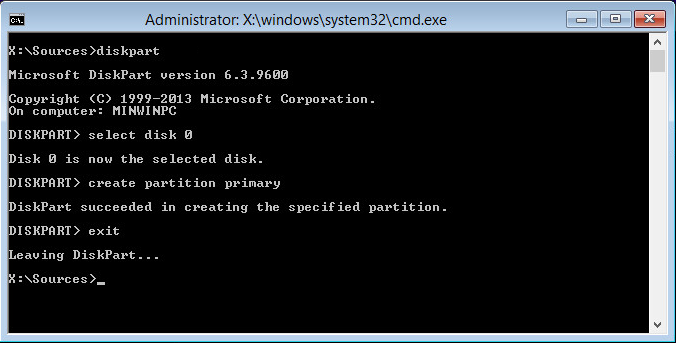
Since Bitlocker is not supported on virtual machines by either Microsoft or VMware, there is no reason to create this partition.  This will require bypassing the installer and manually partitioning the boot drive.  The steps for doing this when installing from the DVD/ISO are:

1. Boot the computer to the installer
2. Press Shift-F10 to bring up the command prompt
3. Type DiskPart
4. Type Select Disk 0
5. Type Create Partition Primary
6. Type Exit twice.

diskpart

Once you’ve set up the partition, you can install Windows normally.  If you’re using something like the Microsoft Deployment Toolkit, you will need to configure your answer file to set up the proper hard drive partition configuration.

Install VMware Tools and Join the Template to a Domain

After you have installed Windows, you will need to install the VMware tools package.  The tools package is required to install the View Agent.  VMware Tools also includes the VMXNET3 driver, and your template will not have network access until this is installed.   The typical installation is generally all that you will need unless you’re using vShield Endpoint as part of your antivirus solution.

After you have installed VMware Tools and rebooted the template, you should join it to your Active Directory domain.  The template doesn’t need to be joined to a domain, but it makes it easier to manage and install software from network shares.

Install View Agent

After you have installed the VMware tools package and joined your computer to the domain, you will need to install the VMware View Agent.  The default install of the View Agent includes all of the features except for PCoIP Smartcard support.  The agent install will require a reboot after it is completed.

Installing Applications on the Template

After you install the View Agent, you can begin to install the applications that your users will need when they log into Horizon View.

With tools like Thinapp available to virtualize Windows applications or layering software like Unidesk or Cloud Volumes, it is not be necessary to create templates for all of the different application combinations.  You can create a base template with your common applications, such as your office suite, pdf reader, etc, and then either virtualize or layer your other applications on top of that.

“Finalizing” the Image

Once you have the applications installed, it is time to finalize the image to prepare it for Horizon View.  This step involves disabling unneeded services and making configuration settings changes to ensure a good user experience.

There are two ways to do this.  The first is to use the batch file provided by VMware in the Horizon View Optimization Guide for Windows 7 and Windows 8.  The other option is to use the VMware OS Optimization fling.

Before you shut the virtual machine down to snapshot it, verify that any services required for applications are enabled.  This includes the Windows Firewall service which is required for the View Agent to function properly.

Shutdown and Snapshot

After you have your applications installed, you need to shut down your desktop template and take a snapshot of it.  If you are using linked-clones, the linked-clone replica will be based on the snapshot you select.

That’s a quick rundown of setting up a desktop template to be used with Horizon View desktops. 

In the next part of this series, I’ll cover how to create a linked-clone pool.

Simple Baked Mostaccioli–#vDM30in30

Sunday isn’t always the best day for writing a tech blog.  So instead of trying to shoehorn a technical topic in on the weekend, I thought I would do Recipe Sundays where I share a recipe from my family cookbook.

The first recipe I’m going to share is one that I’ve been making for over 10 years.  It is one of the first things that I learned to cook when I was in college – baked mostaccioli.

This recipe is very simple to put together, stores well, and can easily be scaled up to feed a small army. 

Ingredients:

1 pound of lean ground beef or ground turkey
1 pound box of Mostaccioli or Penne
1 45 oz.  jar of Ragu Old World Style Traditional Spaghetti Sauce or generic equivalent
16oz shredded Mozzeralla Cheeze
Seasonings
1 9×13 baking pan
Onion Powder
Garlic Powder

Directions:

1. Preheat oven to 350 degrees.
2. Cook pasta per package instructions for 8-9 minutes so that it is slightly undercooked.  Drain, but DO NOT rinse pasta.
3. Season ground meat with onion and garlic powder and brown over medium heat until cooked thoroughly, drain
4. Spread about 1/2 cup of sauce on the bottom of the pan
5. In a large mixing bowl or pot, combine the meat, pasta, remaining sauce and a half cup of shredded cheese.  Mix until pasta and meat are coated with sauce.
6. Pour the pasta and meat mixture into the baking pan and top with remaining cheese.
7. Bake for approximately 35 minutes until cheese is slightly browned and a thermometer reads 165 degrees when inserted into the center.
Note: Cooking times may vary depending on oven and if it was frozen before going into the oven.
8. Allow to stand and cool for 5-10 minutes.

A Whole Month of Blogging – Introduction to #NABLOWRIMO

November is known for a few things – Thanksgiving, the religious shopping holiday known as Black Friday, and National Novel Writing Month (NaNoWriMo).

National Novel Writing Month is basically a novel writing sprint.  Participants in this project attempt to write a 50,000 word novel in 30 day.

For those of us who aren’t so creatively inclined or have the time to dedicate to writing 1000 words per day, there is something for you too – 30 blog posts in 30 days.

The idea was originally put forward by Greg Ferro (@etherealmind), and it was quickly adopted by the Virtual Design Master crew.

Today is November 1st, and this is the first of 30 posts.

Wait – 30 days of technology posts?  Where do you find the time to do that?

Not all of the posts will be technical. The rules of this contest are to have 30 blog posts in 30 days, so some of the posts will be on things besides VDI or PowerShell.

I’ll post a list of participating bloggers and sites in the near future as one comes together.

Horizon View 6.0 Part 9–Configuring Horizon View for the First Time

Now that the Connection Server and View Composer are installed, it’s time to configure the components to actually work together with vCenter to provision and manage desktop pools.

Logging into View Administrator

Before anything can be configured, though, we need to first log into Horizon View Administrator.  As I mentioned above, you will need to have Adobe Flash installed and enabled in your web browser.

The web browsers that VMware supports are:

  • Internet Explorer 8 or later (on Windows 8, IE is only supported in Desktop Mode)
  • FIrefox 6 or later

Although it is not officially supported, I have never had an issue with View Administrator when using Google Chrome.

To log in, take the following steps:

1. Open your web browser.

2. Navigate to https://<FQDN of connection server>/admin

3. Log in with the Administrator Account you designated (or with an account that is a member of the administrator group you selected) when you installed the Connection Server.

1. Login

4. After you log in, you will be prompted for a View License key.
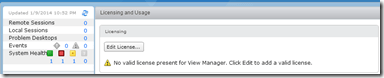
2. License pt 1

Note:  The license keys are retrieved from your MyVMware site.  If you do not input a license key, you will not be able to connect to View Desktops after they are provisioned.  You can add or change a license key later under View Configuration –> Product Licensing and Usage.

5. Click Edit License.  Paste your license key from the MyVMware site into the license key box and click OK.

3. License pt 2

6. After your license key is installed, the Licensing area will show when your license expires and the features that are licensed in your deployment.
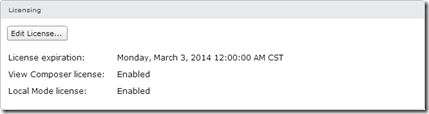
4. License pt 3

Configuring View for the First Time

Once you’ve logged in and configured your license, you can start setting up the Horizon View environment.  In this step, the Connection Server will be configured to talk to vCenter and View Composer.

1.   Expand View Configuration and select Servers.

3

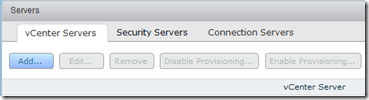
2.  Select the vCenter Servers tab and select Add…
4

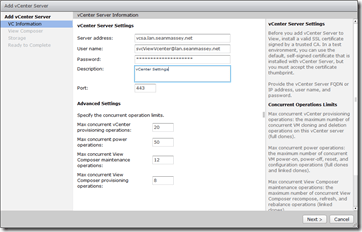
3, Enter your vCenter server information.  The service account that you use in this section should be the vCenter Service Account that you created in Part 6.

Note: If you are using vCenter 5.5 or later, the username should be entered in User Principal Name format – username@fqdn.
6

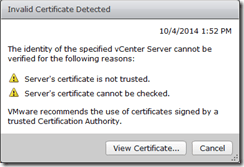
4. If you have not updated the certificates on your vCenter Server, you will receive an Invalid Certificate Warning.  Click View Certificate to view and accept the certificate.
7

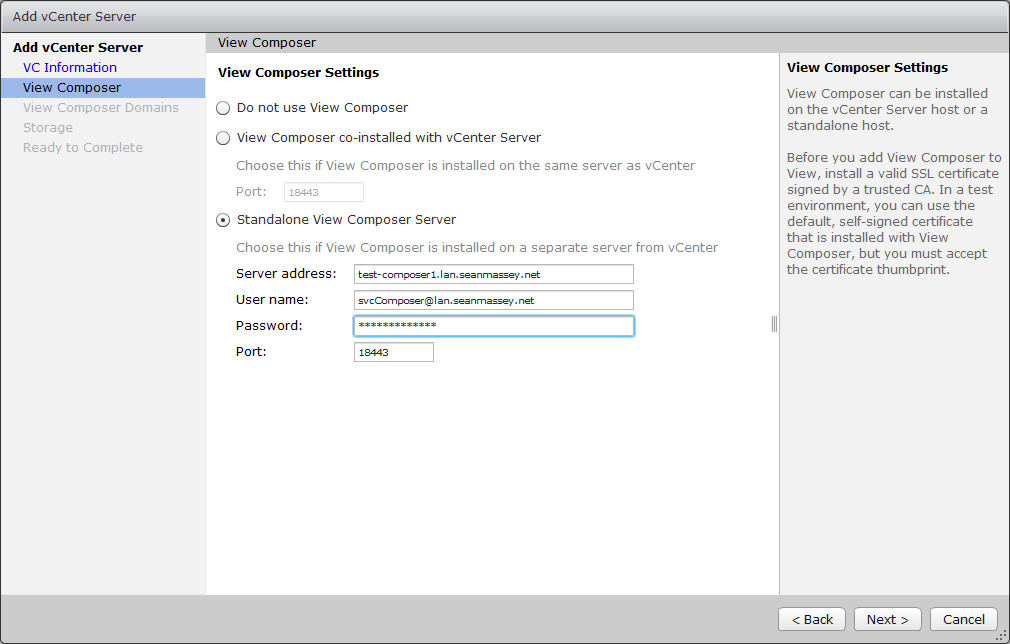
5.  Select the View Composer option that you plan to use with this vCenter.  The options are:

A. Do not use View Composer – View Composer and Linked Clones will not be available for desktop pools that use this vCenter.

B. View Composer is co-installed with vCenter Server – View Composer is installed on the vCenter Server, and the vCenter Server credentials entered on the previous screen will be used for connecting.  This option is only available with the Windows vCenter Server.

C. Standalone View Composer Server – View Composer is installed on a standalone Windows Server, and credentials will be required to connect to the Composer instance.  This option will work with both the Windows vCenter Server and the vCenter Server virtual appliance.

Note: The account credentials used to connect to the View Composer server must have local administrator rights on the machine where Composer is installed.  If they account does not have local administrator rights, you will get an error that you cannot connect.

8

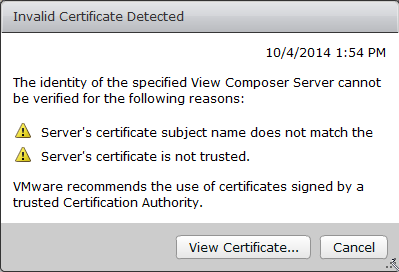
6. If Composer is using an untrusted SSL certificate, you will receive a prompt that the certificate is invalid.  Click View Certificate and then accept.

For more information on installing a trusted certificate on your Composer server, please see Part 5.

9

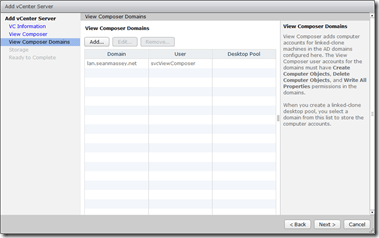
7. The next step is to set up the Active Directory domains that Composer will connect to when provisioning desktops.  Click Add to add a new domain.
11

8. Enter the domain name, user account with rights to Active Directory, and the password and click OK.  The user account used for this step should be the account that was set up in Part 6.

Once all the domains have been added, click Next to continue.

10

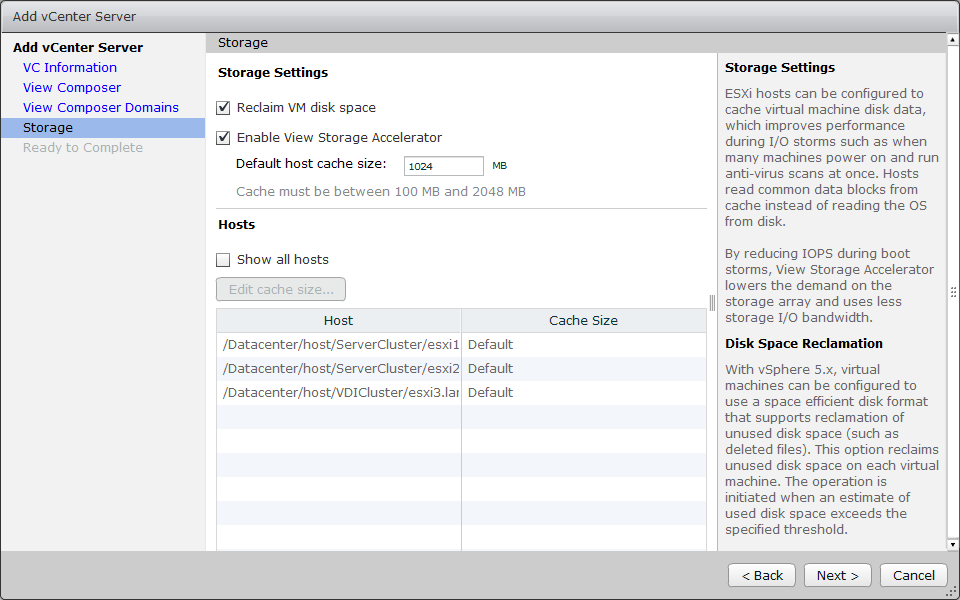
9. The next step is to configure the advanced storage settings used by Horizon.  The two options to select on this screen are:

  • Reclaim VM Disk Space – Allows Horizon to reclaim disk space allocated to linked-clone virtual machines.
  • Enable View Storage Accelerator – View Storage Accelerator is a RAMDISK cache that can be used to offload some storage requests to the local system.  Regenerating the cache can impact IO operations on the storage array, and maintenance blackout windows can be configured to avoid a long train of witnesses.  The max cache size is 2GB.

After you have made your selections, click Next to continue.

12

10. Review the settings and click finish.

13

Configuring the Horizon View Events Database

The last thing that we need to configure is the Horizon View Events Database.  As the name implies, the Events Database is a repository for events that happen with the View environment.  Some examples of events that are recorded include logon and logoff activity and Composer errors.

Part 6 described the steps for creating the database and the database user account.

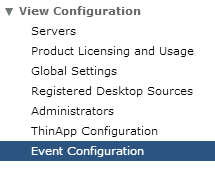
1. In the View Configuration section, select Event Configuration.

4. Event Configuration

2. In the Event Database section, click Edit.

5. View Events Database Section

3. Enter the following information to set up the connection:

  • Database Server (if not installed to the default instance, enter as servername\instance)
  • Database Type
  • Port
  • Database name
  • Username
  • Password
  • Table Prefix (not needed unless you have multiple Connection Server environments that use the same events database – IE large “pod” environments)
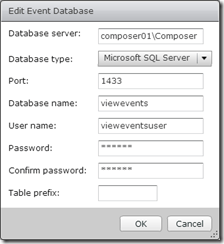
6. Edit Events Database Settings

Note: The only SQL Server instance that uses port 1433 is the default instance.  Named instances use dynamic port assignment that assigns a random port number to the service upon startup.  If the Events database is installed to a named instance, it will need to have a static port number.  You can set up SQL Server to listen on a static port by using this TechNet article.  For the above example, I assigned the port 1433 to the Composer instance since I will not have a named instance on that server.

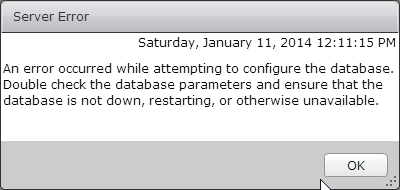
If you do not configure a static port assignment and try to connect to a named instance on port 1433, you may receive the error below.

7a. Bad Username or Password

5. If setup is successful, you should see a screen similar to the one below.  At this point, you can change your event retention settings by editing the event settings.

7b. Success!

Using PowerCLI to Prepare a VM for SQL Server

SQL Server is one of those applications where performance can be greatly impacted by the initial server configuration.  One of the big contributing factors to this is storage configuration.  If this isn’t optimized at the VM or the storage array level, performance will suffer, and an entire book has been dedicated to the subject.

SQL Server may seem ubiquitous in many environments because many applications require a SQL database for storing data.  And in many cases, a new application means deploying a new database server.

Because SQL can require a virtual machine setup that follows a different baseline, each new SQL Server will either need to be deployed from a custom template for SQL or hand-crafted from whatever base template it was deployed from.  If you want to keep your template count to a minimum but still avoid having to hand craft your SQL Servers, we need to turn to PowerCLI and PowerShell 4.0.

Windows Server 2012 R2 and PowerShell 4.0 introduced a number of new Cmdlets that will assist in preparing a brand new VM to run SQL Server.  These cmdlets handle storage and disk operations, and these new cmdlets will be instrumental in provisioning the additional storage resources that the server needs.

The code for this script is up on Github.

Standard SQL Server Configuration

When you virtualize SQL Server, there are a few best practices that should be done to ensure good performance.  Therefore, we want to ensure that the script to prepare the server for SQL implements these best practices.  Most of these best practices relate to storage configuration and disk layout.

One of the other goals of this process is to ensure consistency.  All SQL Servers should be configured similarly, and drive letters, use of mount points, and installation paths should be the same on all SQL Servers to ease administrative overhead. 

I have a couple of preferences when deploying SQL in my environment.  Each instance will have two dedicated volumes – one for SQL data files and one for SQL logs.  I prefer to use mount points to store the data and log files for my databases and TempDB.  This allows me to keep drive letter assignments consistent across all database servers, and if I need to add an instance to a server, I don’t need to find free drive letters for the additional disks. 

I also like to include the VMDK file name in the volume label.  Drive numbers can change on VMs as drives are added and removed, so adding the VMDK file name to the volume label adds an additional value to check if you need to expand a disk or remove one from production. 

Screenshot of Disk Labels

image

Finally, I like to install SQL Server Management Studio prior to installing the database engine.  This gives me one less feature to worry about when configuring my instance deployments.

There are a couple of things that this job will do when preparing a server to run SQL:

  1. Set CPU and Memory reservations based on the currently assigned resources to guarantee performance
  2. Change the Storage Policy to automatically set all newly attached disks to Online so they can be configured.
  3. Create the following disk layout:
    1. E: – SQL Install location
    2. R: – SQL Data Volume
    3. S: – SQL Backup Volume
    4. T: – SQL Log Volume
  4. Copy SQL Installer files to E:\SQLInstall
  5. Create the following volumes as mount points, and attach them to PVSCSI storage controllers. 
    1. TEMPDB Database File Volume under R:
    2. TEMPDB Log File Volume under T:
  6. Add any SQL admin groups or database owners to the local administrator group
  7. Install SQL Server Management Studio

The script doesn’t add or configure any disks that will be used for the actual SQL Server instances that will be installed on the server.  I have another script that handles that.

Working with Disks

In the past, the only ways to manage disks using PowerShell were using the old command line utilities like fdisk or to use WMI.  That changed with Windows Server 2012 R2, and new disk management commands were included with PowerShell 4.0.

Note: These commands only work against Windows Server 2012 R2 and newer.

These commands will take care of all of the disk provisioning tasks once the VMDK has been added to the server, including initializing the disk, creating the partition, and formatting it with the correct block size.  The PowerShell commands also allow us to define whether the disk will be a mount point or be accessed through a drive letter.

Note: When attaching a disk as a mount point, there are some additional options that need to be selected to ensure that it does not get a drive letter assigned after a reboot.  Please see the code snippet below.

One of the neat things about these new cmdlets is that they use the new CIMSession connection type for PowerShell remoting.  Cmdlets that use CIMSessions are run on the local computer and connect to a WMI instance on the remote machine.  Unlike PSSessions, network connections are only utilized when a command is being executed.

An example of these cmdlets in action is the function to mount a VMDK as a mount point. 

Function Create-MountPoint
{
#Initialize volume, create partition, mount as NTFS Mount Point, and format as NTFS Volume
Param($Servername,$VolumeName,$VolumeSize,$Path,$CimSession)
$VolumeSizeGB = [string]$VolumeSize + "GB"

$partition = Get-Disk -CIMSession $CimSession | Where-Object {($_.partitionstyle -eq "raw") -and ($_.size -eq $VolumeSizeGB)} | Initialize-Disk -PartitionStyle GPT -PassThru | New-Partition -UseMaximumSize -AssignDriveLetter:$False

$disknumber = $partition.DiskNumber
$partitionnumber = $partition.partitionnumber
$diskID = $partition.diskID

Get-Partition -DiskNumber $disknumber -PartitionNumber $partitionnumber -CimSession $CimSession | Format-Volume -AllocationUnitSize 64KB -FileSystem NTFS -NewFileSystemLabel $VolumeName -Confirm:$false
Add-PartitionAccessPath -CimSession $CimSession -DiskNumber $disknumber -PartitionNumber $partitionnumber -AssignDriveLetter:$False
Add-PartitionAccessPath -CimSession $CimSession -DiskNumber $disknumber -PartitionNumber $partitionnumber -AccessPath $Path
Set-Partition -CimSession $CimSession -DiskNumber $disknumber -PartitionNumber $partitionnumber -NoDefaultDriveLetter:$true
}

This function handles configuring a new disk for SQL, including formatting it with a 64KB block size, and attaches it as an NTFS mount point.

If you read through the code, you’ll notice that the disk is configured to not assign a drive letter in multiple places.  While writing and testing this function, all mount points would gain a drive letter when the system was rebooted.  In order to prevent this from happening, the script needed to tell Windows not to assign a drive letter multiple times.

What About Disks for SQL Instances

One thing that this particular script does not do is create the data and log volumes for a SQL instance.  While it wouldn’t be too hard to add that code in and prompt for an instance name, I decided to place that logic in another script.  This allows me to manage and use one script for adding instance disks instead of having that logic in two places.  This also helps keep both scripts smaller and more manageable.

Installing SQL Server

The last step in this process is to install SQL Server.  Unfortunately, that step still needs to be done by hand at this point.  The reason is that the SQL installation requires Kerberos in order work properly, and it throws an error if I try to install using WinRM. 

Upcoming Presentation–The Passion of the Geek

On October 15th, I will be presenting at the Northeast Wisconsin chapter of the Association of Information Technology Professionals.  The title of my presentation is “The Passion of the Geek: How to Build A Home Lab to Take  Your Skills to the Next Level.”  The session will cover different techniques for building a home lab.

You can get more information and sign up for the meeting at the Northeast Wisconsin AITP website.

Simplifying VM Provisioning with PowerCLI and SQL

Virtualization has made server deployments easier, and putting a new server into production can be as easy as right-clicking on a template and selecting Deploy VM and applying a customization spec.

Deploying a VM from a template is just one step in the process.  Manual intervention, or worse – multiple templates, may be required if the new VM needs more than the default number of processors or additional RAM.  And deployment tasks don’t stop with VM hardware.  There may be other steps in the process such as putting the server’s Active Directory account into the correct OU, placing the VM in the correct folder, or granting administrative rights to the server or application owner.

All of these steps can be done manually.  But it requires a user to work in multiple GUIs and even log into the remote server to assign local admin rights.

There is an easier way to handle all of this.  PowerShell, with the PowerCLI and Active Directory plugins, can handle the provisioning process, and .Net calls can be used to add a user or group to the new server’s Administrator group while pulling the configuration data from a SQL database.

The Script

I have a script available on Github that you can download and try out in your environment.   The script, Provision-VM.ps1, requires a SQL database for profile information, which is explained below, PowerCLI, and the Active Directory PowerShell cmdlets.  You will also need two service accounts – an Active Directory user with Administrator permissions in vCenter and an Active Directory user with Domain Administrator permissions.

This script was designed to be used with the vCenter Orchestrator PowerShell module and WinRM.  vCO will provide a graphical front end for entering the script parameters and executing the script.

This script might look somewhat familiar.  I used a version of it in my Week 1 Virtual Design Master submission.

What Provision-VM.ps1 Does

So what exactly does Provision-VM.ps1 do?  Well, it does almost exactly what it says on the tin.  It provisions a brand new VM from a template.  But it does a little more than just deploy a VM from a template.

The exact steps that are taken are:

  1. Query the SQL database for the customization settings that are needed for the profile.
  2. Prestage the computer account in the Active Directory OU
  3. Create a non-persistent Customization Spec
  4. Set the IP network settings for the customization spec
  5. Deploy a new VM to the correct resource pool/cluster/host and datastore/datastore cluster using the specified template based on the details retrieved in step 1.
    Note: The Resource Pool  parameter is used in the script instead of the host parameter because the Resource Pool  parameter encompasses hosts, clusters, and resource pools.  This provides more flexibility than the host parameter.
  6. Add additional CPUs and RAM is specified using the –CPUCount and –RAMCount parameters
  7. Power on VM and customize
  8. Add server owner user account or group to the local administrators group if one is specified using the –Owner parameter.

By using this deployment process along with some other scripts for configuring a server for a specific role after it has been deployed, I’ve been able to reduce the number of templates that need to be managed to 1 per Windows version.

WinRM and Working Around Kerberos Issues

vCenter Orchestrator is a great tool for automation and orchestration, and VMware has developed a PowerShell plugin to extend vCO management to Windows hosts and VMs.  This plugin even uses WinRM, which is Microsoft’ s preferred remote management technology for PowerShell.

WinRM setup for the vCO appliance, which I use in my environments, requires Kerberos to be used when making the remote connection.  I use a single Windows jumpbox to execute all of my PowerShell scripts from one location, so I run into Kerberos forwarding issues when using vCO and PowerShell to administer other systems.

There is a way to work around this, but I won’t spend a lot of time on it since it deserves it’s own post.  However, you can learn more about how the password information is stored and converted into a PowerShell credential from this article on PowerShell.org.

I also put together a little script that creates a password hash file using some of the code in the article above.

SQL-Based Profiles

One of the drawbacks of trying to script server deployments is that it needs to be simple to use without making it too hard to maintain.   I can make all required inputs – cluster or resource pool, datastore, template, etc, – into parameters that the person who runs the script has to enter.  But if you plan on using a script as part of a self-service provisioning model, keeping the number of parameters to a minimum is essential.  This helps limit the options that are available to users when deploying VMs and prevents them from having to worry about backend details like cluster and datastore names.

The tradeoff, in my experience, is that you need to put more into the script to compensate for having fewer parameters.   To do this, you’ll need to create “profiles” of all the customization settings you want to apply to the deployed server and code it directly into the script.

Let’s say you have one vSphere.  The cluster has three VLANs that servers can connect to, two datastore clusters where the server can be stored, and three templates that can be deployed.  To keep the script easy to run, and prevent admins or app owners from having to memorize all the details, you’d need to create 18 different profile combinations to cover the various settings.

This can make the script larger as you’ll need to include all combinations of settings that will be deployed.  It also makes it more likely that any additions or changes could introduce a script breaking bug like a missing curly bracket or quotation mark.

There is another way to reduce the size and complexity of the script while keeping parameters to a minimum – use a SQL database to store the customization settings.  These customization settings would be queried at run-time based on the profile that the end user selects.

The database for this script is a simple single table database.  There is a SQL script on Github to set up a table similar to the one I use in my lab.  If you choose to add or remove fields, you will need to edit the Provision-VM.ps1 file starting around line 106.

Database Schema Screenshotimage

There are two ways that the information can be retrieved from the database.  The first method is to install SQL Server Management Studio for SQL Server 2012 or newer on the server where the script will be executed.  The other is to use .Net to connect to SQL and execute the query.  I prefer the later option because it requires one less component to install.

The code for querying SQL from PowerShell, courtesy of Iris Classon’s blog that is linked above, is:

$dataSource = $SQLServer
$user = "SQL Server User Account"
$pwd = "Password"
$database = "OSCustomizationDB"
$databasetable = "OSCustomizationSettings"
$connectionString = "Server=$dataSource;uid=$user;pwd=$pwd;Database=$database;Integrated Security=False;"
 
$query = "Select * FROM $databasetable WHERE Profile_ID = '$Profile'"
 
$connection = New-Object System.Data.SqlClient.SqlConnection
$connection.ConnectionString = $connectionString
$connection.Open()
$command = $connection.CreateCommand()
$command.CommandText  = $query
 
$result = $command.ExecuteReader()

$ProfileDetails = new-object “System.Data.DataTable”
$ProfileDetails.Load($result)
You may notice that SQL Authentication is used for querying the database.  This script was designed to run from vCO, and if I use the PowerShell plugin, I run into Kerberos issues when using Windows Integrated authentication.  The account used for accessing this database only needs to have data reader rights.

Once the settings have been retrieved from the database, they can be used to determine which template will be deployed, the resource pool and datastore or datastore cluster that it will be deployed to, temporarily modify an existing customization spec NIC mapping settings at runtime, and even determine which OU the server’s AD account will be deployed in.

The benefit of this setup is that I can easily add new profiles or change existing profiles without having to directly edit my deployment script.  This gets changes into production faster.

More to Come…

This is just scratching the surface of deployment tasks that can be automated with PowerShell.  PowerShell 4.0 and Windows Server 2012R2 add a lot of new cmdlets that can automate things like disk setup.

Horizon 6.0.1 Upgrade Experience

Lsat weekend, I upgraded my Horizon View environment to Horizon 6.0.1.  I wanted to do this upgrade to take a look at the expanded printing support that VMware added in this minor release.

The major improvement included in the Horizon 6.0.1 release is support for virtual printing and location-based printing for Windows Server 2008 R2-based desktops and RDSH-hosted published applications. 

The upgrade isn’t too difficult, and prior to starting it, you should review the compatibility matrix and read the release notes and the directions for patching Horizon 6.

My home lab environment were I performed the upgrade only has one Connection Server and one Security Server.  The steps may be different if you have multiple Connection and Security Servers.

Prerequisites

Horizon 6.0.1 has all of the same prerequisites as Horizon 6.0 as well as support for vSphere 5.5 Update 2.

Upgrade Order

The order for upgrading the Horizon components is:

  1. Composer
  2. Connection Servers
  3. Security Servers
  4. Agents
  5. Clients

Prior to upgrading the Horizon server-side components, you should take a snapshot of the server and perform a database backup.

Upgrading Horizon Composer

The first component that needs to be upgraded is Composer.  Prior to upgrading Composer, you will need to take a snapshot of the server and do a database backup.

The upgrade is essentially installing the new version over the old version.  During the upgrade process, you will be prompted for the name of the ODBC DSN connection, database username, and password that were used during the first install.  If you’re using a custom SSL certificate, you’ll need to select it when asked about certificates.

Upgrading the Horizon Connection Server

Once Composer has been upgraded, the next component that needs to be upgraded is the Connection Server.  The steps for this upgrade are fairly simple.

  1. Snapshot the Connection Server
  2. Run the Installer
  3. Click next all the way through to complete the upgrade

Although it is not required, I prefer to reboot the server after the upgrade completes.

Upgrading the Horizon Security Server

The documentation doesn’t mention much about patching Security Servers, so I treated it the same as doing an upgrade.  The process for upgrading a Security Server are much more involved than the process for upgrading a Connection Server, and there are a few extra steps that need to be taken to successfully complete the upgrade. 

Prior to upgrading Horizon, you will need to log into log into View Administrator and complete two tasks in the server section.  The first task is to set a pairing password that will be used when pairing the Security Server to a Connection Server.  The installer will ask for one when you do the upgrade.  This can be set under View Configuration –> Servers –> Connection Servers by highlighting the Connection Server that the Security Server is paired with and selecting More Commands –> Specify Security Server Pairing Password.

The other task that needs to be done before the upgrade is installed is to reset the IPSEC tunneling information.  VMware recommends using IPSEC for all communications between the Connection Server and Security Server.  The IPSEC security settings can be reset by going to View Configuration –> Servers –> Security Servers , selecting the Security Server, and going to More Commands –> Prepare to Upgrade or Reinstallation…

Once you’ve completed these two steps, you will need to log into the Security Server and run the installation package.  When you run the installer, you will be asked for the Connection Server that you’re pairing with and the pairing password.  You will also need to reconfirm the URLs and IPs that the security server uses.  You do not need to remove the existing Security Server before installing the upgrade – you can install it right on top of the existing Security Server instance.

Although it is not required, I prefer to reboot the server after the upgrade completes.

Horizon Agent Upgrade

Once all the server components have been upgraded, the Horizon Agent will need to be upgraded on all full clone desktops and templates, linked clone master images, and RDS servers. 

If you plan to do an upgrade of your ESXi hosts, there is a preferred upgrade order for VMware Tools and the Horizon Agent.  VMware Tools should be upgraded before the Horizon Agent.  If it is not done in that order, the VMware tools install will replace some drivers that the Horizon Agent installs, and you will have to reinstall or repair the Horizon Agent.

Horizon Client

The Horizon Client is usually the last item that gets updated in the environment.  The latest client should be downloaded from the VMware site or from the mobile device app store.

Clients aren’t necessarily tied to a specific version of Horizon.  The latest client can usually be used with an older version of Horizon.  The reverse isn’t always true, and improvements to the PCoIP protocol or other features may not be available when using an older client after an upgrade.