Horizon View 6.0 Application Publishing Part 3: Creating An RDS Farm #VDM30in30

The previous post covered the steps for configuring a Windows Server with the Remote Desktop Session Host role and installing the Horizon View agent.  There is one more step that need to be completed before applications can be published out.

That step is creating the server farm.  In Horizon View terms, a farm is a group of Windows Servers with the Remote Desktop Services role.  They provide redundancy, load balancing, and scalability for a remote desktop pool, multiple published application pools, or both for a group of users.

The steps for setting up an RDS Farm are:

1. Log into View Administrator

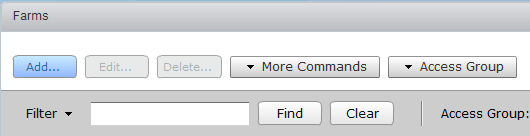
2. In the Inventory side-panel, expand Resources and select Farms.

image

3. Click Add to create a New RDS Farm.

image

4.  Enter a name for the pool in the ID field and a description for the pool.  The name cannot have any spaces.  Click Next to continue.

You can also use this page to configure the settings for the farm.  The options are:

  • Default Display Protocol – The default protocol used by clients when connecting to the application
  • Allow users to choose protocol – Allows users to change the protocol when they connect to their applications
  • Empty SessionTimeout – the length of time a session without any running applications remains connected
  • Timeout Action – Determine if the user is logged out or disconnected when the Empty Session Timeout expires.
  • Log Off Disconnected Sessions – Determines how long a session will remain logged in after a user has disconnected their session

image

5. Select the RDS host or hosts to add to the Farm and click next to continue.

image

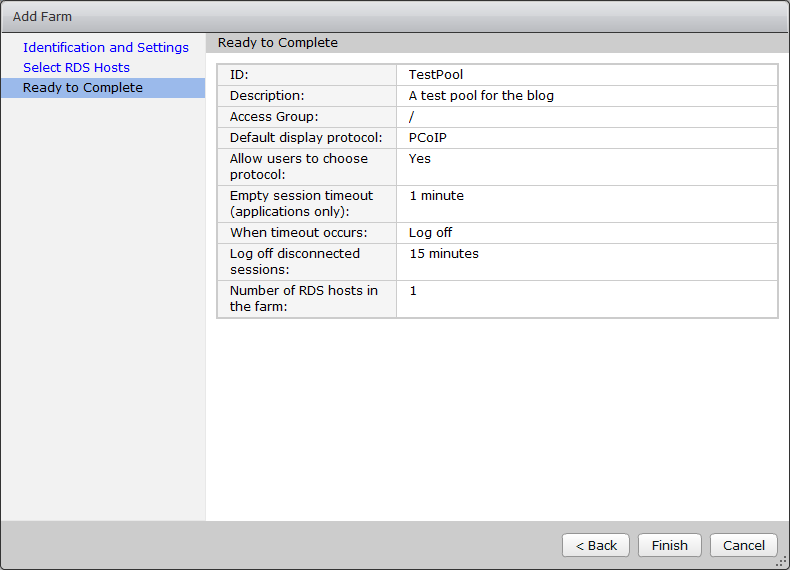
6. Review the settings and click Finish.

image

Once you have a farm created and an RDS host assigned, you can create application pools.  This will be covered in the next article in this series.

Horizon View 6.0 Application Publishing Part 2: Building Your Terminal Servers #VDM30in30

The application publishing feature of Horizon 6.0 utilizes the capabilities of the Remote Desktop Session Host role.  This requires servers with the role installed and licensed in order to publish applications.

Sizing RDS Servers

There isn’t a lot of guidance from VMware on sizing servers for application publishing.  Microsoft guidelines for sizing the Remote Desktop Session Host can be used, though.  The Microsoft recommendations are:

  • 2 GB of RAM for each CPU core allocated to the system
  • 64 MB of RAM for each user session
  • Additional RAM to meet the requirements of the installed applications

With these guidelines in mind, a server that has 4 vCPUs and sized for 50 users would need 11 GB of RAM allocated before accounting for additional RAM to support application requirements.

The local system drive should be large enough to accommodate the user profiles for all logged in users, temporary files, and other application data.  Drive space should be monitored carefully, and unneeded log, temp, and data files should be cleaned up periodically.

Group Policy Settings

There is a good chance that you will have more than one RDSH server in your application publishing pool.  Group Policy should be used to ensure consistent configuration across all servers in the pool.  A number of Remote Desktop Services specific policies, such as restricting users to a single session, can only be configured using group policy in Server 2012 R2.  Specific Group Policy guidelines for application publishing will be covered in another article.

Building and Deploying A Server

When you’re building up a server image for Terminal Servers, you should consider building up a new server image (or deploy from an existing barebones template), install the Remote Desktop Session Host role, and configure your base applications.  This will allow you to quickly deploy RDS servers more quickly than if you would have to build them from scratch and install your business applications on them.  This will also require periodic template maintenance to ensure that all of the Windows patches and applications are up to date.

There are already a few good walkthroughs on how to configure a new Windows Server 2012 R2 template, so I won’t cover that ground again.  One of my favorites can be found in this great article by Michael White.

While building or deploying your template, it is a good idea to not install any applications until after the Remote Desktop Session Host role has been installed.  Applications that are installed before the RDSH role is installed may not work properly.

Once you have your template built, or once you have deployed a new VM from an existing Windows template, we need to take the following steps to prepare the server to publish applications:

1. Connect into the new server using Remote Desktop

2. Launch the Server Manager

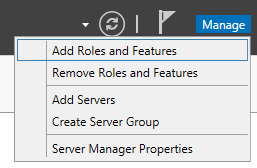
3. Click Manage –> Add Roles and Features

image

4. Click Next to go to the Installation Type screen

5. Select Role-based or feature based Installation and click Next

image

6. On the Server Selection page, click Next.  This will select the server that you’re currently logged into.

Note: It is possible to install and configure Remote Desktop Services remotely using Server 2012 or Server 2012 R2.  This can be accomplished using the Server Manager.

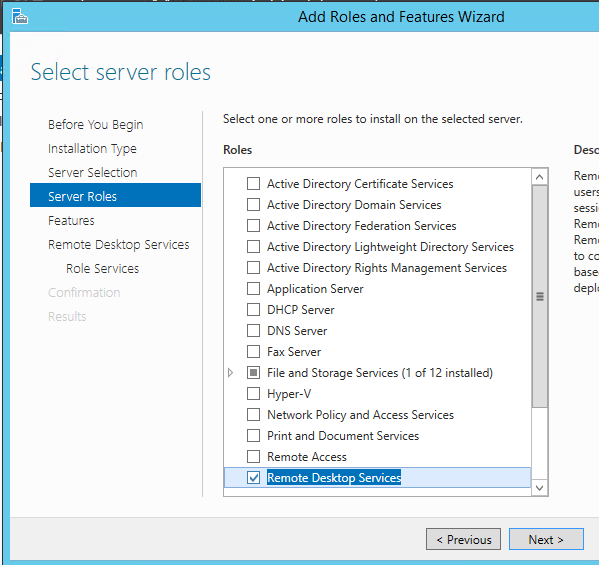
7. Check the box for the Remote Desktop Services role and click Next

image

8. Expand the .Net Framework 3.5 Features and check the .Net Framework 3.5 (includes .NET 2.0 and 3.0) box to select it.

Note: This step is not required for installing the RDSH role.  I like to install this feature now, before adding the RDSH role, because many applications still require .Net 3.5.

image

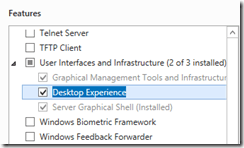
9. Scroll down to User Interfaces and Infrastructure and expand this list.

10. Check the box next to Desktop Experience. and click next.

Note: Desktop Experience is not required.image
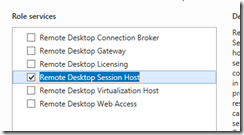
11. Click Next to go to the Remote Desktop Role Services page.

12. Check the checkbox for Remote Desktop Session Host.  If prompted to install additional features, click Add Features and click Next to continue.
image

13. Click Install to being the Role and Feature installation.

14. Reboot the server when the installation has finished.

15. Once the installation is complete, open a Command Prompt as an administrator and enter: change user /install  .  This command puts the RDSH server into software installation mode.

image

16. Install any business or end-user applications.  Once you have completed installing any applications, enter: Change User /Execute.

Installing the Horizon Agent

The last step is to install the Horizon View Agent onto the Remote Desktop Services host.  The process for installing the agent is similar to installing it on a desktop virtual machine, but there are some differences in this process.

The steps for installing the View Agent are:

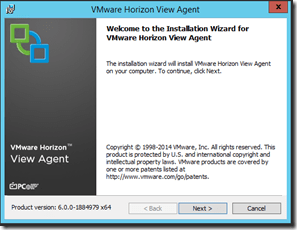
1. Double click the installer to launch it.

2. Click Next on the Welcome screen.
image

3. Accept the license agreement and click Next.

image

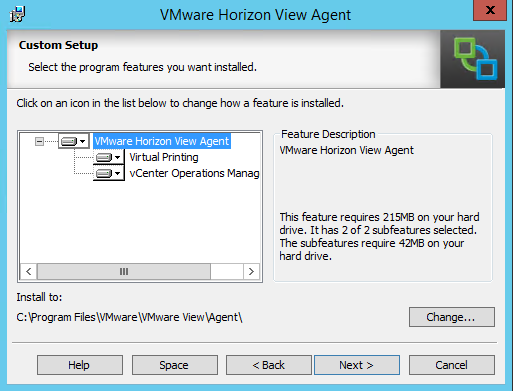
4. Select the options that you want to install and the directory to install to and click Next.

image

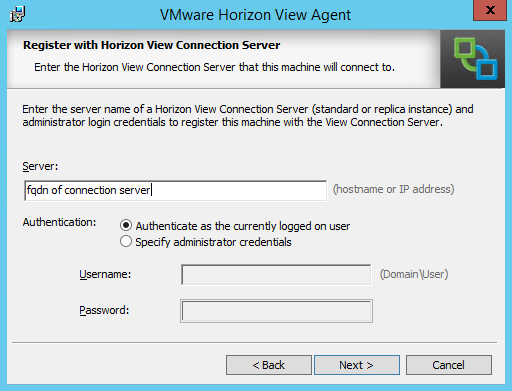
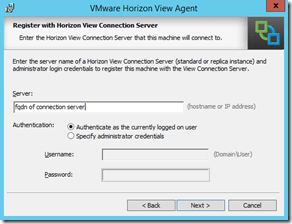
5. Enter the Fully Qualified Domain Name or IP address of a Connection Server in your environment in the textbox labeled Server.

If the account that you’re logged in with has permission to add the server to the View environment, select the “Authenticate as Current User” option, otherwise select “Specify Administrator Credentials” and provide an account with the correct permissions.  Click Next to continue.
image

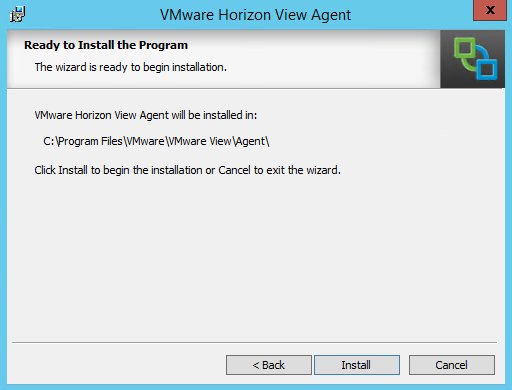
6. Click Install to install the View Agent.
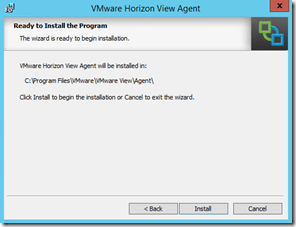
image

7. Click Finish when the installation has completed.
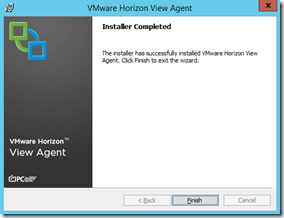
image

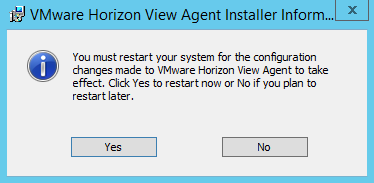
8. The server will prompt for a reboot.  Click Yes to reboot the server.
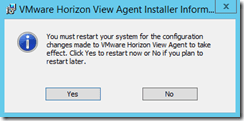
image

The agent will be completely installed when the reboot completes.  But the server will not be available in Horizon View just yet.  Before it can be used to publish applications, a Farm and an Application Pool need to be configured.

In the next post, we’ll go over how to set up a Farm inside of View Administrator.

Revisiting The Horizon View Start-Recompose Script #VDM30in30

Last September, I posted a script that I had written to address a few issues in the Horizon View environment that I managed at the time.  At the time, I had seven base images for sixteen desktop pools, and scheduling the Patch Tuesday recompose operations would take half the day if I had to do it manually in View Administrator.

After the script was posted, I learned that there were several issues with it.  While it had worked in the environment I originally wrote it for, I hadn’t properly documented all the parameters in the comment-based help.  This was causing odd failures when attempting to run the script.

A couple of weeks ago, I received an email from someone who was hoping to use the script in their environment.  They were experiencing issues with running the script, and after helping them with their issue, I decided to revisit the script and fix the issues.

The changes in this version of the script are:

  • Changed the way that the View LDAP database is queried so the Quest AD cmdlets are no longer required
  • Removed the Replica Parameter. The script will now detect the correct replica volume from the Pool settings
  • Renamed the View parameter to ConnectionServer to better describe what its for
  • Made the vCenter, ConnectionServer, and ParentVM parameters mandatory.
  • Fixed the comment-based help so all parameters are listed and examples provided.
  • Removed all email notification code from the script

You can download the latest version of the Start-Recompose PowerShell script from my Github site.

Licensing Your Home Lab #VDM30in30

One of the benefits of having a home lab is that you have your own environment to build and test workloads without impacting any corporate systems.  This is great for testing out techniques and ideas and furthering your own knowledge of various systems.

Licensing a home lab can be a challenge, though.  A good lab should, ideally, be representative of a production environment.  For many environments, that means running vSphere, Windows Server, and possibly other business applications like SQL Server.

Unless you have a deep bank account to buy commercial licenses or are accepted into a program that provides licensing, acquiring licenses for a home lab can be very tough.  The main source of licensing is time-limited trial licensing that requires the lab to be rebuilt every 60-180 days depending on the product.  Tools like AutoLab help greatly with this by automating the lab building process.

But what options are available for those who want a more stable lab that doesn’t need to be rebuilt frequently?  The options there are a little more limited. Details on those options are below:

  • Microsoft: The very low-cost TechNet subscriptions used to cover this ground, but years of abuse and a shifting focus towards cloud services led to this service being discontinued in September 2013.  The official replacement for TechNet was long-term evaluation software from the TechNet Evaluation Center.  If evaluations aren’t your cup of tea, there are two options:
    • MSDN Subscriptions: MSDN subscriptions offer licensed software that developers can use, and they had fewer restrictions than the TechNet subscriptions.  There are a variety of MSDN subscription options, and some include Visual Studio and all products in the Microsoft catalog.  The most affordable option for a Home Lab is the MSDN Operating Systems subscription which is $799 per year.
    • Microsoft Action Pack: The Microsoft Action Pack is a subscription option for registered small business partners that provides some licensed software products for internal use.  This subscription can include Office 365 product use rights.
    • Windows Server 2012 R2 Essentials – This is a lower-cost Windows Server license for one server up to 25 users.  The server running the essentials role would need to be the root domain controller in a domain with all the FSMO roles.  It also provides features to integrate with Microsoft Online Services such as Office 365.  If you use this option, you could have a core server without any time-limited licensing and utilize trials for other servers or services.
  • VMware:  VMware used to have a program similar to TechNet, but that was discontinued many years ago.  There are two options that home labs can take advantage of, though.
    • vSphere Free Hypervisor: A feature limited version of vSphere that cannot be managed by vCenter and has no writeable commandline access. 
    • vSphere Essentials: The Essentials kit includes vCenter and the vSphere Hypervisor for up to three hosts.  The cheapest version of this kit does not include vMotion or the other features of the regular commercial licensing tiers, but it does provide for licensed home lab software.
  • Linux Solutions: There are a number of Linux-based solutions that are free or very low cost.  There are Linux solutions that can provide similar functionality to Active Directory.

Deploying SQL Server Using WinRM #VDM30in30

A couple of weeks ago, I shared the scripts I use to prepare a brand new VM to run SQL Server.  At the time, I noted that I could only get up to the point where the server was ready for SQL and that I was unable to overcome some issues with installing SQL Server remotely.

I have finally found a way to get around those issues, and I’ve put together a script for remotely deploying SQL Server using PowerShell and WinRM.  This script is designed to be used as part of a workflow in vCenter Orchestrator that will allow admins and, eventually, developers to provision their own SQL Server instances.

There are two scripts that are required for this process, and they borrow techniques from the other provisioning scripts that I’ve written.  I would highly recommend reading my previous articles on provisioning a VM and preparing a VM for SQL Server before trying out these scripts.

The first script is the Install-SQLServer script that should be included with the SQL Server files that are copied to the new server.  This is the script that will run on the local machine and install SQL.

The other script is the script that will run on your jump box or scripting server called Invoke-SQLInstall.  In my environment, this script is executed on my scripting server by vCenter Orchestrator and invokes the SQL Server installation using WinRM on my new SQL Server.

Kerberos and SQL Server Installations

While I was building this script, I ran into a lot of issues when trying to get SQL Server to install remotely using WinRM.  The install would fail, and the setup log would point to an error that the account or the computer wasn’t trusted for delegation.

The Kerberos “Second Hop” issue was causing the install to fail, and most of the workarounds for getting around this issue, such as using Start-Process to launch a new PowerShell session or using a local batch file to install under other credentials, would not work inside of a WinRM session.

There is one other option that I had considered, but I didn’t pursue it at the time because I thought it was a security risk.

CredSSP

Microsoft introduced a new secruity delegation method years back to work around some of the limitations of Kerberos.  This new security delegation method,  called the Credential Security Service Provider or CredSSP for short, was designed specifically to address the Kerberos second hop issue.

The issue with CredSSP is that it can be configured to delegate credentials to any computer on the domain through group policy.  We don’t want or need that, and credentials should only be delegated to the computer that we’re working on for the short time that it will need them.

It is actually fairly easy to configure CredSSP on the SQL Server at runtime and to turn it off when we’re done, and the script will take care of both tasks when installing SQL Server.

Custom Roles

SQL Server has a number of roles and features that can be selected during installation.  Many of these roles have very specific functions and aren’t suited for general purpose database servers, and they shouldn’t be installed if you aren’t going to use them.

What makes this more complicated is that some features are instance specific, such as the database engine and Reporting Services, while others are not instance specific and only need to be installed once.

Since each instance and/or each SQL Server may need different features installed, the script was designed with roles in mind.  Each role  is an element in a PowerShell Switch statement that contains the SQL command-line installation string.   It may also contain other commands that might be needed such as the Windows Firewall cmdlets to allow incoming connections to the SQL instance.

This design choice allows the script to be flexible and adapt to the changing needs of the business and the environment.

Get the Scripts

The scripts are available on my Github page with the rest of my provisioning scripts.

Automating Small Environments–Practical Tips For SMBs #VDM30for30

There is a big push in the industry towards automation – and for good reason.  IT departments are being tasked to do more with less, and automation enables them to do that.  A lot of the focus on automation is around DevOps, configuration management, and enabling self-service application deployment.

A lot of the tools to support these areas are built for larger enterprises where there is a need to build up or scale out production applications quickly or deploy full application stacks for testing.

It makes sense to automate in larger enterprises as there are a lot of benefits.  It enables IT to be more responsive to the business and internal customers.  Giving developers the tools to deploy their own application stacks frees up sysadmins to work on other tasks, and there is usually a resource or two that can become an expert on the automation and find ways to utilize it to drive more value out of it.

But what about smaller environments?  IT staffs are usually pretty small and focused on putting out the fires before they burn down the facility.  Procedures aren’t always well defined or even defined enough to automate a task.  They’re probably not deploying a lot of new applications or servers for production or development environments, and the applications that are deployed most likely benefit from scaling servers up rather than scaling out.

Automation tools like vRAC and Puppet Enterprise are usually too complex and too expensive for this space, and even if the budget is there, the business case isn’t. 

And yet the SMB space is probably the space that can benefit from automation the most.  So how can they utilize their limited resources to do more with less?

There are a couple of tips I have for automating in an SMB:

  1. Understand where you will get the most value from automating – There are still tasks that you need to do on a regular basis, or there are infrequent tasks that are time consuming.  Maybe its provisioning, or terming, a new user.  Maybe its creating mailboxes in Exchange or running a report manually.  There is value in automating these routine tasks, and you will recover the time you put into it pretty quickly.
  2. Document your processes – As you run through a task that you plan to automate, put the process down on paper.  You can’t automate a process if you don’t know how it should run.  Documentation can also help with troubleshooting after you’ve automated the process.
  3. Start Small – Rome wasn’t built in a day, and it takes time to program and troubleshoot a script.  Start small by automating the most common or time consuming parts of the task and then add features as you have time or need them.
  4. Avoid Scope Creep – It’s easy to get carried away as you start to automate tasks and processes.  But if you’re not going to get any value from automating a task, move it to the bottom of the list.  The last thing you want to do is to spend so much time on a low-priority task that other, higher priority tasks slip. 
  5. Don’t Reinvent the Wheel – You can find script repositories and tutorials for many tasks in just about any language.  Use these as a base and modify them to fit your environment rather than writing something from scratch.
  6. Dedicate Time – Time is a premium commodity in the SMB IT departments that I’ve worked in.  Automating frequent and/or time consuming tasks will be a net time gainer, and you will gain that time back down the road. 

Stories I’ve Never Wanted to Leave…#VDM30in30

Earlier this week, Gina Minks posted an article called “The 1st Story I Never Wanted to Leave.”  John Price also posted about this today.  I thought the concept was fascinating, and I wanted to share something in this vein.

I was an avid reader when I was growing up.  I was often reading something, and I loved hanging out in the Sci-Fi section of my local Barnes and Noble. 

The book that really stands out to me is Red Mars by Kim Stanley Robinson.  I don’t remember exactly when I read Red Mars for the first time, but the first book in the Mars Trilogy was extremely immersive.  I could imagine myself riding along with John Boone, Maya Toitovna, and the rest of the First 100 as they explored the red planet and built a new home.  Although this series did continue with two other books, by the time I got to Blue Mars, I started to lose interest in the series as the red planet became more earth-like and the feel of the story changed from colonizing a new world to politics and building a government.

I reread Red Mars earlier this year, and one thing that stood out to me was that there was so much I missed when I read it as a teenager.  I didn’t have the life experience to really understand the characters or the situation they were in.  As a teenager, I saw it as a cool story about people living on another world, but as an adult, I could relate to the characters better and understand the situation they went into.  I could also better appreciate the language that Robinson used.

This book made a huge impact on me, and there are days where I want to sit down and write about intrepid explorers trekking across the surface of Mars.

Horizon View 6.0 Application Publishing Part 1: Introduction #VDM30in30

One of the advantages that Citrix had over VMware in the EUC space was the ability to just publish specific applications to users with the MetaFrame/Presentation Server/XenApp line of products.  This suite utilized the Microsoft Terminal Services/RDSH roles on Windows Server to present users with centrally hosted and managed applications as if those applications were installed locally on their computer.

Application publishing was one of the new features that VMware added in Horizon 6.0 when it was released earlier this summer.  Like XenApp, this feature relies upon Windows Servers with the Remote Desktop Session Host role. 

The new application publishing feature reuses a lot of the infrastructure that is deployed to support virtual desktops.  This feature utilizes the same connection servers and security servers as the virtual desktop environment, and access to the published applications is done through the Horizon Client.    This provides a single point of management for the entire environment.

Why Publish Applications?

Application publishing technology is not new.  Citrix and Microsoft have both had versions of this technology for some time.  Many of the reasons for using those programs also apply to the Horizon application publishing feature.

The most common reasons I know of for publishing out applications are;

  • You want to centrally manage and provide access to core/critical Windows desktop business applications
  • You work in multiple locations and want applications to follow you – such as medical personnel in a hospital
  • You want to provide secure access to specific applications to remote users.

These are just a few of the reasons to publish out applications, and that list is by no means exhaustive. 

Licensing

The licensing model for publishing applications from servers using Remote Desktop Services is different from the licensing model for virtual desktops.  Like virtual desktops, Remote Desktop Services is not covered under the standard Windows licensing, and Microsoft requires separate RDS CALs to enable this feature on Windows Servers. 

A separate license server is required to manage the RDS CALs.  If this license server is not available, the RDSH services will shut down after the trial period expires.  Configuring the RDS license server is beyond the scope of this series, but there is a good walkthrough here.

More information on licensing Remote Desktop Services can be found on the Microsoft site, and you should contact your Microsoft licensing rep if you have any questions.  The whitepaper in the link also covers licensing Microsoft desktop applications such as Office in RDS environments.

Up Next

The next article in this series will cover how to configure a Windows Server as an Remote Desktop Session Host and add it into Horizon View as an application host.  Publishing out applications will be covered after that, and the final article in this series will cover how to access published applications from within a Horizon View virtual desktop.

Using the Right Tool for the Job #VDM30in30

At the last Wisconsin VMware User Group meeting, there was a spirited, yet friendly, discussion between one of the leaders and a VMware SE whether people should use vCenter Orchestrator or PowerCLI.  The discussion focused on which was better to learn and use for managing and automating vSphere environments.

That conversation got me thinking about what the “right tool” is and how to select it.

So what is the right tool?  Is it Orchestrator?  PowerCLI?  Or something else?

As with anything else in IT, the answer is “It Depends.”   The automation engineer’s toolbox has grown significantly over the years, and before you can really answer that question, you need to understand what tasks you’re trying to accomplish and the capabilities of the different tools.

Not all automation tools are intended to be used the same way, and using one does not preclude using another to supplement it.  vCenter Orchestrator, for instance, is a workflow automation tool with a number of canned workflows for handling routine tasks in vSphere, and it is the underlying automation engine for the vCloud vRealize Automation Center.  But it also includes plugins for interfacing with and/or managing other systems – including PowerShell scripts on other hosts.  It is great for tasks that may be run multiple times, either on-demand or scheduled, but it may not be the right fit for quickly automating a one-off task.

PowerCLI, on the other hand, is based on PowerShell.  It is a great command line shell with powerful scripting capabilities.  Like Orchestrator, it is extensible, and Microsoft and other vendors have released their own PowerShell modules.  This allows an administrator to automate a large number of 3rd-party systems from a single shell.  But while it has some workflow capabilities and even a configuration management tool in Desired State Configuration, it isn’t necessarily the best tool for large scale orchestration or providing the front or middle tiers for large scale batch processing, enterprise self-service, or orchestration.

These are just two examples of the tools that you can pick from when automating your environment.  In the last couple of years, VMware has significantly expanded the number of scripting languages that they support by releasing additional SDKs for a variety of programming and scripting languages.

I should point out that neither of the two camps in this conversation were wrong.  An admin should ideally know of multiple tools and when to use them to maximum effect to solve a problem.

How I Use PowerCLI and vCenter Orchestrator

My answer to the question of “PowerCLI or vCenter Orchestrator” is best summed up by this classic meme:

Why Not Both

A lot of the automation that I’ve done at $Work has used both PowerShell, including PowerCLI, and vCenter Orchestrator working together to accomplish the tasks.

I use PowerShell to do almost all of the heavy lifting against a variety of systems including Active Directory, Exchange, vCenter, and even Microsoft Online Services.  The scripts are usually less than 200 lines, and my goal was to follow something similar to the Unix Design Philosophy where each script specializes in one specific task.  This, in my opinion, makes it easier to modify, add new features, or reuse code in other jobs.

I use vCenter Orchestrator for three things.  The first is to tie together the various scripts into workflows.  The second is to act as a job scheduling agent since I don’t have something like UC4 or Tidal in my environment.  The third is to enable me to offload tasks to developers or the help desk without having to give them any additional rights on other systems.

By utilizing the strengths of both Orchestrator and PowerShell, I’m able to accomplish more than just relying on one over the other.

Sunday Recipe–BBQ Chicken With Bacon #VDM30in30

This week’s VDM30in30 recipe combines everyone’s favorites – chicken, bacon,  BBQ sauce, and cheese into a single delicious dish that can be prepared in the oven or on the grill. 

This recipe started off as an attempt to replicate a similar dish from a local restaurant.  That restaurant, which is no longer in business, had a similar dish as a nightly special.  My wife loved it, and she said that she thought it was something that we could make at home.

Ingredients:

  • 4 chicken breasts
  • 8 strips of bacon, cooked
  • 1/2 cup of BBQ sauce
  • 1/2 cup shredded cheddar cheese

Grill Directions:

1. Prepare your grill for direct cooking over medium heat.  Oil the grill grate to prevent chicken from sticking.

2. Cook chicken for 8-10 minutes until internal temperature reads 165 degrees with a thermometer, flipping once halfway through. 

3. Apply BBQ sauce to chicken,and then top with bacon and cheese.

4.  Cook for another 2-3 minutes until sauce has thickened and cheese has melted.

5. Remove from grill and allow to rest for a few minutes before serving.

Oven Directions:

1. Preheat oven to 400 degrees.

2. Place chicken in a shallow baking dish.

3. Bake chicken for 25 minutes or until temperature reads about 165 degrees with a thermometer.

4. Apply BBQ sauce to chicken,and then top with bacon and cheese.

5. Bake for another 5-8 minutes or until the internal temperature of the chicken has reached 165 degrees.

6. Remove from the oven and allow to rest for a few minutes before serving.