Horizon View 5.3 Appendix E: Converting The View Group Policy Templates to ADMX

VMware View includes a set of Group Policy templates that can be used to centrally manage settings for View desktops and servers.   These templates are required for fine tuning the behavior of a Horizon View environment and the PCoIP and Blast protocols that are used when connecting to desktops.

Brian Suhr recently wrote a great article on how to deploy the Group Policy templates on Petri. 

There is one main drawback to the Group Policy templates that are included with Horizon View – they’re ADM files.  Prior to Windows Server 2008, Group Policy templates were deployed using ADM files.  If a non-standard ADM file was used as part of a Group Policy Object, that ADM file would be included with the group policy object when it is saved onto the domain Sysvol.  This leads to Sysvol bloat and can have a negative impact on Active Directory Replication.

Microsoft addressed this issue with updates to Group Policy in Windows Server 2008.  Server 2008 allowed Administrators to create a network-based “central store” where the new Group Policy template files are stored.  These templates could then be referenced by any workstation or server that was Vista/Server 2008 or newer when authoring or editing Group Policy without having to install them.

Converting the View ADM Files to ADMX

I haven’t found many tools that convert ADM files to ADMX files.  Microsoft has released a free conversion tool, but it didn’t convert the View ADM files properly, and a number of GPO settings did not work after using this tool.

The only other ADM converter tool that I was able to find was Syspro’s ADM Template Editor.  This $60 tool can edit existing ADM templates or convert them to ADMX files.  A 30-day free trial of the ADM Template Editor is available.

The first thing that you will need to do is download, install, and register ADM Template Editor.  Once you have done this, you can start converting the ADM files.

The steps for converting ADM files to ADMX files using the ADM Template Editor are:

1.   Copy the View ADM files to the server or workstation where ADM Template Editor is installed.  On a default installation of View, the ADM files are located in C:\Program Files\VMware\VMware View\Server\Extras\Group Policy on any Connection Server.

Group Policy Files Location

2.  Open ADM Template Editor.

3. To configure ADM Template editor to save new ADMX files directly into your Group Policy Central Store, go to Setup –> General Setup and enter the path to your Group Policy Central Store into the ADMX directory field. 

ADM Convert Pre-Step

Note: If your Active Directory Administrator has not set up a Group Policy Central Store, please refer them to this article.

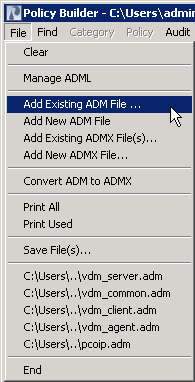
4. Go to File –> Add Existing ADM file…

ADM Convert 2

5.  Select the ADM files you want to load and click Open.

ADM Convert 3

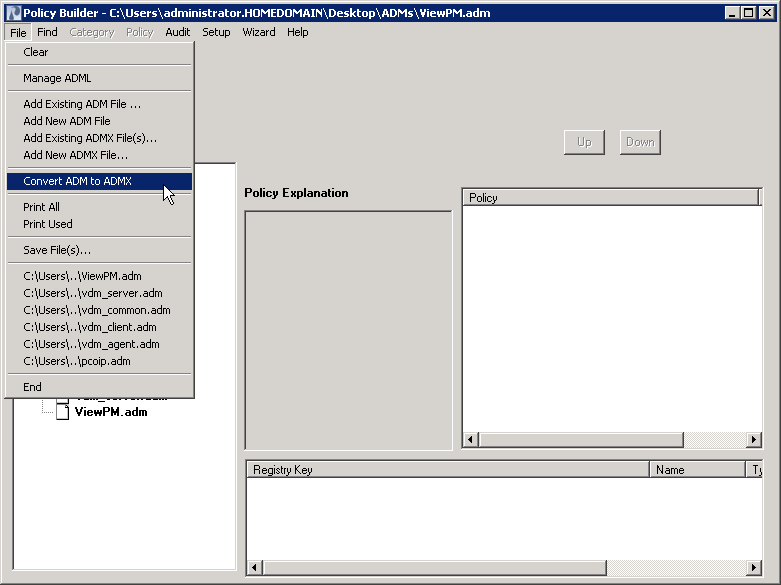
5.  Go to File –> Convert ADM to ADMX

ADM Convert 4

6.  Select the ADM file(s) you want to convert and click Convert.

ADM Convert 5

7.  The next screen allows you to change metadata before converting the ADM file.   Make any changes as required and then click OK.

ADM Convert 6

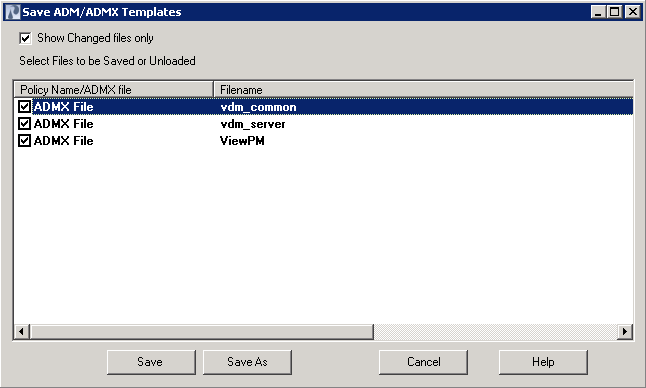
8. Go to File –> Save Files.

ADM Convert 7

9. Click Save As

ADM Convert 8

10. Save the files into a directory where you will be able to find them easily.

ADM Convert 9

11. Open the directory where you saved the ADMX files.  Copy the ADMX files and the language folder to your Group Policy Central Store.

Note: The converted Group Policy templates will not be available at remote Active Directory sites until replication occurs.

12. When you create a new Group Policy object, the converted ADMX templates should be available under Administrative Templates.

ADM Convert 11

VMworld Call For Papers Voting Closes Sunday

Voting on the VMworld call for papers submissions closes on Sunday night.  If you’re interested in helping chart the course of this year’s VMworld, you can vote at http://www.vmworld.com/voting.jspa.

If you do plan on voting, I would highly recommend voting for the following session:

Session 1500 – Auto Deploy Deep Dive by Rob Nelson

Rob previously presented on this topic at vBrownbag.

I have two submissions for this year’s conference:

Session 1352 – Automating Horizon View with PowerShell

Session 2690 – Managing Microsoft Active Directory and Exchange with vCenter Orchestrator

I would recommend that you look through the submission catalog if you have time.  There are a lot of good presentation ideas from community members, such as Kendrick Coleman’s “How to Turn a vSphere Administrator into a Goat” and a session by Brian Suhr and Chris Wahl on understanding virtual workloads.

Remember, you only have until Sunday night to vote and influence this year’s VMworld.

Horizon 6 and Profile Management? It’s Not the Big Deal That Some Are Making It Out To be…

When VMware announced Horizon 6 last month, there was a lot of excitement because the Horizon Suite was finally beefing up their Remote Desktop Session Host component to support PCoIP and application publishing.  Shortly after that announcement, word leaked out that Persona Management would not be available for RDSH sessions and published applications.

There seems to be this big misconception that without Persona Management, there will be no way to manage user settings, and companies that wish to overcome this shortcoming will need to utilize a 3rd party product for profile management.  A lot of that misconception revolves around the idea that there should only be one user profile and set of applications settings that apply to the user regardless of what platform the user logs in on.

Disclosure: Horizon 6 is still in beta.  I am not a member of the beta testing team, and I have not used Horizon 6.

There are two arguments being made about the lack of unified profile management in Horizon 6.  The first argument is that without some sort of profile management, users won’t be able to save their application settings.  The article quotes a systems administrator who says, “If you rely on linked clones and want to use [RDSH] published apps, it won’t remember your settings.”

This is not correct.  When setting up an application publishing environment using RDSH, a separate user profile is created for each user on the server, or servers, where the applications are hosted.  That user profile is separate from the user profile that is used when logging into the desktop.  In order to ensure that those settings follow the user if they log into a different server, technologies like roaming profiles and folder redirection are used to store user settings in a central network location.

This ability isn’t an add-on feature, and the ability to do roaming profiles and folder redirection are included with Active Directory as options that can be configured using Group Policy.  Active Directory is a requirement for Horizon environments, so the ability to save and roam settings exists without having to invest in additional products.

The other argument revolves around the idea of a “single, unitary profile” that will be used in both RDSH sessions for application publishing and virtual desktops.  There are a couple of reasons why that this should not be considered a holdup for deploying Horizon 6:

  1. Microsoft’s best practices for roaming profiles (2003 version, 2008 R2 version, RDS Blog) do not recommend using the same profile across multiple platforms, and Microsoft recommends using a different roaming profile for each RDSH farm or platform.
  2. Citrix’s best practices for User Profile Manager, the application that the article above references as providing a single profile across application publishing and virtual desktops, do not recommend using the same profile for multiple platforms or across different versions of Windows.

There are a couple of reasons for this.  The main reason is that there are settings in desktop profiles that don’t apply to servers and vice versa or across different generations of Windows.  There is also the possibility of corruption if a profile is used in multiple places at the same time, and one server can easily overwrite changes to the profile.

Although there may be some cases where application settings may need to roam between an RDSH session and a virtual desktop session, I haven’t encountered any cases where that would be important.  That doesn’t mean those cases don’t exist, but I don’t see a scenario where this would hold up adopting a platform like the article above suggests.

Home Lab Updates

Back in December, I wrote about my home lab setup.  In the last few months, I’ve made a lot of changes to my lab as I’ve added new hardware and capabilities and shuffled some other equipment around to new roles.  It’s also changed locations as my wife and I moved into a new house last month.

The “newest” hardware in my lab is all used gear that I picked up off of eBay.  There were some great deals on custom Dell-built cloud servers from a large cloud provider that more than tripled the overall capacity of my lab.  The server run older AMD 2419EE processors, so they trade a lot of performance for power efficiency, and come with 48GB of RAM each.  They have their own set of quirks that need to be worked around, but that said, they do run vSphere 5.5 well.

The Dell servers can be rather finicky with the network switches that they work with, and the Linksys that I got late last year was swapped out for a Juniper EX4200 that I was able to get on loan from my employer.

The PowerEdge T110 II that I purchased last year has been moved from being a computer node to my primary storage node, and the storage OS has been migrated from OmniOS to Nexenta 4.0.  The PowerEdge T310 that was previously hosting storage has been retired, and I am selling it to a co-worker who is looking to start his own lab up.

I’ve also expanded the Fibre Channel footprint of my lab, and all my servers are connected to storage via Fibre Channel.  I recently picked up a Silkworm 3250 on eBay for $30.  I was also able to pick up a few 4GB QLogic 2450 cards for about $8 a piece. 

There is still some work that needs to be done on the lab.  I need to run some new electrical circuits into my makeshift server room as well as add some venting to take care of the excess heat.  I also plan on running Ethernet throughout the new house, and that will all terminate at my lab as well.

Wisconsin VMUG User Conference Preview

The Wisconsin VMUG will be holding their annual user conference next week.  If you haven’t had a chance to register for the event yet, you can do so here.

Some of the highlights on this year’s agenda are:

  • Wisconsin VMUG board member and MATC instructor Brian Kirch will be doing a vSphere 101 presentation during the first breakout block.
  • Amy Manley and Nick Coyle of Catamaran Corporation will be doing an updated version of their vCenter Orchestrator presentation that they did at the Chicago VMUG Conference in October.
  • vExpert Jeremy Gruenke of Johnsonville and Chris Wahl from Ahead IT will be doing a session on Horizon View upgrades.
  • A new addition to the agenda is an Ask The Experts panel that will run during the last breakout block.  The expert panel consists of Roger Lund of the MN VMUG, Matt Leib, Brandon Hahn, Larry Orloff, and Tim Curless.

I will be doing a session during the final breakout block on home labs.

The keynote session will be a presentation on network virtualization, and the lunch session will be an introduction to Horizon 6.

Veeam will be sponsoring a post-conference reception.

The conference will be at the Marriott Madison West in Madison and runs from 8:15 AM until about 5:00 PM.

Quick Bites–Nexenta 4 Released, Horizon 6 Announced

Nexenta 4.0.1 Reaches GA

Earlier this week, Nexenta announced that the Community Edition of Nexenta 4.0 was generally available.  This long awaited release uses an Illumos-based kernel and adds several new features including support for SMB 2.1.

I have the new version set up in my lab, and it seems to be working well so far.  The issues that I experienced with the previous versions no longer appear to be an issue, and it has been running rock solid for the last couple of days.

You can read the release announcement here.

Note: The download link is not currently active on the Nexentastor website.  The ISO was available for download until recently via a direct link.

Horizon 6 Announced

Yesterday, VMware announced the latest version of the Horizon end-user computer product suite – Horizon 6.

The newest feature in Horizon 6 is an RDSH application remoting solution that is built on PCoIP and Blast that puts VMware in direct competition with Citrix.

I look forward to getting this product into my home lab for testing.

vExpert

VMware’s vExpert program is a program that recognizes people who are active contributors to the greater VMware community – either by organizing events that bring people together or by sharing their expertise and knowledge with others through blogs, presentations, or talks.

Yesterday, VMware announced the list of vExperts for 2014.  I’m honored to be included on this list.

I’d like to thank Corey Romero (Twitter: @vCommunityGuy) and John Troyer (Twitter: @jtroyer) for this opportunity.

I’d like to give a shoutout to the members of the Wisconsin VMware Users Group who were also recognized as vExperts:

Rod Gabriel (Twitter: @ThatFridgeGuy)

Mike Nelson (Twitter: @nelsmedia)

Brian Kirsch (Twitter: @bckirsch)

Nathan Schuenemann (Twitter: @chickendilla)

Bob Plankers (Twitter: @plankers, Blog: http://lonesysadmin.net/)

Brandon Hahn (Twitter: @brandonhahn Blog: http://www.brandonhahn.org/)

Jeremy Gruenke (Twitter: @grinks311)

orchestrating Exchange with #vCO

Microsoft Exchange is a system that is ideally suited for automation.  It’s in almost every environment.  It has it’s own add-on to PowerShell that makes it easy to write scripts to handle tasks.  And most of the tasks that administrators perform after setup are rote tasks that are easily automated such as setting up mailboxes and adding IP addresses to a receive connector. 

Why vCenter Orchestrator?

Exchange already contains a robust automation platform with the PowerShell-based Exchange Management Shell.  This platform makes it easy to automate tasks through scripting.  But no matter how well these scripts are written, executing command line tasks can be error-prone if the end users of the scripts aren’t comfortable with a command line.  You may also want to limit input or provide a user-friendly interface to kicking off the script.

So what does that have to do with vCenter Orchestrator?  Orchestrator is an extensible workflow automation tool released by VMware and included with the vCenter Server license.   It supports Windows Remote Management and PowerShell through a plugin.

Start By Building a Jump Box/Scripting Server

Before we jump into configuring Orchestrator to talk to Exchange, we’ll need a Windows Server that we can configure to execute the scripts that Orchestrator will call.  This server should run Windows Server 2008 R2 at a minimum, and you should avoid Server 2012 R2 because the Exchange 2010 PowerShell cmdlets are not compatible with PowerShell 4.0. 

You will need to install the Exchange management tools on this server, and I would recommend a PowerShell IDE such as PowerGUI or Idera PowerShell Pro to aid in troubleshooting and testing.

Orchestrator and Exchange

As I mentioned above, Orchestrator can be used with PowerShell through a plugin.  This plugin uses WinRM to connect to a Windows Server instance to execute PowerShell commands and scripts.   In order to use this plugin, Orchestrator needs to be configured to support Kerberos authentication.

When I was testing out this combination, I was not able to get the Exchange Management Shell to load properly when using WinRM.  I think the issue has to do with Kerberos authentication and WinRM.

When you use WinRM, you’re remoting into another system using PowerShell.  In some ways, it is like Microsoft’s version of SSH – you’re logging into the system and working from a command line. 

The Exchange cmdlets add another hop in that process.  When you’re using the Exchange cmdlets, you’re executing those commands on one of your Exchange servers using a web service.  Unfortunately, Kerberos does not work well with multiple hops, so another to access the remote server is needed.

Another Option is Needed

So if WinRM and the Orchestrator PowerShell plugin don’t work, how can you manage Exchange with Orchestrator?  The answer is using the same remote access technology that is used for network hardware and Unix – SSH.

Since Exchange is Active Directory integrated, we’ll need an SSH server that runs on Windows, is compatible with PowerShell, and most importantly, supports Active Directory authentication.   There are a couple of options that fit here  such as the paid version of Bitvise, FreeSSHd, and nSoftware’s PowerShell Server.

There is one other catch, though.  Orchestrator has a built-in SSH plugin to support automating tasks over SSH.  However, this plugin does not support cached credentials, and it runs under whatever credentials the workflow is launched under.  One of the reasons that I initially looked at Orchestrator for managing Exchange was to be able to delegate certain tasks to the help desk without having to grant them additional rights on any systems. 

This leaves one option – PowerShell Server.  PowerShell Server has an Orchestrator Plugin that can use a shared credential that is stored in the workflow.  It is limited in some key ways, though, mainly that the plugin doesn’t process output from PowerShell.  Getting information out will require sending emails from PowerShell.

You will need to install PowerShell Server onto your scripting box and configure it for interactive sessions.

PowerShell Server Settings

Configuring the Exchange Management Shell for PowerShell Server

PowerShell Server supports the Exchange Management shell, but in a limited capacity.  The method that their support page recommends breaks a few cmdlets, and I ran into issues with the commands for configuring resource mailboxes and working with ActiveSync devices. 

One other method for launching the Exchange Management Shell from within your PowerShell SSH session is by using the following commands:

'C:\Program Files\Microsoft\Exchange Server\V14\bin\RemoteExchange.ps1'
Connect-ExchangeServer –auto
If you try that, though, you will receive an error that the screen size could not be changed.  This is due to the commands that run when the Exchange Management Shell loads – it resizes the PowerShell console window and prints a lot of text on the screen. 
 
The screen size change is controlled by a function in the RemoteExchange.ps1 script.  This file is located in the Exchange Install Directory\v14\Bin.  You need to open this file and comment out line 34.  This line calls a function that widens the window when the Exchange Management shell is loaded.  Once you’ve commented out this line, you need to save the modified file with a new file name in the same folder as the original.
 
Edit RemoteExchangePS1
 
In order to use this in a PowerShell script with Orchestrator, you will need to add it to each script or into the PowerShell profile for the account that will be executing the script.  The example that I use in my workflows looks like this:
 

'C:\Program Files\Microsoft\Exchange Server\V14\bin\RemoteExchange-Modified.ps1'
Connect-ExchangeServer –auto

Note: It may be possible to use the method outlined by Derek Schauland in this TechRepublic article in place of modifying the EMS script.  However, I have not tested this with technique with Orchestrator.

Putting It All Together

Earlier this month, I talked about this topic on vBrownbag, and I demonstrated two examples of this code in action.  You can watch it here.

One of the examples that I demonstrated during that vBrownbag talk was an employee termination workflow.  I had a request for that workflow and the scripts that the workflow called, so I posted them out on my github site.  The Terminate-DeactivateEmail.ps1 script that is found in the github repository is a working example. 

Horizon View 5.3 Part 15 – Horizon View, SSL, and You

Although they may be confusing and require a lot of extra work to set up, SSL certificate play a key role in any VMware environment.  The purpose of the certificates is to secure communications between the clients and the servers as well as between the servers themselves.

Certificates are needed on all of the major components of Horizon View and vCenter.  The certificates that are installed on vCenter Server, Composer, and the Connection Servers can come from an internal certificate authority.  If you are running Security Servers, or if you have a Bring-Your-Own—Beer Device environment, you’ll need to look at purchasing certificates from a public certificate authority.

Setting up a certificate authority is beyond the scope of this article.  If you are interested in learning more about setting up your own public key infrastructure, I’ll refer you to Derek Seaman, the VMware Community’s own SSL guy.  He recently released a three-part series about setting up a two-tier public key infrastructure on Windows Server 2012 R2I’ve also found this instruction set to be a good guide for setting up a public key infrastructure on Windows Server 2008 R2.

Improved Certificate Handling

Managing SSL certificates was a pain if you’ve worked with previous versions of Horizon View.  In previous versions, the certificates had be placed into a Java keystore file.  This changed with View 5.1, and the certificates are now stored in the Windows Certificate Store.  This has greatly improved the process for managing certificates.

Where to Get Certificates

Certificates can be minted on internal certificate authorities or public certificate authorities.  An internal certificate authority exists inside your environment and is something that you manage.  Certificates from these authorities won’t be trusted unless you deploy the root and intermediate certificates to the clients that are connecting.

The certificates used on a security server should be obtained from a commercial certificate vendor such as Thawte, GoDaddy, or Comodo.  One option that I like to use in my lab, and that I’ve used in the past when I didn’t have a budget for SSL certificates is StartSSL.  They provide free basic SSL certificates.

Generating Certificate Requests for Horizon View Servers

VMware’s methods for generating certificates for Horizon View is different than vCenter.  When setting up certificate requests for vCenter, you need to use OpenSSL to generate the requests.  Unlike vCenter, Horizon View uses the built-in Windows certificate tools are used to generate the certificate requests. VMware has a good PDF document that walks through generating certificates for Horizon View.  An online version of this article also exists.

Before we can generate a certificate for each server, we need to set up two things.  The first is a certificate template that can be used to issue certificates in our public key infrastructure.  I’m not an expert on public key infrastructure, so I’ll defer to the expert again.

The other thing that we need to create is a CSR configuration file.  This file will be used with certreq.exe to create the certificate signing request.  The template for this file, which is included in the VMware guide, is below.

;----------------- request.inf -----------------
[Version]

Signature="$Windows NT$"

[NewRequest]

Subject = "CN=View_Server_FQDN, OU=Organizational_Unit_Name, O=Organization_Name, L=City_Name, S=State_Name, C=Country_Name" ; replace attributes in this line using example below
KeySpec = 1
KeyLength = 2048
; Can be 2048, 4096, 8192, or 16384.
; Larger key sizes are more secure, but have
; a greater impact on performance.
Exportable = TRUE
FriendlyName = "vdm"
MachineKeySet = TRUE
SMIME = False
PrivateKeyArchive = FALSE
UserProtected = FALSE
UseExistingKeySet = FALSE
ProviderName = "Microsoft RSA SChannel Cryptographic Provider"
ProviderType = 12
RequestType = PKCS10
KeyUsage = 0xa0

[EnhancedKeyUsageExtension]

OID=1.3.6.1.5.5.7.3.1 ; this is for Server Authentication

[RequestAttributes]

; SAN="dns=FQDN_you_require&dns=other_FQDN_you_require"
;-----------------------------------------------

The subject line contains some fields that we need to fill in with information from our environment.  These fields are:

  • CN=server_fqdn: This part of the Subject string should contain the fully qualified domain name that users will use when connecting to the server. An example for an internal, non-Internet facing server is internalbroker.internaldomain.local.  An internet-facing server should use the web address such as view.externaldomain.com
  • OU=organizational unit: I normally fill in the responsible department, so it would be IT.
  • O=Organization: The name of your company
  • L=City: The city your office is based in
  • S=State: The name of the State that you’re located in.  You should spell out the name of the state since some CAs will not accept abbreviated names.
  • C=Country: The two-letter ISO country code.  The United States, for example, is US.

A CSR configuration file will need to be created for each server with a Horizon View Component installed.  vCenter will also need certificates, but there are different procedures for creating and installing vCenter certificates depending on whether you are using the Windows application or the vCenter appliance.

Creating the certificate signing request requires the certreq.exe command line tool.   These steps will need to be performed on each connection server, security server, and  The steps for generating the request are:

  1. Open a command prompt as an Administrator on your View server. Note: This command should be run from the server where you want the certificate to reside.  It can be done from another machine, but it makes it more complicated.
  2. Navigate to the folder where you stored the request.inf file.
  3. Run the following command: certreq.exe –new request.inf server_name_certreq.txt

After the certificate request has been created, it needs to be submitted to the certificate authority in order to have the SSL certificate generated.  The actual process for submitting the CSR is beyond the scope of this article since this process can vary in each environment and with each commercial vendor.

Importing the Certificate

Once the certificate has been generated, it needs to be imported into the server.  The import command is:

certreq.exe –accept certname.cer

This will import the generated certificate into the Windows Certificate Store.

Using the Certificates

Now that we have these freshly minted certificates, we need to put them to work in the View environment.  There are a couple of ways to go about doing this.

1. If you haven’t installed the Horizon View components on the server yet, you will get the option to select your certificate during the installation process.  You don’t need to do anything special to set the certificate up.

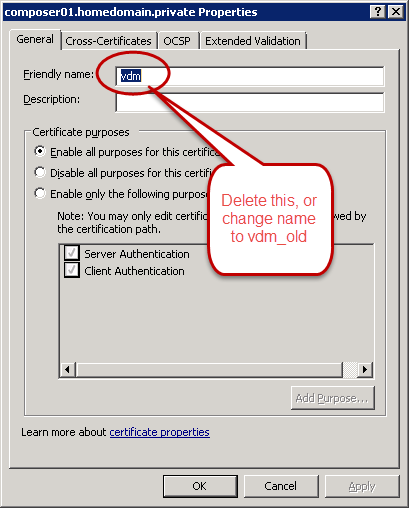
2. If you have installed the Horizon View components, and you are using a self-signed certificate or a certificate signed from a different CA, you will need to change the friendly name of the old certificate and restart the Connection Server or Security Server services.

Horizon View requires the certificate to have a friendly name value of vdm.  The template that is posted above sets the friendly name of the new certificate to vdm automatically, but this will conflict with any existing certificates. 

1
Friendly Name

The steps for changing the friendly name are:

  1. Go to Start –> Run and enter MMC.exe
  2. Go to File –> Add/Remove Snap-in
  3. Select Certificates and click Add
  4. Select Computer Account and click Finish
  5. Click OK
  6. Right click on the old certificate and select Properties
  7. On the General tab, delete the value in the Friendly Name field, or change it to vdm_old
  8. Click OK
  9. Restart the View service on the server

2

Certificates and View Composer

Unfortunately, Horizon View Composer uses a different method of managing certificates.  Although the certificates are still stored in the Windows Certificate store, the process of replacing Composer certificates is a little more involved than just changing the friendly name.

The process for replacing or updating the Composer certificate requires a command prompt and the SVIConfig tool.  SVIConfig is the Composer command line tool.  If you’ve ever had to remove a missing or damaged desktop from your View environment, you’ve used this tool.

The process for replacing the Composer certificate is:

  1. Open a command prompt as Administrator on the Composer server
  2. Change directory to your VMware View Composer installation directory
    Note: The default installation directory is C:\Program Files (x86)\VMware\VMware View Composer
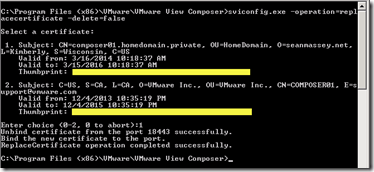
  3. Run the following command: sviconfig.exe –operation=replacecertificate –delete=false
  4. Select the correct certificate from the list of certificates in the Windows Certificate Store
  5. Restart the Composer Service

3

A Successful certificate swap

At this point, all of your certificates should be installed.  If you open up the View Administrator web page, the dashboard should have all green lights.

If you are using a certificate signed on an internal CA for servers that your end users connect to, you will need to deploy your root and intermediate certificates to each computer.  This can be done through Group Policy for Windows computers.  If you’re using Teradici PCoIP Zero Clients, you can deploy the certificates as part of a policy with the management VM.  If you don’t do this, users will not be able to connect without disabling certificate checking in the client.