Exam Experience Recap – VCAP Desktop Administrator

On Tuesday, May 20th, I sat for the VCAP Desktop Administrator Exam in Milwaukee.  The exam covers a broad range of topics on Horizon View, Persona Management, and other related infrastructure components such as Group Policy.  Although I don’t work with View on a daily basis anymore, I wanted to sit for this exam as $work will be starting a Horizon View implementation this summer.

I received the official score report on Thursday night, and I did not pass.  I scored a 278 out of 500.

My exam experience mirrors Jason Shiplett’s first attempt.  I ran into an issue early in the exam that cost me time – time that I could have used to complete a few of the questions that I had in progress when the exam ended.

I didn’t prep as well as I should have before this exam.  I read through the blueprint, and I reviewed Chris Beckett’s VCAP DTA study guides.  Despite these two resources and a lot of hands-on experience with View, I went into the exam with some huge gaps in my knowledge in areas of the product suite that I hadn’t worked with in my lab or a production environment.

Unfortunately, the agreement that I had with my wife was that I would only get one crack at the exam before VMworld, and I will need to wait until August before I can take it again.  That will give me a little more time, though, to work on the areas where I need improvement.

Keys to the Exam

1. Time Management is critical. You have a very short time to complete the 23 questions on the exam.  Spending too much time on one area will hurt you.  You may also need to bounce around between questions.  I tried to use the materials my testing center provided to keep track of where I was.

2. If there is a task that you don’t know how to do, skip it and come back to it later.  You’ll lose too much time if you’re searching the documentation.

3. Hands-on Experience is a Must.  This is a practical exam, and you’re tested on successfully completing tasks.  You won’t be able to pass this exam if you don’t actually put View in a lab and try to work through the blueprint.

4. Read the blueprint and Chris Beckett’s notes that I linked to above.

Horizon View 5.3 Appendix F: Monitoring the View Event Database

One of the nice features of Horizon View 5.3 is the Events Database.  When its configured, the Events Database will collect and store any events from the Horizon View environment.

Unfortunately, VMware never built any notification tools into View to alert administrators when errors occurred and were recorded in the Events database.  There have been workarounds to this using PowerShell or SQL Mail to send database alerts, but this requires a scheduled task or SQL Agent job to ensure that it runs on a regular basis.

There is another option that can be used for Event database alerting.  Chris Halstead (Twitter: @chrisdhalstead) developed a tool called the Horizon View Event Notifier that recently became a VMware Fling. 

The Horizon View Event Notifier is a simple little application that is very easy to set up.  It’s so easy, in fact, that it doesn’t even have an installer – you just create a folder for the application and drag the executable and the config file into a folder and double-click to launch it.

Unfortunately, this simplicity carries a heavy price.  The Event Notifier cannot be run as a scheduled task or service.  It must run interactively, and if the server running the application is rebooted, an administrator will need to log in, restart the application, and then lock the computer or disconnect their session without logging out.  Chris has stated that this is one of the things he hopes to address in the next version of the program.

Configuring the Horizon View Event Notifier

After you’ve finished installing the Event Notifier, it’s time to start configuring it. 

1.  Click the settings tab.

1

2. Fill in the Name, DB Server, Database, Username and password fields.  If you have multiple View pods storing information in the same events database, you may need to enter your table prefix in the Table Prefix field. 

If you are connecting to a SQL Server instance, enter servername\instancename in the DB Server field.

2

3. Click Test Connection to verify that the Event Notifier Application can log into the database.

4. Click Save Changes to save the database information to the config file.

5. Select the type of events that you want to receive email alerts on and then click Save Changes.

3

6. Enter your email server, port number, sender address, and recipient address.

Note: The application does not appear to support email servers that require authentication, such as Gmail, at this time. 

4

7. Click Send Test Email to verify that email alerts work.

8. Click Save changes.

9. Click Start to have the application start monitoring your View Events database.

Note: The application will need to be launched and the start button clicked every time the computer is rebooted.

Do I Need It?

If you don’t have any other form of alerting configured for Horizon View Events, this program will help you maintain a healthy View environment.  It’s saved my bacon a few times when a recompose operation failed and left a pool unusable.  If I this tool hadn’t been in place, I would have had a flock of angry users with no desktops. 

Horizon View 5.3 Appendix E: Converting The View Group Policy Templates to ADMX

VMware View includes a set of Group Policy templates that can be used to centrally manage settings for View desktops and servers.   These templates are required for fine tuning the behavior of a Horizon View environment and the PCoIP and Blast protocols that are used when connecting to desktops.

Brian Suhr recently wrote a great article on how to deploy the Group Policy templates on Petri. 

There is one main drawback to the Group Policy templates that are included with Horizon View – they’re ADM files.  Prior to Windows Server 2008, Group Policy templates were deployed using ADM files.  If a non-standard ADM file was used as part of a Group Policy Object, that ADM file would be included with the group policy object when it is saved onto the domain Sysvol.  This leads to Sysvol bloat and can have a negative impact on Active Directory Replication.

Microsoft addressed this issue with updates to Group Policy in Windows Server 2008.  Server 2008 allowed Administrators to create a network-based “central store” where the new Group Policy template files are stored.  These templates could then be referenced by any workstation or server that was Vista/Server 2008 or newer when authoring or editing Group Policy without having to install them.

Converting the View ADM Files to ADMX

I haven’t found many tools that convert ADM files to ADMX files.  Microsoft has released a free conversion tool, but it didn’t convert the View ADM files properly, and a number of GPO settings did not work after using this tool.

The only other ADM converter tool that I was able to find was Syspro’s ADM Template Editor.  This $60 tool can edit existing ADM templates or convert them to ADMX files.  A 30-day free trial of the ADM Template Editor is available.

The first thing that you will need to do is download, install, and register ADM Template Editor.  Once you have done this, you can start converting the ADM files.

The steps for converting ADM files to ADMX files using the ADM Template Editor are:

1.   Copy the View ADM files to the server or workstation where ADM Template Editor is installed.  On a default installation of View, the ADM files are located in C:\Program Files\VMware\VMware View\Server\Extras\Group Policy on any Connection Server.

Group Policy Files Location

2.  Open ADM Template Editor.

3. To configure ADM Template editor to save new ADMX files directly into your Group Policy Central Store, go to Setup –> General Setup and enter the path to your Group Policy Central Store into the ADMX directory field. 

ADM Convert Pre-Step

Note: If your Active Directory Administrator has not set up a Group Policy Central Store, please refer them to this article.

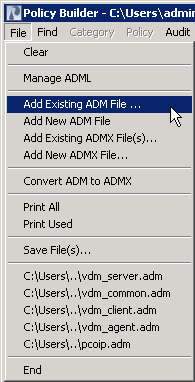
4. Go to File –> Add Existing ADM file…

ADM Convert 2

5.  Select the ADM files you want to load and click Open.

ADM Convert 3

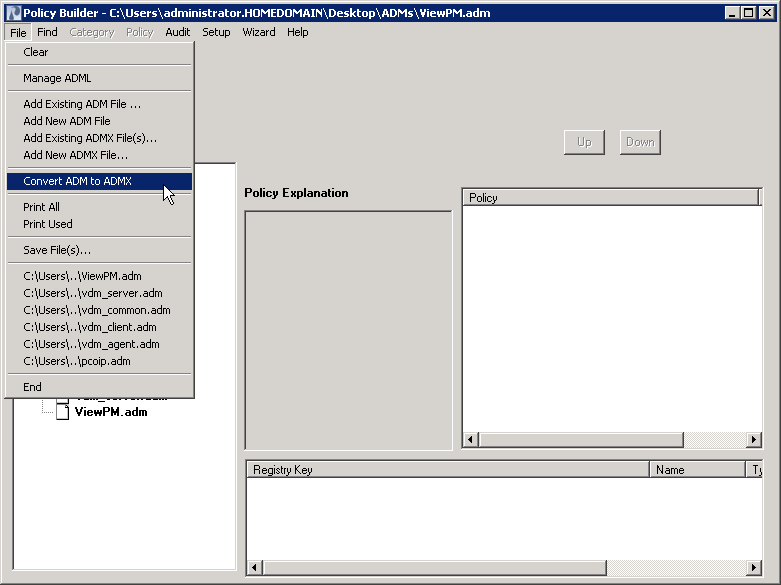
5.  Go to File –> Convert ADM to ADMX

ADM Convert 4

6.  Select the ADM file(s) you want to convert and click Convert.

ADM Convert 5

7.  The next screen allows you to change metadata before converting the ADM file.   Make any changes as required and then click OK.

ADM Convert 6

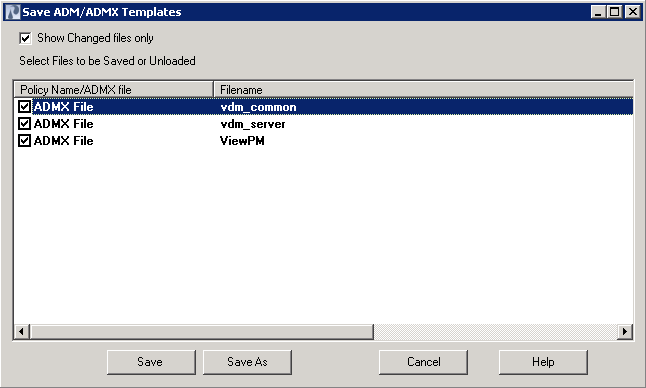
8. Go to File –> Save Files.

ADM Convert 7

9. Click Save As

ADM Convert 8

10. Save the files into a directory where you will be able to find them easily.

ADM Convert 9

11. Open the directory where you saved the ADMX files.  Copy the ADMX files and the language folder to your Group Policy Central Store.

Note: The converted Group Policy templates will not be available at remote Active Directory sites until replication occurs.

12. When you create a new Group Policy object, the converted ADMX templates should be available under Administrative Templates.

ADM Convert 11

Horizon 6 and Profile Management? It’s Not the Big Deal That Some Are Making It Out To be…

When VMware announced Horizon 6 last month, there was a lot of excitement because the Horizon Suite was finally beefing up their Remote Desktop Session Host component to support PCoIP and application publishing.  Shortly after that announcement, word leaked out that Persona Management would not be available for RDSH sessions and published applications.

There seems to be this big misconception that without Persona Management, there will be no way to manage user settings, and companies that wish to overcome this shortcoming will need to utilize a 3rd party product for profile management.  A lot of that misconception revolves around the idea that there should only be one user profile and set of applications settings that apply to the user regardless of what platform the user logs in on.

Disclosure: Horizon 6 is still in beta.  I am not a member of the beta testing team, and I have not used Horizon 6.

There are two arguments being made about the lack of unified profile management in Horizon 6.  The first argument is that without some sort of profile management, users won’t be able to save their application settings.  The article quotes a systems administrator who says, “If you rely on linked clones and want to use [RDSH] published apps, it won’t remember your settings.”

This is not correct.  When setting up an application publishing environment using RDSH, a separate user profile is created for each user on the server, or servers, where the applications are hosted.  That user profile is separate from the user profile that is used when logging into the desktop.  In order to ensure that those settings follow the user if they log into a different server, technologies like roaming profiles and folder redirection are used to store user settings in a central network location.

This ability isn’t an add-on feature, and the ability to do roaming profiles and folder redirection are included with Active Directory as options that can be configured using Group Policy.  Active Directory is a requirement for Horizon environments, so the ability to save and roam settings exists without having to invest in additional products.

The other argument revolves around the idea of a “single, unitary profile” that will be used in both RDSH sessions for application publishing and virtual desktops.  There are a couple of reasons why that this should not be considered a holdup for deploying Horizon 6:

  1. Microsoft’s best practices for roaming profiles (2003 version, 2008 R2 version, RDS Blog) do not recommend using the same profile across multiple platforms, and Microsoft recommends using a different roaming profile for each RDSH farm or platform.
  2. Citrix’s best practices for User Profile Manager, the application that the article above references as providing a single profile across application publishing and virtual desktops, do not recommend using the same profile for multiple platforms or across different versions of Windows.

There are a couple of reasons for this.  The main reason is that there are settings in desktop profiles that don’t apply to servers and vice versa or across different generations of Windows.  There is also the possibility of corruption if a profile is used in multiple places at the same time, and one server can easily overwrite changes to the profile.

Although there may be some cases where application settings may need to roam between an RDSH session and a virtual desktop session, I haven’t encountered any cases where that would be important.  That doesn’t mean those cases don’t exist, but I don’t see a scenario where this would hold up adopting a platform like the article above suggests.

Horizon View 5.3 Part 15 – Horizon View, SSL, and You

Although they may be confusing and require a lot of extra work to set up, SSL certificate play a key role in any VMware environment.  The purpose of the certificates is to secure communications between the clients and the servers as well as between the servers themselves.

Certificates are needed on all of the major components of Horizon View and vCenter.  The certificates that are installed on vCenter Server, Composer, and the Connection Servers can come from an internal certificate authority.  If you are running Security Servers, or if you have a Bring-Your-Own—Beer Device environment, you’ll need to look at purchasing certificates from a public certificate authority.

Setting up a certificate authority is beyond the scope of this article.  If you are interested in learning more about setting up your own public key infrastructure, I’ll refer you to Derek Seaman, the VMware Community’s own SSL guy.  He recently released a three-part series about setting up a two-tier public key infrastructure on Windows Server 2012 R2I’ve also found this instruction set to be a good guide for setting up a public key infrastructure on Windows Server 2008 R2.

Improved Certificate Handling

Managing SSL certificates was a pain if you’ve worked with previous versions of Horizon View.  In previous versions, the certificates had be placed into a Java keystore file.  This changed with View 5.1, and the certificates are now stored in the Windows Certificate Store.  This has greatly improved the process for managing certificates.

Where to Get Certificates

Certificates can be minted on internal certificate authorities or public certificate authorities.  An internal certificate authority exists inside your environment and is something that you manage.  Certificates from these authorities won’t be trusted unless you deploy the root and intermediate certificates to the clients that are connecting.

The certificates used on a security server should be obtained from a commercial certificate vendor such as Thawte, GoDaddy, or Comodo.  One option that I like to use in my lab, and that I’ve used in the past when I didn’t have a budget for SSL certificates is StartSSL.  They provide free basic SSL certificates.

Generating Certificate Requests for Horizon View Servers

VMware’s methods for generating certificates for Horizon View is different than vCenter.  When setting up certificate requests for vCenter, you need to use OpenSSL to generate the requests.  Unlike vCenter, Horizon View uses the built-in Windows certificate tools are used to generate the certificate requests. VMware has a good PDF document that walks through generating certificates for Horizon View.  An online version of this article also exists.

Before we can generate a certificate for each server, we need to set up two things.  The first is a certificate template that can be used to issue certificates in our public key infrastructure.  I’m not an expert on public key infrastructure, so I’ll defer to the expert again.

The other thing that we need to create is a CSR configuration file.  This file will be used with certreq.exe to create the certificate signing request.  The template for this file, which is included in the VMware guide, is below.

;----------------- request.inf -----------------
[Version]

Signature="$Windows NT$"

[NewRequest]

Subject = "CN=View_Server_FQDN, OU=Organizational_Unit_Name, O=Organization_Name, L=City_Name, S=State_Name, C=Country_Name" ; replace attributes in this line using example below
KeySpec = 1
KeyLength = 2048
; Can be 2048, 4096, 8192, or 16384.
; Larger key sizes are more secure, but have
; a greater impact on performance.
Exportable = TRUE
FriendlyName = "vdm"
MachineKeySet = TRUE
SMIME = False
PrivateKeyArchive = FALSE
UserProtected = FALSE
UseExistingKeySet = FALSE
ProviderName = "Microsoft RSA SChannel Cryptographic Provider"
ProviderType = 12
RequestType = PKCS10
KeyUsage = 0xa0

[EnhancedKeyUsageExtension]

OID=1.3.6.1.5.5.7.3.1 ; this is for Server Authentication

[RequestAttributes]

; SAN="dns=FQDN_you_require&dns=other_FQDN_you_require"
;-----------------------------------------------

The subject line contains some fields that we need to fill in with information from our environment.  These fields are:

  • CN=server_fqdn: This part of the Subject string should contain the fully qualified domain name that users will use when connecting to the server. An example for an internal, non-Internet facing server is internalbroker.internaldomain.local.  An internet-facing server should use the web address such as view.externaldomain.com
  • OU=organizational unit: I normally fill in the responsible department, so it would be IT.
  • O=Organization: The name of your company
  • L=City: The city your office is based in
  • S=State: The name of the State that you’re located in.  You should spell out the name of the state since some CAs will not accept abbreviated names.
  • C=Country: The two-letter ISO country code.  The United States, for example, is US.

A CSR configuration file will need to be created for each server with a Horizon View Component installed.  vCenter will also need certificates, but there are different procedures for creating and installing vCenter certificates depending on whether you are using the Windows application or the vCenter appliance.

Creating the certificate signing request requires the certreq.exe command line tool.   These steps will need to be performed on each connection server, security server, and  The steps for generating the request are:

  1. Open a command prompt as an Administrator on your View server. Note: This command should be run from the server where you want the certificate to reside.  It can be done from another machine, but it makes it more complicated.
  2. Navigate to the folder where you stored the request.inf file.
  3. Run the following command: certreq.exe –new request.inf server_name_certreq.txt

After the certificate request has been created, it needs to be submitted to the certificate authority in order to have the SSL certificate generated.  The actual process for submitting the CSR is beyond the scope of this article since this process can vary in each environment and with each commercial vendor.

Importing the Certificate

Once the certificate has been generated, it needs to be imported into the server.  The import command is:

certreq.exe –accept certname.cer

This will import the generated certificate into the Windows Certificate Store.

Using the Certificates

Now that we have these freshly minted certificates, we need to put them to work in the View environment.  There are a couple of ways to go about doing this.

1. If you haven’t installed the Horizon View components on the server yet, you will get the option to select your certificate during the installation process.  You don’t need to do anything special to set the certificate up.

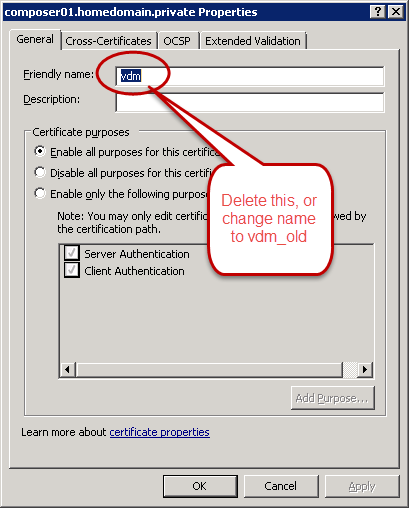
2. If you have installed the Horizon View components, and you are using a self-signed certificate or a certificate signed from a different CA, you will need to change the friendly name of the old certificate and restart the Connection Server or Security Server services.

Horizon View requires the certificate to have a friendly name value of vdm.  The template that is posted above sets the friendly name of the new certificate to vdm automatically, but this will conflict with any existing certificates. 

1
Friendly Name

The steps for changing the friendly name are:

  1. Go to Start –> Run and enter MMC.exe
  2. Go to File –> Add/Remove Snap-in
  3. Select Certificates and click Add
  4. Select Computer Account and click Finish
  5. Click OK
  6. Right click on the old certificate and select Properties
  7. On the General tab, delete the value in the Friendly Name field, or change it to vdm_old
  8. Click OK
  9. Restart the View service on the server

2

Certificates and View Composer

Unfortunately, Horizon View Composer uses a different method of managing certificates.  Although the certificates are still stored in the Windows Certificate store, the process of replacing Composer certificates is a little more involved than just changing the friendly name.

The process for replacing or updating the Composer certificate requires a command prompt and the SVIConfig tool.  SVIConfig is the Composer command line tool.  If you’ve ever had to remove a missing or damaged desktop from your View environment, you’ve used this tool.

The process for replacing the Composer certificate is:

  1. Open a command prompt as Administrator on the Composer server
  2. Change directory to your VMware View Composer installation directory
    Note: The default installation directory is C:\Program Files (x86)\VMware\VMware View Composer
  3. Run the following command: sviconfig.exe –operation=replacecertificate –delete=false
  4. Select the correct certificate from the list of certificates in the Windows Certificate Store
  5. Restart the Composer Service

3

A Successful certificate swap

At this point, all of your certificates should be installed.  If you open up the View Administrator web page, the dashboard should have all green lights.

If you are using a certificate signed on an internal CA for servers that your end users connect to, you will need to deploy your root and intermediate certificates to each computer.  This can be done through Group Policy for Windows computers.  If you’re using Teradici PCoIP Zero Clients, you can deploy the certificates as part of a policy with the management VM.  If you don’t do this, users will not be able to connect without disabling certificate checking in the client.

Horizon View 5.3 Part 14 – Windows Server Desktops

Technology isn’t the most complicated part of any VDI deployment.  That honor belongs to Microsoft’s VDA licensing – a complex labyrinth of restrictions on how the Windows Desktop OS can be used in a VDI environment.  The VDA program either requires software assurance on Windows devices or a subscription for devices that aren’t covered under SA such as zero clients or employee-owned devices.

The VDA program is a management nightmare, and it has spawned a small movement in the community called #FixVDA to try and get Microsoft to fix the problems with this program.

The licensing for virtualizing Windows Server is much less complicated, and a licensing model for remote desktop access that isn’t dependent upon software assurance already exists.

Note: I am not an expert on Microsoft licensing.  Microsoft does update VDA and other licensing options, so check with your Microsoft Licensing representative before purchasing.  If you want more details about Microsoft’s licensing for 2008 R2 Remote Desktop Services, you can view the licensing brief here.

In previous versions of Horizon View, it was possible, although difficult to configure and unsupported, to use Windows Server 2008 R2 as a desktop OS.  Horizon View 5.3 has added official support for using Windows Server 2008 R2 as a desktop OS.  This opens up desktop virtualization for enterprises and service providers.

Batteries Not Included

Windows Server-based desktops are missing a number of features in View that other versions of Windows are able to take advantage of.  These features are:

  • Virtual Printing (AKA ThinkPrint)
  • Multimedia Redirection
  • Persona Management
  • vCOPs for View functionality
  • Local-Mode Support
  • Smart Card SSO
  • UC/Lync APIs and support

ThinPrint can be worked around – either by using Group Policy Preferences for users inside the firewall or buying the full product from Cortado.  Personal Management can also be worked around by using Roaming Profiles and folder redirection.

If you need smart cards, Lync 2013 support, Local-Mode, or vCOPs for View support, you will still need to pony up for a VDA subscription.

I suspect that more of these features will be working in the next version of View as they are fully tested and validated by VMware.

What’s Included Today

It seems like there are a lot of features in View 5.3 that aren’t supported or available with Windows Server 2008 R2 desktops.  So what is included? 

  • PCoIP Access
  • VMware Blast HTML5 Access – Installed separately with the Remote Experience Pack
  • USB and Audio Redirection

That doesn’t sound like much, but it may be worth the tradeoff if it saves on licensing.

Enabling Windows Server Desktop Support

Windows Server Desktop support is not enabled by default in Horizon View 5.3, but it isn’t too hard to enable.  There is one step that needs to be performed inside the View LDAP database to enable support, and the agent needs to be installed from the command line.

To configure View to support Server 2008 R2 desktops, you need to take the following steps:

  1. Connect to the View ADAM (LDAP) Database
  2. Expand dc=vdi, dc=vmware, dc=int
  3. Expand OU=Properties
  4. Expand OU=Global
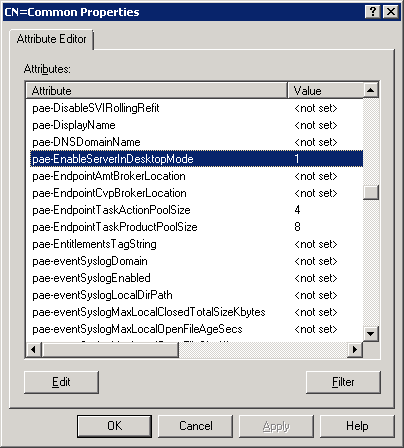
  5. Right click on CN=Common and select Properties.
  6. Scroll to the attribute named “pae-EnableServerinDesktopMode”
    01
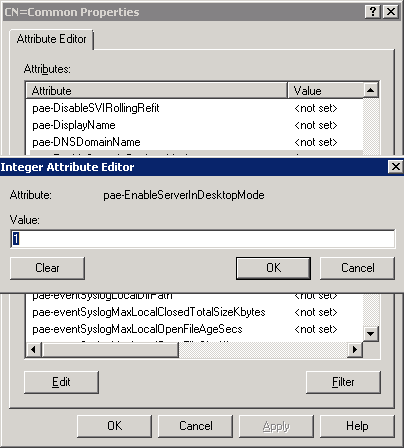
  7. Click the Edit Button
  8. Change the value to 1 and click OK.
    02
  9. Click OK
  10. Close ADSI Edit

After the View environment has been configured to support Windows Server as a desktop source, the desktop gold image can be configured.  Although the process is mostly the same as Part 11 – Building Your Desktop Golden Images, there are a few key differences.

These differences are:

  • The VMXNET3 network card should be used over the E1000 network card.
  • The Desktop Experience Feature needs to be installed before the View Agent.  This feature is important if you plan to use VMware Blast.
  • The VMware View Agent needs to be installed from the command line in order to force the agent to install in Desktop Mode.  The command test is “VMware-viewagent-x86_64-5.3.0-xxxxx.exe /v”VDM_FORCE_DESKTOP_AGENT=1″”

2a

Aside from these differences, a Server 2008 R2 desktop source can be configured the same as a Windows 7 desktop source.

The next post in this series will be on securing the View environment with SSL certificates.

Horizon View 5.3 Part 13 – VMware Blast

One of the new features that was introduced in Horizon View 5.2 was VMware Blast.  VMware Blast gives Horizon View administrators another option for allowing users to access virtual desktops – any HTML5 compatible web browser.

Yes.  You read that right.  The newest option for accessing virtual desktops is your web browser.  There are a couple of good use cases for this – employee remote access, employee BYOD,  and Internet or guest-use kiosks are the first three that come to mind. 

But there are also some drawbacks.  A number of features, such as multimedia redirection, virtual printing (ThinPrint), and USB device access, are not available through Blast.  View Blast is not as scalable as PCoIP – a single connection server can only support 350 users when using Blast compared to 2000 users when using PCoIP.

Despite those drawbacks, this is one of my favorite features.  I love the ability to log into a desktop without having to load the View Client onto a machine.

Unfortunately, this feature isn’t included in the default installation, and additional components need to be installed on connection servers and virtual desktops in order to enable it. 

Enabling VMware Blast

There are two components that need to be installed to allow HTML desktop access in a Horizon View environment.  One component, the Horizon View HTML Access component, needs to be installed on connection servers, and Horizon View Remote Experience Agent needs to be installed on the View desktop with the HTML component enabled.  No additional components need to be installed on Security Servers, but a service will need to be enabled to allow the Security Server to manage HTML5 connections to desktops.

Connection Server

The steps for installing the HTML Access component on a Connection Server are:

1. Run the HTML Access Installer

1

2. Click Next

2

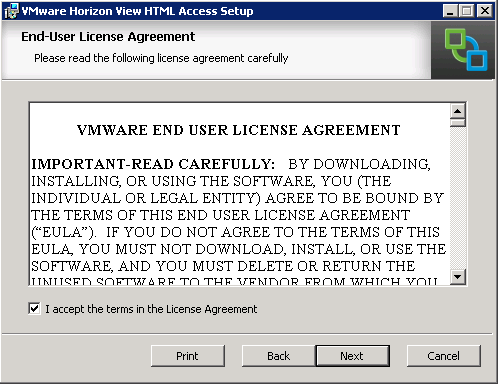
3. Accept the license agreement and click Next

3

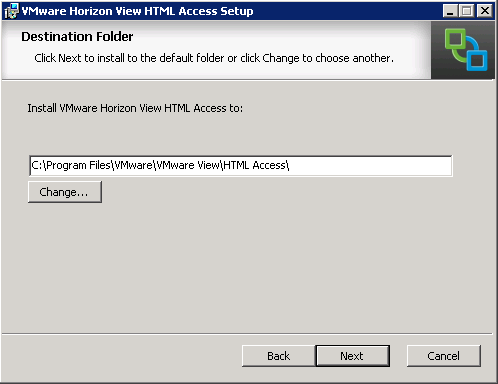
4.  Select the installation directory and click Next

4

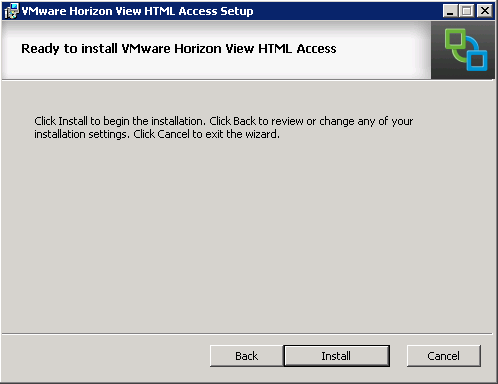
5. Click Install to begin the installation

5

6. Once the installation has finished, click Finish to exit the installer.

6

After you have installed the HTML access component, you will want to ensure that the VMware Blast firewall rules are enabled, and you can do that in the Firewall Management Console. 

Firewall - VMware Blast
Caption: Make sure the two highlighted rules are enabled.

Security Server

The VMware View Blast Secure Gateway Service is the Blast component that runs on View Security Servers.  This components is part of the default security server installation, but the service is disabled.

If you are using a security server and plan to allow HTML access to external users, you will need to make sure the VMware View Blast Secure Gateway Service is set to Automatic and started.   You will also need to enable the VMware Blast firewall rules.

View Desktop Agents

A component will need to be installed on each desktop that you want to enable HTML access to.  This component is part of the Horizon View Remote Experience Agent.

The steps for installing the agent are:

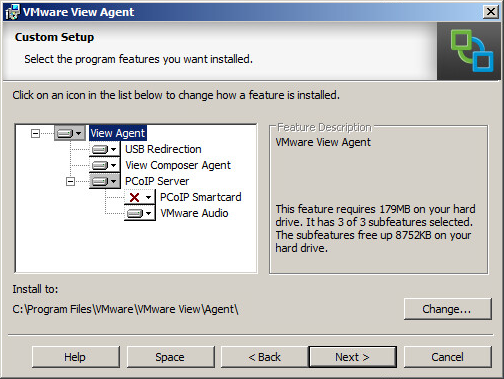
1. Run the Horizon View 5.3 Remote Experience Agent installer.

7

2. Accept the license agreement.

8

3.  The HTML Access option is enabled by default.  Click next to continue.

9

4. Click Install. 

All the components that are required for HTML Access will be installed after this installation is complete.  If you are planning to use this feature with Linked Clones, you will need to take a snapshot and recompose the desktop pools where you want to use this feature.

Configuring VMware Blast URLs

The URLs that will be used to access desktops through VMware Blast need to be configured before users can log in.  These URLs are configured in View Administrator, and they can be configured on both Connection Servers and Security Servers.

The procedure for configuring the URLs are the same for Connection Servers and Security Servers.  These steps are:

  1. Log into View Administrator
  2. Click on View Configuration
  3. Click on Servers
  4. Click on the Connection Servers or Security Servers tab.
  5. Select the server that you want to configure and click Edit.
  6. Enter the URL that users will use for accessing desktops via HTTPS under Blast Secure Gateway.  The default port for Blast is 8443.

12

11

Enabling HTML Access for Desktop Pools

Although the components for HTML Access are installed, the feature isn’t turned on yet.  Users will not be able to access their desktops through a web browser until this feature is enabled on a desktop pool.

The steps to enable HTML Access are:

  1. Log into View Administrator
  2. Click on Pools
  3. Select the pool you want to enable HTML Access for
  4. Click Edit
  5. Click the Pool Settings tab
  6. Look for the line called HTML Access in the Remote Display Protocol section.  Check the box for Enabled and click OK.

10

Accessing Desktops over HTML

Once HTML Access is enabled, you can log into your desktop right away.  The login URL for VMware Blast is the similar as the URL used for the Blast Secure Gateway.  The only difference is the port that users will connect to, the login page is a regular HTTPS site.

For example, if the URL you choose for your Blast Secure Gateway is https://blast.homedomain.com:8443, users should be directed to https://blast.homedomain.com to log in.  If they go to the former example, they will receive an error page that “missing route token in request.” 

That’s All, Folks!

That covers the basics of setting up HTML access to View Desktops with VMware Blast.  Despite missing a number of features that the View Client has, this is a great tool for providing access to virtual desktops without having to install the desktop client.

Windows 8.1 Win-X Menu and Roaming Profiles

One of the features of the new version of Horizon View 5.3 is support for Windows 8.1, and I used this as my desktop OS of choice as I’ve worked through installing View in my home lab.  After all, why not test the latest version of a desktop platform with the latest supported version of Microsoft Windows.

Like all new OSes, it has its share of issues.  Although I’m not sure that anyone is looking to do a widespread deployment of 8.1 just yet, there is an issue that could possibly hold up any deployment if roaming profiles are needed.

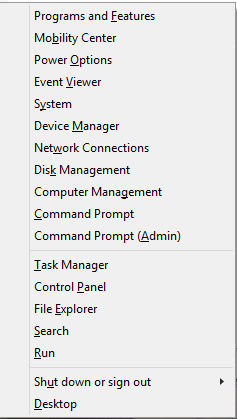
When Microsoft replaced the Start Menu with Metro in Windows 8, they kept something similar to the old Start menu that could be accessed by pressing Win+X.  This menu, shown below, retained a layout that was similar to the start menu and could be used to access various systems management utilities that were hidden by Metro.

image

The folder for the WinX menu is stored in the local appdata section of the Windows 8.1 user profile, so it isn’t included as part of the roaming profile.  Normally this wouldn’t be a big deal, but there seems to be a bug that doesn’t recreate this folder on login for users with roaming profiles.

While this doesn’t “break” Windows, it does make it inconvenient for power users. 

This won’t be an issue for persistent VDI environments where the user always gets the same desktop or where roaming profiles aren’t used.  However, it could pose some issues to non-persistent VDI environments.

Unfortunately, there aren’t many alternatives to roaming profiles on Windows 8.1.  Unlike the old Start Menu, there is no option to use folder redirection on the WinX folder.  VMware’s Persona Management doesn’t support this version of Windows yet, and even though the installer allows it as an option, it doesn’t actually install.  If Persona Management was supported, this issue could be resolved by turning on the feature to roam the local appdata folder.

The current version of Liquidware Labs’ ProfileUnity product does provide beta support for Windows 8.1, but I haven’t tried it in my lab yet to see how ProfileUnity works with 8.1.

The last option, and the one that many end users would probably appreciate, is to move away from the Metro-style interface entirely with a program like Start8 or Classic Shell.  These programs replace the Metro Start Menu with the classic Start Menu from earlier versions of Windows. 

I’ve used Classic Shell in my lab.  It’s an open source program that is available for free, and it includes ADMX files for managing the application via group policy.  It also works with roaming profiles, and it might be a good way to move forward with Windows 8/8.1 without having to retrain users.

Horizon View 5.3 Appendix D – Pool Settings

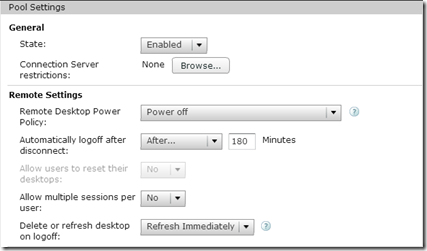
In Part 12, I went over how to create an automatic linked clone pool.  One area I quickly glossed over was what the options on the Pool Settings page were and what they controlled.  When setting up your desktop pools, it is important to understand what these options control.

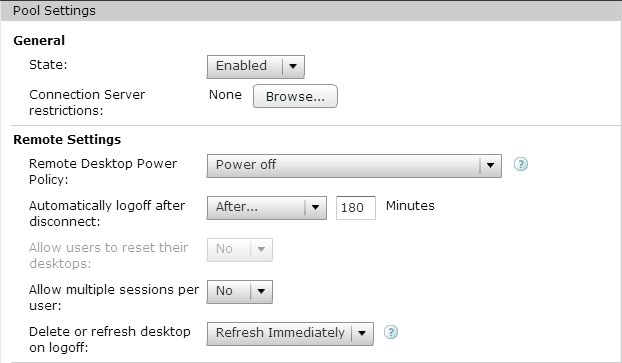
The settings are grouped into four categories: General, Remote Settings, Remote Display Protocol, and Adobe Flash Settings.  General provides options for logins.  Remote Settings handles general desktop behavior for the pool.  Remote display protocol controls options for the display settings in the pool, and Adobe Flash Settings controls how Adobe Flash is managed. 

General Settings

There are two options in the General settings section.  These two options are:

State: State controls whether users can log into the pool or not.  If the pool is set to enabled, entitled users can log in.  If it is disabled, entitled users cannot log in.

Connection Server Restrictions: Horizon View allows Connection Servers to be tagged or grouped.  These tags can be used to control which connection servers can be used to access a pool.  For instance, if you had connection servers tagged Internal and External, you can use the tags to ensure that a pool used by Accounting cannot be accessed from Internet-facing connection servers.

8

Remote Settings

Remote Settings is an odd name for this group, and it probably should be renamed Pool Settings or merged with general.  This group of settings controls desktop power behavior, logon behavior, and idle session duration.

Remote Desktop Power Policy: This setting controls how the power-state of desktops are managed after the user logs off or the desktop is no longer being used as a spare. The options are:

Take No Power Action: If this option is selected, View will not change the power state after a user logs out or the desktop is no longer needed.  Powered on desktops will remain powered on and desktops that are shut down will remain shut down.

Suspend: Desktops that are no longer needed will be suspended by vCenter instead of shut down. 

Power Off: The desktop is shut down and powered off after the user logs off or the desktop is no longer needed as a spare.

Ensure Desktops are Always Powered On: The desktop is always powered on, even when it is not needed.

More information on these options can be found here.

Automatically Log Off After Disconnect: This setting determines how long a session will remain in a disconnected or idle state before the user is logged out.  The options are:

Never: This is the default option.  Users will remain logged in but disconnected indefinitely.

Immediately: The session will be immediately logged out after disconnection.

After X Minutes: The session will remain disconnected for a length of time determined by the administrator before the session is logged out.

Allow Users to Reset Their Desktop: This setting, if enabled and set to Yes, allows users to reset their desktop manually to a known good setting.

Allow Multiple Sessions Per User: This setting controls whether users are allowed to have multiple concurrent sessions in a pool. 

Delete or Refresh Desktop on Logoff: This setting controls what happens to the virtual desktop after the user logs off.  The options are:

Never: Nothing happens to the desktop after logoff, and it may go into an ‘Already Used’ state.

Delete Immediately: The desktop is deleted from the environment and recreated from scratch.  The VM-ID of the desktop changes with this operation.

Refresh Immediately: The desktop is rolled back to the last good snapshot, but it is not deleted.  The VM-ID of the desktop is not changed when this operation occurs.

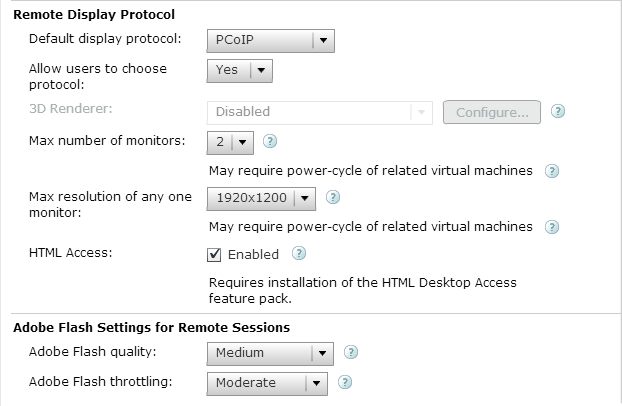
Remote Display Protocol

The Remote Display Protocol section controls some of the settings that govern remote connections to the pool. 

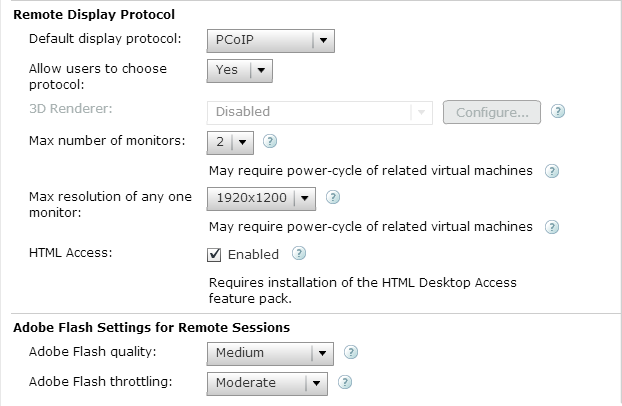
Default Display Protocol: This setting controls the default protocol that is used between the virtual desktop and the client.  The two options are PCoIP and Microsoft RDP. 

This isn’t the only place that display settings are configured.  Fine-grained control over the PCoIP protocol is done via Group Policy through the included ADM files on the Connection Server.

Allow users to choose protocol: If this is set to yes, the user can change the protocol when logging into the pool.  If set to no, the user will always use the default protocol.

3D Renderer: If the pool is using a desktop built on Windows 7 or newer, PCoIP is the default protocol, and the user is not allowed to choose the protocol, 3D rendering settings can be configured for the pool.  Hardware, software, and automatic are the options that can be selected, and the amount of video memory can be configured as well.

Max Number of Monitors: The maximum number of monitors that users will be able to utilize when logging into their virtual desktop when using PCoIP.  The default is 2, but four monitors can be supported as well.  This setting, along with Max Resolution, is used to determine video RAM if 3D Rendering is disabled.

Max Resolution of any one monitor: This is the maximum screen resolution supported on any desktop when using PCoIP.  This setting, along with Max Resolution, is used to determine video RAM if 3D Rendering is disabled.

HTML Access: If the HTML Access component is installed on your connection brokers and Feature Pack 1 is installed on the desktop, you can enable HTML Access.  When this setting is enabled, users can log into the desktop pool using VMware Blast and any HTML5 compatible browser.

9

Adobe Flash Settings

The final group of settings that can be configured are for managing Adobe Flash.  These settings can control the quality of Flash content in order to reduce the amount of bandwidth that a virtual desktop utilizes.

The two settings that can be configured here are:

Adobe Flash Quality: This setting controls the image quality of Flash content.

Adobe Flash Throttling: This setting controls the framerate of the Flash content.  The more aggressive the setting, the lower the frame rate.

As I mentioned above, there are settings that can control image quality, bandwidth usage, and other settings inside the virtual desktop that can be set with Group Policy.  I’ll go over more details on how to do that in an upcoming appendix.

Horizon View 5.3 Part 12 – Creating An Automatic Linked-Clone Desktop Pool

Every system needs a way to group entities in order to organize them, delegate administration, and control security on them.  Horizon VIew uses desktop pools to group desktops, apply Horizon View specific policies, and entitle access to users. 

There are a few different types of desktop pools in a Horizon View environment, and the types of desktop pools that you implement will be determined by your use case.  I’m partial to Automatic Linked-Clone pools, These are known as Non-Persistent Desktop Pools because the user state is lost after logoff when the desktop is returned to a known good state.  In some ways, these pools are similar to Windows XP Steady State desktop setups or a program called Deep Freeze that did something similar.

There are other types of desktop pools in a VMware View environment, and I go into more details on the different pool types in Appendix C.

Since we went through all the effort of setting up View Composer earlier in this series, this article will focus on setting up an Automatic Linked-Clone pool for non-persistent desktops. 

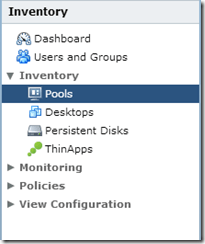
1. Log into View Administrator.  Under Inventory, select Pools.
1

2.  Click Add to add a new pool.

2

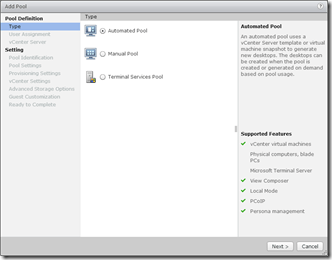
3. Select the Pool Type that you want to create.  For this, we’ll select Automated Pool and click Next.
3

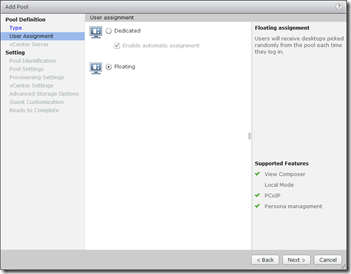
4.  Select whether you want to have Floating or Dedicated Desktops.  For this walkthrough, we’ll select Floating and click Next.
4

Note: The Enable Automatic Assignment option is only available if you select Dedicated. If this option is selected, View automatically assigns a desktop to a use when they log in to dedicated pool for the first time.

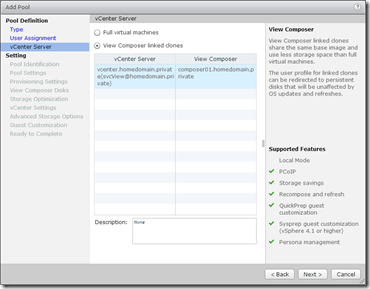
5. Choose the type of virtual machines that will be deployed in the environment. For this walkthrough, select View Composer Linked Clones and click Next.
5

6. Each desktop pool needs an ID and a Display Name.  The ID field is the official name of the pool, and it cannot contain any spaces.  The Display Name is the “friendly” name that users will see when they select a desktop pool to log into.  You can also add a description to the pool.

6

7. The next screen after setting the pool name is for the pool settings.  There are a lot of options here, that control how the pool will behave.  Some of the options are:

  • If the pool is enabled
  • Default power state of desktops
  • Display protocols
  • Adobe Flash settings

7

8

9

8. The next screen will allow you to configure the provisioning settings for the pool.  This screen allows you to control provisioning behavior, computer names, and the number of desktops provisioned in the pool.

10

9. The next screen allows you to set up a special non-persistent disk for disposable files.  Disposable files are classified as temporary files and page files.  If a disposable disk is used, these files will be redirected to here, and this disk is deleted whenever the VM is shut down.

This screen allows you to determine how the virtual desktop will handle these files.

11

10. Select the option to store Replicas on a separate datastore if you want to place them on a different storage tier.  Andre Leibovici has a good article on the benefits of placing Linked Clone replicas on a different datastore.

12

11. After you choose whether or not to place the Replica Disks on a separate datastore, you need to configure the pool’s vCenter settings.  This covers the Parent VM and the snapshot that the Linked Clones will be based on, the folder that they will be stored in within vCenter, and the cluster and datastores that will be used.

In order to configure each setting, you will need to click the Browse button on the right hand side of the screen.  Each step must be configured in order. 

20

11-A. The first item that needs to be configured is the Parent VM that the Linked Clones will be based on.  Select the VM that you want to use and click OK.

13

11-B. The next step is to select the Parent VM snapshot that the Linked Clones will be based on.  Select the snapshot that you want to use and click OK.

14

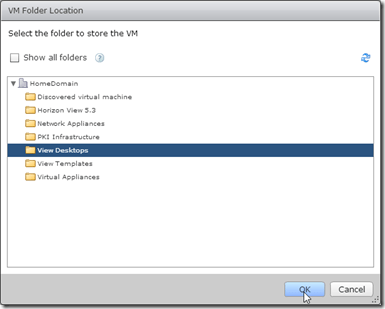
11-C. After you have selected a Parent VM and a snapshot, you need to configure the vCenter folder in the VMs and Templates view that the VMs will be placed in.  Select the folder and click OK.
15

11-D. The next step is to place the pool on a vSphere cluster.  The virtual machines that make up the desktop pool will be run on this cluster, and the remaining choices will be based on this selection.  Select the cluster that they should be run on and click OK.

16

11-E. The next step is to place the desktops into a Resource Pool.  In this example, I have not resource pools configured, so the desktops would be placed in the Cluster Root.

17

11-F. The final two steps of this section are to select the datastores where the Linked Clones and the Replicas will be stored.  Linked Clones can be stored on multiple datastores, so you can select multiple datastores in this section.  You can also configure View to allow the datastores to be overcommitted by changing the Storage Overcommit option on each datastore.

18

11-G. Replicas can only be stored on a single datastore.  Select the datastore that you want to store them on and click OK.

19

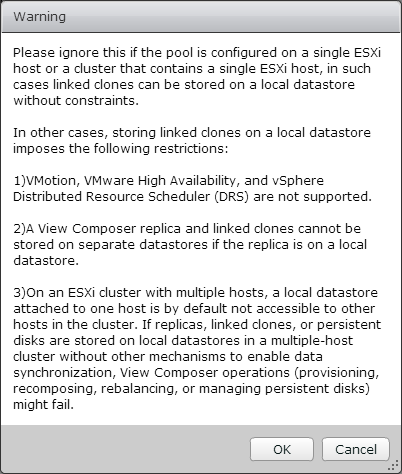
Note: After you have configured the Replica Datastore, you may receive the following warning about storing Replicas and Linked Clones on local datastores.  If you are using a SAN or a NAS and not storing any Replicas or Linked Clones on local datastores, you can ignore this message.
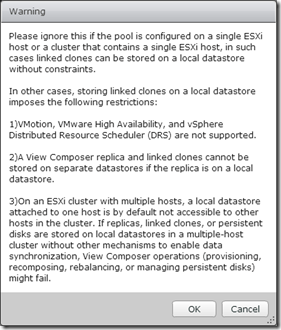
Warning after 18-19

12. The next screen is for configuring the advanced storage options.  The three options that can be configured on this screen are the View Storage Accelerator, disk space reclaimation and the option to use native NFS snapshots.

If you use View Storage Accelerator or disk space reclamation, you can configure blackout times where vCenter will not run these tasks.
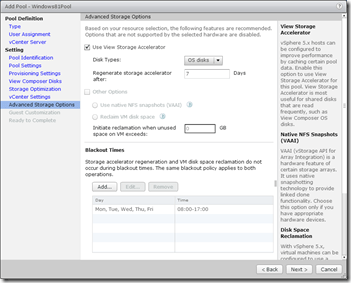
22

13. To set the blackout times for the pool, click the Add Button and select the days and times when you do not want these operations to run.  You can set multiple schedules.

21

14. After you have configured the advanced storage options, you need to configure the Guest Customization settings.  This screen allows you to select the domain and organizational unit for the desktops and whether Sysprep or Quickprep will be used to prepare the desktops.

24

15. Review the settings for the pool and verify that everything is correct.  Before you click Finish, check the Entitle Users checkbox in the upper right.  This will allow you to select the users and/or groups who have permission to log into the desktops.

If you need to make a change to the pool settings, the left-hand column contains links to each page in the wizard.

25

17. After you click Finish, you will need to grant access to the pool.  View allows you to entitle Active Directory users and groups.  Click Add to entitle users and groups.

27

18. Search for the user or group that you want to add to entitle.  If you are in a multi-domain environment, you can change domains by selecting the domain from the Domains box.  Click on the users or groups that you want to grant access to and click OK.
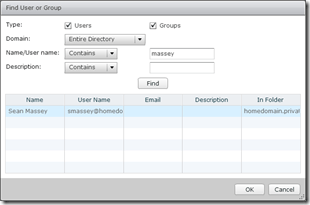
26

Note:  I recommend that you create Active Directory security groups and entitle those to desktop pools.  This makes it easier to manage a user’s pool assignments without having to log into View Administrator whenever you want to make a change.

19. You can check the status of your desktop pool creation in vCenter.  If this is a new pool, it will need to clone the VM into a Replica before it can create the Linked Clone desktops. 

28

Once the desktops have finished composing, you will be able to log into them through VMware Blast or the Horizon View client. 

I realize that there are a lot of steps in the process of creating a desktop pool.  It doesn’t take nearly as long as it seems once you get the hang of it, and you will be able to fly through it pretty quickly.