Horizon View 5.3 Part 14 – Windows Server Desktops

Technology isn’t the most complicated part of any VDI deployment.  That honor belongs to Microsoft’s VDA licensing – a complex labyrinth of restrictions on how the Windows Desktop OS can be used in a VDI environment.  The VDA program either requires software assurance on Windows devices or a subscription for devices that aren’t covered under SA such as zero clients or employee-owned devices.

The VDA program is a management nightmare, and it has spawned a small movement in the community called #FixVDA to try and get Microsoft to fix the problems with this program.

The licensing for virtualizing Windows Server is much less complicated, and a licensing model for remote desktop access that isn’t dependent upon software assurance already exists.

Note: I am not an expert on Microsoft licensing.  Microsoft does update VDA and other licensing options, so check with your Microsoft Licensing representative before purchasing.  If you want more details about Microsoft’s licensing for 2008 R2 Remote Desktop Services, you can view the licensing brief here.

In previous versions of Horizon View, it was possible, although difficult to configure and unsupported, to use Windows Server 2008 R2 as a desktop OS.  Horizon View 5.3 has added official support for using Windows Server 2008 R2 as a desktop OS.  This opens up desktop virtualization for enterprises and service providers.

Batteries Not Included

Windows Server-based desktops are missing a number of features in View that other versions of Windows are able to take advantage of.  These features are:

  • Virtual Printing (AKA ThinkPrint)
  • Multimedia Redirection
  • Persona Management
  • vCOPs for View functionality
  • Local-Mode Support
  • Smart Card SSO
  • UC/Lync APIs and support

ThinPrint can be worked around – either by using Group Policy Preferences for users inside the firewall or buying the full product from Cortado.  Personal Management can also be worked around by using Roaming Profiles and folder redirection.

If you need smart cards, Lync 2013 support, Local-Mode, or vCOPs for View support, you will still need to pony up for a VDA subscription.

I suspect that more of these features will be working in the next version of View as they are fully tested and validated by VMware.

What’s Included Today

It seems like there are a lot of features in View 5.3 that aren’t supported or available with Windows Server 2008 R2 desktops.  So what is included? 

  • PCoIP Access
  • VMware Blast HTML5 Access – Installed separately with the Remote Experience Pack
  • USB and Audio Redirection

That doesn’t sound like much, but it may be worth the tradeoff if it saves on licensing.

Enabling Windows Server Desktop Support

Windows Server Desktop support is not enabled by default in Horizon View 5.3, but it isn’t too hard to enable.  There is one step that needs to be performed inside the View LDAP database to enable support, and the agent needs to be installed from the command line.

To configure View to support Server 2008 R2 desktops, you need to take the following steps:

  1. Connect to the View ADAM (LDAP) Database
  2. Expand dc=vdi, dc=vmware, dc=int
  3. Expand OU=Properties
  4. Expand OU=Global
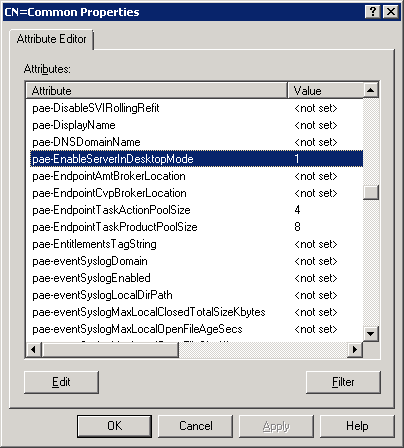
  5. Right click on CN=Common and select Properties.
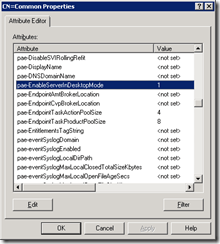
  6. Scroll to the attribute named “pae-EnableServerinDesktopMode”
    01
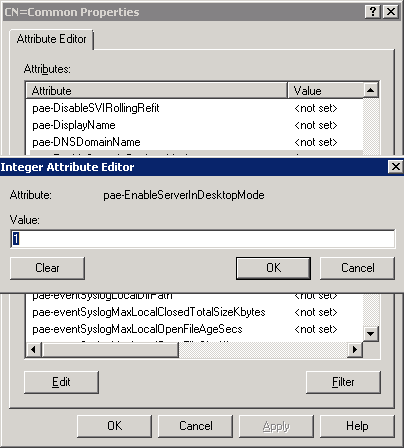
  7. Click the Edit Button
  8. Change the value to 1 and click OK.
    02
  9. Click OK
  10. Close ADSI Edit

After the View environment has been configured to support Windows Server as a desktop source, the desktop gold image can be configured.  Although the process is mostly the same as Part 11 – Building Your Desktop Golden Images, there are a few key differences.

These differences are:

  • The VMXNET3 network card should be used over the E1000 network card.
  • The Desktop Experience Feature needs to be installed before the View Agent.  This feature is important if you plan to use VMware Blast.
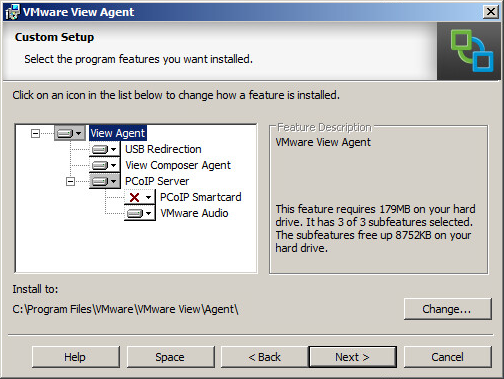
  • The VMware View Agent needs to be installed from the command line in order to force the agent to install in Desktop Mode.  The command test is “VMware-viewagent-x86_64-5.3.0-xxxxx.exe /v”VDM_FORCE_DESKTOP_AGENT=1″”

2a

Aside from these differences, a Server 2008 R2 desktop source can be configured the same as a Windows 7 desktop source.

The next post in this series will be on securing the View environment with SSL certificates.

Horizon View 5.3 Part 13 – VMware Blast

One of the new features that was introduced in Horizon View 5.2 was VMware Blast.  VMware Blast gives Horizon View administrators another option for allowing users to access virtual desktops – any HTML5 compatible web browser.

Yes.  You read that right.  The newest option for accessing virtual desktops is your web browser.  There are a couple of good use cases for this – employee remote access, employee BYOD,  and Internet or guest-use kiosks are the first three that come to mind. 

But there are also some drawbacks.  A number of features, such as multimedia redirection, virtual printing (ThinPrint), and USB device access, are not available through Blast.  View Blast is not as scalable as PCoIP – a single connection server can only support 350 users when using Blast compared to 2000 users when using PCoIP.

Despite those drawbacks, this is one of my favorite features.  I love the ability to log into a desktop without having to load the View Client onto a machine.

Unfortunately, this feature isn’t included in the default installation, and additional components need to be installed on connection servers and virtual desktops in order to enable it. 

Enabling VMware Blast

There are two components that need to be installed to allow HTML desktop access in a Horizon View environment.  One component, the Horizon View HTML Access component, needs to be installed on connection servers, and Horizon View Remote Experience Agent needs to be installed on the View desktop with the HTML component enabled.  No additional components need to be installed on Security Servers, but a service will need to be enabled to allow the Security Server to manage HTML5 connections to desktops.

Connection Server

The steps for installing the HTML Access component on a Connection Server are:

1. Run the HTML Access Installer

1

2. Click Next

2

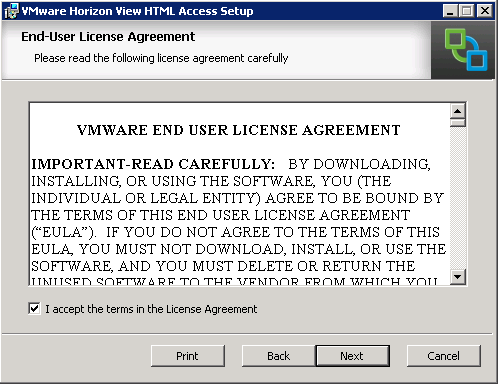
3. Accept the license agreement and click Next

3

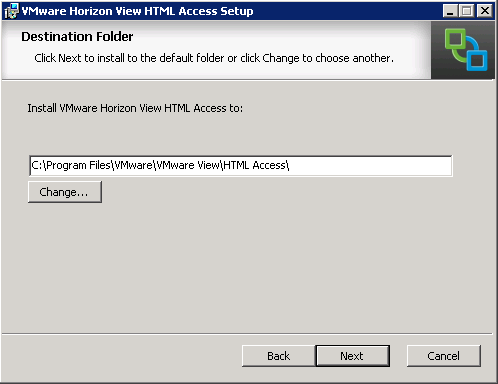
4.  Select the installation directory and click Next

4

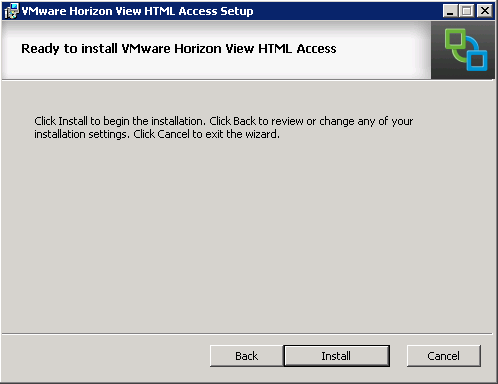
5. Click Install to begin the installation

5

6. Once the installation has finished, click Finish to exit the installer.

6

After you have installed the HTML access component, you will want to ensure that the VMware Blast firewall rules are enabled, and you can do that in the Firewall Management Console. 

Firewall - VMware Blast
Caption: Make sure the two highlighted rules are enabled.

Security Server

The VMware View Blast Secure Gateway Service is the Blast component that runs on View Security Servers.  This components is part of the default security server installation, but the service is disabled.

If you are using a security server and plan to allow HTML access to external users, you will need to make sure the VMware View Blast Secure Gateway Service is set to Automatic and started.   You will also need to enable the VMware Blast firewall rules.

View Desktop Agents

A component will need to be installed on each desktop that you want to enable HTML access to.  This component is part of the Horizon View Remote Experience Agent.

The steps for installing the agent are:

1. Run the Horizon View 5.3 Remote Experience Agent installer.

7

2. Accept the license agreement.

8

3.  The HTML Access option is enabled by default.  Click next to continue.

9

4. Click Install. 

All the components that are required for HTML Access will be installed after this installation is complete.  If you are planning to use this feature with Linked Clones, you will need to take a snapshot and recompose the desktop pools where you want to use this feature.

Configuring VMware Blast URLs

The URLs that will be used to access desktops through VMware Blast need to be configured before users can log in.  These URLs are configured in View Administrator, and they can be configured on both Connection Servers and Security Servers.

The procedure for configuring the URLs are the same for Connection Servers and Security Servers.  These steps are:

  1. Log into View Administrator
  2. Click on View Configuration
  3. Click on Servers
  4. Click on the Connection Servers or Security Servers tab.
  5. Select the server that you want to configure and click Edit.
  6. Enter the URL that users will use for accessing desktops via HTTPS under Blast Secure Gateway.  The default port for Blast is 8443.

12

11

Enabling HTML Access for Desktop Pools

Although the components for HTML Access are installed, the feature isn’t turned on yet.  Users will not be able to access their desktops through a web browser until this feature is enabled on a desktop pool.

The steps to enable HTML Access are:

  1. Log into View Administrator
  2. Click on Pools
  3. Select the pool you want to enable HTML Access for
  4. Click Edit
  5. Click the Pool Settings tab
  6. Look for the line called HTML Access in the Remote Display Protocol section.  Check the box for Enabled and click OK.

10

Accessing Desktops over HTML

Once HTML Access is enabled, you can log into your desktop right away.  The login URL for VMware Blast is the similar as the URL used for the Blast Secure Gateway.  The only difference is the port that users will connect to, the login page is a regular HTTPS site.

For example, if the URL you choose for your Blast Secure Gateway is https://blast.homedomain.com:8443, users should be directed to https://blast.homedomain.com to log in.  If they go to the former example, they will receive an error page that “missing route token in request.” 

That’s All, Folks!

That covers the basics of setting up HTML access to View Desktops with VMware Blast.  Despite missing a number of features that the View Client has, this is a great tool for providing access to virtual desktops without having to install the desktop client.

Windows 8.1 Win-X Menu and Roaming Profiles

One of the features of the new version of Horizon View 5.3 is support for Windows 8.1, and I used this as my desktop OS of choice as I’ve worked through installing View in my home lab.  After all, why not test the latest version of a desktop platform with the latest supported version of Microsoft Windows.

Like all new OSes, it has its share of issues.  Although I’m not sure that anyone is looking to do a widespread deployment of 8.1 just yet, there is an issue that could possibly hold up any deployment if roaming profiles are needed.

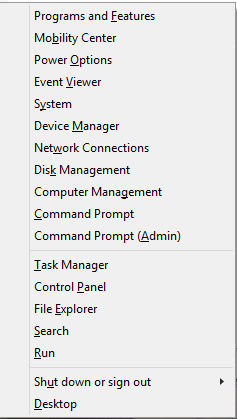
When Microsoft replaced the Start Menu with Metro in Windows 8, they kept something similar to the old Start menu that could be accessed by pressing Win+X.  This menu, shown below, retained a layout that was similar to the start menu and could be used to access various systems management utilities that were hidden by Metro.

image

The folder for the WinX menu is stored in the local appdata section of the Windows 8.1 user profile, so it isn’t included as part of the roaming profile.  Normally this wouldn’t be a big deal, but there seems to be a bug that doesn’t recreate this folder on login for users with roaming profiles.

While this doesn’t “break” Windows, it does make it inconvenient for power users. 

This won’t be an issue for persistent VDI environments where the user always gets the same desktop or where roaming profiles aren’t used.  However, it could pose some issues to non-persistent VDI environments.

Unfortunately, there aren’t many alternatives to roaming profiles on Windows 8.1.  Unlike the old Start Menu, there is no option to use folder redirection on the WinX folder.  VMware’s Persona Management doesn’t support this version of Windows yet, and even though the installer allows it as an option, it doesn’t actually install.  If Persona Management was supported, this issue could be resolved by turning on the feature to roam the local appdata folder.

The current version of Liquidware Labs’ ProfileUnity product does provide beta support for Windows 8.1, but I haven’t tried it in my lab yet to see how ProfileUnity works with 8.1.

The last option, and the one that many end users would probably appreciate, is to move away from the Metro-style interface entirely with a program like Start8 or Classic Shell.  These programs replace the Metro Start Menu with the classic Start Menu from earlier versions of Windows. 

I’ve used Classic Shell in my lab.  It’s an open source program that is available for free, and it includes ADMX files for managing the application via group policy.  It also works with roaming profiles, and it might be a good way to move forward with Windows 8/8.1 without having to retrain users.

Horizon View 5.3 Appendix D – Pool Settings

In Part 12, I went over how to create an automatic linked clone pool.  One area I quickly glossed over was what the options on the Pool Settings page were and what they controlled.  When setting up your desktop pools, it is important to understand what these options control.

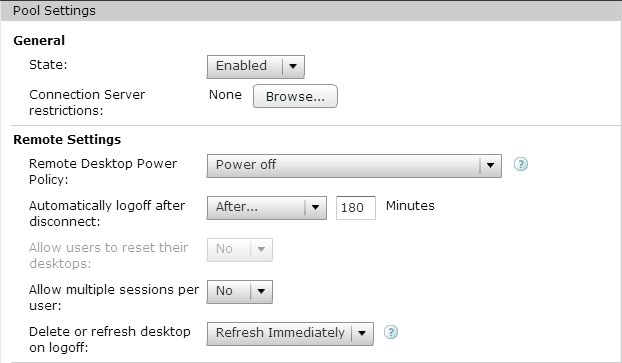
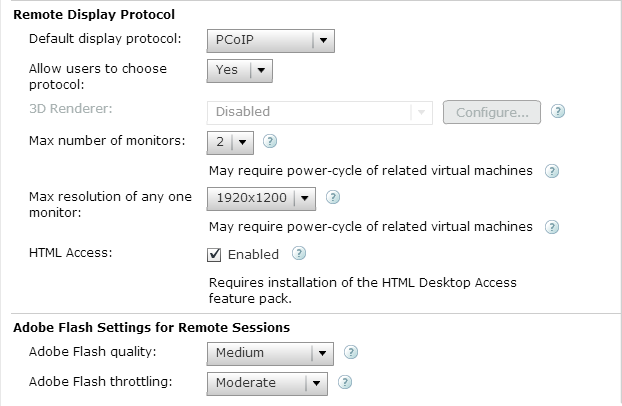
The settings are grouped into four categories: General, Remote Settings, Remote Display Protocol, and Adobe Flash Settings.  General provides options for logins.  Remote Settings handles general desktop behavior for the pool.  Remote display protocol controls options for the display settings in the pool, and Adobe Flash Settings controls how Adobe Flash is managed. 

General Settings

There are two options in the General settings section.  These two options are:

State: State controls whether users can log into the pool or not.  If the pool is set to enabled, entitled users can log in.  If it is disabled, entitled users cannot log in.

Connection Server Restrictions: Horizon View allows Connection Servers to be tagged or grouped.  These tags can be used to control which connection servers can be used to access a pool.  For instance, if you had connection servers tagged Internal and External, you can use the tags to ensure that a pool used by Accounting cannot be accessed from Internet-facing connection servers.

8

Remote Settings

Remote Settings is an odd name for this group, and it probably should be renamed Pool Settings or merged with general.  This group of settings controls desktop power behavior, logon behavior, and idle session duration.

Remote Desktop Power Policy: This setting controls how the power-state of desktops are managed after the user logs off or the desktop is no longer being used as a spare. The options are:

Take No Power Action: If this option is selected, View will not change the power state after a user logs out or the desktop is no longer needed.  Powered on desktops will remain powered on and desktops that are shut down will remain shut down.

Suspend: Desktops that are no longer needed will be suspended by vCenter instead of shut down. 

Power Off: The desktop is shut down and powered off after the user logs off or the desktop is no longer needed as a spare.

Ensure Desktops are Always Powered On: The desktop is always powered on, even when it is not needed.

More information on these options can be found here.

Automatically Log Off After Disconnect: This setting determines how long a session will remain in a disconnected or idle state before the user is logged out.  The options are:

Never: This is the default option.  Users will remain logged in but disconnected indefinitely.

Immediately: The session will be immediately logged out after disconnection.

After X Minutes: The session will remain disconnected for a length of time determined by the administrator before the session is logged out.

Allow Users to Reset Their Desktop: This setting, if enabled and set to Yes, allows users to reset their desktop manually to a known good setting.

Allow Multiple Sessions Per User: This setting controls whether users are allowed to have multiple concurrent sessions in a pool. 

Delete or Refresh Desktop on Logoff: This setting controls what happens to the virtual desktop after the user logs off.  The options are:

Never: Nothing happens to the desktop after logoff, and it may go into an ‘Already Used’ state.

Delete Immediately: The desktop is deleted from the environment and recreated from scratch.  The VM-ID of the desktop changes with this operation.

Refresh Immediately: The desktop is rolled back to the last good snapshot, but it is not deleted.  The VM-ID of the desktop is not changed when this operation occurs.

Remote Display Protocol

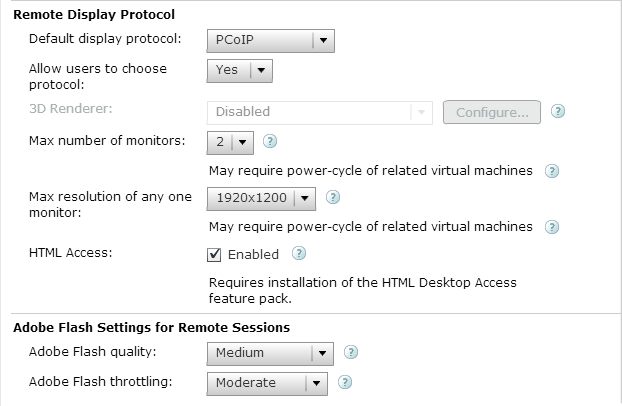
The Remote Display Protocol section controls some of the settings that govern remote connections to the pool. 

Default Display Protocol: This setting controls the default protocol that is used between the virtual desktop and the client.  The two options are PCoIP and Microsoft RDP. 

This isn’t the only place that display settings are configured.  Fine-grained control over the PCoIP protocol is done via Group Policy through the included ADM files on the Connection Server.

Allow users to choose protocol: If this is set to yes, the user can change the protocol when logging into the pool.  If set to no, the user will always use the default protocol.

3D Renderer: If the pool is using a desktop built on Windows 7 or newer, PCoIP is the default protocol, and the user is not allowed to choose the protocol, 3D rendering settings can be configured for the pool.  Hardware, software, and automatic are the options that can be selected, and the amount of video memory can be configured as well.

Max Number of Monitors: The maximum number of monitors that users will be able to utilize when logging into their virtual desktop when using PCoIP.  The default is 2, but four monitors can be supported as well.  This setting, along with Max Resolution, is used to determine video RAM if 3D Rendering is disabled.

Max Resolution of any one monitor: This is the maximum screen resolution supported on any desktop when using PCoIP.  This setting, along with Max Resolution, is used to determine video RAM if 3D Rendering is disabled.

HTML Access: If the HTML Access component is installed on your connection brokers and Feature Pack 1 is installed on the desktop, you can enable HTML Access.  When this setting is enabled, users can log into the desktop pool using VMware Blast and any HTML5 compatible browser.

9

Adobe Flash Settings

The final group of settings that can be configured are for managing Adobe Flash.  These settings can control the quality of Flash content in order to reduce the amount of bandwidth that a virtual desktop utilizes.

The two settings that can be configured here are:

Adobe Flash Quality: This setting controls the image quality of Flash content.

Adobe Flash Throttling: This setting controls the framerate of the Flash content.  The more aggressive the setting, the lower the frame rate.

As I mentioned above, there are settings that can control image quality, bandwidth usage, and other settings inside the virtual desktop that can be set with Group Policy.  I’ll go over more details on how to do that in an upcoming appendix.

Horizon View 5.3 Part 12 – Creating An Automatic Linked-Clone Desktop Pool

Every system needs a way to group entities in order to organize them, delegate administration, and control security on them.  Horizon VIew uses desktop pools to group desktops, apply Horizon View specific policies, and entitle access to users. 

There are a few different types of desktop pools in a Horizon View environment, and the types of desktop pools that you implement will be determined by your use case.  I’m partial to Automatic Linked-Clone pools, These are known as Non-Persistent Desktop Pools because the user state is lost after logoff when the desktop is returned to a known good state.  In some ways, these pools are similar to Windows XP Steady State desktop setups or a program called Deep Freeze that did something similar.

There are other types of desktop pools in a VMware View environment, and I go into more details on the different pool types in Appendix C.

Since we went through all the effort of setting up View Composer earlier in this series, this article will focus on setting up an Automatic Linked-Clone pool for non-persistent desktops. 

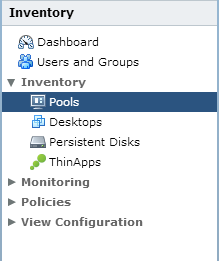
1. Log into View Administrator.  Under Inventory, select Pools.

1

2.  Click Add to add a new pool.

2

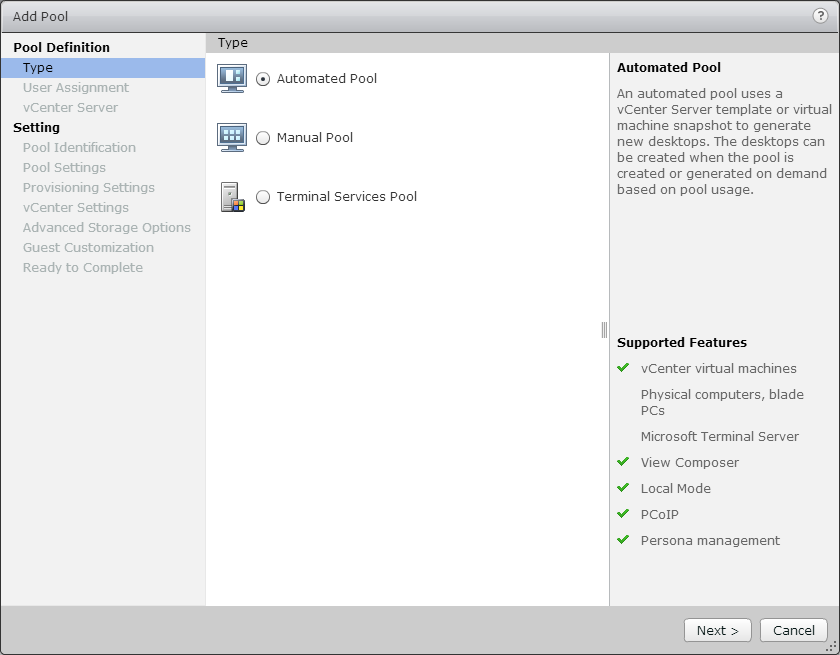
3. Select the Pool Type that you want to create.  For this, we’ll select Automated Pool and click Next.

3

4.  Select whether you want to have Floating or Dedicated Desktops.  For this walkthrough, we’ll select Floating and click Next.

4

Note: The Enable Automatic Assignment option is only available if you select Dedicated. If this option is selected, View automatically assigns a desktop to a use when they log in to dedicated pool for the first time.

5. Choose the type of virtual machines that will be deployed in the environment. For this walkthrough, select View Composer Linked Clones and click Next.

5

6. Each desktop pool needs an ID and a Display Name.  The ID field is the official name of the pool, and it cannot contain any spaces.  The Display Name is the “friendly” name that users will see when they select a desktop pool to log into.  You can also add a description to the pool.

6

7. The next screen after setting the pool name is for the pool settings.  There are a lot of options here, that control how the pool will behave.  Some of the options are:

  • If the pool is enabled
  • Default power state of desktops
  • Display protocols
  • Adobe Flash settings

7

8

9

8. The next screen will allow you to configure the provisioning settings for the pool.  This screen allows you to control provisioning behavior, computer names, and the number of desktops provisioned in the pool.

10

9. The next screen allows you to set up a special non-persistent disk for disposable files.  Disposable files are classified as temporary files and page files.  If a disposable disk is used, these files will be redirected to here, and this disk is deleted whenever the VM is shut down.

This screen allows you to determine how the virtual desktop will handle these files.

11

10. Select the option to store Replicas on a separate datastore if you want to place them on a different storage tier.  Andre Leibovici has a good article on the benefits of placing Linked Clone replicas on a different datastore.

12

11. After you choose whether or not to place the Replica Disks on a separate datastore, you need to configure the pool’s vCenter settings.  This covers the Parent VM and the snapshot that the Linked Clones will be based on, the folder that they will be stored in within vCenter, and the cluster and datastores that will be used.

In order to configure each setting, you will need to click the Browse button on the right hand side of the screen.  Each step must be configured in order. 

20

11-A. The first item that needs to be configured is the Parent VM that the Linked Clones will be based on.  Select the VM that you want to use and click OK.

13

11-B. The next step is to select the Parent VM snapshot that the Linked Clones will be based on.  Select the snapshot that you want to use and click OK.

14

11-C. After you have selected a Parent VM and a snapshot, you need to configure the vCenter folder in the VMs and Templates view that the VMs will be placed in.  Select the folder and click OK.

15

11-D. The next step is to place the pool on a vSphere cluster.  The virtual machines that make up the desktop pool will be run on this cluster, and the remaining choices will be based on this selection.  Select the cluster that they should be run on and click OK.

16

11-E. The next step is to place the desktops into a Resource Pool.  In this example, I have not resource pools configured, so the desktops would be placed in the Cluster Root.

17

11-F. The final two steps of this section are to select the datastores where the Linked Clones and the Replicas will be stored.  Linked Clones can be stored on multiple datastores, so you can select multiple datastores in this section.  You can also configure View to allow the datastores to be overcommitted by changing the Storage Overcommit option on each datastore.

18

11-G. Replicas can only be stored on a single datastore.  Select the datastore that you want to store them on and click OK.

19

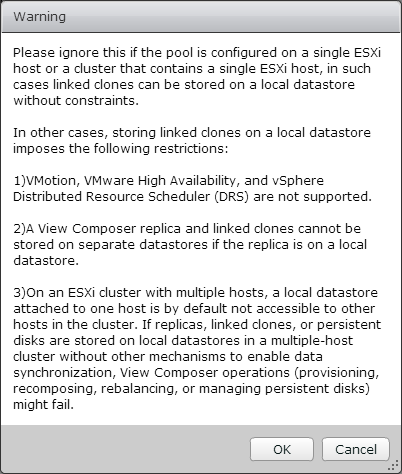
Note: After you have configured the Replica Datastore, you may receive the following warning about storing Replicas and Linked Clones on local datastores.  If you are using a SAN or a NAS and not storing any Replicas or Linked Clones on local datastores, you can ignore this message.

Warning after 18-19

12. The next screen is for configuring the advanced storage options.  The three options that can be configured on this screen are the View Storage Accelerator, disk space reclaimation and the option to use native NFS snapshots.

If you use View Storage Accelerator or disk space reclamation, you can configure blackout times where vCenter will not run these tasks.

22

13. To set the blackout times for the pool, click the Add Button and select the days and times when you do not want these operations to run.  You can set multiple schedules.

21

14. After you have configured the advanced storage options, you need to configure the Guest Customization settings.  This screen allows you to select the domain and organizational unit for the desktops and whether Sysprep or Quickprep will be used to prepare the desktops.

24

15. Review the settings for the pool and verify that everything is correct.  Before you click Finish, check the Entitle Users checkbox in the upper right.  This will allow you to select the users and/or groups who have permission to log into the desktops.

If you need to make a change to the pool settings, the left-hand column contains links to each page in the wizard.

25

17. After you click Finish, you will need to grant access to the pool.  View allows you to entitle Active Directory users and groups.  Click Add to entitle users and groups.

27

18. Search for the user or group that you want to add to entitle.  If you are in a multi-domain environment, you can change domains by selecting the domain from the Domains box.  Click on the users or groups that you want to grant access to and click OK.

26

Note:  I recommend that you create Active Directory security groups and entitle those to desktop pools.  This makes it easier to manage a user’s pool assignments without having to log into View Administrator whenever you want to make a change.

19. You can check the status of your desktop pool creation in vCenter.  If this is a new pool, it will need to clone the VM into a Replica before it can create the Linked Clone desktops. 

28

Once the desktops have finished composing, you will be able to log into them through VMware Blast or the Horizon View client. 

I realize that there are a lot of steps in the process of creating a desktop pool.  It doesn’t take nearly as long as it seems once you get the hang of it, and you will be able to fly through it pretty quickly.

Horizon View 5.3 Appendix C – Desktop Pool Types

When you sit down to design the desktop pools in your Horizon View environment, you’ll be presented with a number of choices that will dictate how those pools will behave.  The choices that you’re presented with are the type of desktop pool and assignment type.

Desktop Pool Types

There are three types of desktop pools in a Horizon View environment.  The desktop pool types are:

  • Automatic Pool – These pools consist solely of virtual machines, and they may be full-clones generated from a template in vCenter or a linked-clone desktop created using View Composer.  View and vCenter do the provisioning and management of these desktops, and most of the features of View are geared towards this class of desktop pools.  I’ll go into the differences between linked-clone and full-clone desktops below.
  • Manual Pool – A manual pool is a type of pool that is essentially defined as “other.”  The items in this pool can be virtual machines that have the View Agent installed such as physical desktops that have been converted to virtual or physical hardware that has Teradici PCoIP cards installed.  As the name implies, desktops have to be manually added to this type of pool, but it can provide a single management and presentation layer if you are using PCoIP to provide access to centrally-hosted physical workstations or P2V’ed desktops.
  • Microsoft Terminal Services Pool – A Terminal Services Pool provides terminal server sessions as Horizon View Desktops.  This version supports the fewest number of Horizon View features, but it can provide a single pane of glass for management if you use both Terminal Server and View desktops or if you are transitioning from Terminal Services to Horizon View.

3

As I mentioned above, there are two types of Automated Pool desktops – Full-Clone desktops and Linked-Clone Desktops.

Type Pros Cons
Full-Clone Desktops
  • Easy to Deploy
  • Similar to physical desktop environments
  • Can Utilize Existing Desktop Management Infrastructure (SCCM)
  • Only one template required – Apps can be deployed after cloning
  • Requires Deduplicating Storage Arrays or lots of Storage
  • Can’t be recomposed or refreshed
  • Requires desktop management infrastructure to manage large numbers of full-clone desktops
Linked-Clone Desktops
  • Requires less storage capacity
  • Recompose and Refresh Operations supported
  • Can update entire pools by making changes on template machines and recomposing
  • Does not require desktop management infrastructure (SCCM)
  • Recompose/Refresh operations can leave users without access to desktops during maintenance windows
  • Removing a VM snapshot can render pools unusable
  • Multiple desktop templates may be required to deploy pools with different application packages

Assignment Type

There are two assignment types for most of the pools: Dedicated Assignment and Floating Assignment.  These are more commonly known as Persistent and Non-Persistent pools.

Dedicated or persistent pools are desktop pools where the user gets assigned to a virtual desktop, and that is the desktop that they receive each time they log in.  The desktop can be assigned automatically the first time a user logs in or it can be assigned by an administrator through View Administrator.

Floating or non-persistent pools are desktop pools where the user is not permanently assigned to a desktop, and they may receive a different desktop each time they log in.  Desktops in a floating assignment pool are usually returned to a known good state after the user logs out, and they are commonly paired with Roaming Profiles, Persona Management and/or third-party solutions like Liquidware Labs and/or UniDesk.

If you are using Linked-Clone desktops, there is a middle ground between Persistent and Non-Persistent that is “semi-persistent.”  This kind of setup is one where the user is permanently assigned to the desktop, but the desktop is refreshed to a known good state on logout.  I’ve had to deploy a few pools like this in my previous job because non-persistent linked clone desktops were the standard but the application had licensing restrictions based on the computer name.

Design Decisions

There are a number of factors that would influence what type of pool and assignment policies are selected during the design phase, including:

  1. Customer requirements
  2. Type of Storage Infrastructure that is in place or being procured
  3. Type of Desktop Management infrastructure that is in place or being procured
  4. Application requirements
  5. Budget

Understanding the strengths and weaknesses of the various combinations of pool and assignment types is very important.  Those decisions impact the ability to manage and maintain the environment.

Some vendors and evangelists like to push one particular desktop type over another, but there is no one-size-fits-all solution to any virtual desktop deployment.  The only “Ultimate Solution” is the one that fits your needs and meets your requirements.

Horizon View 5.3 Part 11 – Building Your Desktop Golden Images

A virtual desktop environment is nothing without virtual desktops.  And many

Supported Operating Systems

Horizon View only supports virtual desktops running Microsoft Windows.  The versions of Windows that are supported are:

  • Windows 8.1 Enterprise or Professional
  • Windows 8 Enterprise or Professional
  • Windows 7 Enterprise or Professional
  • Windows Vista Business and Enterprise (32-bit Only, SP1 and above)
  • Windows XP Professional SP3 (32-bit)
  • Terminal Servers running Windows Server 2008 SP2 or Windows Server 2008 R2 SP1

Windows Server 2008 R2 is supported as a desktop operating system, but it requires additional configuration in the View LDAP database.

For this part, we’re going to assume that we’re building a desktop running Windows 7 or Windows 8.1.  We’ll cover Windows Server 2008 R2 in a different section.  This will be more of a high-level overview of creating a desktop template for Horizon View, and I won’t be doing a step-by-step walkthrough of any of the steps for this section.

Configure the VM

Building a desktop VM isn’t much different than building a server VM.  The basic process is create the VM, configure the hardware, install the operating system, and then install your applications.  Building a desktop VM doesn’t deviate from this.

Although you should base the number of vCPUs and the amount of RAM assigned to your virtual desktops on the requirements for of the applications that you plan to run, there are some recommended minimums.

For the sake of this discussion, I’m going to ignore Windows XP.  It goes end of life in a few months, so there is no point in trying to deploy it in a production environment.

The minimums for a virtual desktop are:

  • SCSI Controller – LSI SAS
  • Hard Disk – At least 40GB Thin Provisioned
  • NIC – VMXNET3
  • Remove Floppy Drive, and disable parallel and serial ports in BIOS

Note: You cannot remove the CD-ROM drive until after Windows has been installed if you are installing from an ISO.

BIOS Settings
BIOS screen for disabling Serial and Parallel ports and floppy controller

You’ll notice that I didn’t put minimums for vCPUs and RAM.  Sizing these really depends on the requirements of your user’s applications.  I’ve had Windows 7 64-bit desktops deployed with as little as 1GB of RAM for general office workers up to 4GB of RAM for users running the Adobe Suite.

Install Windows

After you have created a VM and configured the VM’s settings, you need to install Windows.  Again, it’s not much different than installing Windows Server into a VM or installing a fresh copy of Windows onto physical hardware.  You can install Windows using the ISO of the disk or by using the Microsoft Deployment Toolkit and PXE boot to push down an image that you’ve already created.

When installing Windows for your desktop template, you’ll want to make sure that the default 100 MB system partition is not created.  This partition is used by Windows to store the files used for BItlocker.

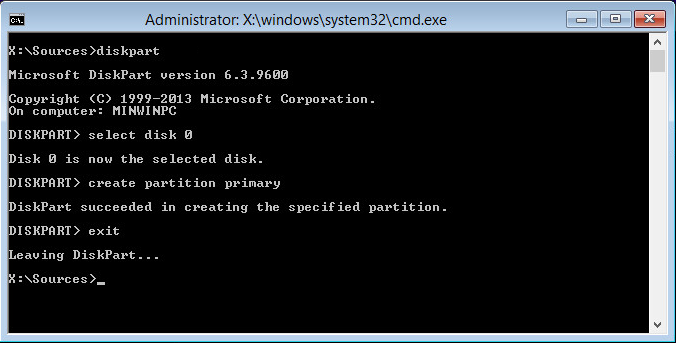
Since Bitlocker is not supported on virtual machines by either Microsoft or VMware, there is no reason to create this partition.  This will require bypassing the installer and manually partitioning the boot drive.  The steps for doing this when installing from the DVD/ISO are:

1. Boot the computer to the installer
2. Press Shift-F10 to bring up the command prompt
3. Type DiskPart
4. Type Select Disk 0
5. Type Create Partition Primary
6. Type Exit twice.

diskpart

Once you’ve set up the partition, you can install Windows normally.  If you’re using something like the Microsoft Deployment Toolkit, you will need to configure your answer file to set up the proper hard drive partition configuration.

Install VMware Tools and Join the Template to a Domain

After you have installed Windows, you will need to install the VMware tools package.  The tools package is required to install the View Agent.  VMware Tools also includes the VMXNET3 driver, and your template will not have network access until this is installed.   The typical installation is generally all that you will need unless you’re using vShield Endpoint as part of your antivirus solution.

After you have installed VMware Tools and rebooted the template, you should join it to your Active Directory domain.  The template doesn’t need to be joined to a domain, but it makes it easier to manage and install software from network shares.

Install View Agent

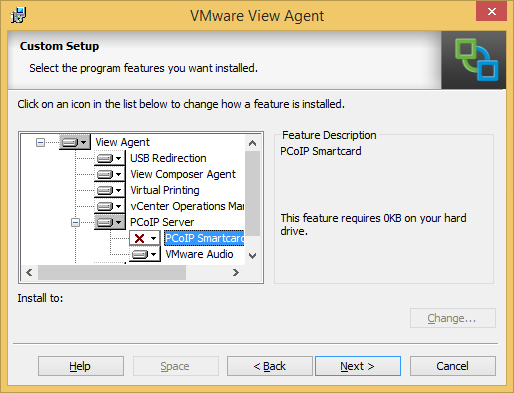
After you have installed the VMware tools package and joined your computer to the domain, you will need to install the VMware View Agent.  There are two parts to the agent install – the View Agent itself and the Remote Experience Installer that contains the Feature Pack 1 additions.  The default install of the View Agent includes all of the features except for PCoIP Smartcard support.  The agent install will require a reboot after it is completed.

Appendix B will contain more details about the various options that are available during the View Agent installation.

Installing Applications on the Template

After you install the View Agent and, optionally, the Remote Experience Agent, you can begin to install the applications that your users will need when they log into Horizon View.

With tools like Thinapp available to virtualize Windows applications or layering software like Unidesk, it is not be necessary to create templates for all of the different application combinations.  You can create a base template with your common applications, such as your office suite, pdf reader, etc, and then either virtualize or layer your other applications on top of that.

Shutdown and Snapshot

After you have your applications installed, you need to shut down your desktop template and take a snapshot of it.  If you are using linked-clones, the linked-clone replica will be based on the snapshot you select.

That’s a quick rundown of setting up a desktop template to be used with Horizon View desktops.  I’ll be posting an appendix to go along with this section to cover the various options that are available in the View Agent installer.

Horizon View 5.3 Appendix B – View Agent Installation Options

By default, the View Agent installs with all of the options enabled except for PCoIP Smartcard support.  While these options may be suitable for general virtual desktop use, they aren’t suitable for all deployments.

There are two parts to the Horizon View Agent installer.  The first part is the View Agent itself, and the second part is Remote Experience Agent that adds the new capabilities from Feature Pack 1.

The features that you enable on the View Agent are highly dependent upon the requirements of your environment.

3

The View Agent features are:

  • USB Redirection – This feature provides support for connecting local USB devices, such as USB storage, to a remote desktop.  If this option is not installed, local USB devices cannot be passed through to the desktop.
  • View Composer Agent – This feature provides support for QuickPrep and other features of VIew Composer.  It does not need to be installed if you are not using View Composer in your environment.
  • Virtual Printing – This feature installs VMware’s licensed version of Thin Print, and it enables users to connect the local printers on their machine to a Horizon View desktop.  If this feature is not installed, local printers will not be available in Horizon View.
  • vCenter Operations Manager Agent – This is a plugin for vCenter Operations Manager for View.  It collects statistics directly from the desktop.  If you do not use vCenter Operations Manager for View, you do not need to install this.
  • PCoIP Server – This is a core component of the View Agent.  If this is not installed, users will not be able to connect to the desktops using the PCoIP protocol.
  • PCoIP Smartcard – This feature allows users to authenticate using smartcards when connecting over PCoIP.
  • VMware Audio – This is VMware’s audio driver for PCoIP.
  • View Persona Management – Persona Management is VMware’s version of Roaming Profiles.  If this feature is not installed, you will not be able to use Persona Management to manage the user profile.

8

The Remote Experience Agent features are:

  • HTML Access – This feature provides support for VMware Blast.  VMware Blast provides access to Horizon View desktops through an HTML5 compatible desktop.  If this feature is not enabled, HTML5 access will not be available.
  • Real-Time Audio-Video – This feature allows the redirection of audio and video peripherals like webcams to the Horizon View desktop.
  • Unity Touch – This feature provides an easier method for accessing files and applications on Android and IOS mobile devices.

Horizon View 5.3 Part 10 – Installing and Configuring the View Security Server

People want to work from home.  Ok…maybe they don’t always WANT to work from home, but there are times where the convenience is nice.  If you live in Wisconsin today for instance, you would almost want to work from home.

One other big trend that you hear about today is Bring-Your-Own-BeerDevice.  There is a growing trend, especially amongst younger workers, to want to use their own personal devices at work.  The iPad and other tablets have really enabled this trend.

VDI enables both of these trends.  If my desktop and all of my applications and files exist in a “cloud” of some sort, it doesn’t matter what device my endpoint is or where I work.  The problem with this, though, is one of security.  Bringing untrusted machines and devices onto a corporate network, either directly onsite or through a VPN, is a huge security risk.

The View Security Server is VMware’s method of addressing this.  This component of the Horizon View environment contains a subset of the Connection Server components, and it is designed to sit in a DMZ and act as a gateway for Horizon View Clients.  It’s essentially a reverse proxy for your View environment.

In my last role, we had enabled access to our virtual desktops through the firewall by using the Security Server setup since we had people traveling all over the world.  One of their biggest successes with rolling out virtual desktops was when a number of senior managers went to Rome with only their iPads.  They were still able to log in and work as if they were in the office. 

Security Server Requirements

Security Servers are considered Connection Servers in the Horizon View documentation.  They don’t list separate hardware requirements for this application, so I would use the requirements for the Connection Server. 

Each Security Server that is deployed needs a corresponding Connection Server, and they are paired during the installation process.  Because the Security Server is an optional component, each Connection Server is not required to have one, and a Connection Server cannot be paired to more than one Security Server.

On of the best practices for both Security Servers and Connection Servers is to keep the Windows Firewall turned on.  If the firewall on either server is turned off, View will not be able to use IPSEC when communicating.

Each Security Server also needs a static IP address.  If it is externally facing, it will need to have a publicly addressable static IP.  This IP address does not need to be configured on the server’s network card as both Static 1:1 NAT and PAT work with Horizon View.

There are some firewall rules for Security Servers.  The following rules are required on your front-end Internet-facing firewall:

  • HTTP – TCP 80 In
  • HTTPS – TCP 443 In
  • PCoIP – TCP 4172 In, UDP 4172 both directions

If you are deploying your Security Servers in a DMZ configuration with a back-end firewall, you need to configure your firewall to allow IPSEC traffic.  ISAKMP (UDP 500) and the ESP protocol need to be allowed through the firewall.

Configuring Horizon View for a Security Server

Before a Security Server can be installed, it must be paired with a Connection Server.  This is accomplished with a password that is used to authenticate the Security Server to the Connection Server.  To set up the pairing password, take the following steps:

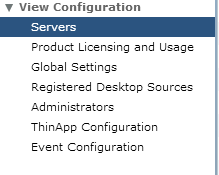
1. In View Administrator, go to View Configuration –> Servers

1. View Configuration

2. Click on the Connection Servers tab and select the Connection Server you want to pair with.

2. Connection Servers Tab

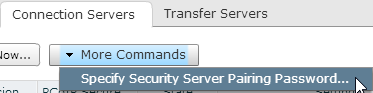
3. Click on More Commands and select “Specify Security Server Pairing Password.”

3. Specify Security Server Pairing Password

4. Specify your pairing password.  When you do this, you will also be able to configure how long that password will be valid for.  If the password is not entered in that time period, or if you encounter errors with the install that are not resolved before the timeout period expires, you will need to create a new password.

4. Password Screen

Installing the View Security Server

Once the pairing password is set up, you can start the Security Server installation.

1. Launch the installation program.

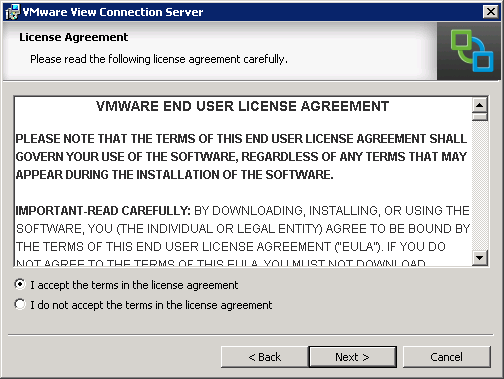
2. Accept the license agreement

5. License Agreement

3. The next screen gives you the option to change the installation directory by clicking the Change button.  For this installation, we’ll be installing to the default location, so click Next.

6. Directory

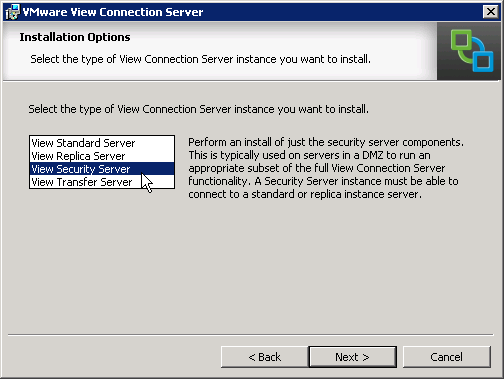
4. Select Security Server

7. Select Security Server

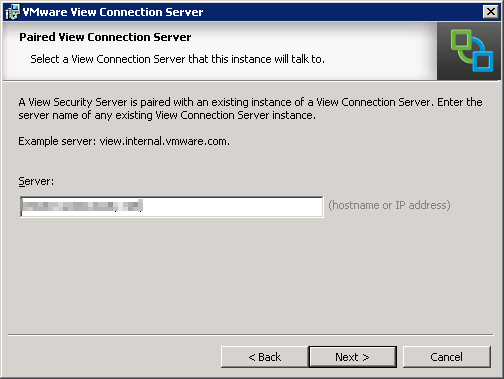
5. Enter the hostname or IP address of the Connection Server the Security Server will be paired with.

8. Hostname

6. Enter the pairing password.

9. Pairing Password

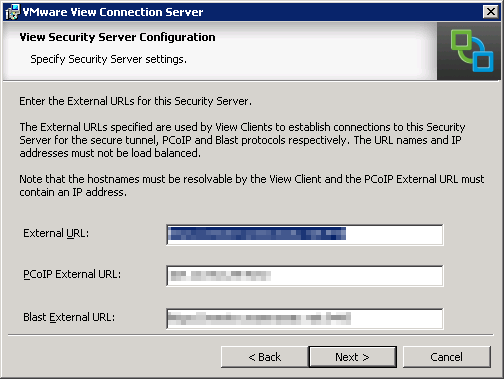
7. In order for View Clients to properly connect to the Security Server, you need to configure the External URLs for the server.  The items that need to be configured are:

  • External URL – the fully-qualified public domain name and port such as view.remotedomain.com:443
  • PCoIP External URL – the public IP address and port number.  If this server is behind a NAT, this should be the IP address that can be reached from the Internet.  Example: 4.4.4.4:4172
  • Blast External URL – the fully-qualified public domain name and port used by VMware Blast such as html5desktop.remotedomain.com:8443

10. External URL

8. The View Installer will give you the option to automatically configure the Windows Firewall for View.  Click Next to allow the installer to set up the Windows Firewall.  If you do not want the installer to configure the firewall, you will need to configure these rules manually after installation.

11. Firewall

9. Click Install to finish the installation.

12. Ready to Install

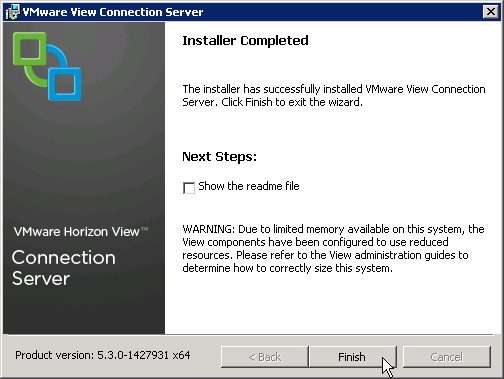
10. Click Finish to close the installer.

12. Finished

11. If you log back into View Administrator and go to View Configuration –> Servers –> Security Servers, you should see your newly added Security Server.

14. Security Tab

That’s it for the server components.  For now, anyway.  The next post or two will be about configuring the desktops and setting up a pool.

Horizon View 5.3 Part 9 – Configuring your View Environment For The First Time

In the last couple of posts, the first Connection Server and View Composer were installed in the environment.  Now it’s time to start configuring them.

Horizon View is primarily managed from the View Administrator web-based management interface.  This interface is based on Adobe Flex, so you will need a Flash-enabled web browser.  I hope that this is something that will be addressed in an upcoming version so that View can be managed from a mobile device.

In order to get View up and running, a few tasks need to be accomplished.  These tasks include applying a license key to the environment and telling Horizon View which vCenter Server and View Composer we will be using.  We will also want to set up an events database to record a variety of events within the environment such as logons, logoffs, and errors in the environment.

Logging into View Administrator

Before anything can be configured, though, we need to first log into Horizon View Administrator.  As I mentioned above, you will need to have Adobe Flash installed and enabled in your web browser.

The web browsers that VMware supports are:

  • Internet Explorer 8 or later (on Windows 8, IE is only supported in Desktop Mode)
  • FIrefox 6 or later

Although it is not officially supported, I have never had an issue with View Administrator when using Google Chrome.

To log in, take the following steps:

1. Open your web browser.

2. Navigate to https://<FQDN of connection server>/admin

3. Log in with the Administrator Account you designated (or with an account that is a member of the administrator group you selected) when you installed the Connection Server.

1. Login

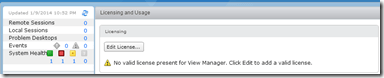
4. After you log in, you will be prompted for a View License key.
2. License pt 1

Note:  The license keys are retrieved from your MyVMware site.  If you do not input a license key, you will not be able to connect to View Desktops after they are provisioned.  You can add or change a license key later under View Configuration –> Product Licensing and Usage.

5. Click Edit License.  Paste your license key from the MyVMware site into the license key box and click OK.

3. License pt 2

6. After your license key is installed, the LIcensing area will show when your license expires and the features that are licensed in your deployment.
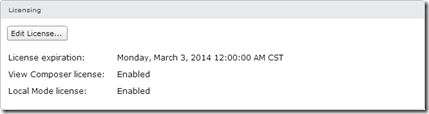
4. License pt 3

Configuring vCenter and View Composer

The next task that needs to be accomplished is configuring the vCenter and View Composer server information.  Without a vCenter, the Horizon View environment will not be able to provision full clone desktops or perform power operations.  Composer is required for linked clones.

There are two Active Directory service accounts that are required during this step.  Please check out Part 4 to get more details on the requirements for these accounts.

The steps for configuring the View environment for talking to vCenter and Composer are:

1. Under View Configuration, select Servers.
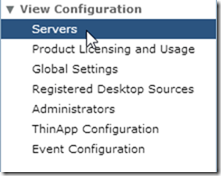
5. Servers

2. The vCenter Servers tab is already selected for us.  Click the Add button.

6. Server Tabs

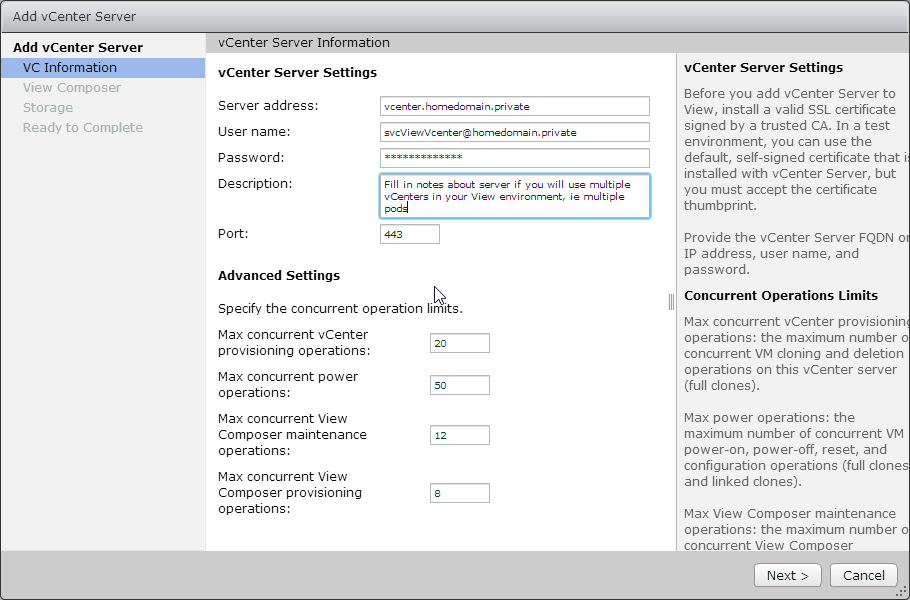
3. Enter the following information and then click Next to continue:

  • Server Name: Server fully-qualified domain name
  • Username: Domain User Account with access to vCenter entered as username@domain.name. Please see Part 4 for the permissions requirements for this account.
  • Password: Password for the domain user account.

7. vcenter

Note: The Advanced Settings control the number of concurrent Horizon View operations that vCenter will perform.  It is not recommended to change these.

4. Select the View Composer option for your environment and click Next:

  • Do Not Use View Composer: View Composer is not installed anywhere in the environment.  Linked-Clone desktops will not be available.
  • View Composer is co-installed with vCenter Server: The View Composer server is installed on the vCenter Server.  No additional configuration is necessary.
  • Standalone View Composer Server: View Composer is installed on a separate server, and you will need to provide the server address, username, and password to access this instance.

Edit – June 16th, 2014: The service account that you use with the Standalone View Composer should be the Active Directory service account that you created in Step 4.   This account should be added to the Administrator group on your View Composer server.
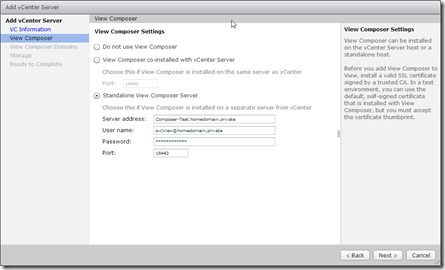
8. composer

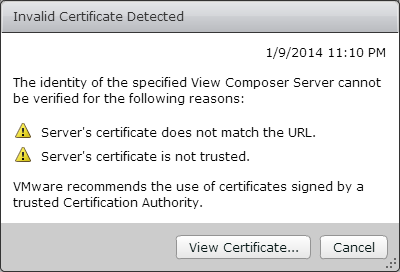
5. If you are using View Composer and the server has a self-signed certificate installed, you will see the warning below.  Click View Certificate.
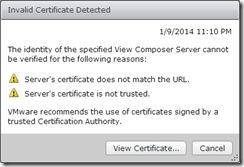
9. Composer Cert 1

Note: Installing signed SSL Certificates will be covered later in this series.

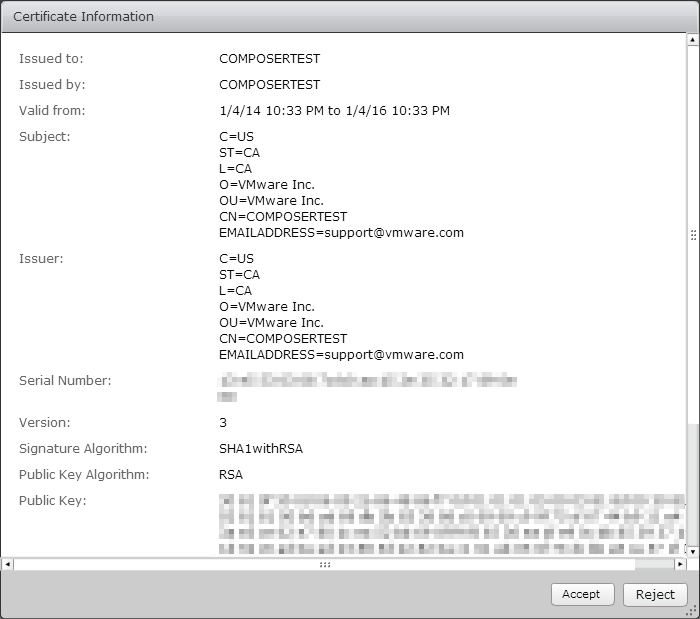
6. Click Accept to import the certificate.

10. Composer Cert 2

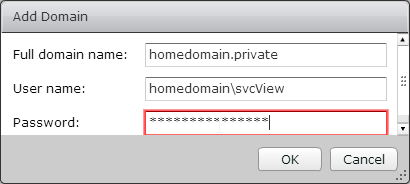
7. View Composer performs operations against Active Directory. Composer needs to know which domains to work with and the credentials to use.  Click Add to add a domain.

11. Add Domains 1

Note: If you are working in a multi-domain or multi-forest environment, and/or planning to use a resource domain, you only need to add the domains and credentials where desktops will be created.

8. Enter the full domain name, username (in domain\username format) and password for the service account with permissions to perform Active Directory operations.
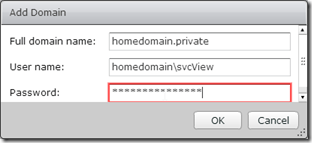
12. Add Domains 2

Note:  Please see Part 4 for the View Composer service account requirements.

9. The next tab will allow you to configure advanced storage settings such as View Storage Accelerator.  Click Next to continue.

13. Storage Accelerator

10. Review the settings and click finish.
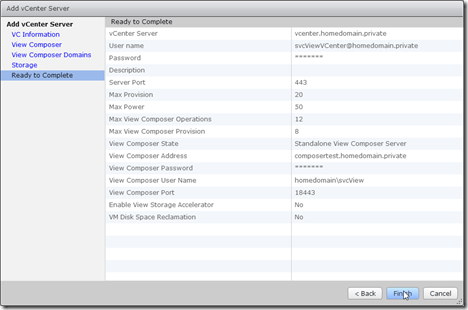
14. Summary

Configuring the Horizon View Events Database

The last thing that we need to configure is the Horizon View Events Database.  As the name implies, the Events Database is a repository for events that happen with the View environment.  Some examples of events that are recorded include logon and logoff activity and Composer errors.

The Events Database requires a Microsoft SQL Server or Oracle database server, and it should be installed on an existing production database server.  For this write-up, I installed it on the Composer server where I had an instance of SQL Server Express.

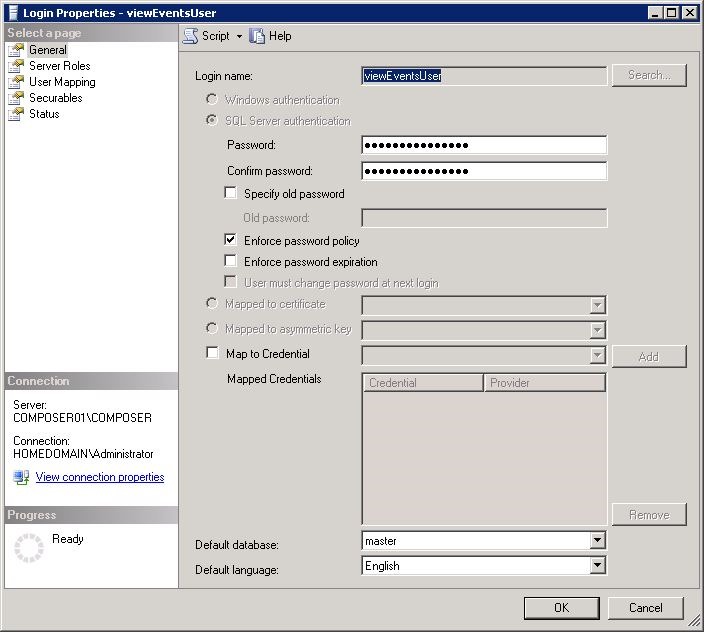
There are two parts to configuring the events database.  The first part, creating the database and the database user, needs to be done in SQL Server Management Studio before the event database can be configured in View Administrator.

To set up the database, follow these steps:

1. Open SQL Server Management Studio and log in with an account that has permissions to create users and databases.

2. Expand Security –> Logins.

3. Right-click on Logins and Select New Login…
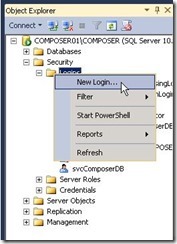
1. Create New User 1

4. Enter the SQL Login Name and Password and then click OK.

2. Create New User 2

5. Expand Databases.

6. Right-click on Databases and select New Database.

7. Enter the database name.  Select the database user that you created above as the database owner.  Click OK to create the database.

3. Create View Events Database

Now that the database is set up, we need to configure Horizon View to use it.  There is no need to create a ODBC DSN for the Events Database.  The setup is done through the View Administrator management console.

After we have logged into the View Administrator using the steps above, we need to complete the following steps:

1. In the View Configuration section, select Event Configuration.

4. Event Configuration

2. In the Event Database section, click Edit.

5. View Events Database Section

3. Enter the following information to set up the connection:

  • Database Server (if not installed to the default instance, enter as servername\instance)
  • Database Type
  • Port
  • Database name
  • Username
  • Password
  • Table Prefix (not needed unless you have multiple Connection Server environments that use the same events database – IE large “pod” environments)
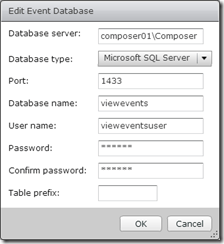
6. Edit Events Database Settings

Note: The only SQL Server instance that uses port 1433 is the default instance.  Named instances use dynamic port assignment that assigns a random port number to the service upon startup.  If the Events database is installed to a named instance, it will need to have a static port number.  You can set up SQL Server to listen on a static port by using this TechNet article.  For the above example, I assigned the port 1433 to the Composer instance since I will not have a named instance on that server.

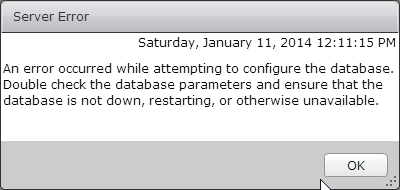
If you do not configure a static port assignment and try to connect to a named instance on port 1433, you may receive the error below.

7a. Bad Username or Password

5. If setup is successful, you should see a screen similar to the one below.  At this point, you can change your event retention settings by editing the event settings.

7b. Success!

What’s Next

This is the ninth part of the series. Now that the Event Database, vCenter, and Composer are set up, Horizon View is basically configured.  There are a few more things that we need to do, though.  Those are:

  • Create SSL Certificates for all of our servers
  • Create a Windows 8.1 Desktop Template
  • Create our first desktop pool
  • Overview of Desktop Pool Maintenance Operations

After that, there are a few features that I want to cover:

  • Configuring a Security Server for remote access
  • Using Windows Server 2008 R2 desktops with Horizon View
  • Using Horizon View to broker access to Microsoft Terminal Servers
  • Load Balancing Horizon View Environments
  • Automating Horizon View Environments
  • Setting Up VMware Blast for HTML5 access to desktops