Revisiting The Horizon View Start-Recompose Script #VDM30in30

Last September, I posted a script that I had written to address a few issues in the Horizon View environment that I managed at the time.  At the time, I had seven base images for sixteen desktop pools, and scheduling the Patch Tuesday recompose operations would take half the day if I had to do it manually in View Administrator.

After the script was posted, I learned that there were several issues with it.  While it had worked in the environment I originally wrote it for, I hadn’t properly documented all the parameters in the comment-based help.  This was causing odd failures when attempting to run the script.

A couple of weeks ago, I received an email from someone who was hoping to use the script in their environment.  They were experiencing issues with running the script, and after helping them with their issue, I decided to revisit the script and fix the issues.

The changes in this version of the script are:

  • Changed the way that the View LDAP database is queried so the Quest AD cmdlets are no longer required
  • Removed the Replica Parameter. The script will now detect the correct replica volume from the Pool settings
  • Renamed the View parameter to ConnectionServer to better describe what its for
  • Made the vCenter, ConnectionServer, and ParentVM parameters mandatory.
  • Fixed the comment-based help so all parameters are listed and examples provided.
  • Removed all email notification code from the script

You can download the latest version of the Start-Recompose PowerShell script from my Github site.

Horizon View 6.0 Application Publishing Part 1: Introduction #VDM30in30

One of the advantages that Citrix had over VMware in the EUC space was the ability to just publish specific applications to users with the MetaFrame/Presentation Server/XenApp line of products.  This suite utilized the Microsoft Terminal Services/RDSH roles on Windows Server to present users with centrally hosted and managed applications as if those applications were installed locally on their computer.

Application publishing was one of the new features that VMware added in Horizon 6.0 when it was released earlier this summer.  Like XenApp, this feature relies upon Windows Servers with the Remote Desktop Session Host role. 

The new application publishing feature reuses a lot of the infrastructure that is deployed to support virtual desktops.  This feature utilizes the same connection servers and security servers as the virtual desktop environment, and access to the published applications is done through the Horizon Client.    This provides a single point of management for the entire environment.

Why Publish Applications?

Application publishing technology is not new.  Citrix and Microsoft have both had versions of this technology for some time.  Many of the reasons for using those programs also apply to the Horizon application publishing feature.

The most common reasons I know of for publishing out applications are;

  • You want to centrally manage and provide access to core/critical Windows desktop business applications
  • You work in multiple locations and want applications to follow you – such as medical personnel in a hospital
  • You want to provide secure access to specific applications to remote users.

These are just a few of the reasons to publish out applications, and that list is by no means exhaustive. 

Licensing

The licensing model for publishing applications from servers using Remote Desktop Services is different from the licensing model for virtual desktops.  Like virtual desktops, Remote Desktop Services is not covered under the standard Windows licensing, and Microsoft requires separate RDS CALs to enable this feature on Windows Servers. 

A separate license server is required to manage the RDS CALs.  If this license server is not available, the RDSH services will shut down after the trial period expires.  Configuring the RDS license server is beyond the scope of this series, but there is a good walkthrough here.

More information on licensing Remote Desktop Services can be found on the Microsoft site, and you should contact your Microsoft licensing rep if you have any questions.  The whitepaper in the link also covers licensing Microsoft desktop applications such as Office in RDS environments.

Up Next

The next article in this series will cover how to configure a Windows Server as an Remote Desktop Session Host and add it into Horizon View as an application host.  Publishing out applications will be covered after that, and the final article in this series will cover how to access published applications from within a Horizon View virtual desktop.

Enabling Windows Server 2008 R2 Desktops in Horizon 6 #VDM30in30

VMware introduced support for Windows Server 2008 R2 virtual desktops in Horizon View 5.3.  This support wasn’t enabled out of the box.  It required an administrator to edit the View LDAP database to enable the feature and a special command-line only installation of the agent on the target desktop.

Horizon View 6 brought many new changes, including better support for Windows Server desktop.  The first patch set also added better support for this feature.

Why Use Windows Server 2008 R2 as a Desktop OS?

Historically, Microsoft licensing for virtual desktops has been a pain.  In the past, it required connecting endpoints to be covered under software assurance or users to be covered under expensive subscription-based licensing, and there were no service provider licensing options.

Although some of this appears to be changing with the latest per-user licensing SKUs that will be available on December 1st, 2014, the service provider side still hasn’t been fixed.

From a cost perspective, there are some benefits as well.  Windows Server Data Center licensing allows for unlimited Windows instances on licensed virtual hosts.  This can generate significant savings compared to VDA subscriptions.

Note: I am not an expert on Microsoft licensing, and the features and terms of Microsoft’s licensing can change frequently.  Please contact your Microsoft representative if you have any questions on licensing products for virtual desktop environments.

Enabling Windows Server 2008 R2 Desktop Support

Enabling Windows Server 2008 R2 desktop support have been streamlined from Horizon View 5.3, and manual edits to the LDAP database are no longer required.

The steps to enable this support are:

1. Log into the Horizon View Administrator console.

2. Go to View Configuration –> Global Settings

3. Click Edit.

4. Check the Enable Windows Server 2008 R2 Desktops checkbox and click OK.

image

Installing the Horizon View Agent

The process for installing the View Agent on Windows Server desktops has also been streamlined.  Installing the agent in View 5.3 required a command-line installation with a special switch to force the installer into desktop mode as the installer was geared for servers with the RDSH role. 

That has changed as well, and the installation process for Server 2008 R2 desktops is now the same as installing it on Windows 7/8/8.1 virtual desktops.

Horizon view 6.0 Part 12–Installing and Configuring A Security Server #VDM30in30

Horizon View provides a secure method for granting users access to their desktops from anywhere with an Internet connection on any device without needing a VPN connection.  Now that a desktop pool has been set up and desktops are provisioned, it’s time to set up that remote access.

The Security Server

The View Security Server is VMware’s method of addressing remote access.  This component of the Horizon View environment contains a subset of the Connection Server components, and it is designed to sit in a DMZ and act as a gateway for Horizon View Clients.  It’s essentially a reverse proxy for your View environment.

Each Security Server that is deployed needs a corresponding Connection Server, and they are paired during the installation process.  Because the Security Server is an optional component, each Connection Server is not required to have one, and a Connection Server cannot be paired to more than one Security Server.

Each Security Server also needs a static IP address.  If it is externally facing, it will need to have a publicly addressable static IP.  This IP address does not need to be configured on the server’s network card as both Static 1:1 NAT and PAT work with Horizon View.

Security Server Firewall Ports

In order to enable remote access, a few ports need to be opened on any firewalls that sit between the network where the Security Server has been deployed and the Internet.  If the server is deployed into a  DMZ, the firewall will also need to allow traffic between the Security Server and the Connection Server.

The rules that are required on the front-end, Internet-facing firewall are:

  • HTTP – TCP 80 In
  • HTTPS – TCP 443 In
  • HTTPS – TCP 8443 both directions (if Blast is used)
  • PCoIP – TCP 4172 In, UDP 4172 both directions

If you are deploying your Security Servers in a DMZ configuration with a back-end firewall, you need to configure your firewall to allow IPSEC traffic to the Connection Servers.  These rules depend on whether network address translation is used between the DMZ and Internal network.  For more information on the rules that need to be enabled, please see this VMware KB article.

The Security Server will also need to communicate with the Horizon View desktops.  The following ports will need to be opened to facilitate this:

  • PCoIP – TCP/UDP 4172 both directions

Note: If you’re using application-aware firewalls like Palo Alto Networks devices, make sure that any application protocols required by Horizon View aren’t blocked between the DMZ and Internal network.  Also, updates to the application signatures or the PCoIP protocol may impact users’ access to virtual desktops.

Configuring Horizon View for a Security Server

The Security Server installation will prompt for a Connection Server to be paired with and a pairing password during the install process.  This must be set up before the installation starts.  To set up the pairing password, take the following steps:

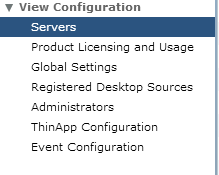
1. In View Administrator, go to View Configuration –> Servers

1. View Configuration

2. Click on the Connection Servers tab and select the Connection Server you want to pair with.

2. Connection Servers Tab

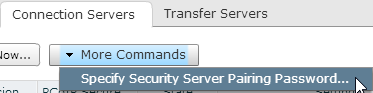
3. Click on More Commands and select “Specify Security Server Pairing Password.”

3. Specify Security Server Pairing Password

4. Specify your pairing password.  When you do this, you will also be able to configure how long that password will be valid for.  If the password is not entered in that time period, or if you encounter errors with the install that are not resolved before the timeout period expires, you will need to create a new password.

4. Password Screen

Note: Pairing passwords can time out or be invalidated by hitting the back button during the Security Server installation after the pairing password has been entered.  If this happens, the password will need to be recreated using the steps above.

Installing the View Security Server

Once the pairing password is set up, you can start the Security Server installation.

1. Double-click the installer to start the installation.

2. Accept the license agreement

1

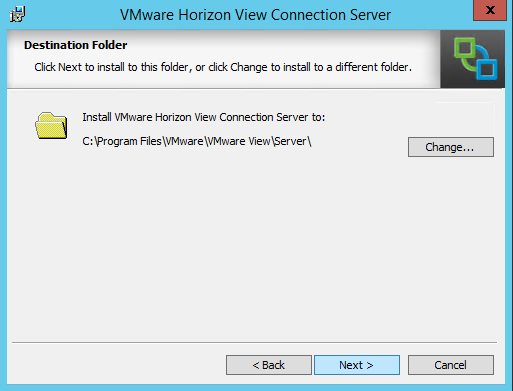
3. The next screen gives you the option to change the installation directory by clicking the Change button.  For this installation, we’ll be installing to the default location, so click Next.

2

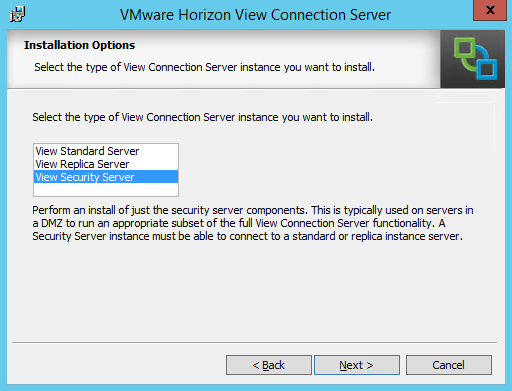
4. Select Security Server

3

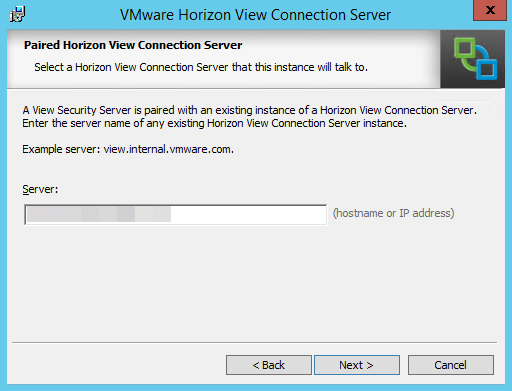
5. Enter the hostname or IP address of the Connection Server the Security Server will be paired with.

4

6. Enter the pairing password.

5

7. In order for View Clients to properly connect to the Security Server, you need to configure the External URLs for the server.  The items that need to be configured are:

  • External URL – the fully-qualified public domain name and port such as view.remotedomain.com:443
  • PCoIP External URL – the public IP address and port number.  If this server is behind a NAT, this should be the IP address that can be reached from the Internet.  Example: 4.4.4.4:4172
  • Blast External URL – the fully-qualified public domain name and port used by VMware Blast such as html5desktop.remotedomain.com:8443

6

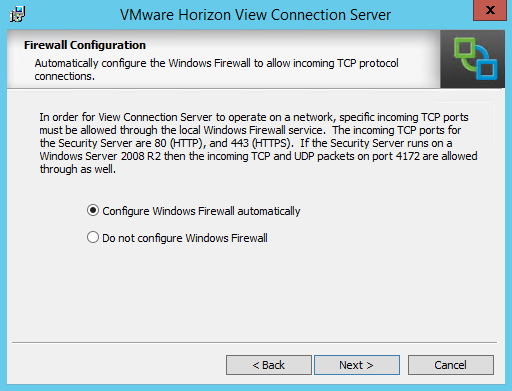
8. The View Installer will give you the option to automatically configure the Windows Firewall for View.  Click Next to allow the installer to set up the Windows Firewall.  If you do not want the installer to configure the firewall, you will need to configure these rules manually after installation.

Note: This also configures the IPSec Rules that are needed for secure communication between the Security Server and the Connection Server.

7

9. Click Install to finish the installation.

10. Click Finish to close the installer.

11. If you log back into View Administrator and go to View Configuration –> Servers –> Security Servers, you should see your newly added Security Server.

14. Security Tab

Horizon View 6.0 Part 11–Creating A Desktop Pool #VDM30in30

Every system needs a way to group entities in order to organize them, delegate administration, and control security on them.  Horizon View uses desktop pools to group desktops, apply Horizon View specific policies, and entitle access to users. 

Horizon View has a few different types of desktop pools.  Each pool handles desktops in different ways, and they each have different purposes.  The type of pool that you select will be determined by a number of factors including the use case, the storage infrastructure and application requirements.

The type of desktop pools are:

  • Full Clone Pools – Each virtual desktop is a full virtual machine cloned from a template in vCenter.  The virtual machines are managed by View Connection Servers.
  • Linked Clone Pools – Each virtual desktop is based on a snapshot and shares its disk with the parent virtual machine.  Changes to the linked clone are written to a delta disk.  The virtual machines are managed by View Composer.
  • Manual Pools – The machines that make up the manual pool consist of virtual and/or physical machines that have had the View Agent installed.  These machines are not managed by View.
  • Terminal Services Pool – The machines that make up these pools are Windows Servers with the Remote Desktop Services Role installed.

There is one other choice that needs to be selected when creating a desktop pool, and that is the desktop assignment type.  There are two desktop assignment types:

  • Floating Assignment – Desktops are assigned to users at login and are returned to the pool of available desktops when the user signs out.
  • Dedicated Assignment – Desktops are assigned to a user, and the user gets the same desktop at each login.  Desktops can be assigned automatically at first login or manually by an administrator.

For this walkthrough, I will be doing an Automatic Assignment Linked-Clone desktop pool.  These pools are usually referred to as Non-Persistent Desktop Pools.

Before you can set up a Linked Clone pool, View Composer will need to be installed and configured.

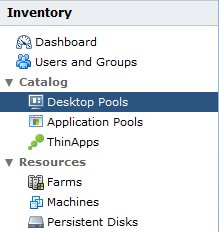
1. Log into View Administrator.  Under Catalog, select Desktop Pools.

image

2.  Click Add to add a new pool.

2

3. Select the Pool Type that you want to create.  For this, we’ll select Automated Pool and click Next.

3

4.  Select whether you want to have Floating or Dedicated Desktops.  For this walkthrough, we’ll select Floating and click Next.

4

Note: The Enable Automatic Assignment option is only available if you select Dedicated. If this option is selected, View automatically assigns a desktop to a use when they log in to dedicated pool for the first time.

5. Choose the type of virtual machines that will be deployed in the environment. For this walkthrough, select View Composer Linked Clones and click Next.

5

6. Each desktop pool needs an ID and a Display Name.  The ID field is the official name of the pool, and it cannot contain any spaces.  The Display Name is the “friendly” name that users will see when they select a desktop pool to log into.  You can also add a description to the pool.

6

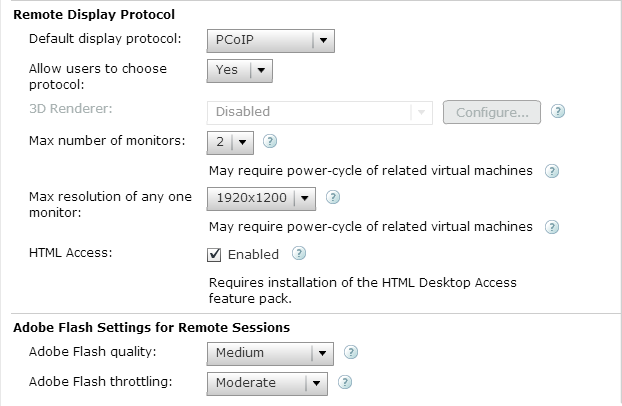
7. The next screen after setting the pool name is for the pool settings.  There are a lot of options here, that control how the pool will behave.  Some of the options are:

  • If the pool is enabled
  • Default power state of desktops
  • Display protocols
  • Adobe Flash settings

7

8

9

8. The next screen will allow you to configure the provisioning settings for the pool.  This screen allows you to control provisioning behavior, computer names, and the number of desktops provisioned in the pool.

10

9. The next screen allows you to set up a special non-persistent disk for disposable files.  Disposable files are classified as temporary files and page files.  If a disposable disk is used, these files will be redirected to here, and this disk is deleted whenever the VM is shut down.

This screen allows you to determine how the virtual desktop will handle these files.

11

10. Select the option to store Replicas on a separate datastore if you want to place them on a different storage tier.  Andre Leibovici has a good article on the benefits of placing Linked Clone replicas on a different datastore.

12

11. After you choose whether or not to place the Replica Disks on a separate datastore, you need to configure the pool’s vCenter settings.  This covers the Parent VM and the snapshot that the Linked Clones will be based on, the folder that they will be stored in within vCenter, and the cluster and datastores that will be used.

In order to configure each setting, you will need to click the Browse button on the right hand side of the screen.  Each step must be configured in order.

20

11-A. The first item that needs to be configured is the Parent VM that the Linked Clones will be based on.  Select the VM that you want to use and click OK.

13

11-B. The next step is to select the Parent VM snapshot that the Linked Clones will be based on.  Select the snapshot that you want to use and click OK.

14

11-C. After you have selected a Parent VM and a snapshot, you need to configure the vCenter folder in the VMs and Templates view that the VMs will be placed in.  Select the folder and click OK.

15

11-D. The next step is to place the pool on a vSphere cluster.  The virtual machines that make up the desktop pool will be run on this cluster, and the remaining choices will be based on this selection.  Select the cluster that they should be run on and click OK.

16

11-E. The next step is to place the desktops into a Resource Pool.  In this example, I have not resource pools configured, so the desktops would be placed in the Cluster Root.

17

11-F. The final two steps of this section are to select the datastores where the Linked Clones and the Replicas will be stored.  Linked Clones can be stored on multiple datastores, so you can select multiple datastores in this section.  You can also configure View to allow the datastores to be overcommitted by changing the Storage Overcommit option on each datastore.

18

11-G. Replicas can only be stored on a single datastore.  Select the datastore that you want to store them on and click OK.

19

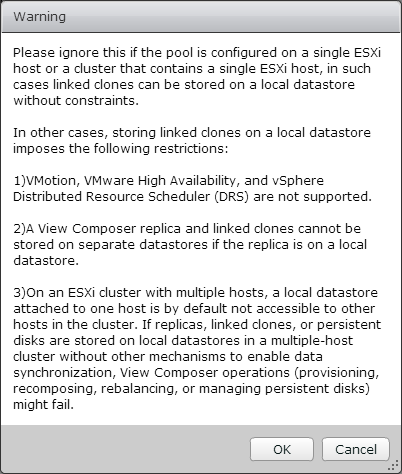
Note: After you have configured the Replica Datastore, you may receive the following warning about storing Replicas and Linked Clones on local datastores.  If you are using a SAN or a NAS and not storing any Replicas or Linked Clones on local datastores, you can ignore this message.

Warning after 18-19

12. The next screen is for configuring the advanced storage options.  The three options that can be configured on this screen are the View Storage Accelerator, disk space reclaimation and the option to use native NFS snapshots.

If you use View Storage Accelerator or disk space reclamation, you can configure blackout times where vCenter will not run these tasks.

22

13. To set the blackout times for the pool, click the Add Button and select the days and times when you do not want these operations to run.  You can set multiple schedules.

21

14. After you have configured the advanced storage options, you need to configure the Guest Customization settings.  This screen allows you to select the domain and organizational unit for the desktops and whether Sysprep or Quickprep will be used to prepare the desktops.

24

15. Review the settings for the pool and verify that everything is correct.  Before you click Finish, check the Entitle Users checkbox in the upper right.  This will allow you to select the users and/or groups who have permission to log into the desktops.

If you need to make a change to the pool settings, the left-hand column contains links to each page in the wizard.

25

17. After you click Finish, you will need to grant access to the pool.  View allows you to entitle Active Directory users and groups.  Click Add to entitle users and groups.

27

18. Search for the user or group that you want to add to entitle.  If you are in a multi-domain environment, you can change domains by selecting the domain from the Domains box.  Click on the users or groups that you want to grant access to and click OK.

26

Note:  I recommend that you create Active Directory security groups and entitle those to desktop pools.  This makes it easier to manage a user’s pool assignments without having to log into View Administrator whenever you want to make a change.

19. You can check the status of your desktop pool creation in vCenter.  If this is a new pool, it will need to clone the VM into a Replica before it can create the Linked Clone desktops. 

28

Once the desktops have finished composing, you will be able to log into them through VMware Blast or the Horizon View client. 

I realize that there are a lot of steps in the process of creating a desktop pool.  It doesn’t take nearly as long as it seems once you get the hang of it, and you will be able to fly through it pretty quickly.  These steps can also be automated using the View PowerCLI cmdlets from any Connection Broker in the environment.

Horizon View 6 Part 10–Building Your Desktop Golden Images #VDM30in30

A virtual desktop environment is nothing without virtual desktops.  Poorly performing virtual desktops, or virtual desktops and pools that aren’t configured properly for the applications that are being deployed, can turn users off to virtual desktops and sink the project.

How you configure your desktop base image can depend on the type of desktop pools that you plan to deploy.  The type of desktop pools that you deploy can depend on the applications and how you intend to deploy them.  This part will cover how to configure a desktop base image for linked clone pools, and the next part in this series will cover how to set up a linked clone pool.

Before You Begin, Understand Your Applications

Before we begin talking about how to configure the desktop base image and setting up the desktop pools, its very important to understand the applications that you will be deploying to your virtual desktops.  The types of applications and how they can be deployed will determine the types of desktop pools that can be used.

A few factors to keep in mind are:

  • Licensing – How are the applications licensed?  Are the licenses locked to the computer in some way, such as by computer name or MAC address?  Is a hardware key required? 
  • Hardware – Does the application require specific hardware in order to function, or does it have high resource requirements?  This is usually a consideration for high-end CAD or engineering applications that require a 3D card, but it could also apply to applications that need older hardware or access to a serial port.
  • User Profile and User Installed Applications – Are user profiles being centrally managed, or are they remaining local to the virtual desktops? Are users able to install their own applications?
  • Application Remoting – Can the applications be installed on a terminal server and presented to the users using an application remoting technology such as XenApp or Horizon Application Remoting?

Once you understand the applications that are being deployed to the virtual desktops, you can start planning your pools and creating your base images.

Supported Operating Systems

Horizon View only supports virtual desktops running Microsoft Windows.  The versions of Windows that are supported are:

  • Windows 8.1 Enterprise or Professional
  • Windows 8 Enterprise or Professional
  • Windows 7 Enterprise or Professional
  • Windows Vista Business or Enterprise SP2 (32-bit only)
  • Windows XP Professional SP3 (32-bit only)

Windows Server 2008 R2 is supported as a desktop operating system.  Configuring support for Server 2008 R2 desktops is easier in Horizon 6.0, and it only requires checking a single checkbox instead of editing the Horizon LDAP database.

Terminal Server sessions running on Windows Server 2008 R2 or newer are also supported, but I will cover those in another series.

For this part, we’re going to assume that we’re building a desktop running Windows 7 or Windows 8.1.  This will be more of a high-level overview of creating a desktop template for Horizon View, and I won’t be doing a step-by-step walkthrough of any of the steps for this section.

Configure the VM

Building a desktop VM isn’t much different than building a server VM.  The basic process is create the VM, configure the hardware, install the operating system, and then install your applications.  Although there are a few additional steps, building a desktop VM doesn’t deviate from this.

You should base the number of vCPUs and the amount of RAM assigned to your virtual desktops on the requirements for of the applications that you plan to run and fine tune based on user performance and resource utilization.

The recommended hardware for a virtual desktop is:

  • SCSI Controller – LSI SAS
  • Hard Disk – At least 40GB Thin Provisioned
  • NIC – VMXNET3
  • Remove Floppy Drive, and disable parallel and serial ports in BIOS
  • Remove the CD-ROM drive if you do not have an alternative method for installing Windows.

Note: You cannot remove the CD-ROM drive until after Windows has been installed if you are installing from an ISO.

BIOS Settings
BIOS screen for disabling Serial and Parallel ports and floppy controller

You’ll notice that I didn’t put minimums for vCPUs and RAM.  Sizing these really depends on the requirements of your user’s applications.  I’ve had Windows 7 64-bit desktops deployed with as little as 1GB of RAM for general office workers up to 4GB of RAM for users running the Adobe Suite.

Install Windows

After you have created a VM and configured the VM’s settings, you need to install Windows.  Again, it’s not much different than installing Windows Server into a VM or installing a fresh copy of Windows onto physical hardware.  You can install Windows using the ISO of the disk or by using the Microsoft Deployment Toolkit and PXE boot to push down an image that you’ve already created.

When installing Windows for your desktop template, you’ll want to make sure that the default 100 MB system partition is not created.  This partition is used by Windows to store the files used for BItlocker.

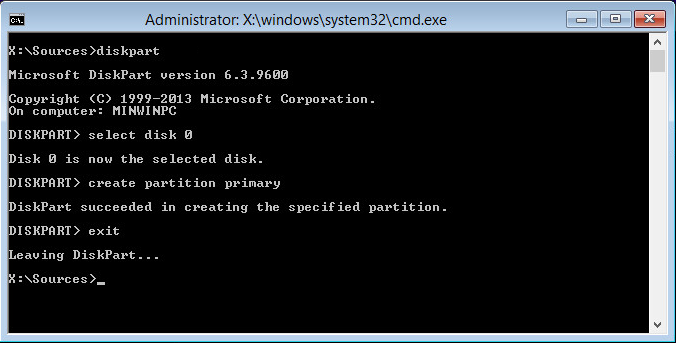
Since Bitlocker is not supported on virtual machines by either Microsoft or VMware, there is no reason to create this partition.  This will require bypassing the installer and manually partitioning the boot drive.  The steps for doing this when installing from the DVD/ISO are:

1. Boot the computer to the installer
2. Press Shift-F10 to bring up the command prompt
3. Type DiskPart
4. Type Select Disk 0
5. Type Create Partition Primary
6. Type Exit twice.

diskpart

Once you’ve set up the partition, you can install Windows normally.  If you’re using something like the Microsoft Deployment Toolkit, you will need to configure your answer file to set up the proper hard drive partition configuration.

Install VMware Tools and Join the Template to a Domain

After you have installed Windows, you will need to install the VMware tools package.  The tools package is required to install the View Agent.  VMware Tools also includes the VMXNET3 driver, and your template will not have network access until this is installed.   The typical installation is generally all that you will need unless you’re using vShield Endpoint as part of your antivirus solution.

After you have installed VMware Tools and rebooted the template, you should join it to your Active Directory domain.  The template doesn’t need to be joined to a domain, but it makes it easier to manage and install software from network shares.

Install View Agent

After you have installed the VMware tools package and joined your computer to the domain, you will need to install the VMware View Agent.  The default install of the View Agent includes all of the features except for PCoIP Smartcard support.  The agent install will require a reboot after it is completed.

Installing Applications on the Template

After you install the View Agent, you can begin to install the applications that your users will need when they log into Horizon View.

With tools like Thinapp available to virtualize Windows applications or layering software like Unidesk or Cloud Volumes, it is not be necessary to create templates for all of the different application combinations.  You can create a base template with your common applications, such as your office suite, pdf reader, etc, and then either virtualize or layer your other applications on top of that.

“Finalizing” the Image

Once you have the applications installed, it is time to finalize the image to prepare it for Horizon View.  This step involves disabling unneeded services and making configuration settings changes to ensure a good user experience.

There are two ways to do this.  The first is to use the batch file provided by VMware in the Horizon View Optimization Guide for Windows 7 and Windows 8.  The other option is to use the VMware OS Optimization fling.

Before you shut the virtual machine down to snapshot it, verify that any services required for applications are enabled.  This includes the Windows Firewall service which is required for the View Agent to function properly.

Shutdown and Snapshot

After you have your applications installed, you need to shut down your desktop template and take a snapshot of it.  If you are using linked-clones, the linked-clone replica will be based on the snapshot you select.

That’s a quick rundown of setting up a desktop template to be used with Horizon View desktops. 

In the next part of this series, I’ll cover how to create a linked-clone pool.

Horizon View 6.0 Part 9–Configuring Horizon View for the First Time

Now that the Connection Server and View Composer are installed, it’s time to configure the components to actually work together with vCenter to provision and manage desktop pools.

Logging into View Administrator

Before anything can be configured, though, we need to first log into Horizon View Administrator.  As I mentioned above, you will need to have Adobe Flash installed and enabled in your web browser.

The web browsers that VMware supports are:

  • Internet Explorer 8 or later (on Windows 8, IE is only supported in Desktop Mode)
  • FIrefox 6 or later

Although it is not officially supported, I have never had an issue with View Administrator when using Google Chrome.

To log in, take the following steps:

1. Open your web browser.

2. Navigate to https://<FQDN of connection server>/admin

3. Log in with the Administrator Account you designated (or with an account that is a member of the administrator group you selected) when you installed the Connection Server.

1. Login

4. After you log in, you will be prompted for a View License key.

2. License pt 1

Note:  The license keys are retrieved from your MyVMware site.  If you do not input a license key, you will not be able to connect to View Desktops after they are provisioned.  You can add or change a license key later under View Configuration –> Product Licensing and Usage.

5. Click Edit License.  Paste your license key from the MyVMware site into the license key box and click OK.

3. License pt 2

6. After your license key is installed, the Licensing area will show when your license expires and the features that are licensed in your deployment.

4. License pt 3

Configuring View for the First Time

Once you’ve logged in and configured your license, you can start setting up the Horizon View environment.  In this step, the Connection Server will be configured to talk to vCenter and View Composer.

1.   Expand View Configuration and select Servers.

3

2.  Select the vCenter Servers tab and select Add…

4

3, Enter your vCenter server information.  The service account that you use in this section should be the vCenter Service Account that you created in Part 6.

Note: If you are using vCenter 5.5 or later, the username should be entered in User Principal Name format – username@fqdn.

6

4. If you have not updated the certificates on your vCenter Server, you will receive an Invalid Certificate Warning.  Click View Certificate to view and accept the certificate.

7

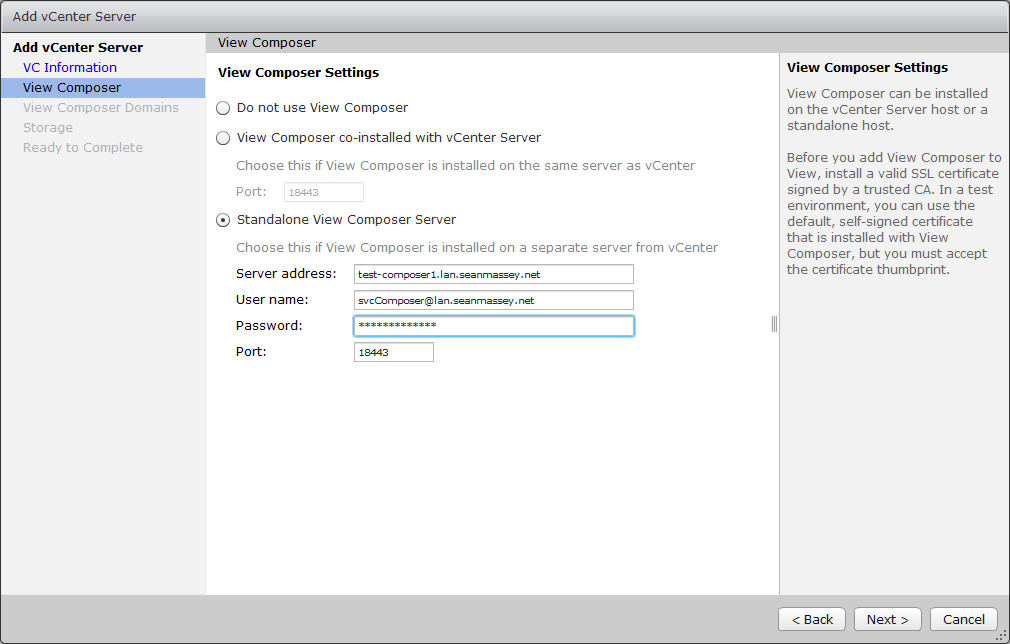
5.  Select the View Composer option that you plan to use with this vCenter.  The options are:

A. Do not use View Composer – View Composer and Linked Clones will not be available for desktop pools that use this vCenter.

B. View Composer is co-installed with vCenter Server – View Composer is installed on the vCenter Server, and the vCenter Server credentials entered on the previous screen will be used for connecting.  This option is only available with the Windows vCenter Server.

C. Standalone View Composer Server – View Composer is installed on a standalone Windows Server, and credentials will be required to connect to the Composer instance.  This option will work with both the Windows vCenter Server and the vCenter Server virtual appliance.

Note: The account credentials used to connect to the View Composer server must have local administrator rights on the machine where Composer is installed.  If they account does not have local administrator rights, you will get an error that you cannot connect.

8

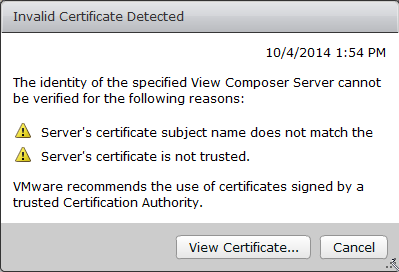
6. If Composer is using an untrusted SSL certificate, you will receive a prompt that the certificate is invalid.  Click View Certificate and then accept.

For more information on installing a trusted certificate on your Composer server, please see Part 5.

9

7. The next step is to set up the Active Directory domains that Composer will connect to when provisioning desktops.  Click Add to add a new domain.

11

8. Enter the domain name, user account with rights to Active Directory, and the password and click OK.  The user account used for this step should be the account that was set up in Part 6.

Once all the domains have been added, click Next to continue.

10

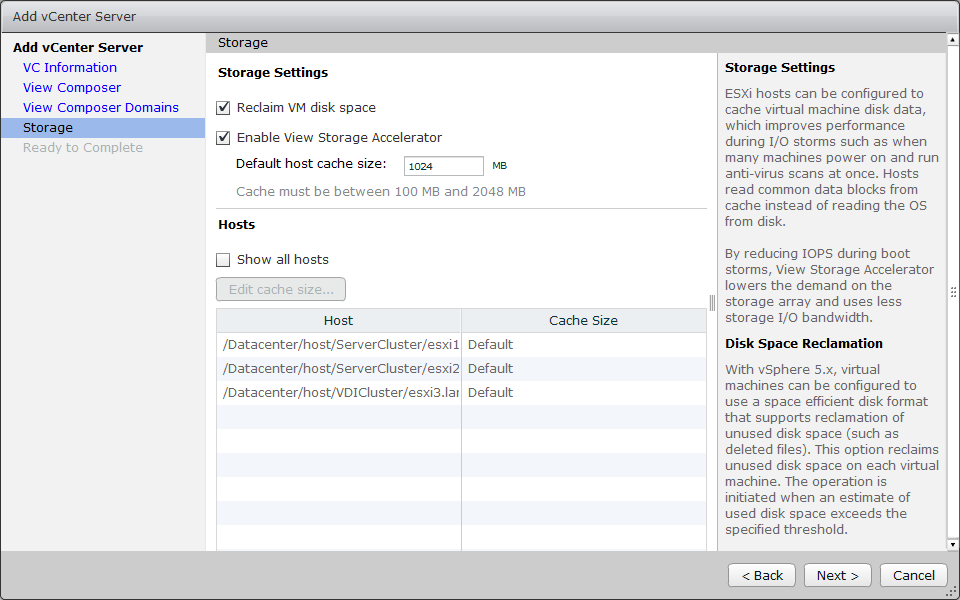
9. The next step is to configure the advanced storage settings used by Horizon.  The two options to select on this screen are:

  • Reclaim VM Disk Space – Allows Horizon to reclaim disk space allocated to linked-clone virtual machines.
  • Enable View Storage Accelerator – View Storage Accelerator is a RAMDISK cache that can be used to offload some storage requests to the local system.  Regenerating the cache can impact IO operations on the storage array, and maintenance blackout windows can be configured to avoid a long train of witnesses.  The max cache size is 2GB.

After you have made your selections, click Next to continue.

12

10. Review the settings and click finish.

13

Configuring the Horizon View Events Database

The last thing that we need to configure is the Horizon View Events Database.  As the name implies, the Events Database is a repository for events that happen with the View environment.  Some examples of events that are recorded include logon and logoff activity and Composer errors.

Part 6 described the steps for creating the database and the database user account.

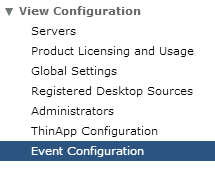
1. In the View Configuration section, select Event Configuration.

4. Event Configuration

2. In the Event Database section, click Edit.

5. View Events Database Section

3. Enter the following information to set up the connection:

  • Database Server (if not installed to the default instance, enter as servername\instance)
  • Database Type
  • Port
  • Database name
  • Username
  • Password
  • Table Prefix (not needed unless you have multiple Connection Server environments that use the same events database – IE large “pod” environments)

6. Edit Events Database Settings

Note: The only SQL Server instance that uses port 1433 is the default instance.  Named instances use dynamic port assignment that assigns a random port number to the service upon startup.  If the Events database is installed to a named instance, it will need to have a static port number.  You can set up SQL Server to listen on a static port by using this TechNet article.  For the above example, I assigned the port 1433 to the Composer instance since I will not have a named instance on that server.

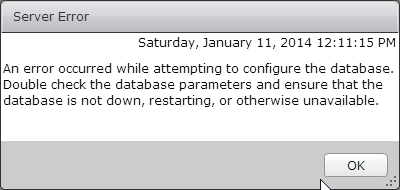
If you do not configure a static port assignment and try to connect to a named instance on port 1433, you may receive the error below.

7a. Bad Username or Password

5. If setup is successful, you should see a screen similar to the one below.  At this point, you can change your event retention settings by editing the event settings.

7b. Success!

Horizon 6.0.1 Upgrade Experience

Lsat weekend, I upgraded my Horizon View environment to Horizon 6.0.1.  I wanted to do this upgrade to take a look at the expanded printing support that VMware added in this minor release.

The major improvement included in the Horizon 6.0.1 release is support for virtual printing and location-based printing for Windows Server 2008 R2-based desktops and RDSH-hosted published applications. 

The upgrade isn’t too difficult, and prior to starting it, you should review the compatibility matrix and read the release notes and the directions for patching Horizon 6.

My home lab environment were I performed the upgrade only has one Connection Server and one Security Server.  The steps may be different if you have multiple Connection and Security Servers.

Prerequisites

Horizon 6.0.1 has all of the same prerequisites as Horizon 6.0 as well as support for vSphere 5.5 Update 2.

Upgrade Order

The order for upgrading the Horizon components is:

  1. Composer
  2. Connection Servers
  3. Security Servers
  4. Agents
  5. Clients

Prior to upgrading the Horizon server-side components, you should take a snapshot of the server and perform a database backup.

Upgrading Horizon Composer

The first component that needs to be upgraded is Composer.  Prior to upgrading Composer, you will need to take a snapshot of the server and do a database backup.

The upgrade is essentially installing the new version over the old version.  During the upgrade process, you will be prompted for the name of the ODBC DSN connection, database username, and password that were used during the first install.  If you’re using a custom SSL certificate, you’ll need to select it when asked about certificates.

Upgrading the Horizon Connection Server

Once Composer has been upgraded, the next component that needs to be upgraded is the Connection Server.  The steps for this upgrade are fairly simple.

  1. Snapshot the Connection Server
  2. Run the Installer
  3. Click next all the way through to complete the upgrade

Although it is not required, I prefer to reboot the server after the upgrade completes.

Upgrading the Horizon Security Server

The documentation doesn’t mention much about patching Security Servers, so I treated it the same as doing an upgrade.  The process for upgrading a Security Server are much more involved than the process for upgrading a Connection Server, and there are a few extra steps that need to be taken to successfully complete the upgrade. 

Prior to upgrading Horizon, you will need to log into log into View Administrator and complete two tasks in the server section.  The first task is to set a pairing password that will be used when pairing the Security Server to a Connection Server.  The installer will ask for one when you do the upgrade.  This can be set under View Configuration –> Servers –> Connection Servers by highlighting the Connection Server that the Security Server is paired with and selecting More Commands –> Specify Security Server Pairing Password.

The other task that needs to be done before the upgrade is installed is to reset the IPSEC tunneling information.  VMware recommends using IPSEC for all communications between the Connection Server and Security Server.  The IPSEC security settings can be reset by going to View Configuration –> Servers –> Security Servers , selecting the Security Server, and going to More Commands –> Prepare to Upgrade or Reinstallation…

Once you’ve completed these two steps, you will need to log into the Security Server and run the installation package.  When you run the installer, you will be asked for the Connection Server that you’re pairing with and the pairing password.  You will also need to reconfirm the URLs and IPs that the security server uses.  You do not need to remove the existing Security Server before installing the upgrade – you can install it right on top of the existing Security Server instance.

Although it is not required, I prefer to reboot the server after the upgrade completes.

Horizon Agent Upgrade

Once all the server components have been upgraded, the Horizon Agent will need to be upgraded on all full clone desktops and templates, linked clone master images, and RDS servers. 

If you plan to do an upgrade of your ESXi hosts, there is a preferred upgrade order for VMware Tools and the Horizon Agent.  VMware Tools should be upgraded before the Horizon Agent.  If it is not done in that order, the VMware tools install will replace some drivers that the Horizon Agent installs, and you will have to reinstall or repair the Horizon Agent.

Horizon Client

The Horizon Client is usually the last item that gets updated in the environment.  The latest client should be downloaded from the VMware site or from the mobile device app store.

Clients aren’t necessarily tied to a specific version of Horizon.  The latest client can usually be used with an older version of Horizon.  The reverse isn’t always true, and improvements to the PCoIP protocol or other features may not be available when using an older client after an upgrade.

Horizon View 6.0 Part 8 – Installing The First Connection Server

Connection Servers are one of the most important components in a Horizon View environment.  Connection Servers come in three flavors – the standard Connection Server, the Replica Connection Server, and the Security Server – and handle multiple roles including user Authentication against Active Directory, pool management and brokering connections desktops, terminal servers, and applications.

There is almost no difference between the standard Connection Server and a Replica Connection Server.  The Standard and Replica Connection Servers have the same feature set.  The only difference between the two is that the standard connection server is the first server in the pod.

The Security Server is a stripped down version of the regular Connection Server.  It is designed to operate in a DMZ network and tunnel connections back to the Connection server, and it must be paired with a specific Connection Server in order for the installation to complete successfully.  I’ll cover the process of setting up a Security Server in another post.

Installing the First Connection Server

Before you can begin installing the Horizon View, you will need to have a server prepared that meets the minimum requirements for the Horizon View Connection Server instance.  The basic requirements, which are described in Part 2, are a server running Windows Server 2008 R2 or Server 2012 R2 with 2 CPUs and at least 4GB of RAM.

Note:  If you are going have more than 50 virtual desktop sessions on a Connection Server, it should be provisioned with 10GB of RAM.

Once the server is provisioned, and the Connection Server installer has been copied over, the steps for configuring the first Connection Server are:

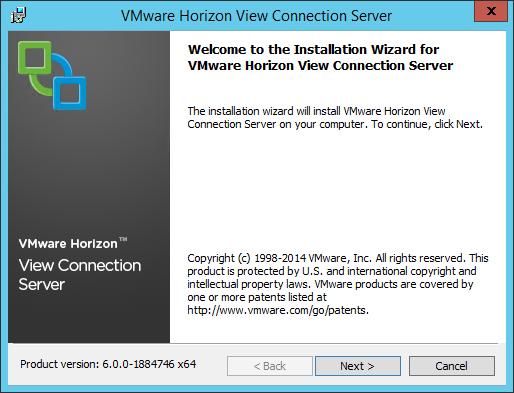
1. Launch the Connection Server installation wizard by double-clicking on VMware-viewconnectionserver-x86_64-6.x.x-xxxxxxx.exe.

2. Click Next on the first screen to continue.

1

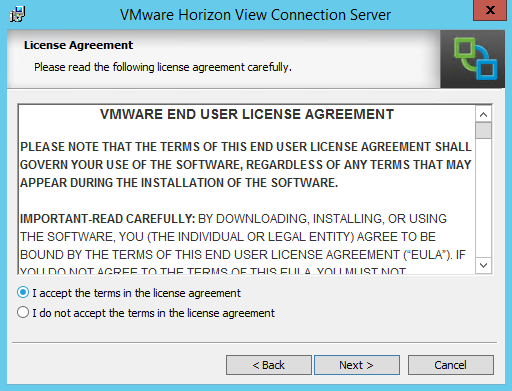
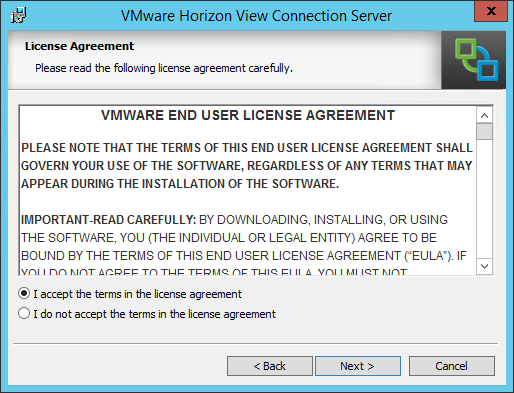
3.  Accept the license agreement and click Next to continue.

2

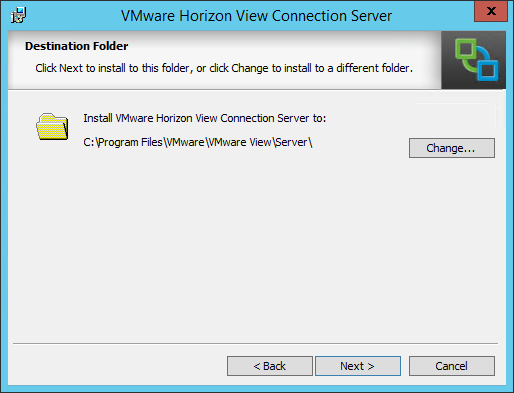
4.  If required, change the location where the Connection Server files will be installed and click Next.

3

5. Select the type of Connection Server that you’ll be installing.  For this section, we’ll select the View Standard Server.  If you plan on using Horizon View Blast to access desktops, select “Install HTML Access.”  Click Next to continue.

4

6. Enter a strong password for data recovery.  This will be used if you need to restore the Connection Server’s LDAP database from backup.  Make sure you store this password in a secure place.  You can also enter a password reminder or hint, but this is not required.

5

7. Horizon View requires a number of ports to be opened on the local Windows Server firewall, and the installer will prompt you to configure these ports as part of the installation.  Select the “Configure Windows Firewall Automatically” to have this done as part of the installation.

6

Note: Disabling the Windows Firewall is not recommended.  If you plan to use Security Servers to provide remote access, the Windows Firewall must be enabled on the Connection Servers to use IPSEC to secure communications between the Connection Server and the Security Server.

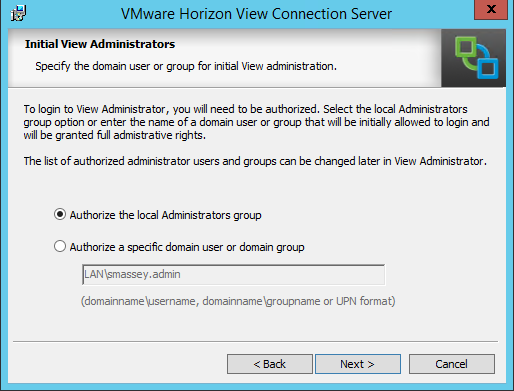
8. The installer will prompt you to select the default Horizon View environment administrator.  The options that can be selected are the local server Administrator group, which will grant administrator privileges to all local admins on the server, or to select a specific domain user or group.  The option you select will depend on your environment, your security policies, and/or other requirements.

If you plan to use a specific domain user or group, select the “Authorize a specific domain user or domain group” option and enter the user or group name in the “domainname\usergroupname” format.

7

Note: If you plan to use a custom domain group as the default Horizon View administrator group, make sure you create it and allow it to replicate before you start the installation. 

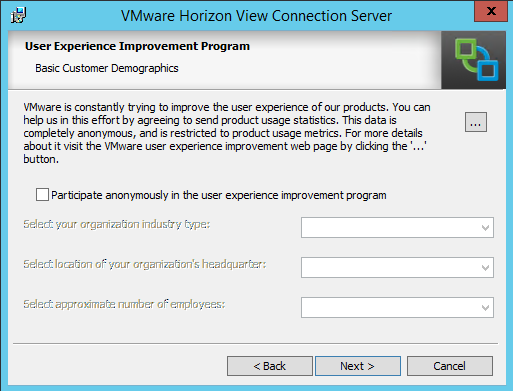
9.  Chose whether you want to participate in the User Experience Improvement program.  If you do not wish to participate, just click Next to continue.

8

10. Click Install to begin the installation.

9

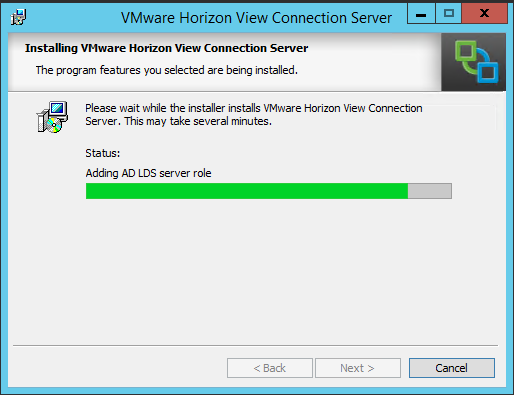
11. The installer will install and configure the application and any additional windows roles or features that are needed to support Horizon View. 

10

12. Once the install completes, click Finish.  You may be prompted to reboot the server after the installation completes.

Now that the Connection Server and Composer are installed, it’s time to begin configuring the Horizon View application so the Connection Server can talk to both vCenter and Composer as well as setting up any required license keys and the events database.  Those steps will be covered in Part 9.

Horizon View 6.0 Part 6–Configuring the Horizon View Service Accounts and Databases

Back in Part 4, I mentioned that Horizon View required up to a few service accounts to function properly.  One of these accounts is for accessing vCenter to provision and manage the virtual machines that users will connect to.  The other service account is for View Composer and will manage the accounts within Active Directory.  This account is not required if you are not planning to use View Composer and Linked Clones within your environment.

In addition to these two service accounts, two database accounts may need to be created for the Horizon View Composer database and the Horizon View Events Database.

It’s important to build these accounts with the principle of least privileged access in mind.  These accounts should not have more rights than they would need.  So while the easy way out would be to give these accounts vCenter Administrator, Domain Administrator, and SQL Server or Oracle SysAdmin rights, it would not be a good idea as these accounts could potentially be compromised.

vCenter Service Account

The first account that needs to be created is a service account that View will use for accessing vCenter.  Horizon View uses this account for provisioning and power operations.  The service account should be a standard Active Directory domain user account without any additional administrator-level rights on the domain or on the vCenter server.

There are a couple of different ways to configure your Horizon View environment, sp the actual rights required by vCenter will vary.  I will be using View Composer in this series, so I will be setting up the vCenter Service Account with the permissions required to use View Composer.

Note: If you are not using View Composer, or you plan to use View Composer and Local Mode, different permissions will be required in vCenter.  Please see Chapter x of the Horizon View 6.0  Installation Guide for more details on the permissions that need to be assigned to the service account.

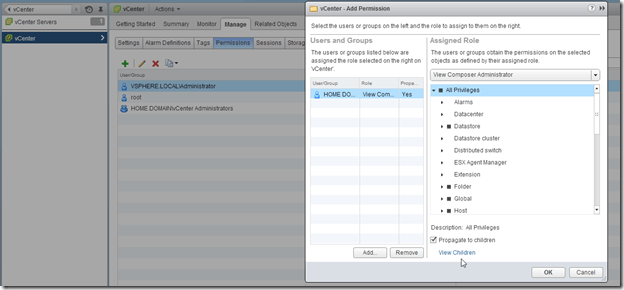
A new role will need to be created within vCenter in order to assign the appropriate permissions.  To create a new role in the vCenter Web Client, you need to go to Administration –> Roles from the main page.  This will bring up the roles page, and we can create a new role from here by clicking on the green plus sign.

2013-12-29_19-14-37

The permissions that need to be assigned to our new role are:

Privilege Group

Privilege

Datastore Allocate Space
Browse Datastore
Low Level File Operations
Folder Create Folder
Delete Folder
Virtual Machine Configuration –> All Items
Inventory –> All Items
Snapshot Management –> All Items
Interaction:
Power On
Power Off
Reset
Suspend
Provisioning:
Customizing
Deploy Template
Read Customization Spec
Clone Virtual Machine
Allow Disk Access
Resource Assign Virtual Machine to Resource Pool
Migrate Powered-Off Virtual Machine
Global Enable Methods
Disable Methods
System Tag
Act As vCenter
Note 1
Network All
Host Configuration:
Advanced Settings Note 1

Note 1: Act as vCenter and Host Advanced Settings are only needed if View Storage Accelerator are used.  If these features are not used, these permissions are not required.

After the role has been created, we will need to assign permissions for our vCenter Server service account to the vCenter root.  To do this from the roles screen, you will need to go back to the vCenter Web Client Home screen and take the following steps:

  1. Select vCenter
  2. Select vCenter Servers under Inventory Lists
  3. Select the vCenter that you wish to grant permissions on
  4. Click on the Manage Tab
  5. Click Permissions
  6. Click the Green Plus Sign to add a new permission
  7. Select the role for View Composer
  8. Add the Domain User who should be assigned the role
  9. Click OK.

2013-12-29_20-33-59

View Events Database Account

The Events Database is a repository for events that happen with the View environment.  Some examples of events that are recorded include logon and logoff activity and Composer errors.

The Events Database requires a Microsoft SQL Server or Oracle database server, and it should be installed on an existing production database server.  There are two parts to configuring the events database.  The first part, creating the database and the database user, needs to be done in SQL Server Management Studio before the event database can be configured in View Administrator.  The steps for configuring Horizon View to use the Events database will happen in another post.

To set up the database, follow these steps:

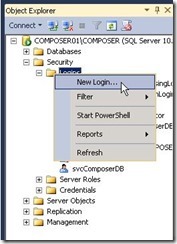
1. Open SQL Server Management Studio and log in with an account that has permissions to create users and databases.

2. Expand Security –> Logins.

3. Right-click on Logins and Select New Login…
1. Create New User 1

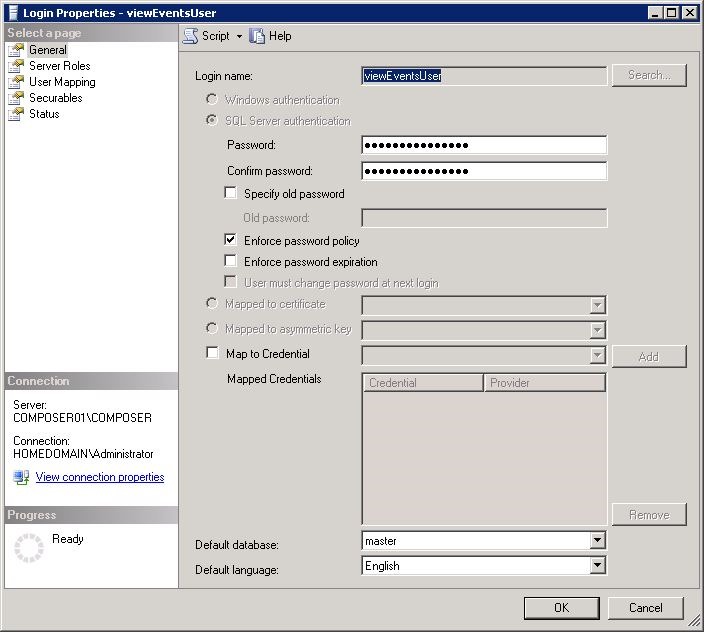
4. Enter the SQL Login Name and Password and then click OK.

2. Create New User 2

5. Expand Databases.

6. Right-click on Databases and select New Database.

7. Enter the database name.  Select the database user that you created above as the database owner.  Click OK to create the database.

3. Create View Events Database

Note: SQL Server named instances are configured to use dynamic ports.  This means that SQL Server will use a new port every time the server is restarted.  The events database does not support dynamic ports, so a static port will need to be configured and the SQL instance restarted prior to configuring the events database in View.  For instructions on how to configure a static ports in SQL Server, please see this article.

View Composer Service Accounts

The last two accounts that need to be set up are for Horizon View Composer.  These accounts are only required if you plan on using Composer and linked clone desktops.

Depending on your configuration, Composer may require two service accounts.  These accounts are:

1. An Active Directory User Account – This service account is used by View for accessing Composer.  This account requires local administrator rights on the Composer server and rights to create computer objects in Active Directory.

2. A Horizon View Composer Database User – This service account is a local SQL Server user account and is required if the SQL Server database is located on a remote server.  If SQL Server is installed on the Composer Server, Windows authentication can be used.

Configuring the Composer Service Account

The first is the account that will be used by View Composer.  This account can be created as a standard domain user.  This account should not have domain administrator or account operator rights – it only needs a select group of permissions on the OU (or OUs) where the View Desktops are being stored.

After this account has been created, you need to delegate permissions to it on the OU (or OUs) where your VDI desktops will be placed.  If you use the structure like the one I outlined above, you only need to delegate permissions on the top-level OU and permission inheritance, if turned on, will apply them to any child or grandchild objects beneath it.

Note:  If inheritance is not turned on, you will need to check the Apply to All Child Objects checkbox before applying the permissions.

The permissions that need to be delegated on the OU are:

  • Create Computer Objects
  • Delete Computer Objects
  • Write All Properties
  • Reset Password

Note: Although granting this account Domain Administrator or Account Operator permissions may seem like an easy way to grant it the permissions it needs, it will grant a number of other permissions that are not needed and could pose a security risk if that account is compromised.  Only the required permissions should be granted in a production environment.

The account will also need to be granted local administrator rights on the Composer server.  If the account is not a local administrator, you will not be able to configure Composer from within the View Administrator.

Configuring the Composer Database and Database Service Account

Like the Event database above, Composer requires its own database.  This database is used to keep track of linked clones, replicas, and pending recompose operations.

The steps below will walk through setting up the Composer database.  If your Composer database is located on a separate server, you will have to use SQL authentication, and the steps for creating the SQL user are included.

Note: If your Composer database is located on the same server as the Composer service, you can use Windows Authentication for accessing the database.

1. Log into your database server and open SQL Server Management Studio.

2014-01-04_22-20-17

2. Log in as a user with administrator rights on SQL Server.

3. Create a new SQL Login by expanding Security –> Logins.  Right click on Logins and select New Login.

2014-01-04_22-21-46

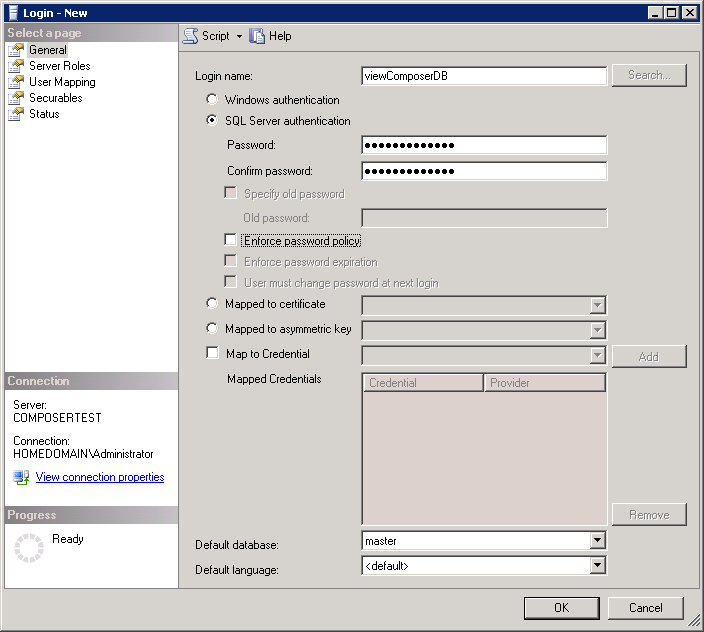
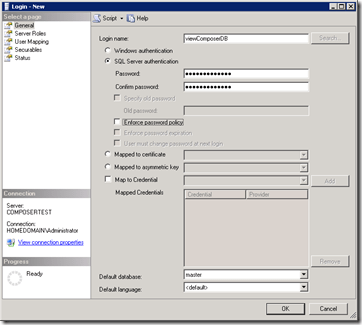
4. Enter a login name such as viewComposerDB or viewComposerUser, select SQL Server Authentication, and enter a password twice.  You may also need to disable Enforce Password Expiration or Enforce Password Policy depending on your environment.  Click OK to create the account.  Note: Check with your DBA on password policy settings.
2014-01-04_22-23-50

5. After the SQL login is created, you need to create an empty database.  To create the database, right click on the database folder and select New Database.

2014-01-04_22-19-58

6. In the database name field, enter a name such as viewComposer.  This will be the name of the database.  To select an owner for the database, click on the … button and search for the database user account you created above.  Click OK to create the database.

2014-01-04_22-24-23

You will have a blank database that you can use for View Composer after you click OK.

Configuring Composer to use this database will be covered during the Composer installation.

This wraps up all of the prerequisites for the environment.  In the next couple of sections, I will be covering the installation and configuration of Horizon View.