What’s New in VMware Horizon 6.2–Core Infrastructure

In order to set up and run VMware Horizon, you need to have a vSphere infrastructure and Windows VMs to run the server components.  Horizon 6.2

Horizon Access Point

One of the challenges of deploying Horizon is that, in order to provide external access, you need to deploy Windows machines into your network’s DMZ.  These servers, called Security Servers, run a subset of the Connection Broker that proxies or tunnels PCOIP, Blast, and RDP connections into your environment.

Horizon Security Servers have their limitations, though.  To start with, they are usually not joined to an Active Directory domain, so they cannot be configured or managed with the Group Policies that manage the rest of your infrastructure.  Because these servers live in the DMZ, they also need to be patched frequently and secured.

Security Servers are also paired directly with a Connection Server.  If the Connection Server is not available, users who connect with that particular security server would not be able to authenticate or connect to a desktop.  This also limits the number of servers you can deploy to a maximum of seven. 

Horizon 6.2 will now include a new method of providing remote access called the Access Point.  The Access Point is a locked-down virtual appliance built on SUSE Linux Enterprise Edition 11 that has feature parity with the Security Server.  It allows you to remove Windows VMs from your DMZ, and it does not need to be paired with a Connection Server, so you can scale out your external access without having to add additional connection servers.

The Access Point will not be dedicated to Horizon View.  It is designed to work with all components of the Horizon Suite – reducing the number of external access components that you need to manage.

image

One-Way Trust Support

If you work in a multi-domain or federated environment, Horizon View required a two-way trust between domains or forests in order to authenticate and entitle users.

There are a number of environments where two-way trusts aren’t feasible.  Think about companies that routinely undergo mergers, acquisitions, or divestitures.  They have use cases for virtual desktop environments, but a two-way trust between Active Directory environments would pose security and integration challenges.

Horizon 6.2 takes a step towards resolving this by adding support for 1-way Active Directory trusts.  Users and groups from external (trusted) domains can now be granted access to Horizon desktops without having to create a full two-way trust.

image

In order to fully support one-way forest trusts, Horizon will need to utilize a service account with permissions to authenticate against the trusted domain.  This account is stored in the Horizon LDAP database, and all of its credentials are encrypted.

Secondary credentials are managed by using the vdmadmin command line tool that is installed on Connection Servers.

vSphere 6 Update 1 Support

Horizon 6.2 will support vSphere 6 Update 1 on Day 1.

FIPS and Common Criteria Certification

The US Federal Government has a number of criteria that IT products must meet.  These include things like IPv6 compatibility, FIPS cryptographic support, and Common Criteria certification.

Horizon 6.1 introduced support for IPv6.  Horizon 6.2 expands upon this with support for FIPS on all Horizon Windows components.  FIPS will also be supported in Horizon Client 3.5 for Windows.

FIPS mode is optional, and it can be enabled if it is required.

VMware will also be submitting Horizon 6.2 for Common Criteria certification, and this testing is currently in process.  It should be completed sometime in 2016.

Enhanced License Console

The license console in previous versions of Horizon was not very detailed.  It would give you the current number of active users with a breakdown by virtual machine type.

Horizon 6.2 overhauls the licensing console on the Admin page.  The new licensing console shows part of the key that is in use along with the number of concurrent connections and unique named users that have logged in.

Introducing Horizon 6.2

VMware has made a significant investment in end-user computing.  A new release of Horizon comes about every six months, and each release contains several major new features.

Today, VMware has announced the latest iteration of Horizon Suite – Horizon 6.2.  This release greatly builds upon the features that have been released in the last few versions of Horizon.

These features include:

  • Significant expansion of RDSH capabilities
  • Enhancements to user experience
  • Expanded Graphics support
  • Windows 10 support
  • And more…

One thing we won’t be seeing in this version is the release of Instant Clones.  This was announced at last year’s VMworld as Project Fargo, and it utilizes the instant cloning features to create on-demand virtual desktops.

The Next Generation of Virtual Graphics–NVIDIA GRID 2.0

When vGPU was released for Horizon View 6.1 back in March 2015, it was an exciting addition to the product line.  It addressed many of problems that plagued 3D Graphics Acceleration and 3D workloads in virtual desktop environments running on the VMware platform.

vGPU, running on NVIDIA GRID cards, bridged the gap between vDGA, which is dedicating a GPU to a specific virtual machine, and vSGA, which is sharing the graphics card between multiple virtual machines through the use of a driver installed in the hypervisor.  The physical cores of the GRID card’s GPU could be shared between desktops, but there was no hypervisor-based driver between the virtual desktop and the GPU.  The hypervisor-based component merely acted as a GPU scheduler to ensure that each virtual desktop received the resources that it was guaranteed.

While vGPU improved performance and application compatibility for virtual desktops and applications, there were certain limitations.  Chief amongst these limitations was support for blade servers and virtual machines running Linux.  There were also hard capacity limits – GRID cards could only support so many virtual desktops had vGPU enabled.

Introducing GRID 2.0

Today, NVIDIA is announcing the next generation of virtual Graphics Acceleration – GRID 2.0.

GRID 2.0 offers a number of benefits over the previous generation of GRID cards and vGPU software.  The benefits include:

  • Higher Densities – A GRID card with 2 high-end GPUs can now support up to 32 users.
  • Blade Server Support – GRID 2.0 will support blade servers, bringing virtual desktop graphics acceleration to high-density compute environments.
  • Linux Desktop Support – GRID 2.0 will support vGPU on Linux desktops.  This will bring vGPU to a number of use cases such as oil and gas.

GRID 2.0 will also offer better performance over previous generations of GRID and vGPU.

Unfortunately, these new features and improvements aren’t supported on today’s GRID K1 and K2 cards, so that means…

New Maxwell-based GRID Cards

NVIDIA is announcing two new graphics cards alongside GRID 2.0.  These cards, which are built on the Maxwell architecture, are the M60 – a double-height PCI-Express card with two high-end Maxwell cores, and the M6 – a GPU with a single high-end Maxwell core that is designed to fit in blades and other rack-dense infrastructure.  The M6 is designed to have approximately half of the performance of the M60.  Both cards double the amount of memory available to the GPU.  The M6 and M60 each have 8GB of RAM per GPU compared to the 4GB per GPU on the GRID K1 and K2.

Both the M6 and the M60 will be branded under NVIDIA’s TESLA line of data center graphics products, and the GRID 2.0 software will bring the graphics virtualization capabilities on top of these new Maxwell-based Tesla cards..  The M60 is slated to be the direct replacement for both the GRID K1 and GRID K2 cards.  The K1 and K2 cards will not be discontinued, though – they will still be sold and supported for the foreseeable future.

GPUs Should Be Optional for VDI

Note: I disabled comments on my blog in 2014 because of spammers. Please comment on this discussion on Twitter using the #VDIGPU hashtag.

Brian Madden recently published a blog arguing that GPU should not be considered optional for VDI.  This post stemmed from a conversation that he had with Dane Young about a BriForum 2015 London session on his podcast

Dane’s statement that kicked off this discussion was:
”I’m trying to convince people that GPUs should not be optional for VDI.”

The arguments that were laid out in Brian’s blog post were:

1. You don’t think of buying a desktop without a GPU
2. They’re not as expensive as people think

I think these are poor arguments for adopting a technology.  GPUs are not required for general purpose VDI, and they should only be used when the use case calls for it.  There are a couple of reasons why:

1. It doesn’t solve user experience issues: User experience is a big issue in VDI environments, and many of the complaints from users have to do with their experience.  From what I have seen, a good majority of those issues have resulted from a) IT doing a poor job of setting expectations, b) storage issues, and/or c) network issues.

Installing GPUs in virtual environments will not resolve any of those issues, and the best practices are to turn off or disable graphics intensive options like Aero to reduce the bandwidth used on wide-area network links.

Some modern applications, like Microsoft Office and Internet Explorer, will offload some processing to the GPU.  The software GPU in vSphere can easily handle these requirements with some additional CPU overhead.  CPU overhead, however, is rarely the bottleneck in VDI environments, so you’re not taking a huge performance hit by not having a dedicated hardware GPU.

2. It has serious impacts on consolidation ratios and user densities: There are three ways to do hardware graphics acceleration for virtual machines running on vSphere with discrete GPUs.

(Note: These methods only apply to VMware vSphere. Hyper-V and XenServer have their own methods of sharing GPUs that may be similar to this.)

  • Pass-Thru (vDGA): The physical GPU is passed directly through to the virtual machines on a 1 GPU:1 Virtual Desktop basis.  Density is limited to the number of GPUs installed on the host. The VM cannot be moved to another host unless the GPU is removed. The only video cards currently supported for this method are high-end NVIDIA Quadro and GRID cards.
  • Shared Virtual Graphics (vSGA): VMs share access to GPU resources through a driver that is installed at the host level, and the GPU is abstracted away from the VM. The software GPU driver is used, and the hypervisor-level driver acts as an interface to the physical GPU.  Density depends on configuration…and math is involved (note: PDF link) due to the allocated video memory being split between the host’s and GPU’s RAM. vSGA is the only 3D graphics type that can be vMotioned to another host while the VM is running, even if that host does not have a physical GPU installed. This method supports NVIDIA GRID cards along with select QUADRO, AMD FirePro, and Intel HD graphics cards.
  • vGPU: VMs share access to an NVIDIA GRID card.  A manager application is installed that controls the profiles and schedules access to GPU resources.  Profiles are assigned to virtual desktops that control resource allocation and number of virtual desktops that can utilize the card. A Shared PCI device is added to VMs that need to access the GPU, and VMs may not be live-migrated to a new host while running. VMs may not start up if there are no GPU resources available to use.

Figure 1: NVIDIA GRID Profiles and User Densities
clip_image001[10]

There is a hard limit to the number of users that you can place on a host when you give every desktop access to a GPU, so it would require additional hosts to meet the needs of the VDI environment.  That also means that hardware could be sitting idle and not used to its optimal capacity because the GPU becomes the bottleneck.

The alternative is to try and load up servers with a large number of GPUs, but there are limits to the number of GPUs that a server can hold.  This is usually determined by the number of available PCIe x16 slots and available power, and the standard 2U rackmount server can usually only handle two cards.   This means I would still need to take on additional expenses to give all users a virtual desktop with some GPU support.

Either way, you are taking on unnecessary additional costs.

There are few use cases that currently benefit from 3D acceleration.  Those cases, such as CAD or medical imaging, often have other requirements that make high user consolidation ratios unlikely and are replacing expensive, high-end workstations.

Do I Need GPUs?

So do I need a GPU?  The answer to that question, like any other design question, is “It Depends.”

It greatly depends on your use case, and the decision to deploy GPUs will be determined by the applications in your use case.  Some of the applications where a GPU will be required are:

  • CAD and BIM
  • Medical Imaging
  • 3D Modeling
  • Computer Animation
  • Graphic Design

You’ll notice that these are all higher-end applications where 3D graphics are a core requirement.

But what about Office, Internet Explorer, and other basic apps?  Yes, more applications are offloading some things to the GPU, but these are often minor things to improve UI performance.  They can also be disabled, and the user usually won’t notice any performance difference.

Even if they aren’t disabled, the software GPU can handle these elements.  There would be some additional CPU overhead, but as I said above, VDI environments usually constrained by memory and have enough available CPU capacity to accommodate this.

But My Desktop Has a GPU…

So let’s wrap up by addressing the point that all business computers have GPUs and how that should be a justification for putting GPUs in the servers that host VDI environments.

It is true that all desktops and laptops come with some form of a GPU.  But there is a very good reason for this. Business desktops and laptops are designed to be general purpose computers that can handle a wide-range of use cases and needs.  The GPUs in these computers are usually integrated Intel graphics cards, and they lack the capabilities and horsepower of the professional grade NVIDIA and AMD products used in VDI environments. 

Virtual desktops are not general purpose computers.  They should be tailored to their use case and the applications that will be running in them.  Most users only need a few core applications, and if they do not require that GPU, it should not be there.

It’s also worth noting that adding NVIDIA GRID cards to servers is a non-trivial task.  Servers require special factory configurations to support GPUs that need to be certified by the graphics manufacturer.  There are two reasons for this – GPUs often draw more than the 75W that a PCIe x16 slot can provide and are passively cooled, requiring additional fans.  Aside from one vendor on Amazon, these cards can only be acquired from OEM vendors as part of the server build.

The argument that GPUs should be required for VDI will make much more sense when hypervisors have support for mid-range GPUs from multiple vendors. Until that happens, adding GPUs to your virtual desktops is a decision that needs to be made carefully, and it needs to fit your intended use cases.  While there are many use cases where they are required or would add significant value, there are also many use cases where they would add unneeded constraints and costs to the environment. 

What’s New–Horizon 6.1

VMware will be announcing the latest update to the Horizon Suite of End-User Computing products later today, and this edition brings some exciting new features to VMware Horizon.

Some of the new features in this edition are:

  • Support for vSphere 6.0
  • vGPU support for Virtual Desktops and Shared Applications
  • Enhanced Support for VSAN
    • Horizon 6.1 with vSphere 6 will support up to 200 desktops per host, and 4000 desktops and 20 hosts per VSAN cluster.
  • VVOLs support for Virtual Desktops
  • USB Storage Device Redirection for Hosted Desktops and Applications running on Windows Server 2012 and 2012 R2
  • Cloud Pod Architecture can now be managed through the View Administrator Web Console
  • Support for running Windows Server 2012 R2 as a Desktop OS
  • IPv6 support

There will also be two new Tech Previews coming shortly after the Horizon 6.1 launch –

  • Linux Desktops – An upcoming Tech Preview will add support for Linux Desktop VMs to Horizon
  • Chromebook Client – Chromebook users will no longer be restricted to using Horizon Blast to access virtual desktops.  The Chromebook client will be based on the Android App and add Hosted Applications Support to Chromebook.

ControlUp 4.1–The Master Systems Display for your Virtual Environment

One thing I have always liked about the Engineering section from Star Trek: The Next Generation was the Master Systems Display.  This large display, which was found on the ship’s bridge in later series, contained a cutaway of the ship that showed a detailed overview of the operational status of the ship’s various systems.
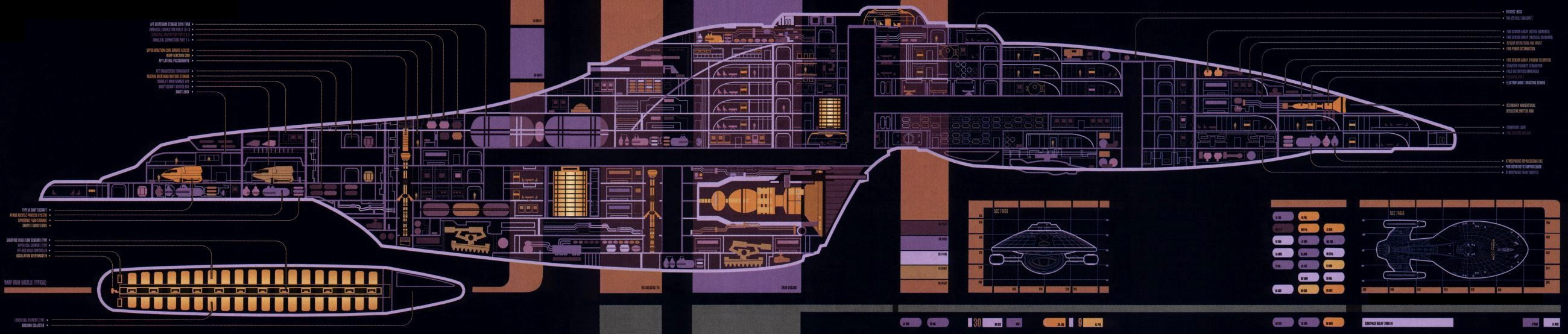

The Master Systems display from Star Trek Voyager. Linked from Memory Alpha.

Although the Master Systems Display is fictional, the idea of having one place to look to get the current status of all your systems can be very appealing.  This is especially true in a multi-user or multi-tenant environment where you need to quickly identify the systems and/or processes that are not performing optimally.  And this information needs to be displayed in a way that makes it easy to understand while providing administrators with a way to dig deeper if they need to. 

Some tools with these functions already exist in the network space.  They can give a nice graphical layout of the network, and they can show how heavily a link is being utilized by changing the color based on bandwidth utilization.  PHP Weathermap is FOSS example of a product in this space.

ControlUp 4.1 is the latest version of a similar tool in the systems management space.  Although it doesn’t provide a graphical map of where my systems might be residing, it provides a nice, easy to read list of my systems and a grid with their current status, a number of important metrics that are monitored, and the ability to dive down deeper to view child items such as virtual machines in a cluster or running processes on a Windows OS.
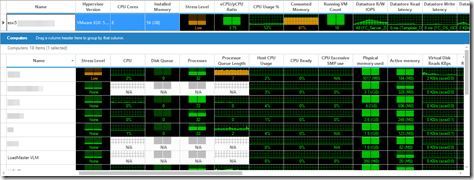
image
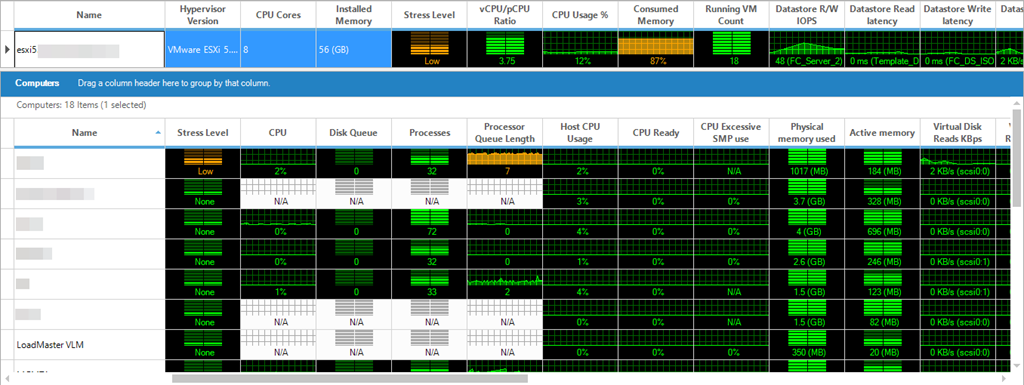
The ControlUp Management Console showing a host in my home lab with all VMs on that host. The Stress Level column and color-coding of potential problems make it easy to identify trouble spots.  Servers that can’t run the agent won’t pull all stats.

So why make the comparison to the Master Systems Display from Star Trek?  If you look in the screenshot above, not only do I see my ESXi host stats, but I can quickly see that host’s VMs on the same screen.  I can see where my trouble spots are and how it contributes to the overall health of the system it is running on.

What Is ControlUp?

ControlUp is a monitoring and management platform designed primarily for multi-user environments.  It was originally designed to monitor RDSH and XenApp environments, and over the years it has been extended to include generic Windows servers, vSphere, and now Horizon View.

ControlUp is an agent-based monitoring system for Windows, and the agent is an extremely lightweight application that can be installed permanently as a Windows Service or be configured to be uninstalled when an admin user closes the administrative console.  ControlUp also has a watchdog service that can be installed on a server that will collect metrics and handle alerting should all running instances of a console be closed.

One component that you will notice is missing from the ControlUp requirements list is a database of any sort.  ControlUp does not use a database to store historical metrics, nor is this information stored out “in the cloud.” This design decision is a double-edged sword – it makes it very easy to set up a monitoring environment, but viewing historical data and trending based on past usage aren’t integrated into the product in the same way that they are in other monitoring platforms.

That’s not to say that these capabilities don’t exist in the product.  They do – but it is in a completely different manner.  ControlUp does allow for scheduled exports of monitoring data to the file system, and these exported files can be consumed by a trending analysis component.  There are pros and cons to this approach, but I don’t want to spend too much time on this particular design choice as it would detract from the benefits of the program.

What I will say is this, though – ControlUp provides a great immediate view of the status of your systems, and it can supplement any other monitoring system out there.  The other system can handle long-term historical, trending, analysis, etc, and ControlUp can handle the immediate picture.

How It Works

As I mentioned above, ControlUp is an agent-based monitoring package.  That agent can be pushed to the monitored system from the management console or downloaded and installed manually.  I needed to take both approaches at times as a few of my servers would not take a push installation.  That seems to have gotten better with the more recent editions.

The ControlUp Agent polls a number of different metrics from the host or virtual machine – everything from CPU and RAM usage to the per-session details and processes for each logged-in user.  This also includes any service accounts that might be running services on the host. 

If your machines are VMs on vSphere, you can configure ControlUp to connect to vCenter to pull statistics.  It will match up the statistics that are taken from inside the VM with those taken from vCenter and present them side-by-side, so administrators will be able to see the Windows CPU usage stats, the vCenter CPU usage stats, and the CPU Ready stats next to each other when trying to troubleshoot an issue.

image
Grid showing active user and service account, number of computers that they’re logged into, and system resources that the accounts are utilizing.

For VDI and RDSH-based end-user environments, ControlUp will also track session statistics.  This includes everything from how much CPU and RAM the user is consuming in the session to how long it took them to log in and the client they’re connecting from.  In Horizon environments, this will include a breakdown of how long it took each part of the user profile to load. 

image
Grid showing a user session with the load times of the various profile components and other information.

The statistics that are collected are used to calculate a “stress level.”  This shows how hard the system is working, and it will highlight the statistics that should be watched closer or are dangerously high.  Any statistics that are moderately high or in the warning zone will show up in the grid as yellow, and anything that is dangerously high will be colored red.  This combination gives administrators a quick summary of the machine’s health and uses color effectively to call out the statistics that help give it the health warning that the machine has received.

image
Not only can I see that the 1st server may have some performance issues, but the color coding immediately calls out why.  In this case – the server is utilizing over 80% of its available RAM.

Configuration Management

One other nice feature of ControlUp is that it can do some configuration comparison and management.  Say I have a group of eight application servers, and they all run the same application.  If I need to deploy a registry key, or change a service from disabled to automatic, I would normally need to use PowerShell, Group Policy, and/or manually touch all eight servers in order to make the change.

The ControlUp Management Console allows an administrator to compare settings on a group of servers – such as a registry key – and then make that change across the entire group in one batch. 

In my lab, I don’t have much of a use for this feature.  However, I can definitely see the use case for it in large environments where there are multiple servers serving the same role within the environment.  It can also be helpful for administrators who don’t know PowerShell or have to make changes across multiple versions of Windows where PowerShell may not be present.

Conclusion

As I stated in my opening, I liken ControlUp to that master systems display.  I think that this system gives a good picture of the immediate health of an environment, but it also provides enough tools to drill down to identify issues.

Due to how it handles historical data and trending, I think that ControlUp needs to be used in conjunction with another monitoring system.  I don’t think that should dissuade anyone from looking at it, though, as the operational visibility benefits outweigh having to implement a second system.

If you want more information on ControlUp, you can find it on their website at http://www.controlup.com/

Horizon View 6.0 Load Balancing Part 1#VDM30in30

Redundancy needs to be a consideration when building and deploying business critical systems.  As user’s desktops are moved into the data center, Horizon View becomes a Tier 0 application that needs to be available 24/7 as users will not be able to work if they can’t get access to a desktop.

Horizon View is built with redundancy in mind.  A single View Pod can have up to 7 Connection Servers to support 10000 active desktop sessions, and the new View Cloud Pod features allows up to four View Pods to be stretched across two geographic sites.

Just having multiple connection servers available for users isn’t enough.  That doesn’t help users if they can’t get to the other servers or if a load-balancing technology like DNS Round Robin tries to send them to an offline server.

Load Balancers can be placed in front of a Horizon View environment to distribute connections across the multiple Connection Servers and/or Security Servers.  There are some gotcha’s to be aware of when load balancing Horizon View traffic, though.

VMware doesn’t appear to provide any publicly available documentation on load balancing Horizon View traffic, and most of the documentation that is available appears to be from the various load balancing vendors.  After reading through a few different sets of vendor documentation, a few commonalities emerge.

Horizon View Network Communications

Before we can go into how to load balance Horizon View traffic , let’s talk about how clients communicate with the Horizon View servers and the protocols that they use.

There are three protocols used by clients for accessing virtual desktops.  Those protocols are:

  • HTTPS – HTTPS (port 443) is used by Horizon clients to handle  user authentication and the initial communications with the Connection or Security server.
  • PCoIP – PCoIP (port 4172) is the remote display protocol that is used between the Horizon Client and the remote desktop. 
  • Blast – Blast (port 8443) is the remote display protocol used by HTML5-compatible web browsers.

Remote Desktop Protocol (RDP) is also a connectivity option. 

When a user connects to a Horizon View environment using either the web client for Blast or the Horizon Client application for PCoIP, the initial communications take place over HTTPS.  This includes authentication and the initial pool or application selection.  Once a pool or application has been selected and the session begins, communications will switch to either Blast or PCoIP.

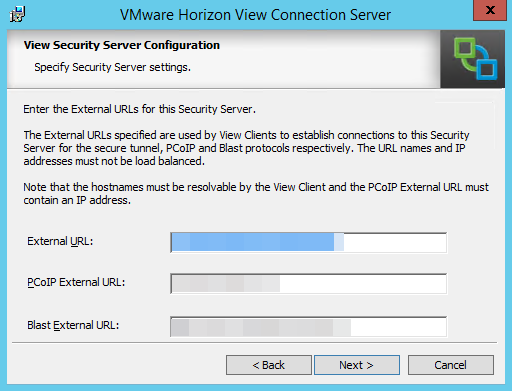
In the example above, the user connects to the fully-qualified domain name of the security server.  After authenticating, they select a pool and connect using the protocol for that pool.  If they’re connecting over PCoIP, they connect to the IP address of the server, and if they connect over Blast, the connection goes through the URL of the server. 

6

The URLs used by clients when connecting through a security server.  The PCoIP URL is the external IP address used by the server.

When a load balancer is inserted into an environment to provide high availability for remote access, things change a little.  The initial HTTPS connection hits the load balancer first before being distributed to an available connection or security server.  All PCoIP and/or Blast traffic then occurs directly with the security server.

HorizonViewLoadBalancing

This can have some implications for the certificates that you purchase and install on your servers, especially if you plan to use Blast to allow users to access desktops from a web browser.  If you choose not to use HTTPS offloading, the certificate that is installed on the load balancer also needs to be installed on the security servers.  This may require a SAN certificate with the main external URL and the Blast URLs for all servers.

Load Balancing Requirements

There are a few requirements for load balancing your Horizon View environment.  These requirements are:

  • At least 2 Security or Connection Servers
  • A load balancer that supports HTTPS persistence, usually JSESSIONID

If you’re load balancing external connections, you’ll need an IP address for each security server and an IP address for the load balancer interface.  If you have two security servers, you will need a total of three public IP addresses.

In an upcoming post, I will walk through the steps of load balancing a Horizon View environment using a Kemp virtual Load Master.

Horizon View 6.0 Application Publishing Part 5: Manually Publishing an Application

The last post covered the process of creating an application pool using applications that have been installed on the server and are available to all users through the start menu.  But what if the application you need to publish out is not installed for all users or not even installed at all?

The application that needs to be published out might be a simple executable that doesn’t have an MSI installer.  It could be a ThinApp package located on a network share.  Or it could even be a web application that needs to be accessed from non-secure environments.  Whatever the reason, there may be times where an application will need to be published out that isn’t part of the default application list.

The steps for manually publishing an application are:

1.  Log into View Administrator

2.  In the Inventory panel, select Application Pools.

image

3. Click Add to create a new pool.

image

4. Select the RDS Farm you want to create the application in from the dropdown list and then click “Add application pool manually.”

image

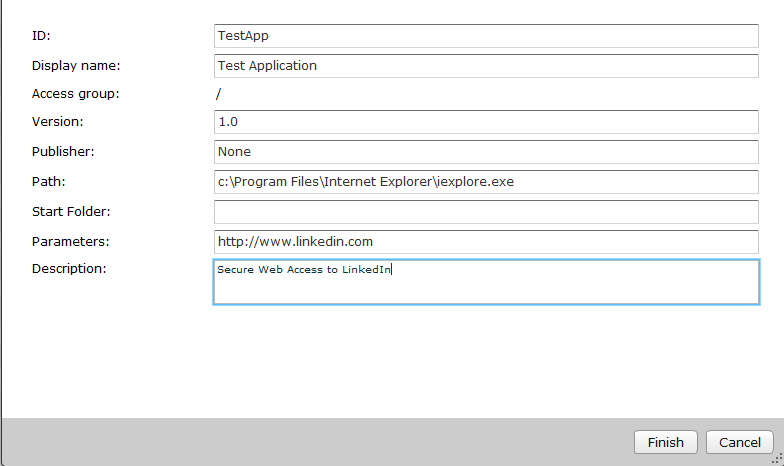
5. Enter the following required fields.:

  • ID – The pool ID.  This field cannot have any spaces.
  • Display Name – This is the name that users will see in the Horizon Client.
  • Path – The path to the application executable.  This must be the full file path of the executable.
  • Description – A brief description of the application.

image

The following parameters are optional:

  • Version – The version number of the application
  • Publisher – The person or company that created or published the application
  • Parameters – Any command line parameters that need to be passed to the application executable. 

6. Make sure that the Entitle Users box is checked and click Finish.

image

7. Click Add to bring up the Find User or Group wizard.

image

8. Search for the Active Directory user or group that should get access to the application.  Select the user/group from the search results and click OK.

image

9. Click OK to finish entitling users and/or groups to pools.

10. Log into your Horizon environment using the Horizon Client.  You should now see your published application as an option with your desktop pools.

Note: You need to use version 3.0 or later of the Horizon client in order to access published applications.  Published applications are not currently supported on Teradici-based zero clients.

image

Horizon View 6.0 Application Publishing Part 3: Creating An RDS Farm #VDM30in30

The previous post covered the steps for configuring a Windows Server with the Remote Desktop Session Host role and installing the Horizon View agent.  There is one more step that need to be completed before applications can be published out.

That step is creating the server farm.  In Horizon View terms, a farm is a group of Windows Servers with the Remote Desktop Services role.  They provide redundancy, load balancing, and scalability for a remote desktop pool, multiple published application pools, or both for a group of users.

The steps for setting up an RDS Farm are:

1. Log into View Administrator

2. In the Inventory side-panel, expand Resources and select Farms.

image

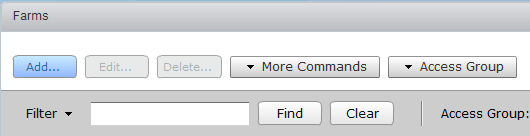
3. Click Add to create a New RDS Farm.

image

4.  Enter a name for the pool in the ID field and a description for the pool.  The name cannot have any spaces.  Click Next to continue.

You can also use this page to configure the settings for the farm.  The options are:

  • Default Display Protocol – The default protocol used by clients when connecting to the application
  • Allow users to choose protocol – Allows users to change the protocol when they connect to their applications
  • Empty SessionTimeout – the length of time a session without any running applications remains connected
  • Timeout Action – Determine if the user is logged out or disconnected when the Empty Session Timeout expires.
  • Log Off Disconnected Sessions – Determines how long a session will remain logged in after a user has disconnected their session

image

5. Select the RDS host or hosts to add to the Farm and click next to continue.

image

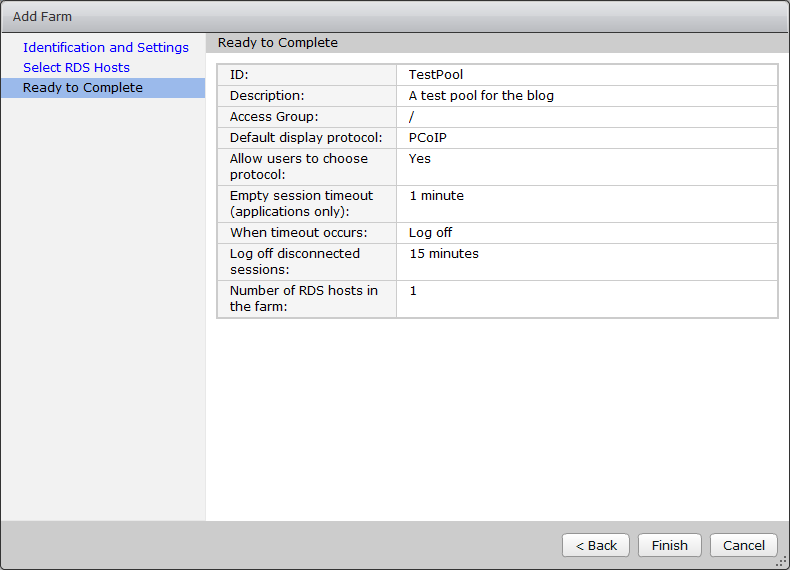
6. Review the settings and click Finish.

image

Once you have a farm created and an RDS host assigned, you can create application pools.  This will be covered in the next article in this series.

Horizon View 6.0 Application Publishing Part 2: Building Your Terminal Servers #VDM30in30

The application publishing feature of Horizon 6.0 utilizes the capabilities of the Remote Desktop Session Host role.  This requires servers with the role installed and licensed in order to publish applications.

Sizing RDS Servers

There isn’t a lot of guidance from VMware on sizing servers for application publishing.  Microsoft guidelines for sizing the Remote Desktop Session Host can be used, though.  The Microsoft recommendations are:

  • 2 GB of RAM for each CPU core allocated to the system
  • 64 MB of RAM for each user session
  • Additional RAM to meet the requirements of the installed applications

With these guidelines in mind, a server that has 4 vCPUs and sized for 50 users would need 11 GB of RAM allocated before accounting for additional RAM to support application requirements.

The local system drive should be large enough to accommodate the user profiles for all logged in users, temporary files, and other application data.  Drive space should be monitored carefully, and unneeded log, temp, and data files should be cleaned up periodically.

Group Policy Settings

There is a good chance that you will have more than one RDSH server in your application publishing pool.  Group Policy should be used to ensure consistent configuration across all servers in the pool.  A number of Remote Desktop Services specific policies, such as restricting users to a single session, can only be configured using group policy in Server 2012 R2.  Specific Group Policy guidelines for application publishing will be covered in another article.

Building and Deploying A Server

When you’re building up a server image for Terminal Servers, you should consider building up a new server image (or deploy from an existing barebones template), install the Remote Desktop Session Host role, and configure your base applications.  This will allow you to quickly deploy RDS servers more quickly than if you would have to build them from scratch and install your business applications on them.  This will also require periodic template maintenance to ensure that all of the Windows patches and applications are up to date.

There are already a few good walkthroughs on how to configure a new Windows Server 2012 R2 template, so I won’t cover that ground again.  One of my favorites can be found in this great article by Michael White.

While building or deploying your template, it is a good idea to not install any applications until after the Remote Desktop Session Host role has been installed.  Applications that are installed before the RDSH role is installed may not work properly.

Once you have your template built, or once you have deployed a new VM from an existing Windows template, we need to take the following steps to prepare the server to publish applications:

1. Connect into the new server using Remote Desktop

2. Launch the Server Manager

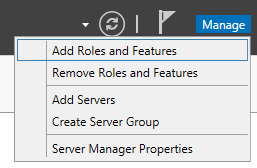
3. Click Manage –> Add Roles and Features

image

4. Click Next to go to the Installation Type screen

5. Select Role-based or feature based Installation and click Next

image

6. On the Server Selection page, click Next.  This will select the server that you’re currently logged into.

Note: It is possible to install and configure Remote Desktop Services remotely using Server 2012 or Server 2012 R2.  This can be accomplished using the Server Manager.

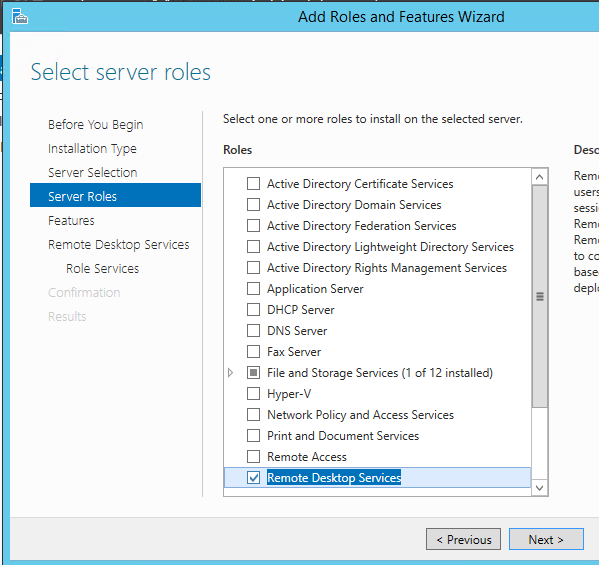
7. Check the box for the Remote Desktop Services role and click Next

image

8. Expand the .Net Framework 3.5 Features and check the .Net Framework 3.5 (includes .NET 2.0 and 3.0) box to select it.

Note: This step is not required for installing the RDSH role.  I like to install this feature now, before adding the RDSH role, because many applications still require .Net 3.5.

image

9. Scroll down to User Interfaces and Infrastructure and expand this list.

10. Check the box next to Desktop Experience. and click next.

Note: Desktop Experience is not required.image

11. Click Next to go to the Remote Desktop Role Services page.

12. Check the checkbox for Remote Desktop Session Host.  If prompted to install additional features, click Add Features and click Next to continue.

image

13. Click Install to being the Role and Feature installation.

14. Reboot the server when the installation has finished.

15. Once the installation is complete, open a Command Prompt as an administrator and enter: change user /install  .  This command puts the RDSH server into software installation mode.

image

16. Install any business or end-user applications.  Once you have completed installing any applications, enter: Change User /Execute.

Installing the Horizon Agent

The last step is to install the Horizon View Agent onto the Remote Desktop Services host.  The process for installing the agent is similar to installing it on a desktop virtual machine, but there are some differences in this process.

The steps for installing the View Agent are:

1. Double click the installer to launch it.

2. Click Next on the Welcome screen.

image

3. Accept the license agreement and click Next.

image

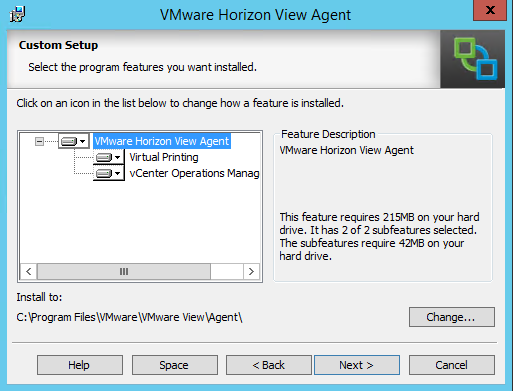
4. Select the options that you want to install and the directory to install to and click Next.

image

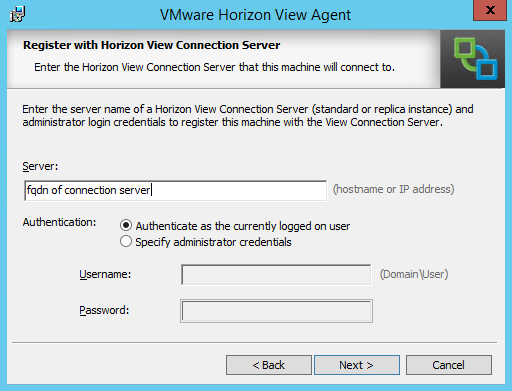
5. Enter the Fully Qualified Domain Name or IP address of a Connection Server in your environment in the textbox labeled Server.

If the account that you’re logged in with has permission to add the server to the View environment, select the “Authenticate as Current User” option, otherwise select “Specify Administrator Credentials” and provide an account with the correct permissions.  Click Next to continue.

image

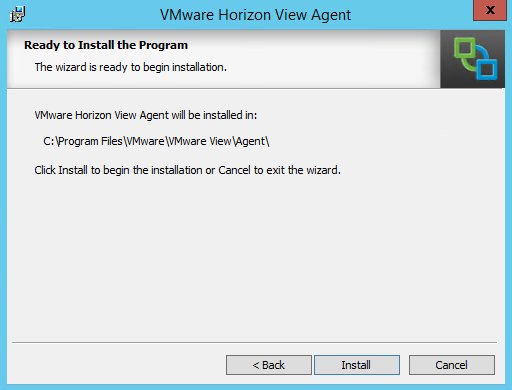
6. Click Install to install the View Agent.

image

7. Click Finish when the installation has completed.

image

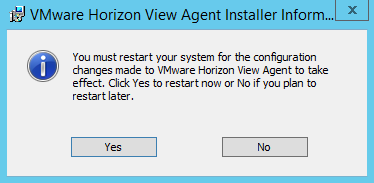
8. The server will prompt for a reboot.  Click Yes to reboot the server.

image

The agent will be completely installed when the reboot completes.  But the server will not be available in Horizon View just yet.  Before it can be used to publish applications, a Farm and an Application Pool need to be configured.

In the next post, we’ll go over how to set up a Farm inside of View Administrator.