Tech conferences always bring announcements about new products, partnerships, and capabilities. This year’s Nutanix .Next conference is no exception, and it is starting off with a huge announcement about Omnissa Horizon.
Omnissa Horizon is adding support for Nutanix AHV, providing customers building on-premises virtual desktops and applications environments with the choice of hypervisor for their end-user computing workloads.
Horizon customers will also have the opportunity to participate in the Beta of this new feature. Signup for the beta is available on the Omnissa Beta site.
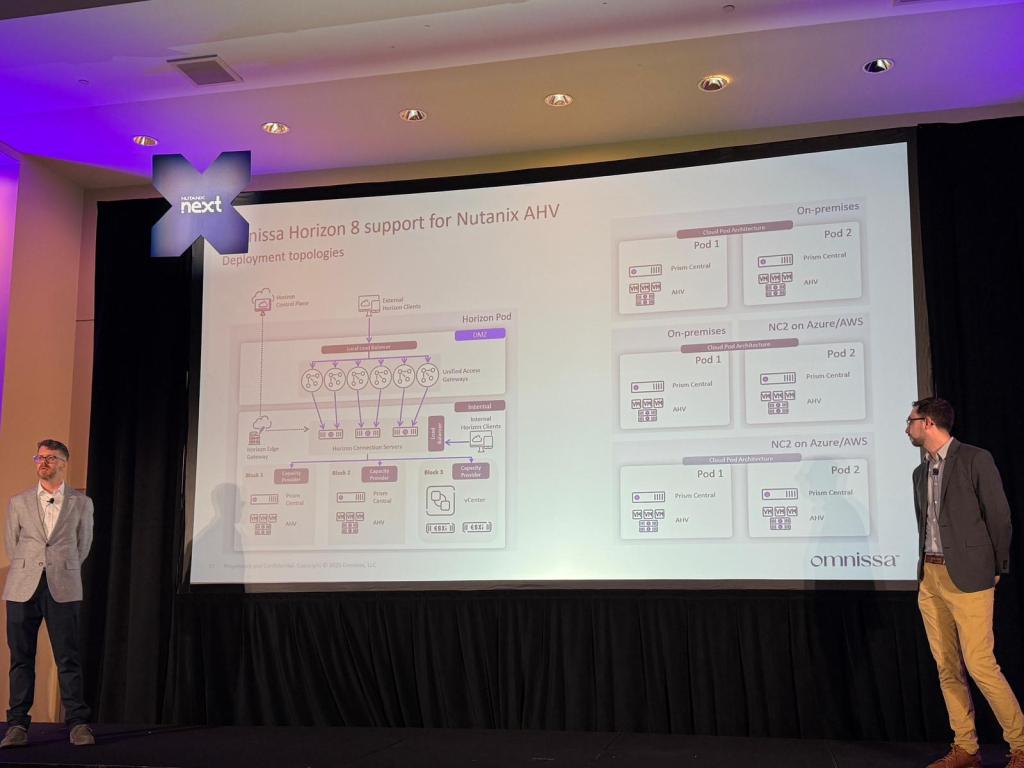
I’m not at the .Next conference this week, but I have heard from attendees that the Horizon on AHV session was well attended and included a lot of technical details including a reference architecture showing Horizon running on both Nutanix AHV and VMware vSphere in on-premises and cloud scenarios. The session also covered desktop provisioning, and Horizon on Nutanix will include a desktop provisioning model similar to “Mode B Instant Clones” using Nutanix’s cloning technologies.
Horizon on AHV reference architecture. Picture courtesy of Dane Young
My Thoughts
So what do I think about Horizon on Nutanix AHV? I’m excited for this announcement. Now that Omnissa is an independent company, they have the opportunity to diversify the platforms that Horizon supports. This is great for Horizon customers who are looking at on-premises alternatives to VMware vSphere and VCF in the aftermath of the Broadcom acquisition.
I have a lot of technical questions about Horizon on Nutanix, and I wasn’t at .Next to ask them. That’s why I’m signing up for the beta and planning to run this in my lab.
I’ve seen some great features added to both Horizon and Workspace ONE since they were spun out into their own company. These include support for Horizon 8 on VMware Cloud Director and Google Cloud and the Windows Server Management feature for Workspace ONE that is currently in beta.
In my last home lab blog post, I talked about working with Nutanix Community Edition (CE). I’ve been spending a lot of time with CE while migrating my home lab workloads over to it.
One of the things I’ve been working on is increasing the storage in my lab cluster. When I originally built my lab cluster, I used the drives that I had on hand. These were a mixed bag of consumer-grade 1TB SATA and NVME SSDs that worked with my PowerEdge R630s. It worked great, and I was able to get my cluster built.
Then I stumbled onto some refurbished Compellent SAS SSDs on eBay, and I wanted to upgrade my cluster.
While there are some blog posts that cover adding or replacing drives in CE, those posts are for older versions. The current version of CE at the time of this post is CE 2.1, and it has some significant changes compared to the older versions. Those directions would work to a point – I could get the new disk imported into my CE cluster, but they would disappear if I shut down or rebooted the host.
You’re probably asking yourself why this is happening. It’s Nutanix. I should be able to plug in a new disk and have it added into my cluster automatically, right?
Technical Differences Between CE and Commercial Nutanix
There are some differences between the commercial Nutanix products and CE. While CE is using the same bits as the commercial AOS offering, it is designed to run on uncertified hardware. CE can run on NUCs or even as a nested virtual machine as long as you meet the minimum storage requirements.
Commercial Nutanix products will use PCI Passthrough to present the storage controller to the CVM, and the CVM will directly manage any SATA or SAS disks that are installed. This only works with certified SAS HBAs that are found in enterprise-grade servers. CE does not pass the storage controller through to the CVM virtual appliance. Most hardware used in a home lab will not have a supported storage controller, and even if one is present, there is a good chance that the hypervisor boot disk will also be attached to this storage controller.
CE gets around this by passing each SATA or SAS disk through to the CVM individually by reference values like the WWN and Device ID. This means that you can move the drives to different slots and they will still mount in the same place on the CVM. CE will also map the disk’s device name as its drive slot – so if a disk’s device name in /sda, for example, CE will map it to slot 1. This is a little different than a commercial Nutanix system where the disk slot is mapped to a physical slot on the server or HBA.
The disk’s Device ID, UUID and WWN are also provided to the CVM, and this can cause some fun errors if the mounting order or device name changes. If an existing disk mounted as /sda changes to /sdb, CE will still try to assign it to Slot 1. You may see errors in the Hades log that say “2 disks in one slot” that prevent you from using the new disk.
Adding or replacing disks should be pretty simple then. We just need to edit the CVM’s definition file and update it with the new drive information. Right?
You’d think that, but that leads right into the second problem I mentioned earlier: the new drives would disappear when the host was rebooted. And to make this issue a little worse, I would see errors about unmounted or missing drives in Prism after the reboot.
So what’s happening here?
After looking into this and talking with the CE lead at Nutanix, I learned that the CVM definition file is regenerated on every host reboot. So if I make a change to the CVM definition, it will be rolled back to its “known configuration” the next time the host is powered on. Generally speaking, this is a great idea, but in this case, we want to change our CVM configuration and don’t want it to revert on a reboot.
We’ll need to edit a file called cvm_config.json on our host to make our changes permanent.
There is just one other little thing. The CVM’s disk device names are determined by the order they are listed in the cvm_config.json file. The first disk on the list will be named /sda, second disk as /sdb, etc. And as I said above, the Hades service that manages storage equates the new disk’s device name with the disk slot, and existing disks may also be assigned to that slot if it previously used that device name. This could prevent you from using the new disk and generate “two disks in one slot” error messages in the Hades log if the mounting order changes..
Adding and/or Replacing Disks
So how do we add or replace a disk on Nutanix CE? Here are the steps that I took in my lab to replace SATA SSDs with SAS SSDs. NVME drives are PCI Passthrough devices, and I won’t be covering them in this post.
This process will be making changes to your lab environment. Make sure you have backed up any important data before taking these steps, and remember that you are doing these at your own risk.
Removing an Old Disk
The first step I like to take when replacing a disk is to remove the disk I am replacing. This step isn’t required, but I like to remove the disk first to evacuate any data from it before I make any changes. If you’re just adding a new disk and not replacing an old one, you can skip to the next section.
To remove our disk, we need to start in Prism. Go to the dropdown menu located at the top of the screen and select Hardware
Click Table (1) and then Disks (2)
Locate the disk you want to remove. The easiest way to do this is by searching for the disk’s serial number. Right click on the disk and select Remove. I will also write down the serial number because I will need it later.
This will start the process of evacuating data from the disk, and it may take some time to complete. After the data has been evacuated from the disk, it will be unmounted and removed from the list.
Entering Maintenance Mode
Before we can shut down the host to replace our disks, we need to prepare the host and/or cluster for maintenance. There are two ways to do this, and the option you select will depend on how many hosts are in your CE cluster.
If you have a 3 or 4 node CE cluster, then you can place your host into maintenance mode. This will migrate all running VMs to another host and shut down the CVM for you. The steps to put a host into maintenance mode are:
Click on Table -> Hosts.
Right click on the host you want to put into maintenance mode and select Enter Maintenance Mode.
When you enter maintenance mode, all VMs will be migrated to another host in the cluster before that host’s CVM is shut down. It will stay in maintenance mode until you take it out of maintenance mode.
If you only have a single host in your cluster, you will need to shut down all powered-on VMs, manually stop the cluster from the CVM’s command line, and then shut down the CVM.
Once our CVM is shut down, we need to shut down our host to install our new drive or drives. AHV will not detect any new drives without a reboot. So we will need to reboot the server even if we are using enterprise-grade hardware with a storage controller that supports hot-adding drives.
Configuring AHV to Use New Disks
Once our new drives are installed, we can power our host back on. When it has finished booting, we need to SSH into AHV. We will need root privileges for the next couple of steps, so you will need to either use the root account or use an account with sudo privileges. When I was doing this in my lab, I logged in as the admin user and ran sudo su – root to switch to the root user to perform the next steps.
Before we do anything else, we need to back up our CVM configuration file. This is the file that AHV will use to regenerate the CVM’s virtual machine definition. The command to back up this file is below.
Next, we need to validate that our new drives are showing up and mounted properly. We also want to get the device name for the new drive because we will need that to get other information we need in the next step. The command we need to run is lsblk or sudo lsblk if we’re not the root user.
Next, we need to retrieve our drive’s device identifiers. These include the SATA or SCSI name and the WWN. We will use these when we update our CVM config file to identify the drive that needs to be passed through to the CVM. The command to retrieve this is below.
Root User: ls -al /dev/disk/by-id/ | grep <device name>
Admin User: sudo ls -al /dev/disk/by-id/ | grep <device name>
Next, we will need to generate a unique UUID for the drive we will be installing. The command to generate a uuid is uuidgen.
Finally, we will need to retrieve the drive’s vendor, product ID, and serial number. We can use the smartctl command to retrieve this. Smartctl works with both SATA and SAS drives. The command to get this information is below. If you are planning to install a SATA drive, you’ll want to mark the vendor down as ATA as this is how Nutanix appears to consume these drives.
So now that we’ve retrieved our new disk’s serial number, WWN, and other identifiers, we need to update our CVM definition file. We do this by editing the cvm_config.json file we backed up in an earlier step.
The cvm_config.json file is a large file, so we will want to navigate down to the VM_Config -> Devices -> Disks section. If we are replacing a disk, we’ll want to locate the entry for the serial number of the disk we’re replacing and update the values to match the new disk.
If we are adding a new disk to expand capacity, you need to create a new entry for a disk. The easiest way to do this in my experience is to copy an existing disk, paste it at the end of our disk block, and then replace the values in each field with the ones for your new disk.
There are a few things that I want to call out here.
If your new disk is a SATA disk, the vendor should be ATA. If you are adding or replacing a SAS drive, you should use the vendor data you copied when you ran the smartctl command.
The UUID field needs to start with a “ua-”, so you would just add this to the front of the UUID you generated earlier using the uuidgen command. The UUID line should look like this: “uuid”: “ua-<uuid generated by uuidgen command>”,
Once we have all of our disk data entered into the file, we can save it and reboot our host. During the reboot process, our CVM definition file will be regenerated and the new disks will be attached to the CVM virtual machine. Once our host is online, we can SSH back into it to validate that our CVM still exists before powering it back on. The commands that we need to run from the host to perform these tasks are:
virsh list --all
virsh start <CVM VM>
You can also view the updated CVM config to verify that the new disks are present with the following command:
Virsh edit <CVM VM>
Once our CVM is powered on, we need to SSH into it and switch to the nutanix user. The nutanix user account is the account that all the nutanix services run under, and it is the main account that has access to any logs that may be needed for troubleshooting.
The main thing we want to do is verify that the CVM can see our disks, and we will use the lsblk command for that. Our new disks should be showing up at this point, so you can take the host out of maintenance mode or restart the cluster.
The new disk should automatically be adopted and added into the storage pool after the Nutanix services have started on the host.
Troubleshooting
Additional troubleshooting will be needed if the disk isn’t added to the storage pool automatically, and/or you start seeing disk-related errors in Prism. This post is already over 2000 words, so I’ll keep this brief.
The first thing to do is check the hades service logs. This should give you some insight into any disk issues or errors that Nutanix is seeing. You can check the Hades log by SSHing into the CVM and running the following command as the nutanix user: cat data/logs/hades.out
You may also need to add your new disk to the hcl.json file. This file contains a list of supported disks and their features. The hcl.json file is found in /etc/nutanix/. Due to this post’s length, how to edit the file and add a new disk is also beyond the scope of this post. I’ll have to follow this up with another post.
I would also recommend joining the Community Edition forums on the Nutanix .Next community. Nutanix staff and community members can help troubleshoot any issues that you have.
When I wrote a Home Lab update post back in January 2020, I talked about AI being one of the technologies that I wanted to focus on in my home lab.
At that time, AI had unlimited possibilities but was hard to work with. Frameworks like PyTorch and Tensorflow existed, but they required a Python programming background and possibly an advanced mathematics or computer science degree to actually do something with them. Easy-to-deploy self-hosted options like Stable Diffusion and Ollama were still a couple of years away.
Then the rest of 2020 happened. Since I’m an EUC person by trade, my attention was diverted away from anything that wasn’t supporting work-from-home initiatives and recovering from the burnout that followed.
GPU accelerated computing and AI were starting to come back on my radar in 2022. We had a few cloud provider partners asking about building GPU-as-a-Service with VMware Cloud Director.
Those conversations exploded when OpenAI released their technical marvel, technology demonstrator, and extremely expensive and sophisticated toy – ChatGPT. That kickstarted the “AI ALL THE THINGS” hype cycle.
Toy might be too strong of a word there. An incredible amount of R&D went into building ChatGPT. OpenAI’s GPT models are an incredible technical achievement, and it showcases the everyday power and potential of artificial intelligence. But it was a research preview that people were meant to use and play with. So my feelings about this only extend to the free and public ChatGPT service itself, not the GPT language models, large language models in general, or AI as a whole.
After testing out ChatGPT a bit, I pulled back from AI technology. Part of this was driven by trying to find use cases for experimenting with AI, and part of it was driven by an anti-hype backlash. But that anti-hype backlash, and my other thoughts on AI, is a story for another blog.
Finding my Use Case
Whenever I do something in my lab, I try to anchor it in a use case. I want to use the technology to solve a problem or challenge that I have. And when it came to AI, I really struggled with finding a use case.
At least…at first.
But last year, Hasbro decided that they would burn down their community in an attempt to squeeze more money out of their customers. I found myself with a growing collection of Pathfinder 2nd Edition and 3rd-party Dungeons and Dragons 5th Edition PDFs as I started to play the game with my son and some family friends. And I had a large PDF backlog of other gaming books from the old West End Games Star Wars D6 RPG and Battletech.
This started me down an AI rabbithole. At first, I just wanted to create some character art to go along with my character sheet.
Then I started to design my own fantasy and sci-fi settings, and I wanted to create some concept art for the setting I was building. I had a bit of a vision, and I wanted to see it brought to life.
I tried Midjourney first, and after a month and using most of my credits, I decided to look at self-hosting options. That led me to Stable Diffusion, which I tested out on my Mac and my Windows desktop.
I had a realization while trying to manage space on my Macbook. Stable Diffusion is resource heavy and can use a lot of storage when you start experimenting with models. The user interfaces are basically web applications built on the Gradio framework. And I had slightly better GPUs sitting in one of my lab hosts.
So why not virtualize it to take advantage of my lab resources? And if I’m going to virtualize these AI projects, why not try out a few more things like using an LLM to talk to my game book PDFs.
My Virtual AI Lab and Workloads
When I decided to build an AI lab, I wanted to start with resources I already had available.
Back in 2015, I convinced my wife to let me buy a brand new PowerEdge R730 and a used NVIDIA GRID K1 card. I had to buy a brand new server because I wanted to test out the brand new (at the time) GPU virtualization in my lab VDI environment, and the stock servers were not configured to support GPUs. GPUs typically need 1100 watt power supplies and an enablement kit to deliver power to the GPU that aren’t part of the standard server BOM. Most GPUs that you’d find in a data center are also passively cooled, so the server needs high CFM-fans and hi-speed fan settings to increase airflow over them.
That R730 has a pair of Intel E5-2620 v3 CPUs, 192GB of RAM, and uses ESXi for the hypervisor. Back in 2018, I upgraded the GRID K1 card to a pair of NVIDIA Tesla P4 GPUs. The Tesla P4 is basically a data center version of a GTX 1080 – it has the same GP104 graphics processor and 8GB of video memory (also referred to as framebuffer) as the GTX 1080. The main differences are that it is passively cooled and it only draws 75 watts, so it can draw all of its power from the PCIe slot without any additional power cabling.
My first virtualized AI workload was the Forge WebUI for Stable Diffusion. I deployed this on a Debian 12 VM and used PCI passthrough to present one of the P4 cards to the VM. Image generation times were about 2-3 minutes per image, which is fine for a lab.
I started to run into issues pretty quickly. As I said before, P4 only has 8GB of framebuffer, and I would start to hit out-of-memory errors when generating larger images, upscaling images, or attempting to use LORAs or other fine-tuned models.
When I was researching LLMs, it seemed like the P4 would not be a good fit for even the smallest models. It didn’t have enough framebuffer, poor fp16 performance, and no support for flash attention. So the P4 gives an all-around bad experience.
So I decided that I need to do a couple of upgrades. First, I ordered a brand new NVIDIA L4 datacenter GPU. The L4 is an Ada Lovelace generation datacenter GPU. It’s a single-slot, 24GB of framebuffer GPU that only draws 75 watts. It’s the most modern evolution of the P4 form factor.
But the L4 took a while to ship, and I was getting impatient. So I went onto eBay and found a great deal on a pre-owned NVIDIA Tesla T4. The T4 is a Turing generation datacenter GPU, and it is the successor to the P4. It has 16GB of framebuffer, and most importantly, it has significantly improved performance and support for features like flash attention. And it also only draws 75 watts.
The T4 and L4 were significant improvements over the P4. I didn’t do any formal benchmarking, but image generation times went from 2-3 minutes to less than a minute and a half. And I was able to start building out an LLM lab using Ollama and Open-WebUI.
What’s Next
The initial version of this lab used PCI Passthrough to present the GPUs to my VMs. I’m now in the process of moving to NVIDIA AI Enterprise (NVAIE) to take advantage of vGPU features. NVIDIA has provided me with NFR licensing through the NGCA program, so thank you to NVIDIA for enabling this in my lab.
NVAIE will allow me to create virtual GPUs using only a slice of the physical resources as some of my VMs don’t need a full GPU, and it will allow me to test out some different setups with services running on different VMs.
I’m also in the process of building out and exploring my LLM environment. The first iteration of this is being built using Ollama and Open-WebUI. Open-WebUI seems like an easy on-ramp to testing out Retrieval Augmented Generation (RAG), and I’m trying to wrap my head around that.
I’m building my use case around Pathfinder 2nd Edition. I’m using Pathfinder because it is probably the most complete ruleset that I have in PDF form. Paizo, the Pathfinder publisher, also provides a website where all the game’s core rules are available for free (under a fairly permissive license), so I have a source I can scrape to supplement my PDFs.
This has been kind of a fun challenge as I learn how to convert PDFs into text, chunk them, and import them into a RAG. I also want to look at other RAG tools and possibly try to build a knowledge graph around this content.
This has turned into fun, but also frustrating at times, project. I’ve learned a lot, and I’m going to keep digging into it.
Side Notes and Disclosures
Before I went down the AI Art road, I did try to hire a few artists I knew or who had been referred to me. They either didn’t do that kind of art or they didn’t get back to me…so I just started creating art for personal use only. I know how controversial AI Art is in creative spaces, so if I ever develop and publish these settings commercially, I would hire artists and the AI art would serve as concept art.
In full disclosure, one of the Tesla P4s was provided by NVIDIA as part of the NGCA program. I purchased the other P4.
NVIDIA has provided NFR versions of their vGPU and NVAIE license skus through the NGCA program. My vSphere licensing is provided through the VMware by Broadcom vExpert program. Thank you to NVIDIA and Broadcom for providing licensing.


 The Virtual Horizon
You must be logged in to post a comment.