Horizon View 6.0 Part 6–Configuring the Horizon View Service Accounts and Databases

Back in Part 4, I mentioned that Horizon View required up to a few service accounts to function properly.  One of these accounts is for accessing vCenter to provision and manage the virtual machines that users will connect to.  The other service account is for View Composer and will manage the accounts within Active Directory.  This account is not required if you are not planning to use View Composer and Linked Clones within your environment.

In addition to these two service accounts, two database accounts may need to be created for the Horizon View Composer database and the Horizon View Events Database.

It’s important to build these accounts with the principle of least privileged access in mind.  These accounts should not have more rights than they would need.  So while the easy way out would be to give these accounts vCenter Administrator, Domain Administrator, and SQL Server or Oracle SysAdmin rights, it would not be a good idea as these accounts could potentially be compromised.

vCenter Service Account

The first account that needs to be created is a service account that View will use for accessing vCenter.  Horizon View uses this account for provisioning and power operations.  The service account should be a standard Active Directory domain user account without any additional administrator-level rights on the domain or on the vCenter server.

There are a couple of different ways to configure your Horizon View environment, sp the actual rights required by vCenter will vary.  I will be using View Composer in this series, so I will be setting up the vCenter Service Account with the permissions required to use View Composer.

Note: If you are not using View Composer, or you plan to use View Composer and Local Mode, different permissions will be required in vCenter.  Please see Chapter x of the Horizon View 6.0  Installation Guide for more details on the permissions that need to be assigned to the service account.

A new role will need to be created within vCenter in order to assign the appropriate permissions.  To create a new role in the vCenter Web Client, you need to go to Administration –> Roles from the main page.  This will bring up the roles page, and we can create a new role from here by clicking on the green plus sign.

2013-12-29_19-14-37

The permissions that need to be assigned to our new role are:

Privilege Group

Privilege

Datastore Allocate Space
Browse Datastore
Low Level File Operations
Folder Create Folder
Delete Folder
Virtual Machine Configuration –> All Items
Inventory –> All Items
Snapshot Management –> All Items
Interaction:
Power On
Power Off
Reset
Suspend
Provisioning:
Customizing
Deploy Template
Read Customization Spec
Clone Virtual Machine
Allow Disk Access
Resource Assign Virtual Machine to Resource Pool
Migrate Powered-Off Virtual Machine
Global Enable Methods
Disable Methods
System Tag
Act As vCenter
Note 1
Network All
Host Configuration:
Advanced Settings Note 1

Note 1: Act as vCenter and Host Advanced Settings are only needed if View Storage Accelerator are used.  If these features are not used, these permissions are not required.

After the role has been created, we will need to assign permissions for our vCenter Server service account to the vCenter root.  To do this from the roles screen, you will need to go back to the vCenter Web Client Home screen and take the following steps:

  1. Select vCenter
  2. Select vCenter Servers under Inventory Lists
  3. Select the vCenter that you wish to grant permissions on
  4. Click on the Manage Tab
  5. Click Permissions
  6. Click the Green Plus Sign to add a new permission
  7. Select the role for View Composer
  8. Add the Domain User who should be assigned the role
  9. Click OK.

2013-12-29_20-33-59

View Events Database Account

The Events Database is a repository for events that happen with the View environment.  Some examples of events that are recorded include logon and logoff activity and Composer errors.

The Events Database requires a Microsoft SQL Server or Oracle database server, and it should be installed on an existing production database server.  There are two parts to configuring the events database.  The first part, creating the database and the database user, needs to be done in SQL Server Management Studio before the event database can be configured in View Administrator.  The steps for configuring Horizon View to use the Events database will happen in another post.

To set up the database, follow these steps:

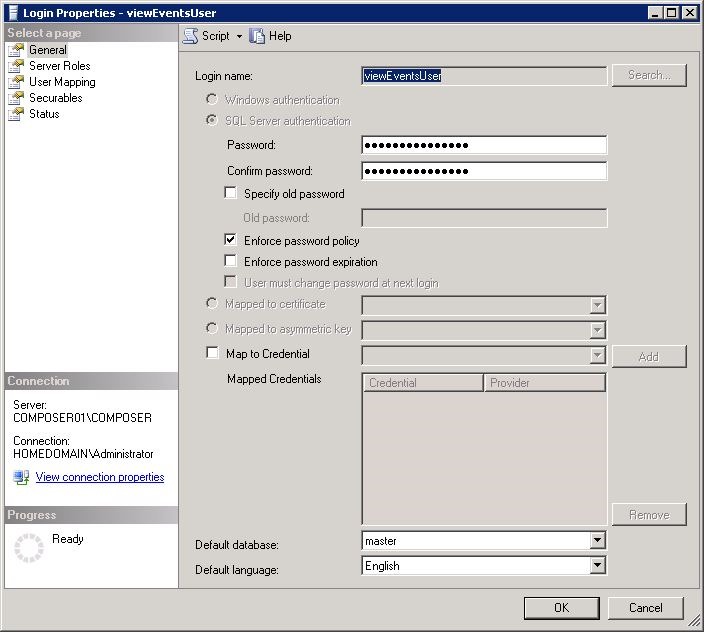
1. Open SQL Server Management Studio and log in with an account that has permissions to create users and databases.

2. Expand Security –> Logins.

3. Right-click on Logins and Select New Login…

1. Create New User 1

4. Enter the SQL Login Name and Password and then click OK.
2. Create New User 2

5. Expand Databases.

6. Right-click on Databases and select New Database.

7. Enter the database name.  Select the database user that you created above as the database owner.  Click OK to create the database.

3. Create View Events Database

Note: SQL Server named instances are configured to use dynamic ports.  This means that SQL Server will use a new port every time the server is restarted.  The events database does not support dynamic ports, so a static port will need to be configured and the SQL instance restarted prior to configuring the events database in View.  For instructions on how to configure a static ports in SQL Server, please see this article.

View Composer Service Accounts

The last two accounts that need to be set up are for Horizon View Composer.  These accounts are only required if you plan on using Composer and linked clone desktops.

Depending on your configuration, Composer may require two service accounts.  These accounts are:

1. An Active Directory User Account – This service account is used by View for accessing Composer.  This account requires local administrator rights on the Composer server and rights to create computer objects in Active Directory.

2. A Horizon View Composer Database User – This service account is a local SQL Server user account and is required if the SQL Server database is located on a remote server.  If SQL Server is installed on the Composer Server, Windows authentication can be used.

Configuring the Composer Service Account

The first is the account that will be used by View Composer.  This account can be created as a standard domain user.  This account should not have domain administrator or account operator rights – it only needs a select group of permissions on the OU (or OUs) where the View Desktops are being stored.

After this account has been created, you need to delegate permissions to it on the OU (or OUs) where your VDI desktops will be placed.  If you use the structure like the one I outlined above, you only need to delegate permissions on the top-level OU and permission inheritance, if turned on, will apply them to any child or grandchild objects beneath it.

Note:  If inheritance is not turned on, you will need to check the Apply to All Child Objects checkbox before applying the permissions.

The permissions that need to be delegated on the OU are:

  • Create Computer Objects
  • Delete Computer Objects
  • Write All Properties
  • Reset Password

Note: Although granting this account Domain Administrator or Account Operator permissions may seem like an easy way to grant it the permissions it needs, it will grant a number of other permissions that are not needed and could pose a security risk if that account is compromised.  Only the required permissions should be granted in a production environment.

The account will also need to be granted local administrator rights on the Composer server.  If the account is not a local administrator, you will not be able to configure Composer from within the View Administrator.

Configuring the Composer Database and Database Service Account

Like the Event database above, Composer requires its own database.  This database is used to keep track of linked clones, replicas, and pending recompose operations.

The steps below will walk through setting up the Composer database.  If your Composer database is located on a separate server, you will have to use SQL authentication, and the steps for creating the SQL user are included.

Note: If your Composer database is located on the same server as the Composer service, you can use Windows Authentication for accessing the database.

1. Log into your database server and open SQL Server Management Studio.

2014-01-04_22-20-17

2. Log in as a user with administrator rights on SQL Server.

3. Create a new SQL Login by expanding Security –> Logins.  Right click on Logins and select New Login.

2014-01-04_22-21-46

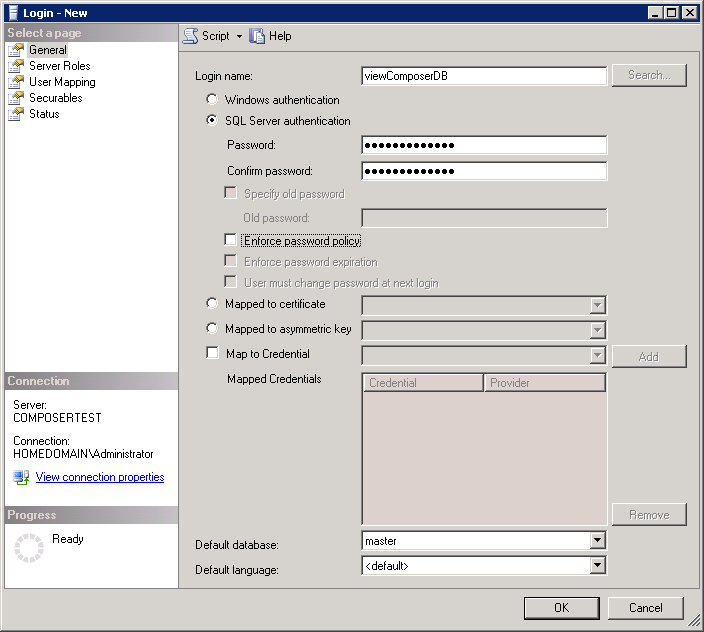
4. Enter a login name such as viewComposerDB or viewComposerUser, select SQL Server Authentication, and enter a password twice.  You may also need to disable Enforce Password Expiration or Enforce Password Policy depending on your environment.  Click OK to create the account.  Note: Check with your DBA on password policy settings.
2014-01-04_22-23-50

5. After the SQL login is created, you need to create an empty database.  To create the database, right click on the database folder and select New Database.

2014-01-04_22-19-58

6. In the database name field, enter a name such as viewComposer.  This will be the name of the database.  To select an owner for the database, click on the … button and search for the database user account you created above.  Click OK to create the database.

2014-01-04_22-24-23

You will have a blank database that you can use for View Composer after you click OK.

Configuring Composer to use this database will be covered during the Composer installation.

This wraps up all of the prerequisites for the environment.  In the next couple of sections, I will be covering the installation and configuration of Horizon View.

Horizon View 6.0 Part 5–SSL Certificates

SSL certificates are an important part of all Horizon View environments .  They’re used to secure communications from client to server as well as between the various servers in the environment.  Improperly configured or maintained certificate authorities can bring an environment to it’s knees – if a connection server cannot verify the authenticity of a certificate – such as an expired revocation list from an offline root CA, it will stop any communications with the impacted host.

If you read my previous series on View 5.3, the post about SSL certificates was the last regular post in the series, and it came after the other components were installed and configured.  In an production environment, you would most likely install the SSL certificates before installing the Horizon View components.

Most of the certificates that you will need for your environment will need to be minted off of an internal certificate authority.  If you are using a security server to provide external access, you will need to acquire a certificate from a public certificate authority.  If you’re building a test lab or don’t have the budget for a valid certificate, you can use a free certificate authority such as StartSSL.

Prerequisites

Before you can begin creating certificates for your environment, you will need to have a certificate authority infrastructure set up.  Microsoft has a great 2-Tier PKI walkthrough on TechNet. 

Note: If you use the walkthrough to set up your PKI environment., you will need to alter the configuration file to remove the  AlternateSignatureAlgorithm=1 line.  This feature does not appear to be supported on vCenter  and can cause errors when importing certificates.

Once your environment is set up, you will want to create a template for all certificates used by VMware products.  Derek Seaman has a good walkthrough on creating a custom VMware certificate template.

Note: Although a custom template isn’t required, I like to create one per Derek’s instructions so all VMware products are using the same template.

Creating The Certificate Request

Horizon View 6.0 handles certificates the same way as Horizon View 5.3.  Certificates are stored in the Windows certificate store, so the best way of generating certificate requests is to use the certreq.exe certificate tool.  This tool can also be used to submit the request to a local certificate authority and accept and install a certificate after it has been issued.

Certreq.exe can use a custom INF file to create the certificate request.  This INF file contains all of the parameters that the certificate request requires, including the subject, the certificate’s friendly name, if the private key can be exported, and any subject alternate names that the certificate requires.

If you plan to use Subject Alternate Names on your certificates, I highly recommend reviewing this article from Microsoft.  It goes over how to create a certificate request file for SAN certificates.

A  certificate request inf file that you can use as a template is below.  To use this template, copy and save the text below into a text file, change the file to match your environment, and save it as a .inf file.

;----------------- request.inf -----------------
[Version]

Signature="$Windows NT$"

[NewRequest]

Subject = "CN=<Server Name>, OU=<Department>, O=<Company>, L=<City>, S=<State>, C=<Country>" ; replace attribues in this line using example below
KeySpec = 1
KeyLength = 2048
; Can be 2048, 4096, 8192, or 16384.
; Larger key sizes are more secure, but have
; a greater impact on performance.
Exportable = TRUE
FriendlyName = "vdm"
MachineKeySet = TRUE
SMIME = False
PrivateKeyArchive = FALSE
UserProtected = FALSE
UseExistingKeySet = FALSE
ProviderName = "Microsoft RSA SChannel Cryptographic Provider"
ProviderType = 12
RequestType = PKCS10
KeyUsage = 0xa0

[EnhancedKeyUsageExtension]

OID=1.3.6.1.5.5.7.3.1 ; this is for Server Authentication

[Extensions]

2.5.29.17 = "{text}"
_continue_ = "dns=<DNS Short Name>&"
_continue_ = "dns=<Server FQDN>&"
_continue_ = "dns=<Alternate DNS Name>&"

[RequestAttributes]

CertificateTemplate = VMware-SSL

;-----------------------------------------------

Note: When creating a certificate, the state or province should not be abbreviated.  For instance, if you are in Wisconsin, the full state names should be used in place of the 2 letter state postal abbreviation.

Note:  Country names should be abbreviated using the ISO 3166 2-character country codes.

The command the generate the certificate request is:

certreq.exe –New <request.inf> <certificaterequest.req>

Submitting the Certificate Request

Once you have a certificate request, it needs to be submitted to the certificate authority.  The process for doing this can vary greatly depending on the environment and/or the third-party certificate provider that you use. 

If your environment allows it, you can use the certreq.exe tool to submit the request and retrieve the newly minted certificate.  The command for doing this is:

certreq –submit -config “<ServerName\CAName>” “<CertificateRequest.req>” “<CertificateResponse.cer>

If you use this method to submit a certificate, you will need to know the server name and the CA’s canonical name in order to submit the certificate request.

Accepting the Certificate

Once the certificate has been generated, it needs to be imported into the server.  The import command is:

certreq.exe –accept “<CertificateResponse.cer>

This will import the generated certificate into the Windows Certificate Store.

Using the Certificates

Now that we have these freshly minted certificates, we need to put them to work in the View environment.  There are a couple of ways to go about doing this.

1. If you haven’t installed the Horizon View components on the server yet, you will get the option to select your certificate during the installation process.  You don’t need to do anything special to set the certificate up.

2. If you have installed the Horizon View components, and you are using a self-signed certificate or a certificate signed from a different CA, you will need to change the friendly name of the old certificate and restart the Connection Server or Security Server services.

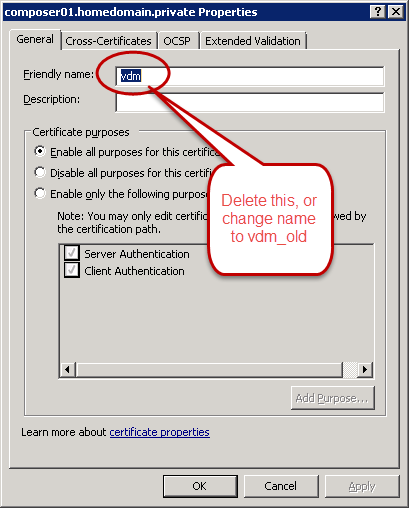
Horizon View requires the certificate to have a friendly name value of vdm.  The template that is posted above sets the friendly name of the new certificate to vdm automatically, but this will conflict with any existing certificates. 

1
Friendly Name

The steps for changing the friendly name are:

  1. Go to Start –> Run and enter MMC.exe
  2. Go to File –> Add/Remove Snap-in
  3. Select Certificates and click Add
  4. Select Computer Account and click Finish
  5. Click OK
  6. Right click on the old certificate and select Properties
  7. On the General tab, delete the value in the Friendly Name field, or change it to vdm_old
  8. Click OK
  9. Restart the View service on the server

2

Certificates and Horizon View Composer

Unfortunately, Horizon View Composer uses a different method of managing certificates.  Although the certificates are still stored in the Windows Certificate store, the process of replacing Composer certificates is a little more involved than just changing the friendly name.

The process for replacing or updating the Composer certificate requires a command prompt and the SVIConfig tool.  SVIConfig is the Composer command line tool.  If you’ve ever had to remove a missing or damaged desktop from your View environment, you’ve used this tool.

The process for replacing the Composer certificate is:

  1. Open a command prompt as Administrator on the Composer server
  2. Change directory to your VMware View Composer installation directory
    Note: The default installation directory is C:\Program Files (x86)\VMware\VMware View Composer
  3. Run the following command: sviconfig.exe –operation=replacecertificate –delete=false
  4. Select the correct certificate from the list of certificates in the Windows Certificate Store
  5. Restart the Composer Service

3

A Successful certificate swap

At this point, all of your certificates should be installed.  If you open up the View Administrator web page, the dashboard should have all green lights.  If you do not see all green lights, you may need to check the health of your certificate environment to ensure that the Horizon View servers can check the validity of all certificates and that a CRL hasn’t expired.

If you are using a certificate signed on an internal CA for servers that your end users connect to, you will need to deploy your root and intermediate certificates to each computer.  This can be done through Group Policy for Windows computers or by publishing the certificates in the Active Directory certificate store.  If you’re using Teradici PCoIP Zero Clients, you can deploy the certificates as part of a policy with the management VM.  If you don’t deploy the root and intermediate certificates, users will not be able to connect without disabling certificate checking in the Horizon View client.

Doing Things Because They Are HARD–My Virtual Design Master Experience

“We choose to go to the moon. We choose to go to the moon in this decade and do the other things, not because they are easy, but because they are hard, because that goal will serve to organize and measure the best of our energies and skills, because that challenge is one that we are willing to accept, one we are unwilling to postpone, and one which we intend to win, and the others, too. “

– John Fitzgerald Kennedy, September 12th, 1962

If you haven’t noticed, the frequency of my posts has dropped off quite a bit.  It’s surprising, even to me, since Horizon View 6.0 just came out.

My time, over the last couple of weeks, has been occupied by a few tasks.  Most of that time has been occupied by the Virtual Design Master competition.

What is Virtual Design Master?

Virtual Design Master is a community-run Internet “reality show,” now in it’s second season, that showcases the infrastructure design skills of the contestants.  It’s one part Chopped, one part Iron Chef, and one part The Walking Dead. 

Contestants are tasked with putting together a formal design, following a design methodology, on an open-ended but challenging problem surrounding the storyline for the season.  All decisions must be justified and design decisions documented.

Oh…and did I mention that you have four days to do it?

Each week, the participants have to defend their design to noted members of the virtualization community and get feedback on the choices they made.

Why do it?

Virtual Design Master can be hard and stressful.  There is a lot to learn in a short period of time, and it has to be balanced with family, work, and anything else going on in life.

The challenges can require cutting edge, or even bleeding edge, technology that needs to be learned in a few days.  For instance, one of the constraints of the moonbase challenge was working with an IPv6-only network.  The design had to identify which components would not work with IPv6 or would require a dual-stack approach and design around it.  Other constraints on that challenge required participants to learn about technology that they might not have used on a daily basis.

It also forces you to document your design with a formal design document.  The document isn’t a simple two to three page abstract but a detailed document outlining the design decisions, components, justifications, and component configurations as they are intended to be implemented.

Although the process of designing an infrastructure and documenting it in a short period for the competition can be challenging, it’s not nearly as bad as it sounds.

The community around the competition is great, and competitors are more than willing to help each other with questions on equipment and design reviews.  Answers to questions are a tweet or an email away.

But the takeaway that I found most useful was learning how to write a design document.  Prior to participating, I had never written a formal design.  In the two weeks of Virtual Design Master, I’ve written two that were longer and more elaborate than any design documentation I had seen for a project that I participated in.

Writing documentation has some secondary benefits as well.  It makes you think about your design and how you would explain it.  That makes it easier to explain, and eventually, defend.  This, in turn, makes it easier to answer the question “If I was hit by a bus, what would my replacement need to know?”

Takeaways

I started this post with an excerpt from a speech by President Kennedy where he announced his vision of putting a man on the moon within a decade.  There is one segment of that speech that really sums up what this competition does:

…not because they are easy, but because they are hard, because that goal will serve to organize and measure the best of our energies and skills…”

Participating in Virtual Design Master is a lot of fun and a great learning experience.  But it also challenges you, organizes you, and prepares you for bigger things.

As John Arrasjid said:

It is great practice for taking your skills to the next level, learning, and engaging the community.

Horizon View 6.0 Part 4–Active Directory Configuration

When you build a Horizon View environment, the virtual desktops that users connect to run Windows.  The servers that provide the virtual desktop infrastructure services run on Windows.  So, as you can imagine, Active Directory plays a huge role in Horizon View.

When you’re planning a Horizon View deployment, or rearchitecting an existing deployment, the design of your Active Directory environment is a critical element that needs to be considered.  How you organize your virtual desktops, templates, and security groups impacts Group Policy, helpdesk delegation rights, and View Composer.

Some Active Directory objects need to be configured before any Horizon View components are installed.  Some of these objects require special configuration either in Active Directory or inside vCenter.  The Active Directory objects that need to be set up are:

  • An organizational unit structure for Horizon View Desktops
  • Basic Group Policy Objects for the different organizational units
  • An organization unit for Microsoft RDS servers if application remoting is used

Optionally, you may want to set up an organizational unit for any security groups that might be used for entitling access to the Horizon View desktop pools.  This can be useful for organizing those groups and/or delegating access to Help Desk or other staff who don’t need Account Operator or Domain Administrator rights.

Creating An Organizational Unit for Horizon View Desktops

The first think that we need to do to prepare Active Directory for a Horizon View deployment is to create an organizational unit structure for Horizon View desktops.  This OU structure will hold all of the desktops created and used by Horizon View.  A separate OU structure within your Active Directory environment is important because you will want to apply different group policies to your Horizon View desktops than you would your regular desktops.  There are also specific permissions that you will need to delegate to the View Composer service account.

There are a lot of ways that you can set up an Active Directory OU structure for Horizon View.  My preferred organizational method looks like this:

2013-12-28_21-55-14

View Desktops is a top-level OU (ie – one that sites in the root of the domain).  I like to set up this OU for two reasons.  One is that is completely segregates my VDI desktops from my non-VDI desktops and servers.  The other is that it gives me one place to apply group policy that should apply to all VDI desktops such as disabling non-essential services, turning off screen savers, or setting the inactivity timeout to lock the machine.

I create three child OUs under the View Desktops OU to separate persistent desktops, non-persistent desktops, and desktop templates.  This allows me to apply different group policies to the different types of desktops.  For instance, you may want to disable Windows Updates and use Persona Management on non-persistent desktops but allow Windows Updates on the desktop templates.

You don’t need to create all three OUs.  If your environment consists entirely of Persistent desktops, you don’t need an OU for non-persistent desktops.  The opposite is true as well.

Finally, I tend to create department or location OUs underneath the persistent or non-persistent OUs if I have locations that require special Group Policy settings in addition to the default settings.  One example where I used this was in a previous job that HEAVILY used Microsoft Access databases at one site.  Microsoft Access includes a security groups option that uses a centrally stored database file to manage access to databases.  This can be configured with group policy, and since other locations used Access without the security groups configured, applying that policy to all desktops would have broken any Access databases that the other locations used.

These grandchild OUs are completely optional.  If there is no need to set any custom policy for a location or a department, then they don’t need to be created.  However, if a grandchild OU is needed, then an entire pool will need to be created as desktop pools are assigned to OUs.  Adding additional pools can add management overhead to a VDI environment.

Creating an Organizational Unit for RDS Servers

Horizon View 6.0 added PCoIP support for multi-user desktops running on Windows Server with the Remote Desktop Session Host role.  These new abilities also added support for remote application publishing.

RDS servers need to be handled differently than virtual desktops.  They’re managed differently than your virtual desktops, and some features such as Persona Management are not available to RDS servers.

If application remoting or multi-user desktops are going to be deployed, an organizational unit for RDS servers should be created underneath your base servers organizational unit. 

Horizon View Group Policy Objects

Horizon View contains a number of custom group policy objects that can be used for configuring features like Persona Management and optimizing the PCoIP protocol.  The number of Group Policy objects has been increased in Horizon View 6, and the number of templates has increased as well.

Unfortunately, most of the Group Policy templates are distributed as ADM files.  There are a number of drawbacks to ADM files in modern Active Directory environments.  The main one is that you cannot store the Group Policy files in the Central Store.

If you plan on using the Group Policy templates, it’s a good idea to convert them into the ADMX format.  I had previously written about converting the View Group Policy templates into the ADMX format and the reasons for converting here.

Horizon View Service Accounts

Horizon View requires a service account for accessing vCenter to provision new virtual machines.  If View Composer is used, a second service account will be needed to create computer accounts in Active Directory for linked clones.  I will cover setting up those account in a future section.

In the next section, I’ll cover SSL certificates for Horizon View servers.

Horizon View 6.0 Part 3–Desktop Design Considerations

Whether it is Horizon View, XenDesktop, or some other package, the implementation of a virtual desktop environment requires a significant time investment during the design phase.  If care isn’t taken, the wrong design could be put into production, and the costs of fixing it could easily outweigh the benefits of implementing a virtual desktop solution.

So before we move into installing the actual components for a Horizon View environment, we’ll spend the next two posts on design considerations.  This post, Part 3, will discuss design considerations for the Horizon View virtual desktops, and Part 4 will discuss design considerations for Active Directory.

Virtual desktop environments are all about the end user and what they need.  So before you go shopping for storage arrays and servers, you need to start looking at your desktops.

There are three types of desktops in Horizon View 6:

  • Full Clone Desktops – Each desktop is a full virtual machine deployed from a template and managed as an independent virtual machine.
  • Linked Clone Desktop – A linked clone is a desktop that shares its virtual disks with a central replica desktop, and any changes are written to its own delta disk.  Linked clones can be recomposed when the base template is updated or refreshed to a known good state at periodic intervals.  This feature requires Horizon View Composer.
  • Remote Desktop Session Host Pools – Horizon View has supported Windows Terminal Services for multiuser session support in a limited capacity.  Horizon 6 has enhanced the RDSH features to include PCoIP support and application remoting.  When RDSH desktops and/or application remoting are used, multiple users are logged into servers that host user sessions.  This feature requires Windows Server 2008 R2 or Server 2012 R2 with the RDSH features enabled.

There are two desktop assignment types for desktop pools:

  • Dedicated Assignment – users are assigned to a particular desktop during their first login, and they will be logged into this desktop on all subsequent logins.
  • Floating Assignment – users are temporarily assigned to a desktop on each login.  On logout, the desktop will be available for other users to log into.  A user may not get the same desktop on each login.

Unless you have some overriding constraints or requirements imposed upon your virtual desktop project, the desktop design choices that you make will influence and/or drive your subsequent purchases.   For instance, if you’re building virtual desktops to support CAD users, blade servers aren’t an option because high-end graphics cards will be needed, and if you want/need full clone desktops, you won’t invest in a storage array that doesn’t offer deduplication.

There are a couple of areas that need to be considered when designing the virtual desktops:

  • Horizon View Configuration Maximums –  There isn’t an official VMware document that outlines the official configuration maximums for a Horizon View environment.  However, Ray Heffer has that information available on his blog.
  • Applications – What applications are installed on the end-user desktops?  Who uses them?  Do any of the applications have any special hardware or licensing requirements?  Are there any restrictions on who can access or use corporate applications or where they can be accessed from?
  • Management Tools – What desktop management tools exist in the environment?  The lack of a management tool to deploy applications like SCCM or Altiris will make it harder to manage full clone desktops.
  • Physical Desktop Performance – When sizing out the virtual desktops that make up the desktop pools, it’s important to know  how physical desktops are utilizing the resources they have.  This is important for two reasons – it ensures that the virtual desktops are not being overprovisioned with CPU or RAM and that proper reservations and limits are set on the resource pools that the virtual desktops are assigned to.
  • Company Culture – Are users granted admin rights and able to install their own software without asking IT?  Are computers locked down and all applications white-listed?  Or is it somewhere in the middle? Do users already have experience with remote solutions such as Microsoft RDSH desktops or Citrix?  These are important considerations to keep in mind because environments where users have free run of their company computers may reject a centrally managed VDI environment or increase the workload for the IT staff, and staff who have no experience using Citrix or RDSH may have a hard time adjusting to their desktop being remote.
  • Use Case – How are the virtual desktops going to be used?  What problems are they going to solve for the business and the employees?
  • User Profile Data – User specific session settings need to be preserved, especially if you are using non-persistent desktops or RDSH pools.  Microsoft, VMware, and other partners like Liquidware Labs provide tools for profile management.  If persistent desktops are deployed, user data may remain on the virtual machine, and a backup plan will need to be put in place to protect this data.
  • Antivirus and Security – Users will be accessing the Internet from their virtual desktops, so they need to be secured from the myriad of threats out there.  When selecting an antivirus solution for virtual desktops, you need to understand the impact that it will have on I/O when it updates and scans.  You may also want to look at hypervisor-level security solutions using vShield Endpoint.

Once you have answers to these questions, you’ll be able to put together a design document with the following items:

  • Number of linked clone base images and/or full clone templates
  • Number and type of desktop pools
  • Number of desktops per pool
  • Number of Connection and Security Servers needed

If you’re following the methodology that VMware uses in their design exams, your desktop design document should provide you with your conceptual and logical designs.

Once you have a desktop design document,  you’ll be able to start the infrastructure design.  This phase would cover the physical hardware to run the virtual desktop environment, the network layer, storage fabric, and other infrastructure services such as antivirus.

The desktop design document will have a heavy influence on the decisions that are made when selecting components to implement Horizon View 6.  The components that are selected need to support and enable the type of desktop environment that you want to run.

In part four, we will cover Active Directory design for Horizon View environments.

Horizon View 6.0 Part 2 – Prerequisites and System Requirements

In order to deliver virtual desktops to end users, a Horizon View environment requires multiple components working together in concert.  Most of the components that Horizon View relies upon are VMware products, but some of the components, such as the database and Active Directory, are 3rd-party products.

What components does a Horizon View environment need, and what are the system requirements for these components? 

The Basics

The smallest Horizon View environment only requires four components to serve virtual desktops to end users: ESXi, vCenter, a View Connection Server, and Active Directory.  The hardware for this type of environment doesn’t need to be anything special, and one server with direct attached storage and enough RAM could support a few users.

All View environments, from the simple one above to a complex multi-site Cloud Pod environment, are built on this foundation.  The core of this foundation is the View Connection Server.

Connection Servers are the broker for the environment.  They handle desktop provisioning and user authentication and access.  There are two types of Connection Servers – Standard Connection Servers and Replica Connection Servers.  Both types of Connection Servers have the same feature set, and the only difference between the two is that the standard server is the first connection server in the environment.

Connection Servers can also manage access to multiuser desktops and published applications on Remote Desktop Session Host servers.

The requirements for a Connection Server are:

  • 2 CPU
  • Minimum 4GB RAM, 10GB recommended if 50 or more users are connecting
  • Windows Server 2008 R2 or Windows Server 2012 R2
  • Joined to an Active Directory domain
Note: The requirements for the View Security Server are the same as the requirements for View Connection Server minus being joined to an Active Directory domain. 

Aside from the latest version of the View Connection Server, the requirements are:

ESXi – ESXi is required for hosting the virtual machine The versions of ESXi that are supported by Horizon View 6 can be found in the VMware compatibility matrix.  All versions of ESXi 5.1 and ESXi 5.5 Update 1 are supported, but ESXi 5.5 without Update 1 is not supported.

vCenter Server – The versions of vCenter that are supported by Horizon View 6 can be found in the VMware compatibility matrix.  All versions of vCenter 5.1 and vCenter 5.5 Update 1 are supported, but vCenter 5.5 without Update 1 is not supported.  The vCenter Server Appliance and the Windows vCenter Server application are supported.

Active Directory – An Active Directory environment is required to handle user authentication to virtual desktops, and Group Policy is used to configure a number of user profile, virtual desktop and PCoIP settings.  The Server 2008 domain functional level and above are supported.

Advanced Features

Horizon View has a lot of features, and many of those features require additional components to take advantage of them.  These components add options like secure remote access, profile management, and linked-clone desktops.

Secure Remote Access – Remote access to virtual desktops and published applications is handled by the View Security Server.  The Security Server is designed to sit in the DMZ and relay or proxy connections to the Connection Server that it is paired with.  Security Servers do not need to be joined to a domain, and they have the same system requirements as a Connection Server.

Linked-Clone Desktops – Linked Clones are virtual machines that share a set of parent disks.  They are ideal for some virtual desktop environments because they can provide a large number of desktops without having to invest in new storage technologies, and they can reduce the amount of work that IT needs to do to maintain the environment.  Linked Clones are enabled by View Composer.

The requirements for View Composer are:

  • 2 CPUs
  • 4 GB RAM, 8GB required for deployments of 50 or more desktops
  • Windows Server 2008 R2 or Server 2012 R2
  • Database server – supported databases include Oracle and Microsoft SQL Server.  Please check the compatibility matrix for specific versions and service packs.

Persona Management – A user’s settings need to roam with them when they are in an environment with non-persistent desktops.  Persona Management is VMware’s answer to that by storing the full user profile in a central network location and loading it when the user logs in.  In some ways, it is like Roaming Profiles on steroids, and it works with Folder Redirection.

Networking

Horizon View requires a number of different ports to be opened in the Windows firewall as well as the firewalls between untrusted and trusted zones in the network.   Rather than write a long table with all of these ports like I intended, I’ll link to a nice graphic put together by VMware that maps it all out.

The original image, along with a detailed explanation of the map, can be found in Ray Heffer’s post on the VMware Blog site.

Horizon View 6.0 Part 1–What’s New and Improved

Back in April, VMware announced Horizon View 6.0 during a special End-User Computing webinar.  The announcement heralded some major feature additions to the desktop virtualization suite including Remote Desktop Session Host support for application publishing and support for multi-datacenter environments with the Cloud Pod Architecture.

This release has been eagerly awaited, and it finally was released to general availability on June 19th.  It is now available for download on VMware’s website.

The Series

Like my last series on View 5.3, this series will cover the installation of the Horizon View components and related infrastructure.  The topics will be similar to the last series, and I will be creating a landing page for all posts in this series.

What’s New

VMware promised a lot of changes and improvements with Horizon View 6, and they’ve delivered.  There are a number of features that the community has been asking for, and a few less popular options have been removed from the product.

Some of the new features are:

  • Remote Desktop Session Host Support – Horizon View 6 now supports multiuser sessions on Remote Desktop Session Host servers using PCoIP
  • Application Publishing – The expanded support for RDSH also allows for application publishing from RDSH servers.  This feature was missing from previous versions of the Horizon Suite and frequently requested.
  • Cloud Pod Architecture – Larger environments with multiple datacenters had to manage the View environment in each datacenter separately.  Cloud Pod architecture allows administrators to manage up to 20,000 desktops in four pods in two datacenters as one environment.
  • Full Server 2012 R2 Support for all View Server Components
  • Remote Experience Agent is now integrated into the Horizon View desktop agent and does not require a separate installer
  • Feature Pack 1 is now fully integrated into the View Server installer and does not require a separate installer.
  • Space Reclamation supported on Windows 8 and Windows 8.1 Linked Clone Desktops
  • Persona Management supported on Windows 8.1 and Server 2008 R2 desktops. Note: Persona Management is not supported on multiuser RDSH sessions
  • Blast can now support up to 800 connections per Connection Server/Security Server combination.

One of the biggest changes, though, is a feature that is not included in Horizon View 6.  VMware has ended support for Local Mode desktops,  and this feature was not included with this release.  VMware will be utilizing Mirage to provide similar capabilities as local mode going forward.

If you’re interested in learning more about the additions and changes to Horizon View 6, you can check out the Release Notes here.

The next couple of posts in this series will review the architecture of Horizon View 6 and the components that are in the environment.

Sexism, Bro Culture, and IT – Thoughts on A Recent Advertising Campaign

On June 4th, 1919, the United States Senate passed what would go on to become the 19th Amendment to the US Constitution, which granted sufferage to women, by a vote of 56 yeas to 25 nays.  It would take more than a year to officially become part of the Constitution.

History, it seems, is not without a sense of irony.  Yesterday, Nutanix launched a new ad campaign called nixVblock.  This campaign, which should have highlighted the advantages of their product over the VCE converged infrastructure, instead veered into “Bro Culture” territory with “high brow humor” that is normally reserved for locker rooms, fraternity houses, and lite beer commercials.

The primary characters of the nixVblock ads are an IT guy named Doug and his “date” Vicky Block, who goes by VBlock for short.  While Doug is characterized as your average IT infrastructure engineer, “VBlock” is supposed to be an uninteresting, high maintenance woman who hears three voices in her head and dresses like three separate people.

The “VBlock” character is supposed to represent the negatives of the competing VCE vBlock product.  Instead, it comes off as the negative stereotype of a crazy ex that has been cranked past 11 into offensive territory.

When I saw the videos, I was offended.  These videos were laden with unfortunate implications (warning: TV Tropes link), and they hit a lot of my berserk buttons (warning: another TV Tropes link).  I found them to be both sexist and insulting to those suffering from mental illness.  These negatives completely overshadowed any positives that I might have picked up about their product.

But most of all, I’m disappointed.  Nutanix has great technology and some of the smartest people in tech working for them.  They didn’t need to stoop to this level, and this ad campaign showed a complete lack of awareness for current events.

In the last couple of weeks, we’ve had the following:

You’d think that someone, somewhere in the company, would have seen these and thought “Maybe this is a bad idea.  Maybe we should scrap these videos.”

Obviously, that did not happen.

It’s 2014.  Why do we need to continue to perpetuate sexism in IT?

Note: Nutanix appears to have pulled the videos from the nixvblock website prior to this post.

Exam Experience Recap – VCAP Desktop Administrator

On Tuesday, May 20th, I sat for the VCAP Desktop Administrator Exam in Milwaukee.  The exam covers a broad range of topics on Horizon View, Persona Management, and other related infrastructure components such as Group Policy.  Although I don’t work with View on a daily basis anymore, I wanted to sit for this exam as $work will be starting a Horizon View implementation this summer.

I received the official score report on Thursday night, and I did not pass.  I scored a 278 out of 500.

My exam experience mirrors Jason Shiplett’s first attempt.  I ran into an issue early in the exam that cost me time – time that I could have used to complete a few of the questions that I had in progress when the exam ended.

I didn’t prep as well as I should have before this exam.  I read through the blueprint, and I reviewed Chris Beckett’s VCAP DTA study guides.  Despite these two resources and a lot of hands-on experience with View, I went into the exam with some huge gaps in my knowledge in areas of the product suite that I hadn’t worked with in my lab or a production environment.

Unfortunately, the agreement that I had with my wife was that I would only get one crack at the exam before VMworld, and I will need to wait until August before I can take it again.  That will give me a little more time, though, to work on the areas where I need improvement.

Keys to the Exam

1. Time Management is critical. You have a very short time to complete the 23 questions on the exam.  Spending too much time on one area will hurt you.  You may also need to bounce around between questions.  I tried to use the materials my testing center provided to keep track of where I was.

2. If there is a task that you don’t know how to do, skip it and come back to it later.  You’ll lose too much time if you’re searching the documentation.

3. Hands-on Experience is a Must.  This is a practical exam, and you’re tested on successfully completing tasks.  You won’t be able to pass this exam if you don’t actually put View in a lab and try to work through the blueprint.

4. Read the blueprint and Chris Beckett’s notes that I linked to above.

Horizon View 5.3 Appendix F: Monitoring the View Event Database

One of the nice features of Horizon View 5.3 is the Events Database.  When its configured, the Events Database will collect and store any events from the Horizon View environment.

Unfortunately, VMware never built any notification tools into View to alert administrators when errors occurred and were recorded in the Events database.  There have been workarounds to this using PowerShell or SQL Mail to send database alerts, but this requires a scheduled task or SQL Agent job to ensure that it runs on a regular basis.

There is another option that can be used for Event database alerting.  Chris Halstead (Twitter: @chrisdhalstead) developed a tool called the Horizon View Event Notifier that recently became a VMware Fling. 

The Horizon View Event Notifier is a simple little application that is very easy to set up.  It’s so easy, in fact, that it doesn’t even have an installer – you just create a folder for the application and drag the executable and the config file into a folder and double-click to launch it.

Unfortunately, this simplicity carries a heavy price.  The Event Notifier cannot be run as a scheduled task or service.  It must run interactively, and if the server running the application is rebooted, an administrator will need to log in, restart the application, and then lock the computer or disconnect their session without logging out.  Chris has stated that this is one of the things he hopes to address in the next version of the program.

Configuring the Horizon View Event Notifier

After you’ve finished installing the Event Notifier, it’s time to start configuring it. 

1.  Click the settings tab.

1

2. Fill in the Name, DB Server, Database, Username and password fields.  If you have multiple View pods storing information in the same events database, you may need to enter your table prefix in the Table Prefix field. 

If you are connecting to a SQL Server instance, enter servername\instancename in the DB Server field.

2

3. Click Test Connection to verify that the Event Notifier Application can log into the database.

4. Click Save Changes to save the database information to the config file.

5. Select the type of events that you want to receive email alerts on and then click Save Changes.

3

6. Enter your email server, port number, sender address, and recipient address.

Note: The application does not appear to support email servers that require authentication, such as Gmail, at this time. 

4

7. Click Send Test Email to verify that email alerts work.

8. Click Save changes.

9. Click Start to have the application start monitoring your View Events database.

Note: The application will need to be launched and the start button clicked every time the computer is rebooted.

Do I Need It?

If you don’t have any other form of alerting configured for Horizon View Events, this program will help you maintain a healthy View environment.  It’s saved my bacon a few times when a recompose operation failed and left a pool unusable.  If I this tool hadn’t been in place, I would have had a flock of angry users with no desktops.