Horizon View 5.3 Part 8 – View Connection Server Requirements and Installation

The central part of any Horizon View environment is the Connection Server.  Without at least one of these, there would be no virtual desktops to connect to.  And while this component lives up to it’s name by terminating connections and authenticating users who are accessing View desktops, it does much more.

Some of the other things that a Connection Server does are:

  1. Run the View Administrator web application that is used for managing a Horizon View environment
  2. Host the ADLS (LDAP) database that contains all of the information about the Horizon View environment
  3. Works with vCenter and View Composer to create, update, and delete desktops from the environment

As I mentioned in Part five, there are two types of Connections Servers – Standard and Replica.  Functionally, Standard Connection Servers and Replica Connection Servers are the same.  They all contain an up-to-date copy of the View ADLS database and authenticate users to desktops.  Replica Connection Servers are essentially full partners with a Standard Server.

The only real difference between Standard and Replica servers is that a Standard Server needs to be installed and configured before you can add Replica Connection Servers.  Replica servers must be partnered with a Standard server, and a Standard Connection Server can be partnered with multiple Replica Servers.

Two Standard Connection Servers cannot be partnered with each other, however, and if you install two of them side by side, you will end up with two separate Horizon View environments.

View Connection Server Requirements

What requirements do my servers need to meet in order to install the View Connection Server software on them?  The hardware requirements are:

  • Windows Server 2008 R2 (SP1 supported)
  • 1 vCPU
  • 4GB RAM
  • Static IP Address

The recommended hardware for a Connection Server is:

  • 4 vCPUs
  • 10GB of RAM if running 50 or more virtual desktops

While there are no special hardware requirements, there are a number of little “gotchas.”  Some of these are:

  • Unlike other View Components, Connection Servers must be joined to a Server 2003 or Server 2008 domain.
  • The Connection Server can’t be installed on a domain controller
  • The Connection Server can’t be installed on any server that has the Terminal Services/Remote Desktop Services role installed
  • The Connection Server must be installed with an AD user account

Installing A Standard View Connection Server

Since this Connection Server is going into a brand new Horizon View environment, the first server that will need to be installed is a Standard Connection Server.  The steps for installing the Connection Server are:

1. Double-click the installer to launch the Connection Server setup.  Click Next to start.

2. Accept the license agreement.

1.Accept License Agreement

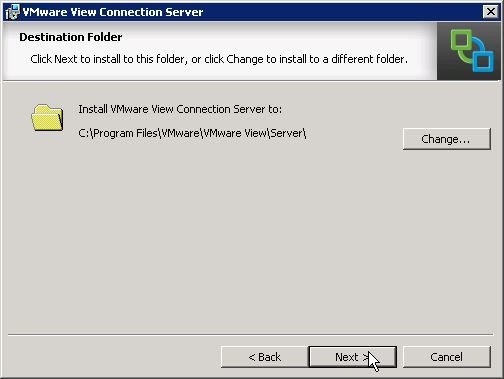
3. The next screen gives you the option to change the installation directory by clicking the Change button.  For this installation, we’ll be installing to the default location, so click Next.
2.Installation Directory

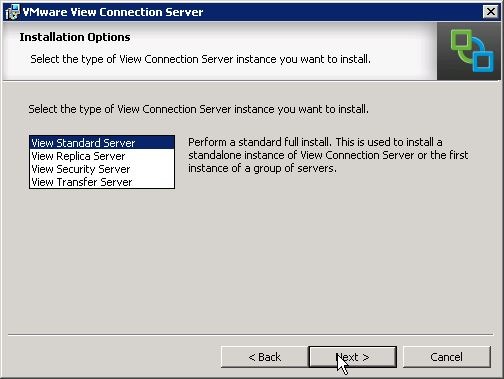
4. Select View Standard Server and click Next.
3.Select View Standard Server

5. Enter a data recovery password and a password hint/reminder.  Then click Next.

4.Data Recovery Password

Note:  The data recovery password is used in the event that you need to restore a Connection Server LDAP database from backup.  Keep this password in a safe place.  For more information about the recovery process, please see KB 2036145.

6. The View Installer will give you the option to automatically configure the Windows Firewall for View.  Click Next to allow the installer to set up the Windows Firewall.  If you do not want the installer to configure the firewall, you will need to configure these rules manually after installation.

5.Configure Windows Firewall Rules

Note: It is not recommended to disable the Windows Firewall, especially if you plan to use View Security Servers with your Connection Servers.  When the firewall is turned on, traffic between the Security Server and the Connection Server is secured with IPSEC.

7. Configure the users or groups that will have Administrator rights in Horizon View.  The two options that are presented are to name an Active Directory user or security group or to use the local Administrators group on the Connection Server.

6.View Administrators

8. If you wish to participate in the Customer Experience Program, check the box and provide some data about your organization.  Otherwise click Next to continue.

7.CEIP

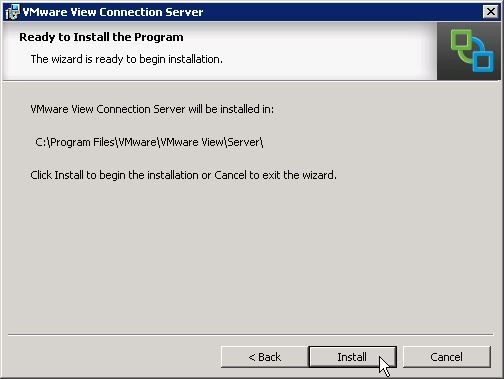
9. Click Install to finish the installation.
8.Install

10. Click finish to close the installer.

10.End of Install

Note: If your system is configured with less than 10GB of RAM, you will see a warning that limited memory is available.

Although Composer and a Connection Server are installed, there is still some configuration work that needs to be done before Horizon View is ready for users to connect to virtual desktops.  The next couple of posts in this series will cover how to configure Horizon View and set up desktop templates that will be used for linked-clone desktops.

Horizon View 5.3 Part 7 – Installing View Composer

In my last post, I talked about the requirements for Horizon View Composer.  In this post, I’ll be going through the steps to install Composer and configure the database that Composer uses.

In the last post, I mentioned that the Composer installation can either be co-located with the vCenter server or be installed on a separate Windows Server.  My lab uses the Linux-based vCenter Virtual Appliance, so Composer must be installed on a separate Windows server.  I will also be using a SQL Server 2008 R2 Express instance that is installed on the Composer Server.  Although this setup will support Windows Authentication, I will be using SQL Authentication.

Configuring the View Service Account


Edit: June 16th, 2014: This step was not initially part of the instructions, but a comment by Mike on Part 9 and some additional testing showed that I missed this step.  I apologize for the error.

In Step 4, you configured a service account that will be used by Horizon View.  This account needs to be added to the local administrator group on your View Composer server.  If you do not add this account to the Local Administrator group, you will receive a generic error message.

Configuring the Composer Database

Before Composer can be installed, a blank database must be configured on your SQL Server.  The steps to configure the database are:

1. Log into your database server and open SQL Server Management Studio.2014-01-04_22-20-17

2. Log in as a user with administrator rights on SQL Server.

3. Create a new SQL Login by expanding Security –> Logins.  Right click on Logins and select New Login.2014-01-04_22-21-46

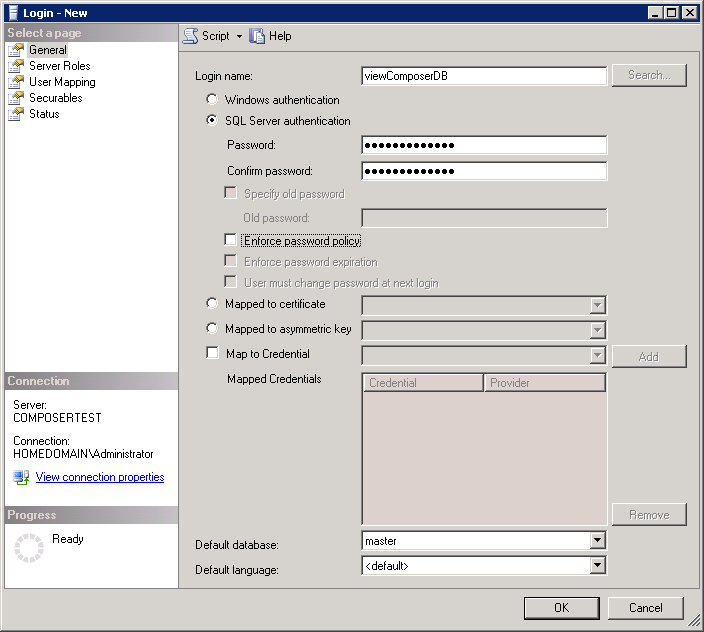
4. Enter a login name such as viewComposerDB or viewComposerUser, select SQL Server Authentication, and enter a password twice.  You may also need to disable Enforce Password Expiration or Enforce Password Policy depending on your environment.  Click OK to create the account.  Note: Check with your DBA on password policy settings.2014-01-04_22-23-50

5. After the SQL login is created, you need to create an empty database.  To create the database, right click on the database folder and select New Database.2014-01-04_22-19-58

6. In the database name field, enter a name such as viewComposer.  This will be the name of the database.  To select an owner for the database, click on the … button and search for the database user account you created above.  Click OK to create the database.

2014-01-04_22-24-23

You will have a blank database that you can use for View Composer after you click OK.

Creating the ODBC Data Source

Unfortunately, the Composer installer does not create the ODBC Data Source driver as part of the Composer installation, and this is something that will need to be created by hand before Composer can be successfully installed.  The View Composer database doesn’t require any special settings in the ODBC setup, so this step is pretty easy.

Note: The ODBC DSN setup can be launched from within the installer, but I prefer to create the data source before starting the installer.  The steps for creating the data source are the same whether you launch the ODBC setup from the start menu or in the installer.

1. Go to Start –> Administrative Tools –> Data Sources (ODBC)

2014-01-04_22-25-06

2. Click on the System DSN tab.

3. Click Add.

2014-01-04_22-25-44

4. Select SQL Server Native Client 10.0 and click Finish.  This will launch the wizard that will guide you through setting up the data source.

2014-01-04_22-26-27

Note: The SQL Server Native Client is not installed by default. If you are connecting to a database on another server, you will need to download and install the native client for SQL Server 2008 R2 from Microsoft (direct download link). 

5. When the Create a New Data Source wizard launches, you will need to enter a name for the data source, a description, and the name of the SQL Server that the database resides on.  If you have multiple instances on your SQL Server, it should be entered as ServerName\InstanceName.  Click next to continue.

2014-01-06_22-50-48

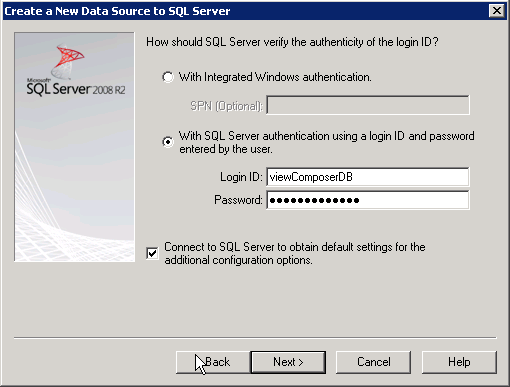
6. Select SQL Server Authentication.  Enter your SQL Server username and password that you created above.  Optional: Check the Connect to SQL Server to obtain default settings box to retrieve the default settings from the server.  Click Next to continue.

2014-01-04_22-28-15

7. Change the default database to the viewComposer database that you created above.  Click Next to continue.

2014-01-04_22-28-55

8. Click Test Data Source to verify that your settings are correct.

2014-01-04_22-29-19

9. If your database settings are correct, you will see the windows below.  If you do not see the TESTS COMPLETED SUCCESSFULLY, verify that you have entered the correct username and password and that your login has the appropriate permissions on the database object.  Click OK to return to the previous window.

2014-01-04_22-29-37

10. Click OK to close the Data Source Administrator and return to the desktop.

2014-01-04_22-29-55

Installing View Composer

Now that the database stuff is done, we can finally install View Composer.

1. Launch the View Composer installer. Click next on the first screen.

2014-01-04_22-30-13

2. Enter the name of the data source that you created on the top line, and enter the SQL username and password on the two lines beneath it.

2014-01-04_22-32-45

3, Enter the port that Composer will use for communicating with the View Connection servers and vCenter.  The default is 18443.

2014-01-04_22-33-00

Note:  You may need to open port 18443 in the system firewall.

Note: If an SSL Certificate was installed on this server, I could select to use it with Composer at this step.  Configuring Composer and other View components with SSL certificates will be covered later in this series.

4. Click install to finish the Composer installation.

2014-01-04_22-33-42

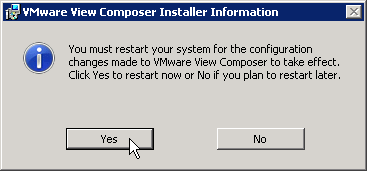
5. When the installation has completed, you will be prompted to restart the server.

2014-01-04_23-30-22

At this point, Composer is installed in your environment.  There isn’t much we can do with it yet, though, because a Connection Server is required to configure both Composer and vCenter within a Horizon View environment.

And that is what I’ll be covering the next few posts – setting up the first View Connection Server in the environment.

Horizon View 5.3 Part 6 – Composer Requirements

One of the options for virtual desktops in a Horizon View environment is a linked-clone desktop.  A linked-clone is a copy of a virtual machine, in this case a desktop, that shares its virtual disks with a parent virtual machine.  In a Horizon View environment, linked-clones are based on a snapshot of the virtual desktop parent.

Horizon View Composer is the component of a View environment that provides linked-clone functionality.  Although there are many advantages to using linked-clones, such as more efficient use of space and the ability to update all desktops just by updating a parent VM, they are not required.  Because of this, Horizon View Composer is considered an optional component.  If it is not installed, you will not be able to use linked-clone desktop pools.

Composer Hardware Prerequisites

Composer tends to be the component with the most software prerequisites, so it’s going to be the component that I’m going to set up first.  Unlike the Connection and Security Server components, Composer requires its own SQL database that contains information about vCenter and linked-clone desktops and replicas.

Composer can be installed two ways.  Until View 5.1, Composer had to be installed on the same server that hosted vCenter.  Starting with View 5.1, however, a standalone version of Composer was released.  The standalone version supports both the vCenter Server Virtual Appliance and the vCenter Server Windows application.

The system requirements for View Composer are:
Operating System: Windows Server 2008 R2 or Windows Server 2008 R2 SP1
Processors: At least two 1.4 Ghz processors, 4 2.0 GHz processors recommended
Memory: 4 GB, 8GB recommended for deployments of 50 or more View Desktops

Composer also requires the server that it runs on to have static IPs assigned.

Composer Database Prerequisites

As I mentioned above, Horizon View Composer requires a SQL database to store information on replicas and linked-clone desktops.  Composer supports SQL Server 2005 SP4 and later as well as Oracle 10g and 11g with Patch 5.  The database can be installed on the Composer server or on a remote server.

There is a catch to this – if your environment requires that you use Windows Authentication for accessing a SQL Server database, the database instance must be local to the Composer server.  WIndows authentication is not supported if the Composer database is located on a remote SQL Server instance.

Note: For specific information on which databases and service packs are supported, please refer to the VMware Product Interoperability Matrix.

In the next post, I’ll cover configuring the database connection for View Composer.

Horizon View 5.3 Part 5 – Horizon View Components

Before I start discussing the installation of the various Horizon View components, I wanted to go over what those components were and what purpose they served in a Horizon View environment.  These components are divided between server components and desktop components.

There are five server components in a Horizon View environment.  These components, and their roles in the environment are:

  • View Connection Server – the View Connection Server is main component of the Horizon View environment and the only one guaranteed to be in every environment.  The Connection Server handles four roles: managing connections between clients and virtual desktops, authenticating users, managing desktop resources with vCenter and Composer, and hosting the View Administrator web-based management console.  There are two types of Connection Servers – Standard and Replica.  Functionally, there is no difference between Standard and Replica Connection Servers except that a Standard server is the first/only Connection server in the environment.
  • View Security Gateway – The View Security Gateway is a server that is designed to sit in a DMZ to external connections to the View Connection Server.  Each Security Gateway must be paired with a Connection Server.
  • View Transfer Server – The View Transfer Server is used with clients that support Local Mode.  Local Mode allows a user to check out a desktop and use it without Internet access.  The transfer server provides the mechanism for transferring and updating the copy of the virtual desktop to the client.
  • View Composer – Composer is the component works with vCenter to create and manage linked-clone desktops.
  • VMware Blast – VMware Blast is a component that is installed on the Connection Servers to provide HTML5 access to virtual desktops.  In order to use HTML5 access, Feature Pack 1 needs to be installed on the virtual desktops.

There are three desktop components in the View environment.  Two of these components are installed on desktops that are managed by Horizon View, and the last component is the View Client that is used for accessing the desktops.  These components are:

  • View Client – The View Client is used to access Horizon View desktops using the Microsoft RDP protocol or the PCoIP protocol.  Clients exist for Windows, Linux, OSX, iOS, and Android.
  • View Agent – The View Agent is installed on the virtual desktop and provides a number of services, features, and drivers for the virtual desktop such as ThinPrint for client printer support and Persona Management for managing user profiles.  A desktop source, which can be a virtual machine running Windows or a Microsoft Terminal Server, must have the View Agent installed in order to be used with Horizon View.
  • Feature Pack 1 – Feature Pack 1 is an add-on to Horizon View 5.3.  It contains support for Real-Time Audio/Video, Flash URL redirection, and HTML Access.

Now that I’ve briefly described the components that are in a Horizon View environment, it’s time to start installing them.  The first components that will be installed are View Composer and a Standard View Connection server.  These two components are needed to get a basic Horizon View environment up and running with Linked-Clone desktops.

Horizon View 5.3 Part 4 – Active Directory and vCenter Configuration

The only desktops that are supported for virtual desktops in Horizon View 5.3 are Windows-based.  This includes the latest versions of the Windows Desktop operating system and Windows Server running Windows Terminal Server or as a desktop.  Because Windows desktops are the core of Horizon View, Active Directory is used to handle authentication into the View environment.

As I mentioned in my last post, an Active Directory environment is a requirement.  Per the documentation, Server 2003 and Server 2008/R2 Active Directory environments are supported.  The documentation doesn’t go into any details as to whether Windows Server 2012 domain controllers are unsupported or if the Server 2012 domain and forest functional levels are unsupported.

Edit 3/26/2014: VMware has updated the release notes for Horizon View 5.3 to clarify support, and the 2012 Domain/Forest functional levels are not supported.  2012 domain controllers are supported. h/t rboyett

Some Active Directory objects need to be configured before any Horizon View components are installed.  Some of these objects require special configuration either in Active Directory or inside vCenter.  The Active Directory objects that need to be set up are:

  • An organizational unit structure for Horizon View Desktops
  • A service account for View Composer
  • A service account that View will use to access vCenter

Optionally, you may want to set up an organizational unit for any security groups that might be used for entitling access to the Horizon View desktop pools.  This can be useful for organizing those groups and/or delegating access to Help Desk or other staff who don’t need Account Operator or Domain Administrator rights.

Creating An Organizational Unit for Horizon View Desktops

The first think that we need to do to prepare Active Directory for a Horizon View deployment is to create an organizational unit structure for Horizon View desktops.  This OU structure will hold all of the desktops created and used by Horizon View.  A separate OU structure within your Active Directory environment is important because you will want to apply different group policies to your Horizon View desktops than you would your regular desktops.  There are also specific permissions that you will need to delegate to the View Composer service account.

There are a lot of ways that you can set up an Active Directory OU structure for Horizon View.  My preferred organizational method looks like this:

2013-12-28_21-55-14

View Desktops is a top-level OU (ie – one that sites in the root of the domain).  I like to set up this OU for two reasons.  One is that is completely segregates my VDI desktops from my non-VDI desktops and servers.  The other is that it gives me one place to apply group policy that should apply to all VDI desktops such as disabling non-essential services, turning off screen savers, or setting the inactivity timeout to lock the machine.

I create three child OUs under the View Desktops OU to separate persistent desktops, non-persistent desktops, and desktop templates.  This allows me to apply different group policies to the different types of desktops.  For instance, you may want to disable Windows Updates and use Persona Management on non-persistent desktops but allow Windows Updates on the desktop templates.

You don’t need to create all three OUs.  If your environment consists entirely of Persistent desktops, you don’t need an OU for non-persistent desktops.  The opposite is true as well.

Finally, I tend to create department or location OUs underneath the persistent or non-persistent OUs if I have locations that require special Group Policy settings in addition to the default settings.  One example where I used this was in a previous job that HEAVILY used Microsoft Access databases at one site.  Microsoft Access includes a security groups option that uses a centrally stored database file to manage access to databases.  This can be configured with group policy, and since other locations used Access without the security groups configured, applying that policy to all desktops would have broken any Access databases that the other locations used.

These grandchild OUs are completely optional.  If there is no need to set any custom policy for a location or a department, then they don’t need to be created.  However, if a grandchild OU is needed, then an entire pool will need to be created as desktop pools are assigned to OUs.  Adding additional pools can add management overhead to a VDI environment.

Creating a View Composer Service Account

There are two service accounts that need to be created in Active Directory to support a Horizon View deployment.  The first is the account that will be used by View Composer.  This account can be created as a standard domain user.  This account should not have domain administrator or account operator rights – it only needs a select group of permissions on the OU (or OUs) where the View Desktops are being stored.

After this account has been created, you need to delegate permissions to it on the OU (or OUs) where your VDI desktops will be placed.  If you use the structure like the one I outlined above, you only need to delegate permissions on the top-level OU and permission inheritance, if turned on, will apply them to any child or grandchild objects beneath it.

Note:  If inheritance is not turned on, you will need to check the Apply to All Child Objects checkbox before applying the permissions.

The permissions that need to be delegated on the OU are:

  • Create Computer Objects
  • Delete Computer Objects
  • Write All Properties
  • Reset Password

Note: Although granting this account Domain Administrator or Account Operator permissions may seem like an easy way to grant it the permissions it needs, it will grant a number of other permissions that are not needed and could pose a security risk if that account is compromised.  Only the required permissions should be granted in a production environment.

Creating a vCenter Server Service Account

The second Active Directory account that needs to be created is a service account that will be used by Horizon View to access vCenter.  Because Horizon View has a number of different configurations, the actual rights required by vCenter will vary.  I will be using View Composer in this series, so I will be setting up the vCenter Service Account with the permissions required to use View Composer.

Note: If you are not using View Composer, or you plan to use View Composer and Local Mode, different permissions will be required in vCenter.  Please see Chapter 8 of the Horizon View 5.2 Installation Guide for more details on the permissions that need to be assigned to the service account.

The user account that is created for accessing vCenter Server should be a standard domain user account.  Unlike the View Composer, it shouldn’t have any rights to administer objects in the domain as the permissions that this account needs will be assigned within vCenter.

To create a new role in the vCenter Web Client, you need to go to Administration –> Roles from the main page.  This will bring up the roles page, and we can create a new role from here by clicking on the green plus sign.

2013-12-29_19-14-37

The permissions that need to be assigned to our new role are:

Edit June 16th, 2014 – The Datastore permissions were missing from the list of permissions needed for the vCenter Service Account.  They have now been added in.

Privilege Group

Privilege

Datastore Allocate Space
Browse Datastore
Low Level File Operations
Folder Create Folder
Delete Folder
Virtual Machine Configuration –> All Items
Inventory –> All Items
Snapshot Management Note 2–> All Items
Interaction:
Power On
Power Off
Reset
Suspend
Provisioning:
Customizing
Deploy Template
Read Customization Spec
Clone Virtual Machine
Allow Disk Access
Resource Assign Virtual Machine to Resource Pool
Migrate Powered-Off Virtual Machine
Global Enable Methods
Disable Methods
System Tag
Act As vCenter Note 1
Network All
Host Configuration:
Advanced Settings Note 1

Note 1: Act as vCenter and Host Advanced Settings are only needed if View Storage Accelerator are used.  If these features are not used, these permissions are not required.

Note 2: The documentation says to grant all permissions to State under virtual machine.  However, in vCenter 5.1 and later, there does not appear to be an item called State.  The state item existed in earlier versions of vCenter and was renamed to Snapshot Management.  For more information, please see this post by Terence Luk.

After the role has been created, we will need to assign permissions for our vCenter Server service account to the vCenter root.  To do this from the roles screen, you will need to go back to the vCenter Web Client Home screen and take the following steps:

  1. Select vCenter
  2. Select vCenter Servers under Inventory Lists
  3. Select the vCenter that you wish to grant permissions on
  4. Click on the Manage Tab
  5. Click Permissions
  6. Click the Green Plus Sign to add a new permission
  7. Select the role for View Composer
  8. Add the Domain User who should be assigned the role
  9. Click OK.

2013-12-29_20-33-59

This wraps up the preparation work for configuring Active Directory and vCenter to support a Horizon View deployment.  Now we can start installing the components for a Horizon View environment beginning with View Composer.

Horizon View 5.3 Part 3 – Prerequisites

In order to provide a virtual desktop environment that meets that often varied needs of the users, Horizon View 5.3 contains a number of components and moving parts.  And like any complex system, there are a number of prerequisites and requirements that need to be met at an infrastructure level for Horizon View to be successfully deployed.

So what infrastructure do you need to have in place in order to successfully run a Horizon View environment? 

Horizon View is a virtual desktop environment, and the environment is based upon the vSphere platform.  The compatibility matrix for Horizon View 5.3 has not changed from the previous version, and Horizon View 5.3 supports vSphere 5.5 and the vCSA appliance.

Note: I won’t cover how to install and configure vSphere 5.5 or vCenter 5.5 in this series.  If you’re working with the Windows version of vCenter 5.5, please check out Derek Seaman’s excellent series on vCenter 5.5 at http://www.derekseaman.com/2013/10/vsphere-5-5-install-pt-1-introduction.html.  If you want to know more about the vCSA, you can check out my articles on the vCSA 5.5 appliance at http://seanmassey.net/vcenter-server-appliance/.

Horizon View also requires an Active Directory environment.  This isn’t surprising considering that Horizon View only supports virtual desktops running Windows.  The only versions of Active Directory that are supported are the Windows Server 2003 and Windows Server 2008 versions.  I’m not sure if this means that the domain controllers have to be running a version of Server 2003 or Server 2008 or if the domain and forest functional levels cannot be raised above the Server 2008 R2 versions.  The documentation isn’t clear on this, and I haven’t had a chance to test it in my lab.

If you plan on using Horizon View Composer for linked-clone desktops, you will need to have a database for the Composer data.  Composer supports versions of Oracle and Microsoft SQL Server, including SQL Server Express.  It can be run on the same server with Composer.  Generally speaking, SQL Server 2008 and 2008 R2 and Oracle 10g and 11g are supported, but because there are multiple patch levels and versions of Oracle and SQL Server, please refer to the compatibility matrix to find out if your database server is supported.

There are some best practices for configuring Active Directory in a VMware View environment, and I will be covering those in Part 4.

Horizon View 5.3 Appendix A – Links to Resources

This appendix to the Horizon View 5.3 series will contain links to various resources from VMware and the community.  This page may be updated throughout the series as new links and resources are added.

VMware Documentation

All of the documentation for Horizon View 5.3 can be found at https://www.vmware.com/support/pubs/view_pubs.html.

PDF: VMware Horizon View Optimization Guide for Windows 7 and Windows 8

Note: Many of the manuals for 5.3 are the same as the manuals for 5.2.

VMware KB Articles

Connecting to the View ADAM Database

Using Windows Server 2008 R2 as a desktop operating system in VMware Horizon View

Community Blogs

Craig Kilborn has a series on upgrading from Horizon View 5.2 to Horizon View 5.3:
Part 1: Composer Server
Part 2: Connection Server
Part 3: Security Server
Part 4: View Agent
Load Balancing Horizon View – Design
Load Balancing Horizon View – Failure Testing

horizonflux.com
View Connection Server Memory Sizing and JVM Heap Size

Horizon View 5.3 Part 2–What’s New

Although there haven’t been a lot of earth-shattering architecture changes in Horizon View 5.3, there have been some great new features added.  No, there aren’t virtual appliances that you can deploy as Connection and Security Servers.  Feature Pack 1 and VMware Blast haven’t been integrated into the base install – they are still add-on components that need to be installed on the View Desktops after the agent is installed.

In fact, there have been so few major changes to Horizon View 5.3 that VMware has said that the Horizon View 5.2 documentation still applies.  Aside from some release specific notes, the documentation that you view or download from the support site.

The full release notes can be found on the VMware support page.

What’s New in Horizon View 5.3

  1. Support for virtual desktops running Windows Server 2008 R2 – this is perhaps the biggest new feature as it provides one avenue for providing VDI without having to deal with Microsoft’s broken VDA licensing model.  While this was possible, albeit hit-or-miss, in previous versions, Horizon View 5.3 provides official support for Server 2008 R2 desktops.  Some features, like Persona Management and ThinPrint, are not available.
  2. Support for Windows 8.1 – Horizon View 5.3 supports Windows 8.1 as a virtual desktop OS.  Unlike Server 2008 R2 desktops, all functionality of Horizon View is supported.
  3. Support for using Horizon Mirage for Managing Virtual Desktops – Horizon Mirage can be used for managing and deploying applications in Horizon View.
  4. vDGA Support – Virtual Dedicated Graphics Acceleration is now supported in Horizon View desktops.  This could provide better support for graphics intensive applications like medical imaging and CAD/BIM.
  5. Unbounded Linked-Clone Overcommit – In previous versions of Horizon View, there were a few settings that controlled how aggressively a pool would overcommit its storage and would limit the number of desktops placed on a datastore.  The unbounded overcommit option in Horizon View 5.3 will not limit the number of desktops placed on a datastore.
  6. Add Administrator Groups to Persona Management Redirected Folders – Persona Management includes the option to redirect certain Windows Profile folders, such as Desktop and Documents, to a network share.  However, if the Persona Management GPOs were used, domain administrators would not have access to those folders.  The updated GPO templates add a setting to grant Domain Administrators access to these folders.
  7. Direct-Connection Plugin – The direct-connection plugin provides yet another option for connecting to Horizon View desktops – this time foregoing the Connection Server entirely by connecting directly to the desktop.
  8. VSAN – VSAN is “supported” by Horizon View 5.3 as a tech preview since VSAN is still in Beta.  So unfortunately, no official support will be provided.

What’s New in Horizon View 5.3 Feature Pack 1

  1. Windows 7 Multimedia Redirection – Multimedia Redirection has been available for Windows XP and Windows Vista in previous versions of Horizon View, and it has now been extended to support Windows 7.
  2. Support for Server 2008 R2 Desktops – Real-Time Audio-Video, Unity Touch, and HTML Access are fully supported in Feature Pack 1.
  3. Support for Windows 8.1 – Real-Time Audio-Video and Unity Touch are supported in Feature Pack 1.
  4. Real-Time Audio-Video – Now supported on Linux Clients when using the Horizon View 2.2 client.
  5. HTML Access – There have been a number of additions and changes to this feature:
    • Sound is now available from the remote desktop
    • Copy and Paste between remote desktop and client device
    • Available for Windows 8 and Windows 8.1 as tech preview – no official support at this time
    • VMware Blast Gateway can now support up to 350 simultaneous users per Connection Server.

That pretty much covers what’s new in Horizon View 5.3.  As this series continues, we’ll start going into the requirements for running View and the various components that are needed in the environment.

Horizon View 5.3 Part 1–Introduction

One of the many hats that I wore at [Previous Job] was VDI Administrator for a 200-seat VMware View deployment.  That deployment, initially built by a consultant, started with View 4.6.  I had updated it to View 5.1 and was planning another update to View 5.3 when I left.  I no longer work with Horizon View on a daily basis, but I run it in my home lab and am a VDI hobbyist.

The announcement of Horizon View 5.3 at VMware Europe in October was somewhat shocking.  Horizon View 5.2 had been released about seven months earlier in March 2013 and added a number of new features such as Unity Touch for mobile devices, HTML5 access to desktops, and support for larger clusters and multiple VLANs.

Horizon View 5.3 hit General Availability on November 21st, 2013, and it improved on Horizon View 5.2.  There have been few major changes from Horizon View 5.2, but the documentation from 5.2 is still valid for 5.3.

Unless Microsoft changes their licensing model yet again, one of the additions to Horizon View 5.3 could make 2014 the mythical “Year of VDI” more likely.  OK…maybe that’s a little hyperbolic, but between official support for VDI desktops running Windows Server and the number of new entries into the Desktop As A Service market, I’d like to think that there will be an uptick in VDI adoption.

Series Agenda

Horizon View is a large application with at least four major components, and it would be impossible to cover it all in one or two posts.  I’m not sure how many posts this series will be in total, but it should be at least ten covering the following topics:

  1. Changes/What’s New and System Requires for Horizon View 5.3
  2. Configuring SSL Certificates and Active Directory for Horizon View
  3. Installing Horizon View Composer
  4. Installing a standalone Horizon View Connection Server
  5. Installing a Replica Connection Server
  6. Installing and Configuring a Security Server
  7. Configuring the View Events Database
  8. Configuring Windows  7 and 8.1 as Desktop Sources
  9. Configuring Server 2008 R2 as a Desktop Source
  10. VMware Blast (HTML Access)
  11. Configuring a Transfer Server
  12. Automating Your View Environment

If time allows, I will look at the Real-Time Audio/Video component, Persona Management, and other components of Horizon View.

You’ll notice that I don’t cover setting up a vSphere Environment as part of this series.  Both ESXi and vCenter Server are required for Horizon View, and the best walkthrough for setting up a vSphere 5.5 environment is Derek Seaman’s 19+ part blog series.  I’ve linked to Derek in the past because he has some well researched and seriously good content.

Where I Go Spelunking into the Horizon View LDAP Database–Part 2

In Part 1 of this series, I shared some of the resources that are currently available in the greater VMware View community that work directly with the View LDAP database.  Overall, there are some great things being done with these scripts, but they barely scratch the surface of what is in the LDAP database.

Connecting to the View LDAP Database

Connecting to the VIew LDAP database has been covered a few times, and VMware has a knowledgebase article that covers the steps to use ADSI edit on Windows Server. 

Any scripting language with an LDAP provider can also access the database.  Although they’re not View specific, there are a number of resources for using scripting languages, such as PowerShell or Python, with an LDAP database.

Top-Level LDAP Organizational Units

LDAP OUs

Like Active Directory or any other LDAP database, there are a number of top-level OUs where all the objects are stored.  Unlike many LDAP databases, though, the naming of these OUs doesn’t make it easy to navigate and find the objects that you’re looking for.

The OUs that are in the View LDAP Database are:

Organizational Unit Name

Purpose

Applications Pool, Application, and ThinApp settings
Data Disks Persistent Desktop Data Disks
Hosts ?? Possibly Terminal Server or Manual Pool members
Groups View Folders and Security Groups/Roles
ForeignSecurityPrincipals Active Directory SIDs used with View
Packages ?? Possibly ThinApp repositories or packages
People ??
Polices Various system properties stored in child container attributes
Properties VDM properties, child OU contains event strings
Roles Built-in security?
Servers Desktops
Server Groups Desktop Pools

You may notice that a few of the OUs have question marks under their purpose.  I wasn’t able to figure out what those OUs were used for based on how I had set up my home lab.  I normally don’t work with Terminal Server or Manual pools or ThinApp, and I suspect that the OUs that aren’t defined relate to those areas.

This series is going to continue at a slower pace over the next couple of months as I shift the focus to writing scripts against the LDAP database.