Omnissa Horizon Load Balancing Overview

I’ve been spending a lot of time in the “VMware Horizon*1” sub-Reddit lately where I’ve been trying to help others with their Horizon questions. One common theme that keeps popping up is regarding load balancing, and I decided that it would be easier to write a blog post to address the common load balancing scenarios and use cases than rewriting or pasting a long-winded reply in each thread.

Load balancing is an important part of designing and deploying a Horizon environment. It is an important consideration for service availability and scalability, and there are multiple Techzone articles that talk about load balancing. I have links to some of these articles at the end of this post.

How load balancing fits into a Horizon deployment

Horizon can utilize a load balancer in three different ways. These are:

  • load balancing the Horizon 8 Connection Servers 
  • load balancing the Unified Access Gateways in Horizon 8 deployments
  • load balancing App Volumes Managers.

While App Volumes can also benefit from a load balancer, I won’t be covering that topic in this post. I also won’t be covering global load balancing or multi-site load balancing, and I won’t be doing a comparison of different load balancers. If your question is “which load balancer should I use?” my answer is “yes” followed by “what are your requirements?”

Load balancing for Horizon Connection Servers (CS) and Unified Access Gateways (UAG) seems pretty simple. At least, it seems simple on the surface. But every load balancer or load balancer-as-a-service is implemented differently, and this may require different architectures to achieve the same outcome.

This post is going to focus on load balancing Internet-facing Unified Access Gateways in external access scenarios as this is what most people seem to struggle with.

Why Deploy A Load Balancer With Horizon

So let’s get the first question out of the way.  Why should you load balance your Horizon deployment?  What benefits does it provide?  

There are two reasons to deploy a load balancer, and they are somewhat related.  The first reason is to improve service availability, and the second reason is to support additional user sessions. Both of these are accomplished the same way – horizontally scaling the environment by adding additional CSes or UAGs. 

Adding additional CSs and UAGs increases the number of concurrent sessions that our environment can support, and it increases the availability of the Horizon service. With proper health checks enabled, you can maintain service availability even if a CS or UAG goes offline because the load balancer will just direct new sessions to other components that are available.

We can also provide a consistent user experience by using a single URL to access the service so users do not need to know the URL for each Connection Server or UAG.

Some load balancers can do more than just load balancing between components. Many load balancers can provide SSL offloading services. Some load balancers add security features, real-time analytics, web application catalogs, or other features. Those are out-of-scope for this guide, but it is important to understand what capabilities your load balancer solution can provide as this can shape your desired outcome.

Understanding Horizon Connectivity Flows

Before we talk about load balancing options for Horizon, it’s important to understand traffic flows between the Horizon Client, Unified Access Gateway, Connection Server, and the agent that is deployed on the virtual desktop or RDSH server.

Horizon uses two main protocols.  These are:

  • XML-API over HTTPS: This is the protocol used for authentication and session management. The documentation considers this the “primary protocol.”
  • Session Protocol Traffic: This is the protocol used for communication between the Horizon Client and Agent. Horizon has two protocols, PCoIP and Blast, and can use an HTTPS tunnel for side channel traffic like Client Drive Redirection (CDR) and Multimedia Redirection (MMR). The documentation refers to these protocols as “secondary protocols.”

Horizon also requires session affinity. When connecting to an environment, a load balancer will direct the user to a UAG or Connection Server to authenticate.  All subsequent primary and secondary traffic must be with that UAG or Connection Server. If you do not have session affinity, then a user will be required to reauthenticate when the load balancer directs their session to a new UAG or Connection Server, and it can interrupt their access to their sessions.

There are multiple ways to set up session affinity including Source IP Persistence, using multiple VIPs with one VIP mapped to each UAG, and providing a public IP for each UAG.

So what does session traffic flow look like?  The Omnissa Techzone page has a really good explanation that you can read here.

Figure 1: Horizon Traffic Flow with UAGs and Load Balancers (Retrieved from https://techzone.omnissa.com/resource/understand-and-troubleshoot-horizon-connections#external-connections)

High-Level Horizon Load Balancer Architectures

There are two deployment architectures I’ve regularly encountered when designing for external access.  

The first, which I will refer to as N+1, is to just use the load balancer for XML-API over HTTPS traffic.  In this scenario, the XML-API over HTTPS traffic will be sent through the load balancer, and any session protocol (or secondary) traffic will occur directly with the UAG.  When configuring your UAGs in an N+1 scenario, you need to provide a unique URL for the Blast Secure Gateway or a unique public IP address for the PCoIP Secure Gateway, and your SSL certificate needs to contain subject alternative names for the load balanced URL and the UAG’s unique URL. 

(The Unified Access Gateway also supports HTTP Host Redirection for Horizon environments, but this is only used in some specific load balancer scenarios.)

The second deployment architecture is having all Horizon traffic pass through the load balancer. This includes both the XML-API over HTTPS and session protocol traffic.  This deployment option is typically used in environments where there is a limited number of public IP addresses.  

Session Affinity and throughput are the biggest concerns when using this approach.  The load balancer appliance can become a traffic bottleneck, and it needs to be sized to handle the number of concurrent sessions.  Session affinity is also a concern as an improperly configured load balancer can result in disconnects or failure to launch a session. 

Load Balancing Options for Horizon

At a high level, here are three categories of load balancers that can be used with Horizon.  These are:

  • 3rd-Party external load balancers like NSX Advanced Load Balancer (Avi), F5, Netscaler, Kemp and others. This can also include open-source solutions like Nginx or HAProxy.
  • Cloud Load Balancer Services
  • Unified Access Gateway High-Availability

Unified Access Gateway High Availability

I want to talk about the Unified Access Gateway High-Availability feature first.  This is probably the most misunderstood option, and while it can be a great solution for some customers, it will not be a good fit for many customers. It’s worth reading the documentation on this feature if you’re considering this option.  

When deployed for Horizon, UAG HA uses Round Robin with Source IP Affinity for directing traffic between UAGs. But unlike other options, it can only provides high availability for the XML-API over HTTPs traffic.  It does not provide high availability for session protocol traffic like Blast or PCoIP.  

If you are looking to use this feature in an Internet-facing scenario, you would need N+1 public IP addresses and DNS names, where N is the number of UAGs you are deploying or plan to deploy plus one for the load balanced VIP shared by all of the UAGs. This is because the Horizon Client needs to be able to reach the UAG that it authenticated on for session traffic.

Unified Access Gateway High Availability may also not work in some public cloud scenarios where you are deploying into a native public cloud.

External 3rd-Party Load Balancers

The next option is the 3rd-party external load balancer. This is your traditional load balancer.  It can provide the most deployment flexibility, and most vendors have a guide for deploying their solution with Horizon.  

Third-party load balancers may also provide their own value-added features on top of basic load balancing. F5, for example, can integrate into Horizon when using their iApp, and the Avi documentation contains deployment guides for multiple customer deployment scenarios.

There are also open-source options here – NGINX and HAProxy being the two most common in my experience – but there may be some tradeoffs. Open-source HAProxy only supports TCP traffic with UDP load balancing included in their paid enterprise product. Open-source NGINX can support TCP and UDP traffic, but active health checks are part of the paid product (although there are ways to work around that – I just haven’t tested them any).

Cloud Native Load Balancer-as-a-Service

The final option to consider is Cloud Native Load Balancer-as-a-Service options.  These are useful if you are deploying into a cloud-based VMware SDDC Service like Google Cloud VMware Engine, Azure VMware Solution, or Oracle Cloud VMware, or into a native public cloud like Amazon Web Services for Horizon on Amazon Workspaces Core and EC2.

There are many varieties of cloud-native load balancer services. These come with different feature sets, supported network topologies, and price points. Some load balancing services only support HTTP and HTTPs, others can support all TCP and UDP traffic. Some only work with services that are in the same VCP or vNET as the load balancer while others can provide load balancing to services in other networks or even endpoints in remote data centers over a WAN or VPN connection.  

Public cloud scenarios are usually good for the N+1 IP deployment model.  Public cloud providers have large pools of IPv4 addresses that you can borrow from for a very small monthly fee.

Do I Need a Load Balancer Between My Unified Access Gateways and Connection Servers?

One of the benefits the UAG had over the old Horizon Security Server was that you didn’t need to map each UAG to a Connection Server. You could point them at a load balanced internal URL, and if a Connection Server went offline, the internal load balancer would just direct new sessions to a different Connection Server.

This was much easier than trying to load balance Security Servers, where complicated health check rules were required to detect when a Connection Server was down and take the Security Server offline.

But do you need a load balancer between the UAGs and Connection Servers?

Surprisingly, the answer is no.  While this is a supported deployment, it isn’t required. And it doesn’t require any complex health check setups.  

When configuring a load balancer health check for Horizon, you should point to favicon.ico. The UAG is a reverse proxy, and it proxies the favicon.ico file from the Connection Server (or load balanced set of Connection Servers).  If the Connection Server goes offline, the UAG health check will fail and the load balancer will mark it as down.

Questions to Ask When Getting Started with Horizon Load Balancers

Before we can start architecting a load balancer solution for Horizon, we have to define what our requirements and outcomes are. These should be defined during your discovery or design phase by asking the following questions:

  1. Where are you deploying or hosting the environment?
  2. What load balancers do you have in place today for other services? What sort of traffic types do your existing load balancers support? How much throughput can they handle?
  3. What do your internal and external user traffic flows look like (or what do you want them to look like)? Are you currently or planning on sending both internal and external user sessions through UAGs or just external users?
  4. Do you have any requirements around multi-factor authentication, Smart Card support, or TrueSSO?
  5. What requirements does your security team have?
  6. What is your budget?
  7. How many public IP addresses do you have access to or are available to you for external access?

The answers to these questions will help define the load balancer and external access architecture. 

Learning More

If you want to learn more about load balancing Horizon environments, you can check out the following resources from Omnissa and VMware by Broadcom.  You should also check with your preferred load balancer vendor to see if they have any Horizon configuration guides or reference architectures.

  1. Yes…I am aware that the new name will be Omnissa Horizon, but this is the name of the channel until someone with admin rights changes it. I don’t want to hear it, Rob… ↩︎

How to Configure the NVIDIA vGPU Drivers, CUDA Toolkit and Container Toolkit on Debian 12

As I’ve started building more GPU-enabled workloads in my home lab, I’ve found myself repeating a few steps to get the required software installed. It involved multiple tools, and I was referencing multiple sources in the vendor documentation.

I wanted to pull everything together into one document – both to document my process so I can automate it and also to share so I can help others who are looking at the same thing.

So this post covers the steps for installing and configuring the NVIDIA drivers, CUDA toolkit, and/or the Container Toolkit on vSphere virtual machines.

Install NVIDA Driver Prequisites

There are a few prerequisites required before installing the NVIDIA drivers.  This includes installing kernel headers, the programs required to compile the NVIDIA drivers, and disabling Nouveau. We will also install the NVIDIA CUDA Repo.

#Install Prerequisites
sudo apt-get install xfsprogs wget git python3 python3-venv python3-pip p7zip-full build-essential -y
sudo apt-get install linux-headers-$(uname -r) -y

#Disable Nouveau
lsmod | grep nouveau

cat <<EOF | sudo tee /etc/modprobe.d/blacklist-nouveau.conf
blacklist nouveau
options nouveau modeset=0
EOF
sudo update-initramfs -u

Reboot the system after the initramfs build completes.

sudo reboot

Install the NVIDIA Drivers

NVIDIA includes .run and .deb installer options for Debian-based operating systems.  I use the .run option because that is what I am most familiar with.  The run file will need to be made executable as it does not have these permissions by default. I also install using the --dkms flag so the driver will be recompiled automatically if the kernel is updated.

The vGPU drivers are distributed through the NVIDIA Enterprise Software Licensing portal through the NVIDIA Virtual GPU or AI Enterprise product sets and require a license to use   If you are using PCI Passthrough instead of GRID, you can download the NVIDIA Data Center/Tesla Drivers from the data center driver download page

I am using the NVAIE product set for some of my testing, so I will be installing a vGPU driver. The steps to install the Driver, CUDA Toolkit, and Container Toolkit are the same whether you are using a regular data center driver or the vGPU driver. You will not need to configure any licensing when using PCI Passthrough.

The drivers need to be downloaded, copied over to the virtual machine, and have the executable flag set on the file.

sudo chmod +X NVIDIA-Linux-x86_64-550.54.15-grid.run
sudo bash ./NVIDIA-Linux-x86_64-550.54.15-grid.run --dkms

Click OK for any messages that are displayed during install.  Once the installation is complete, reboot the server.

After the install completes, type the following command to verify that the driver is installed properly.

nvidia-smi

You should receive an output similar to the following: 

Installing the CUDA Toolkit

Like the GRID Driver installer, NVIDIA distributes the CUDA Toolkit as both a .run and .deb installer. For this step, I’ll be using the .deb installer as it works with Debian’s built-in package management, can handle upgrades when new CUDA versions are released, and contains a multiple meta package installation options that are documented in the CUDA installation documentation.

By default, the CUDA toolkit installer will try to install an NVIDIA driver.  Since this deployment is using a vGPU driver, we don’t want to use the driver included with CUDA.  NVIDIA is very prescriptive about which driver versions work with vGPU, and installing a different driver, even if it is the same version, will result in errors.  

The first step is to install the CUDA keyring and enable the contrib repository.  The keyring file contains the repository information and the GPG signing key.  Use the following commands to complete this step:

wget https://developer.download.nvidia.com/compute/cuda/repos/debian12/x86_64/cuda-keyring_1.1-1_all.deb
sudo dpkg -i cuda-keyring_1.1-1_all.deb
sudo add-apt-repository contrib

The next step is to update our Apt-Get repos and install the CUDA Toolkit. The CUDA toolkit requires a number of additional packages that will be installed alongside the main application.

sudo apt-get update && sudo apt-get -y install cuda-toolkit-12-5

The package installer does not add CUDA to the system PATH variable, so we need to do this manually.  The way I’ve done this is to create a login script that applies for all users using the following command.  The CUDA folder path is versioned, so this script to set the PATH variable will need to be updated when the CUDA version changes.

cat <<EOF | sudo tee /etc/profile.d/nvidia.sh
export PATH="/usr/local/cuda-12.5/bin${PATH:+:${PATH}}"
EOF
sudo chmod +x /etc/profile.d/nvidia.sh

Once our script is created, we need to apply the updated PATH variable and test our CUDA Toolkit installation to make sure it is working properly.  

source /etc/profile.d/nvidia.sh
nvcc --version

You should receive the following output if the PATH variable is updated properly.

If you receive a command not found error, then the PATH variable has not been set properly, and you need to review and rerun the script that contains your EXPORT command.

NVIDIA Container Toolkit

If you are planning to use container workloads with your GPU, you will need to install the NVIDIA Container Toolkit.  The Container Toolkit provides a container runtime library and utilities to configure containers to utilize NVIDIA GPUs.  The Container Toolkit is distributed from an apt repository.

Note: The CUDA toolkit is not required if you are planning to only use container workloads with the GPU.  An NVIDIA driver is still required on the host or VM.

The first step for installing the NVIDIA Container Toolkit on Debian is to import the Container Toolkit apt repository.

curl -fsSL https://nvidia.github.io/libnvidia-container/gpgkey | sudo gpg --dearmor -o /usr/share/keyrings/nvidia-container-toolkit-keyring.gpg \
  && curl -s -L https://nvidia.github.io/libnvidia-container/stable/deb/nvidia-container-toolkit.list | \
    sed 's#deb https://#deb [signed-by=/usr/share/keyrings/nvidia-container-toolkit-keyring.gpg] https://#g' | \
    sudo tee /etc/apt/sources.list.d/nvidia-container-toolkit.list

Update the apt repository packages lists and install the container toolkit.

sudo apt-get update && sudo apt-get install nvidia-container-toolkit

Docker needs to be configured and restarted after the container toolkit is installed.  

sudo nvidia-ctk runtime configure --runtime=docker
sudo systemctl restart docker

Note: Other container runtimes are supported.  Please see the documentation to see the supported container runtimes and their configuration instructions.

After restarting your container runtime, you can run a test workload to make sure the container toolkit is installed properly.

sudo docker run --rm --runtime=nvidia --gpus all ubuntu nvidia-smi

Using NVIDIA GPUs with Docker Compose

GPUs can be utilized with container workloads managed by Docker Compose.  You will need to add the following lines, modified to fit your environment, to the container definition in your Docker Compose file.  Please see the Docker Compose documentation for more details.

deploy:
 resources:
   reservations:
     devices:
       - driver: nvidia
         count: 1
         capabilities:
           - gpu

Configuring NVIDIA vGPU Licensed Features

Your machine will need to check out a license if NVIDIA vGPU or NVAIE are being used, and the NVIDIA vGPU driver will need to be configured with a license server.  The steps for setting up a cloud or local instance of the NVIDIA License System are beyond the scope of this post, but they can be found in the NVIDIA License System documentation.

Note: You do not need to complete these steps if you are using the Data Center Driver with PCI Passthrough. Licensing is only required if you are using vGPU or NVAIE features.

A client configuration token will need to be configured once the license server instance has been set up.  The steps for downloading the client configuration token can be found here for CLS, or cloud-hosted, instances and here for DLS, or delegated local, instances.

After generating and downloading the client configuration token, it will need to be placed onto your virtual machine. The file needs to be copied from your local machine to the /etc/nvidia/ClientConfigToken directory.  This directory is locked down by default, and it requires root or sudo access to perform any file operations here. So you may need to copy the token file to your local home directory and use sudo to copy it into the ClientConfigToken directory.  Or you can place the token file on a local web server and use wget/cURL to download it.

In my lab, I did the following:

sudo wget https://web-server-placeholder-url/NVIDIA/License/client_configuration_token_05-22-2024-22-41-58.tok

The token file needs to be made readable by all users after downloading it into the /etc/nvidia/ClientConfigToken directory.

sudo chmod 744 /etc/nvidia/ClientConfigToken/client_configuration_token_*.tok

The final step is to configure vGPU features.  This is done by editing the gridd.conf file and enabling vGPU.  The first step is to copy the gridd.conf.template file using the following command.

sudo cp /etc/nvidia/gridd.conf.template /etc/nvidia/gridd.conf

The next step is to edit the file, find the line called FeatureType, and change the value from 0 to 1.

sudo nano /etc/nvidia/gridd.conf

Finally, restart the NVIDIA GRID daemon.

sudo systemctl restart nvidia-gridd

You can check the service status with the sudo systemctl status nvidia-gridd command to see if a license was successfully checked out.  You can also log into your license service portal and review the logs to see licensing activity.

Sources

While creating this post, I pulled from the following links and sources.

https://docs.nvidia.com/cuda/cuda-installation-guide-linux

https://docs.nvidia.com/cuda/cuda-installation-guide-linux/#meta-packages

https://docs.nvidia.com/grid/17.0/grid-vgpu-user-guide/index.html#installing-vgpu-drivers-linux-from-run-file

https://docs.nvidia.com/grid/17.0/grid-vgpu-user-guide/index.html#installing-vgpu-drivers-linux-from-debian-package

https://docs.nvidia.com/ai-enterprise/deployment-guide-vmware/0.1.0/nouveau.html

https://docs.nvidia.com/datacenter/cloud-native/container-toolkit/latest/

https://docs.nvidia.com/datacenter/cloud-native/container-toolkit/latest/install-guide.html

https://docs.docker.com/compose/gpu-support/

https://docs.nvidia.com/license-system/latest/index.html

Horizon 8.0 Part 10: Deploying the Unified Access Gateway

And we’re back…this week with the final part of deploying a Horizon 2006 environment – deploying the Unified Access Gateway to enable remote access to desktops.

Before we go into the deployment process, let’s dive into the background on the appliance.

The Unified Access Gateway (also abbreviated as UAG) is a purpose built virtual appliance that is designed to be the remote access component for VMware Horizon and Workspace One.  The appliance is hardened for deployment in a DMZ scenario, and it is designed to only pass authorized traffic from authenticated users into a secure network.

As of Horizon 2006, the UAG is the primary remote access component for Horizon.  This wasn’t always the case – previous Horizon releases the Horizon Security Server.  The Security Server was a Windows Server running a stripped-down version of the Horizon Connection Server, and this component was deprecated and removed with Horizon 2006.

The UAG has some benefits over the Security Server.  First, it does not require a Windows license.  The UAG is built on Photon, VMware’s lightweight Linux distribution, and it is distributed as an appliance.  Second, the UAG is not tightly coupled to a connection server, so you can use a load balancer between the UAG and the Connection Server to eliminate single points of failure.

And finally, multifactor authentication is validated on the UAG in the DMZ.  When multi-factor authentication is enabled, users are prompted for that second factor first, and they are only prompted for their Active Directory credentials if this authentication is successful.  The UAG can utilize multiple forms of MFA, including RSA, RADIUS, and SAML-based solutions, and setting up MFA on the UAG does not require any changes to the connection servers.

There have also been a couple of 3rd-party options that could be used with Horizon. I won’t be covering any of the other options in this post.

If you want to learn more about the Unified Access Gateway, including a deeper dive on its capabilities, sizing, and deployment architectures, please check out the Unified Access Gateway Architecture guide on VMware Techzone.

Deploying the Unified Access Gateway

There are two main ways to deploy the UAG.  The first is a manual deployment where the UAG’s OVA file is manually deployed through vCenter, and then the appliance is configured through the built-in Admin interface.  The second option is the PowerShell deployment method, where a PowerShell script and OVFTool are used to automatically deploy the OVA file, and the appliance’s configuration is injected from an INI file during deployment.

Typically, I prefer using the PowerShell deployment method.  This method consists of a PowerShell Deployment Script and an INI file that contains the configuration for each appliance that you’re deploying.  I like the PowerShell script over deploying the appliance through vCenter because the appliance is ready to use on first boot. It also allows administrators to track all configurations in a source control system such as Github, which provides both documentation for the configuration and change tracking.  This method makes it easy to redeploy or upgrade the Unified Access Gateway because I rerun the script with my config file and the new OVA file.

The PowerShell script requires the OVF Tool to be installed on the server or desktop where the PowerShell script will be executed.  The latest version of the OVF Tool can be downloaded from MyVMware.  PowerCLI is not required when deploying the UAG as OVF Tool will be deploying the appliance and injecting the configuration.

The zip file that contains the PowerShell scripts includes sample templates for different use cases.  This includes Horizon use cases with RADIUS and RSA-based multifactor authentication.  You can also find the reference guide for all options here.

If you haven’t deployed a UAG before, are implementing a new feature on the UAG, or you’re not comfortable creating the INI configuration file from scratch, then you can use the manual deployment method to configure your appliance and then export the configuration in the INI file format that the PowerShell deployment method can consume.  This exported configuration only contains the appliance’s Workspace ONE or Horizon configuration – you would still have to add in your vSphere and SSL Certificate configuration.

You can export the configuration from the UAG admin interface.  It is the last item in the Support Settings section.

UAG-Config-Export

One other thing that can trip people up when creating their first UAG deployment file is the deployment path used by OVFTool.  This is not always straightforward, and vCenter has some “hidden” objects that need to be included in the path.  OVFTool can be used to discover the path where the appliance will be deployed.

You can use OVFTool to connect to your vCenter with a partial path, and then view the objects in that location.  It may require multiple connection attempts with OVFTool to build out the path.  You can see an example of this over at the VMwareArena blog on how to export a VM with OVFTool or in question 8 in the troubleshooting section of the Using PowerShell to Deploy the Unified Access Gateway guide.

Before deploying the UAG, we need to get some prerequisites in place.  These are:

  1. Download the Unified Access Gateway OVA file, PowerShell deployment script zip file, and the latest version of OVFTool from MyVMware.
  2. Right click on the PowerShell zip file and select Properties.
  3. Click Unblock.  This step is required because the file was downloaded from the Internet, and is untrusted by default, and this can prevent the scripts from executing after we unzip them.
  4. Extract the contents of the downloaded ZIP file to a folder on the system where the deployment script will be run.  The ZIP file contains multiple files, but we will only be using the uagdeploy.ps1 script file and the uagdeploy.psm1 module file.  The other scripts are used to deploy the UAG to Hyper-V, Azure, and AWS EC2.The zip file will also contain a number of default templates.  When deploying the access points for Horizon, I recommend starting with the UAG2-Advanced.ini template.  This template provides the most options for configuring Horizon remote access and networking.  Once you have the UAG deployed successfully, I recommend copying the relevant portions of the SecurID or RADIUS auth templates into your working AP template.  This allows you to test remote access and your DMZ networking and routing before adding in MFA.
  5. Before we start filling out the template for our first access point, there are some things we’ll need to do to ensure a successful deployment. These steps are:
    1. Ensure that the OVF Tool is installed on your deployment machine.
    2. Locate the UAG’s OVA file and record the full file path.  The OVA file can be placed on a network share.
    3. We will need a copy of the certificate, including any intermediate and root CA certificates, and the private key in PFX or PEM format.  Place these files into a folder on the local or network folder and record the full path.If you are using PEM files, the certificate files should be concatenated so that the certificate and any CA certificates in the chain are in one file, and the private key should not have a password on it.  If you are using PFX files, you will be prompted for a password when deploying the UAG.
    4. We need to create the path to the vSphere resources that OVF Tool will use when deploying the appliance.  This path looks like: vi://user@PASSWORD:vcenter.fqdn.orIP/DataCenter Name/host/Host or Cluster Name/OVF Tool is case sensitive, so make sure that the datacenter name and host or cluster names are entered as they are displayed in vCenter.

      The uppercase PASSWORD in the OVFTool string is a variable that prompts the user for a password before deploying the appliance.  If you are automating your deployment, you can replace this with the password for the service account that will be used for deploying the UAG.

      Note: I don’t recommend saving the service account password in the INI files. If you plan to do this, remember best practices around saving passwords in plaintext files and ensure that your service account only has the required permissions for deploying the UAG appliances.


    5. Generate the passwords that  you will use for the appliance Root and Admin passwords.
    6. Get the SSL Thumbprint for the certificate on your Connection Server or load balancer that is in front of the connection servers.
  6. Fill out the template file.  The file has comments for documentation, so it should be pretty easy to fill out. You will need to have a valid port group for all three networks, even if you are only using the OneNic deployment option.
  7. Save your INI file as <UAGName>.ini in the same directory as the deployment scripts.

There is one change that we will need to configure on our Connection Servers before we deploy the UAGs – disabling the Blast and PCoIP secure gateways.  If these are not disabled, the UAG will attempt to tunnel the user protocol session traffic through the Connection Server, and users will get a black screen instead of a desktop.

The steps for disabling the gateways are:

  1. Log into your Connection Server admin interface.
  2. Go to Settings -> Servers -> Connection Servers
  3. Select your Connection Server and then click Edit.
  4. Uncheck the following options:
    1. Use Secure Tunnel to Connect to machine
    2. Use PCoIP Secure Gateway for PCoIP connections to machine
  5. Under Blast Secure Gateway, select Use Blast Secure Gateway for only HTML Access connections to machine.  This option may reduce the number of certificate prompts that users receive if using the HTML5 client to access their desktop.
  6. Click OK.

Connection Server Settings

Once all of these tasks are done, we can start deploying the UAGs.  The steps are:

  1. Open PowerShell and change to the directory where the deployment scripts are stored.
  2. Run the deployment script.  The syntax is .\UAGDeploy.ps1 –inifile <apname>.ini
  3. Enter the appliance root password twice.
  4. Enter the admin password twice.  This password is optional, however, if one is not configured, the REST API and Admin interface will not be available.
    Note: The UAG Deploy script has parameters for the root and admin passwords.  These can be used to reduce the number of prompts after running the script.
  5. If RADIUS is configured in the INI file, you will be prompted for the RADIUS shared secret.
  6. After the script opens the OVA and validates the manifest, it will prompt you for the password for accessing vCenter.  Enter it here.
  7. If a UAG with the same name is already deployed, it will be powered off and deleted.
  8. The appliance OVA will be deployed.  When the deployment is complete, the appliance will be powered on and get an IP address from DHCP.
  9. The appliance configuration defined in the INI file will be injected into the appliance and applied during the bootup.  It may take a few minutes for configuration to be completed.

image

Testing the Unified Access Gateway

Once the appliance has finished it’s deployment and self-configuration, it needs to be tested to ensure that it is operating properly. The best way that I’ve found for doing this is to use a mobile device, such as a smartphone or cellular-enabled tablet, to access the environment using the Horizon mobile app.  If everything is working properly, you should be prompted to sign in, and desktop pool connections should be successful.

If you are not able to sign in, or you can sign in but not connect to a desktop pool, the first thing to check is your firewall rules.  Validate that TCP and UDP ports 443, 8443 and 4172 are open between the Internet and your Unified Access Gateway.  You may also want to check your Connection Server configuration and ensure that HTTP Secure Gateway, PCoIP Secure Gateway, and Blast Secure Gateway are disabled.

If you’re deploying your UAGs with multiple NICs and your desktops live in a different subnet than your UAGs and/or your Connection Servers, you may need to statically define routes.  The UAG typically has the default route set on the Internet or external interface, so it may not have routes to the desktop subnets unless they are statically defined.  An example of a route configuration may look like the following:

routes1 = 192.168.2.0/24 192.168.1.1,192.168.3.0/24 192.168.1.1

If you need to make a routing change, the best way to handle it is to update the ini file and then redeploy the appliance.

Once deployed and tested, your Horizon infrastructure is configured, and you’re ready to start having users connect to the environment.

Horizon 8.0 Part 9: Creating Your First Desktop Pool

This week, we’re going to talk about desktop pools and how to create your first desktop pool in your new Horizon environment.

Desktop Pools – Explained

So what is a desktop pool?

Desktop pools are a logical grouping of virtual machines that users can access, and these groupings control specific settings about the pool. This includes how the desktops are provisioned and named, protocols that are available for connectivity, and what physical infrastructure they are deployed on.

Horizon has a few different types of desktop pools.  Each pool handles desktops in different ways, and they each have different purposes.  The type of pool that you select will be determined by a number of factors including the use case, the storage infrastructure and application requirements.

The type of desktop pools are:

  • Full Clone Pools – Each virtual desktop is a full virtual machine cloned from a template in vCenter.  The virtual machines require a desktop management tool for post-deployment management.  VMs are customized using existing Guest Customization Specifications. These desktops usually persist after the user logs out.
  • Linked Clone Pools – Each virtual desktop is based on a parent VM snapshot and shares its disk with the parent virtual machine.  Changes to the linked clone are written to a delta disk.  The virtual machines are managed by View Composer.   Linked Clone desktops can be Floating or Dedicated assignment, and they can be configured to be refreshed (or rolled back to a known good snapshot) or deleted on logoff. Linked Clone desktops are officially deprecated in Horizon 2006, and they will be removed in a future release.
  • Instant Clone Pools – Each virtual desktop is based on a parent VM snapshot. The snapshot is cloned to a VM that is deployed to each host, powered up, and then stunned. All guest VMs are then “forked” from this VM and quickly customized. Guest VMs share virtual disks and initial memory maps with the parent VMs.  VMs are managed by vCenter and a “next generation” Composer that is built into the Connection Servers.
  • Manual Pools – The machines that make up the manual pool consist of virtual and/or physical machines that have had the View Agent installed.  These machines are not managed by Horizon.
  • Remote Desktop Session Host Pool – The machines that make up these pools are Windows Servers with the Remote Desktop Session Host Role installed.  They can be provisioned as linked clones or manually, and they are used for published desktops and published applications.

There is one other choice that needs to be selected when creating a desktop pool, and that is the desktop assignment type.  There are two desktop assignment types:

  • Floating Assignment – Desktops are assigned to users at login and are returned to the pool of available desktops when the user signs out.
  • Dedicated Assignment – Desktops are assigned to a user, and the user gets the same desktop at each login.  Desktops can be assigned automatically at first login or manually by an administrator.

Creating Your Desktop Image

Before you can create a desktop pool, you need to have configured a desktop virtual machine with all of your applications and optimizations configured.  This virtual machine will be the template or gold pattern for all of the virtual machines that Horizon will deploy as part of the pool.

The virtual desktop template details, including the virtual machine specifications and installed applications, will depend on the results of any use case definition and desktop assessment exercises that are performed during the project’s design phase.  

I won’t cover how to create a desktop or RDSH template in this series.  Instead, I recommend you check out the Building an Optimized Windows Image guide on VMware Techzone or Graeme Gordon‘s session from VMworld – DWHV1823 Creating and Optimizing a Windows Image for VDI and Published Applications.

Creating A Desktop Pool

For this walkthrough, I will be doing an Automatic Floating Assignment Instant-Clone desktop pool.  These are otherwise known as Non-Persistent desktops because the desktop is destroyed when the user signs out.

If you’re familiar with previous versions of the series, you’ll notice that there are more screens and the order that some steps are performed in has changed.  Please note that some of the menu options will change depending on the type of desktop pool you’re provisioning.

1. Log into the Horizon 7 Administrator.  Under Inventory, select Desktops.

2.  Click Add to add a new pool.

3. Select the Pool Type that you want to create.  For this, we’ll select Automated Pool and click Next.

Note: In some environments, you may see the following error if you’re using Instant Clones when View Storage Accelerator is disabled. 

4.  Choose the type of virtual machines that will be deployed in the environment. For this walkthrough, select Instant Clone. If you have multiple vCenter Servers in your environment, select the vCenter where the desktops will be deployed. Click Next.

5. Select whether you want to have Floating or Dedicated Desktops. For this walkthrough, we’ll select Floating and click Next.

Note: The Enable Automatic Assignment option is only available if you select Dedicated. If this option is selected, View automatically assigns a desktop to a use when they log in to dedicated pool for the first time.

6. Select whether VSAN will be used to store desktops that are provisioned by Horizon.  If VSAN is not being used, select the second option – “Do Not Use VSAN.

If you want to store the Instant Clone replica disks that all VMs are provisioned from on different datastores from the VMs, and you are not using VSAN, select the Use Separate Datastores for Replica and Data Disks.

7. Each desktop pool needs an ID and, optionally, a Display Name.  The ID field is the official name of the pool, and it cannot contain any spaces.  The Display Name is the “friendly” name that users will see when they select a desktop pool to log into.  You can also add a description to the pool.

8. Configure the provisioning settings for the pool.  This screen allows you to control provisioning behavior, computer names, and the number of desktops provisioned in the pool.

9. After configuring the pool’s provisioning settings, you need to configure the pool’s vCenter settings.  This covers the Parent VM and the snapshot that the Instant Clones will be based on, the folder that they will be stored in within vCenter, and the cluster, datastores, and, optionally, the networks that will be used when the desktops are deployed.

In order to configure each setting, you will need to click the Browse button on the right hand side of the screen.  These steps must be completed in order.

9-A. First, select the parent VM that the Instant Clone desktops will be based on.  Select the VM that you want to use and click Submit.

9-B. The next step is to select the Parent VM snapshot that the Instant Clone desktops will be based on.  Select the snapshot that you want to use and click OK.

9-B. After you have selected a Parent VM and a snapshot, you need to configure the vCenter folder in the VMs and Templates view that the VMs will be placed in.  Select the folder and click OK.

9-D. The next step is to place the pool on a vSphere cluster.  The virtual machines that make up the desktop pool will be run on this cluster, and the remaining choices will be based on this selection.  Select the cluster that they should be run on and click OK.

9-E. The next step is to place the desktops into a Resource Pool.  In this example, I have not resource pools configured, so the desktops would be placed in the Cluster Root.

9-F. Next, you will need to pick the datastores that the desktops will be stored on. 

9-G. When using Instant Clone destops, you will have the option to configure the network or networks that the desktops are deployed onto. By default, all desktops are deployed to the same network as the parent VM, but administrators have the ability to optionally deploy virtual desktops to different networks.

10. After configuring the vCenter settings, you need to configure the Desktop Pool settings. These settings include:

  • Desktop Pool State – Enabled or Disabled
  • Connection Server Restrictions
  • Pool Session Types – Desktop only, Published Applications, or Both
  • Disconnect Policy
  • Cloud Management – Enable the pool to be consumed by the Universal Broker service and entitled from the Horizon Cloud Service

12. Configure the remote display settings. This includes choosing the default display protocol, allowing users to select a different protocol, and configuring the 3D rendering settings such as enabling the pool to use NVIDIA GRID vGPU. Administrators can also choose to enable Session Collaboration on the pool.

13. Configure Guest Customization settings by selecting the domain that the provisioned desktops will join, the OU where the accounts will be placed and any scripts that will be run after provisioning.

14. Review the settings for the pool and verify that everything is correct.  Before you click Finish, check the Entitle Users checkbox in the upper right.  This will allow you to select the users and/or groups who have permission to log into the desktops.

15. After you click Finish, you will need to grant access to the pool.  View allows you to entitle Active Directory users and groups.  Click Add to entitle users and groups.

16. Search for the user or group that you want to add to entitle.  If you are in a multi-domain environment, you can change domains by selecting the domain from the Domains box.  Click on the users or groups that you want to grant access to and click OK.

Note:  I recommend that you create Active Directory security groups and entitle those to desktop pools.  This makes it easier to manage a user’s pool assignments without having to log into View Administrator whenever you want to make a change.

17. Review the users or groups that will be entitled to the pool, and click OK.

19. You can check the status of your desktop pool creation in vCenter.  If this is a new pool, it will need to complete the Instant Clone provisioning process. To learn more about the parent VMs that are provisioned when Instant Clone pools are created, please see this article for traditional instant clones or this video for Instant Clone pools using Smart Provisioning.

Once the desktops have finished deploying, you will be able to log into them through the Horizon HTML5 Client or the Horizon Client for your endpoint’s platform.

I realize that there are a lot of steps in the process of creating a desktop pool.  It doesn’t take nearly as long as it seems once you get the hang of it, and you will be able to fly through it pretty quickly.

Applying the DaaS 9.0.1 Update

Earlier this week, VMware released the first major update bundle for the Horizon DaaS platform. This update applies some fixes to the platform and updates the desktop agent bundle to include the Microsoft Teams support that was released with Horizon 8. You can find the release notes here.

Background

Today, I will walk through how to apply the update in your environment. But before I do that, I want to give a little background on DaaS.

Horizon DaaS is VMware’s Desktop-as-a-Service Platform. It is typically used by organizations that want to provide a multi-tenant platform for hosting desktops and published applications. While the Horizon Client and the desktop agent are shared with Horizon 7, the management plane for the service providers and the tenants is built from the ground up to support multitenancy.

DaaS 9.0 was released back in May, and it contained some major enhancements to the platform. One of these enhancements was automating the lifecycle of the service provider and tenant appliances, including applying hotfixes using a ne set of appliances and components called Horizon Version Manager and Horizon Air Link.

DaaS utilizes virtual appliances, deployed in pairs for high availability, for service provider and tenant operations. Prior to DaaS 9.0, all of the deployment and update operations had to be performed manually, and this could take hours in large environments with a lot of customers as the updates had to be deployed and installed on two appliances for each tenant.

Checking the Environment’s Health

The first thing that should be done before deploying any hotfixes or patches in the DaaS environment is evaluating the environment’s health. The patching operation for the service provider or tenant management infrastructure will fail if one of the appliances in the pair is in an unhealthy state.

The steps to perform a quick health check are:

  1. Log into the DaaS Service Center
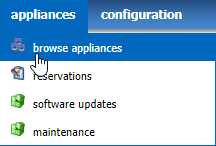
  2. Go to the Appliances menu and select Browse Appliances.

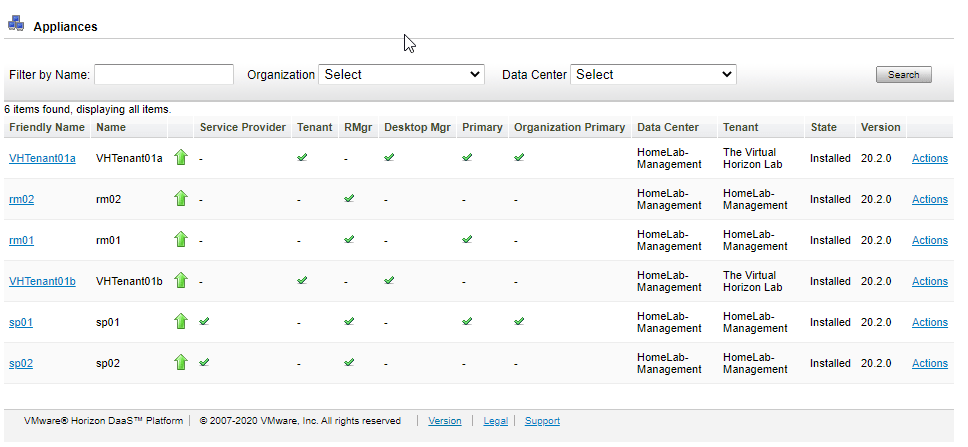
3. Validate that all appliances have a green Up arrow next to their name as shown in the picture below.

Any appliances in an unhealthy state will need to be investigated, and you will need to troubleshoot the appliances. If basic troubleshooting does not resolve the issue, you can open a ticket with GSS to investigate further.

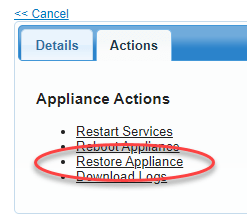
GSS may have you redeploy the appliance if the issues are not easily resolved. You can redeploy appliances by clicking the Actions menu for the appliance and selecting the Restore option. This will deploy a new appliance and sync it with the other appliance in the HA pair.

Preparing for the DaaS Update

The process for applying hotfixes and upgrades has changed in DaaS 9. The process is automated, and it is managed through the Horizon Version Manager interface. Before we go into this interface, there are a few tasks that you need to perform to prepare to deploy the hotfix.

Before we begin, there are some components that need to be downloaded from My VMware. The DaaS update has four components. Two are the hotfixes that will be installed on appliances that have already been deployed, and two files will be used when deploying new appliances.

Note: There is also an updated version of the Horizon Version Manager appliance that was released as part of DaaS 9.0.1. This post is just about deploying the hotfix components to the tenant and service provider appliances, so we will not be talking about the new HVM.

These files are:

Component NameDescription
dt-platform-20_2_0-update01_SP-RM.tgzCumulative Update to Horizon Daas 9.0.0 for Service Provider appliances
dt-platform-20_2_0-update01_TA-DM.tgzCumulative Update to Horizon Daas 9.0.0 for Tenant appliances
dt-aux-20_2_0.debHorizon DaaS 9.0.1 Core Platform Debian
node-manifest.jsonUpdated Node Manifest file used to validate deb component checksums

Update: The dt-aux-20_2_0.deb and node-manifest.json files (listed below) are not used when applying a hotfix to a DaaS environment. These files are only used when performing an upgrade from 8.0.1 to 9.0.1 or deploying new management appliances and new tenants in an existing DaaS 9.0.1 environment. It is important to update the deb files in the install cache so that new management appliances and tenants do not need to have the updates applied after deployment. This was originally not clear.

Once you have these files downloaded, you will need to upload them to the Horizon Version Manager appliance. If you are using a Windows machine, you will need to use a tool like WinSCP to complete this task.

These files need to be uploaded to the following folders on the Horizon Version Manager appliance:

Component NameUpload Path
dt-platform-20_2_0-update01_SP-RM.tgz/opt/vmware/hvm/hotfixes
dt-platform-20_2_0-update01_TA-DM.tgz/opt/vmware/hvm/hotfixes
dt-aux-20_2_0.deb/opt/vmware/hvm/install-upgrade
node-manifest.json/opt/vmware/hvm/install-upgrade
Note: When you upload the dt-aux and node-manifest files in a deployed environment, you will be prompted to replace the existing files. The old files will need to be replaced.

File ownership and permissions will need to be updated on the new files after they have been uploaded. The Rundeck group should have the group ownership of these files, and the permissions should have an octal value of 644. If you are using WinSCP on Windows, you can set the permissions for these files through the properties menu.

Deploying the Hotfix

Once the health of the environment has been validated and the update components downloaded and staged, it’s time to deploy the hotfix.

As mentioned above, the hotfix will be deployed to all appliances using Horizon Version Manager interface. At a high level, the update process looks like this:

  1. Refresh the list of available hotfixes – this job looks at the hotfixes available in the /opt/vmware/hvm/hotfixes folder and updates the list of available hotfixes to include any new files that have been added.
  2. Apply hotfixes to DaaS appliances – Deploys hotfixes to DaaS appliances in the specified tenants

The steps for deploying the DaaS hotfixes are:

  1. Log into your Horizon Version Manager interface
  2. Select Horizon DaaS Hotfix Management

3. Click 1. Refresh Hotfix List

4. Click Run Job Now.

5. Wait for the job to complete. After the job completes successfully, return to the Horizon DaaS Hotfix Management job list by clicking Jobs on the left-hand menu.

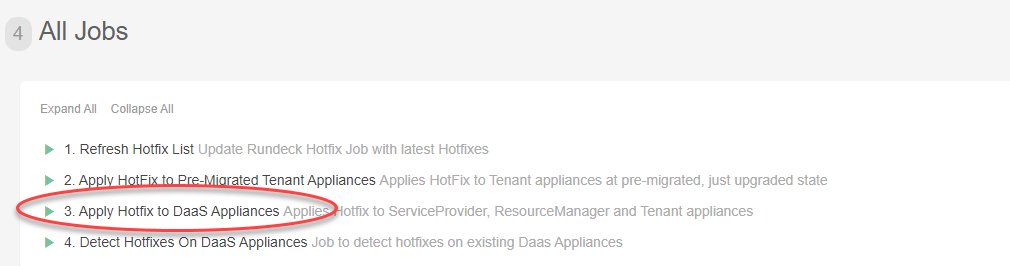
6. Click 3. Apply Hotfix to DaaS Appliances.

7. Fill in the following details:

  • ServiceProvider-IP: IP address or FQDN of one of the Service Provider appliances
  • ServiceProvider-Appliance-Password: The password for the desktone user on the appliance
  • Domain-Name: NetBIOS name for the Service Provider Active Directory environment
  • Domain-User: Active Directory User with administrator rights in the Service Provider admin console
  • Domain-Password: Password for the administrator user
  • Org-DaaS-Version: Select the version of your DaaS organization from the dropdown box
  • Hotfix: Select the hotfixes that you wish to apply in the environment. For DaaS 9.0 Update 1, there is an update bundle for the Service Provider appliances, and there is an update bundle for the Tenant appliances
  • Org-IDs: Enter the DaaS organization IDs for the tenants you want to apply the hotfix to. If you leave this field blank, it will apply the selected hotfixes to all appliances in all tenants. You do not have to apply the hotfix to all tenants in the environment – you can specify which tenants will get the update by entering the tenant ID in the field.

The hotfix should be applied to the service provider org, Tenant 1000, before applying the hotfix to any customer tenants in the environment.

Note: The Service Provider and Resource Manager appliances are part of Tenant 1000. If you want to just upgrade these appliances, enter 1000 in the Org-ID field.

Note: You can find the tenant ID field by logging into Service Center and selecting the Tenants tab.

8. Click Run Job.

9. Horizon Version Manager will execute a workflow that completes the following steps for each appliance that will receive the hotfix:

  • Take a snapshot of the appliance virtual machines
  • Push the hotfix to the appliance
  • Install the hotfix
  • Resetart the DaaS services on the appliance

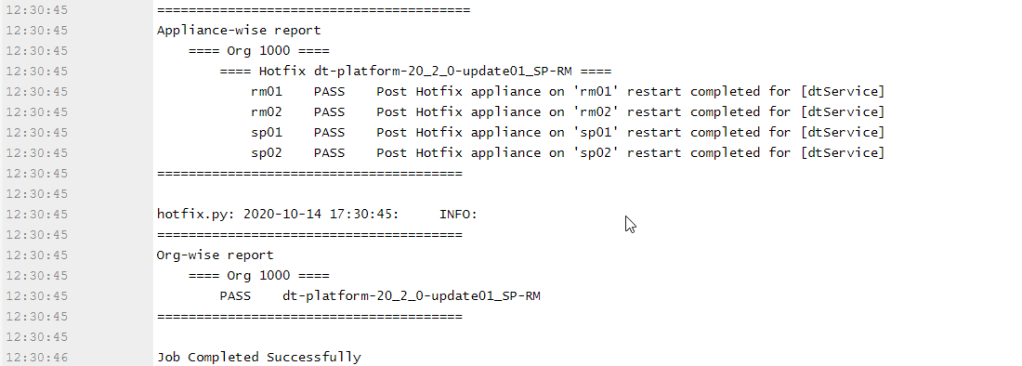
The job log will list all of the appliances that the update was attempted on, the status of the appliance, and the status of each tenant organization where the update was attempted.

As you can see, the process for deploying and managing hotfixes in Horizon DaaS 9 is fairly straightforward. The is only one manual step – uploading the hotfix files to the HVM appliance

Next week, we’ll return to our Horizon 8/Horizon 2006 series where we talk about building a desktop pool in the new environment.

Horizon 8.0 Part 8: Configuring Horizon for the First Time

The Horizon series took a hiatus over the last few weeks so I could prepare for VMworld.  If you haven’t done so, you can check out the VMworld content at in the VMworld Content library.  I highly recommend you do – there is a lot of good Horizon content in there.

We’re going to pick up right where we left off after Part 7 and start configuring our deployed connection servers.

Now that the Connection Server has been set up, it’s time to configure to work with vCenter to provision and manage desktops and RDSH servers.

Logging into the Horizon Administrator

Before anything can be configured, though, we need to first log into the Horizon Administrator management interface.  Horizon now uses an HTML5-based management interface, so it can be accessed from any modern web browser.

Prior to Horizon 2006, the main interface was built on Adobe Flex, which required Adobe Flash to be installed on any machine that you planned to use to administer Horizon. The HTML5 interface was introduced during the Horizon 7 lifecycle, and it reached feature parity within the last year.

In Horizon 2006, the Flash-based console has been removed, and the HTML5 console is now the only administrator console.  This makes it easier to perform administrative tasks in Horizon as you don’t need to install Flash or jump through hoops to get it temporarily enabled for a website.

To log in, take the following steps:

1. Open your web browser.

2. Navigate to https://<FQDN of connection server>/admin

3. Log in with the Administrator Account you designated (or with an account that is a member of the administrator group you selected) when you installed the Connection Server.

1

4. After you log in, you will be prompted for a license key.

2

Note:  The license keys are retrieved from your MyVMware site.  If you do not input a license key, you will not be able to connect to desktops or published applications after they are provisioned.  You can add or change a license key later under View Configuration –> Product Licensing and Usage. If you are using Horizon Universal or Horizon Subscription license, you will not have a license key. Licensing is handled by a cloud service through the Cloud Connector appliance.

5. Click Edit License.  Paste your license key from the MyVMware site into the license key box and click OK.

3

6. After your license key is installed, the Licensing area will show when your license expires and the features that are licensed in your deployment.

Configuring Horizon for the First Time

Once you’ve logged in and configured your license, you can start setting up the Horizon environment.  In this step, the Connection Server will be configured to talk to vCenter and Composer.

1.   Expand View Configuration and select Servers.

9

2.  Select the vCenter Servers tab and select Add…

10

3, Enter your vCenter server information.  The service account that you use in this section should be the vCenter Service Account that you created in Part 6.  Do not change anything in the Advanced Settings section.

Note: If you are using vCenter 5.5 or later, the username should be entered in User Principal Name format – username@fqdn.

11

4. If you have not updated the certificates on your vCenter Server, you will receive an Invalid Certificate Warning.  Click View Certificate to view and accept the certificate. 

Note: Old screenshot.

7

Note: Steps 5-8 refers to Horizon Composer. Composer is deprecated in Horizon 2006, and it will be removed in a future version. It is mainly here to support migrations from Horizon 7 to Horizon 8. If you are starting a new project, please use Instant Clones instead of Composer and Linked Clones, and do not configure Composer when integrating Horizon with vCenter.

These steps are included for completeness, and they may be required in some instances where you are adding a new vCenter to an existing environment. I will be using old screenshots for this section.

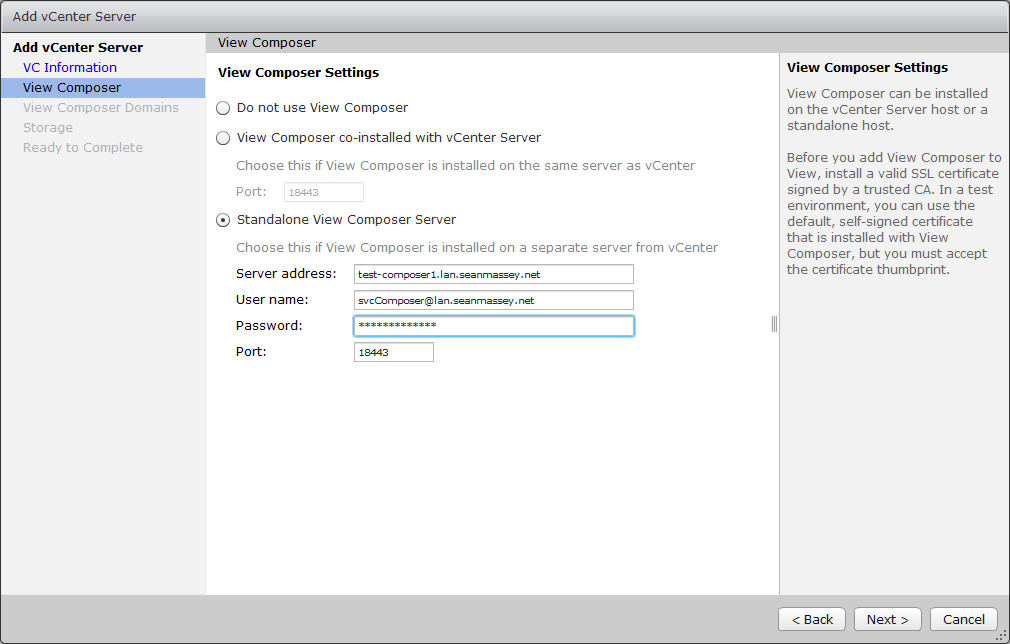
5.  Select the View Composer option that you plan to use with this vCenter.  The options are:

A. Do not use View Composer – View Composer and Linked Clones will not be available for desktop pools that use this vCenter.

B. View Composer is co-installed with vCenter Server – View Composer is installed on the vCenter Server, and the vCenter Server credentials entered on the previous screen will be used for connecting.  This option is only available with the Windows vCenter Server. (Note: This option should not be used as vCenter is now distributed as a virtual appliance and Composer runs on Windows Server.)

C. Standalone View Composer Server – View Composer is installed on a standalone Windows Server, and credentials will be required to connect to the Composer instance.  This option will work with both the Windows vCenter Server and the vCenter Server virtual appliance.

Note: The account credentials used to connect to the View Composer server must have local administrator rights on the machine where Composer is installed.  If they account does not have local administrator rights, you will get an error that you cannot connect.

8

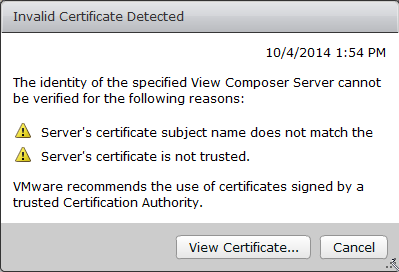
6. If Composer is using an untrusted SSL certificate, you will receive a prompt that the certificate is invalid.  Click View Certificate and then accept.

For more information on installing a trusted certificate on your Composer server, please see Part 5.

9

7. The next step is to set up the Active Directory domains that Composer will connect to when provisioning desktops.  Click Add to add a new domain.

11

8. Enter the domain name, user account with rights to Active Directory, and the password and click OK.  The user account used for this step should be the account that was set up in Part 6.

Once all the domains have been added, click Next to continue.

10

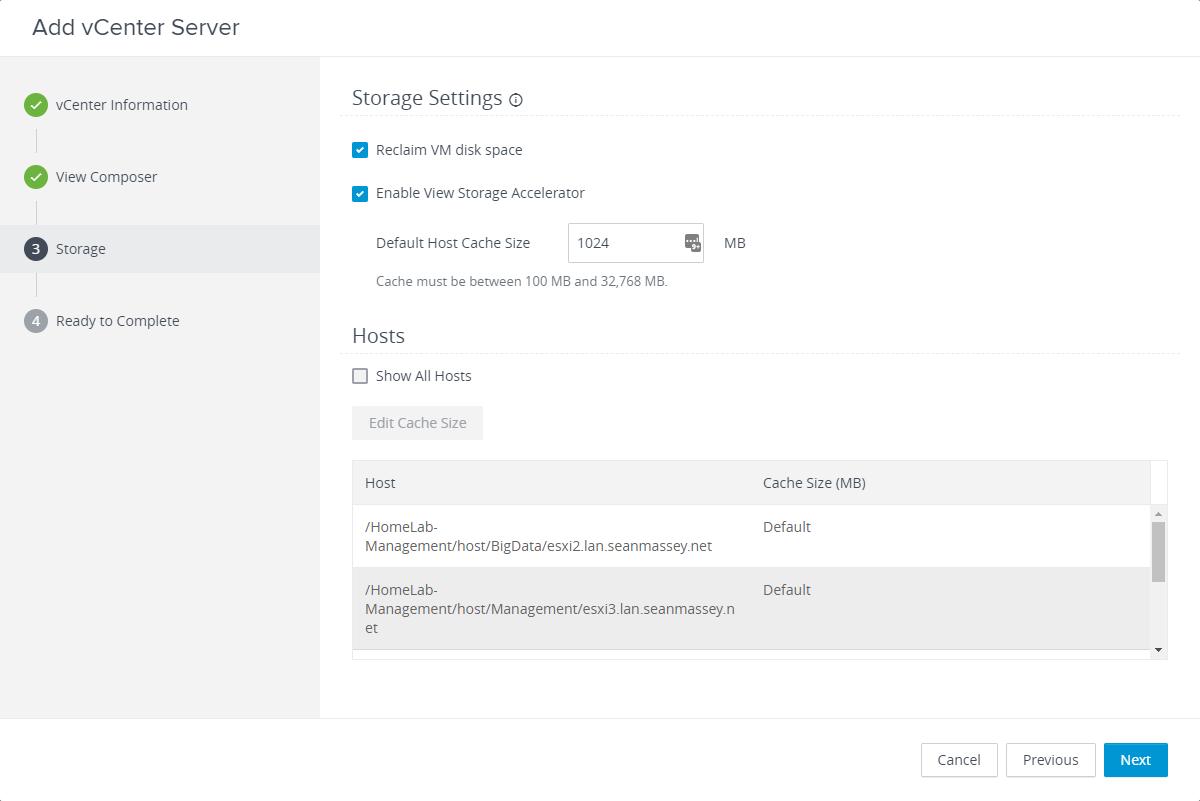
9. The next step is to configure the advanced storage settings used by Horizon.  The two options to select on this screen are:

  • Reclaim VM Disk Space – Allows Horizon to reclaim disk space allocated to linked-clone virtual machines.
  • Enable View Storage Accelerator – View Storage Accelerator is a RAMDISK cache that can be used to offload some storage requests to the local system.  Regenerating the cache can impact IO operations on the storage array, and maintenance blackout windows can be configured to avoid a long train of witnesses.  The max cache size is 2GB.

After you have made your selections, click Next to continue.

13

10. Review the settings and click finish.

14

Configuring the Horizon Events Database

The last thing that we need to configure is the Horizon Events Database.  As the name implies, the Events Database is a repository for events that happen with the View environment.  Some examples of events that are recorded include logon and logoff activity and Composer errors.

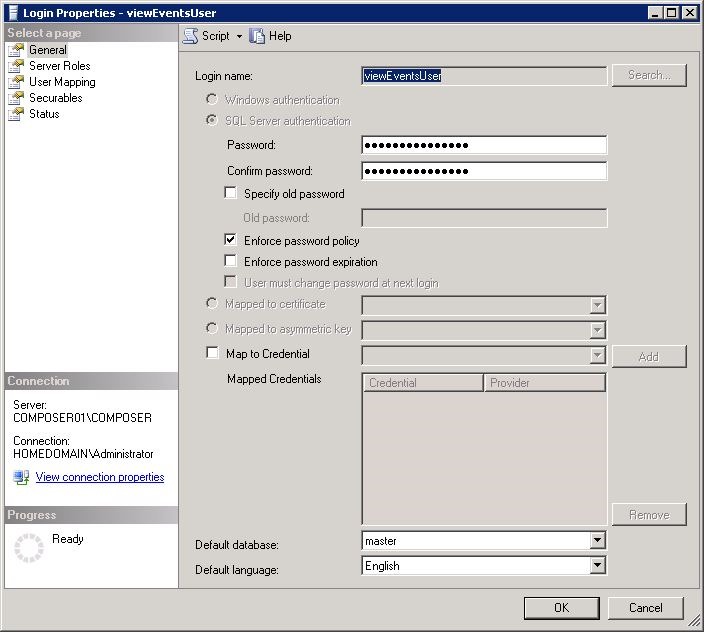
Part 6 described the steps for creating the database and the database user account.

1. In the View Configuration section, select Event Configuration.

4

2. In the Event Database section, click Edit.

5

3. Enter the following information to set up the connection:

  • Database Server (if not installed to the default instance, enter as servername\instance)
  • Database Type
  • Port
  • Database name
  • Username
  • Password
  • Table Prefix (not needed unless you have multiple Connection Server environments that use the same events database – IE large “pod” environments)

6

Note: The only SQL Server instance that uses port 1433 is the default instance.  Named instances use dynamic port assignment that assigns a random port number to the service upon startup.  If the Events database is installed to a named instance, it will need to have a static port number.  You can set up SQL Server to listen on a static port by using this TechNet article.  For the above example, I assigned the port 1433 to the Composer instance since I will not have a named instance on that server.

If you do not configure a static port assignment and try to connect to a named instance on port 1433, you may receive an error that the server is not reachable.

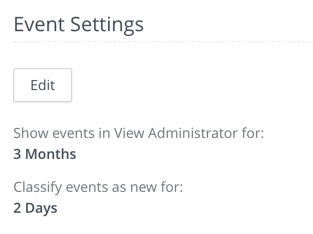
5. If setup is successful, you should see a screen similar to the one below.  At this point, you can change your event retention settings by editing the event settings.

7

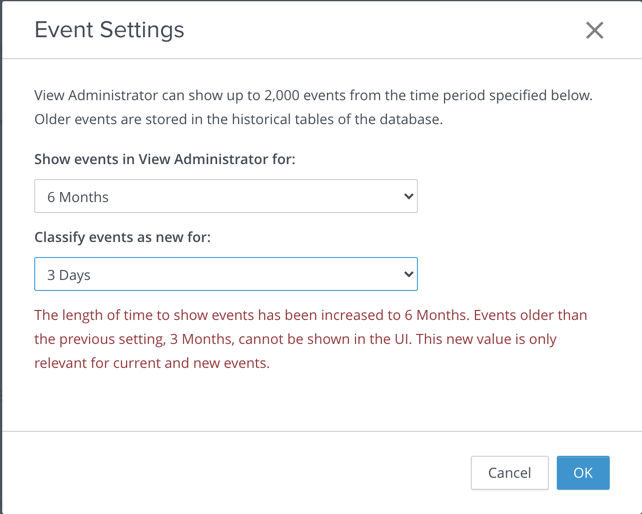
6. To edit the event retention settings, click Edit.  Select the length of time that you want events to be shown in View Administrator and classified as new. Then click OK for the change to take effect.

8

After completing these steps, your Horizon environment should be licensed, connected to your vCenter, and the event database should be configured. At this point, you are ready to create your parent image and deploy your first desktop pool. We’ll cover those steps in the next post.

Horizon 8.0 Part 7: Deploying Horizon Connection Servers

Connection Servers are one of the most important components in any Horizon environment, and they come in two flavors – the standard connection server and the replica connection server.

Connection Servers handle multiple roles in the Horizon infrastructure.  They handle primary user authentication against Active Directory, management of desktop pools, provide a portal to access desktop pools and published applications, and broker connections to desktops, shared hosted desktops, and published applications. 

When you run the Horizon installer, you will see two connection server types – the standard connection server and the replica connection server.  The Standard and Replica Connection Servers have the same feature set and perform identically after installation has completed.  The only difference between the two is that the standard connection server is the first server installed in the pod and initializes a new environment while a replica server copies data from a server in an existing environment.

Note: When you run the Connection Server installer, you will see a third role – the TrueSSO Enrollment Server role. This role is used to enable TrueSSO, which provides passwordless authentication to desktops in conjunction with VMware Workspace ONE Access.  That role will not be covered at this time.

In previous versions of Horizon, there was another connection server role – the Security Server.  The Security Server is a stripped down version of the regular Connection Server designed to provide secure remote access.  The Security Server was discontinued in Horizon 8, and it has been replaced by the Unified Access Gateway.

Architecture and Concepts

Before we go through the steps to deploy a Horizon Connection Server, let’s cover some basic architecture and concepts around Connection Servers.

VMware uses the “pod and block” concept to describe the basic Horizon architecture. A pod is a cluster of Horizon connection servers. Pods can scale out to 7 connection servers supporting up to 10,000 user sessions. Horizon uses Microsoft Active Directory Lightweight Directory Services (AD LDS, formerly ADAM) as it’s primary datastore. The AD LDS instance contains all of the common configuration for the Horizon pod, such as vCenter information, Instant Clone AD provisioning accounts, and pool configuration and entitlements. Each connection server in the pod has a local copy of the AD LDS instance.

All connection servers in the pod must be in the same physical datacenter, and Cloud Pod Architecture must be used if a multi-site deployments are required. VMware does not support Horizon deployments where connection servers in the same pod are spread across sites. This includes sites where active-active storage technologies are used, including technologies like VPLEX and Stretched VSAN. If active-active storage technologies are used, the Horizon management components must all be pinned to one site. They can manage desktops that are deployed into the other site, but all of the connection servers must be located together.

There are two reasons for this – the AD LDS instance mentioned above and the message bus technology used for communications between the connection servers. AD LDS can be prone to split-brain and USN rollback issues in the event of a network or server outage, especially if a server is operating on it’s own or restored from a backup or snapshot. These can prevent servers from replicating data and resolving replication conflicts when two connection server have different , which will impact the stability and operation of the environment.

Horizon uses Java Message Bus for communications between the desktops, and this requires extremely low latency (sub-millisecond) to ensure that all connection servers are in sync. If the connection servers are not in sync, then there may be errors where two users may have the same floating desktop assigned which will lead to errors. Simon Long has a great blog post explaining this in more detail.

In the Horizon block and pod architecture, blocks are the vSphere resources that desktops and RDSH servers will run on. A block is a vCenter servers for management and one or more ESXi hosts or clusters for running virtual machines. A Horizon deployment can have one or more resource blocks. The management components can along side desktop or RDSH resources, but this is not recommended for most deployments.

Note: While the Horizon connection servers must be located together in the same site, the desktop resources do not need to be located in the same site as the Connection Servers.

Installing the First Connection Server

Before you can begin installing the Horizon Connection Server, you will need to have a server prepared that meets the minimum requirements. The basic requirements, which are described in Part 2, are a server running Server 2012 R2 or later with 2 CPUs and at least 4GB of RAM.

Note:  If you are going have more than 50 virtual desktop sessions on a Connection Server, it should be provisioned with at least 10GB of RAM.

Once the server is provisioned, and the Connection Server installer has been copied over, the steps for configuring the first Connection Server are:

1. Launch the Connection Server installation wizard by double-clicking on VMware-viewconnectionserver-x86_64-8.x.x-xxxxxxx.exe.

2. Click Next on the first screen to continue.

3.  Accept the license agreement and click Next to continue.

4.  If required, change the location where the Connection Server files will be installed and click Next.

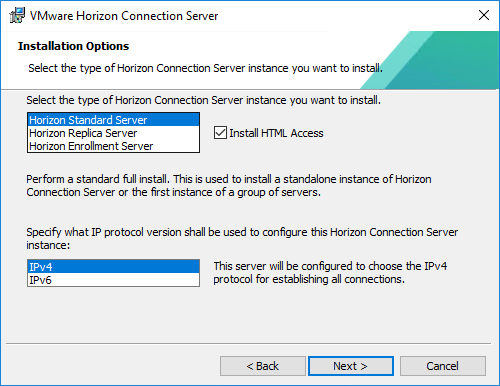
5. Select the type of Connection Server that you’ll be installing.  For this section, we’ll select the Horizon Standard Server.  If you plan on allowing access to desktops through an HTML5 compatible web browser, make sure that “Install HTML Access” is installed. This option should be enabled by default.  Select the IP protocol that will be used to configure the Horizon environment.  Click Next to continue.

If you are installing a standard server to create a new pod, please skip to step 6. If this is a replica server to expand an existing pod, please see Step 5a.

5a – Applies only to Replica Servers. If you are installing a Horizon Replica Server, you will be prompted to provide the IP address or host name of another server in the pod. This is the server that the AD LDS instance will be replicated from.

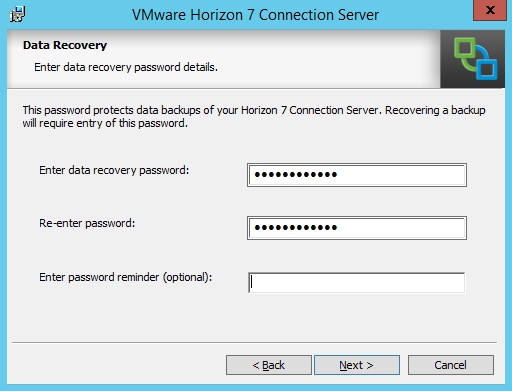
6. Enter a strong password for data recovery.  This will be used if you need to restore the Connection Server’s LDAP database from backup.  Make sure you store this password in a secure place.  You can also enter a password reminder or hint, but this is not required.

7. Horizon requires a number of ports to be opened on the local Windows Server firewall, and the installer will prompt you to configure these ports as part of the installation.  Select the “Configure Windows Firewall Automatically” to have this done as part of the installation.

Note: Disabling the Windows Firewall is not recommended. 

8. The installer will prompt you to select the default Horizon environment administrator.  The options that can be selected are the local server Administrator group, which will grant administrator privileges to all local admins on the server, or to select a specific domain user or group.  The option you select will depend on your environment, your security policies, and/or other requirements.

If you plan to use a specific domain user or group, select the “Authorize a specific domain user or domain group” option and enter the user or group name in the “domainname\usergroupname” format.

Note: If you plan to use a custom domain group as the default Horizon administrator group, make sure you create it and allow it to replicate before you start the installation. 

9.  Chose whether you want to participate in the User Experience Improvement program.  If you do not wish to participate, just click Next to continue.

10. If you are installing into an SDDC on a public cloud, such as VMware Cloud on AWS, select the cloud service from the drop down box. Otherwise, select General. Click Install to begin the installation.

11. The installer will install and configure the application and any additional windows roles or features that are needed to support Horizon.

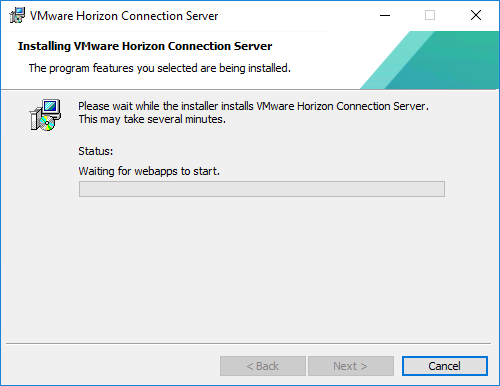
12. The installer will wait for the Horizon web apps to start.

13. Once the install completes, click Finish.  You may be prompted to reboot the server after the installation completes.

Configuring the Locked.Properties file

Before you sign into Horizon Administrator to configure the environment or allowing users to connect to a new connection server in an existing pod, a configuration change needs to be made.

Horizon is configured to perform origin checking on all incoming connections. This can prevent users from accessing the HTML5 client and admin interface through a load balanced URL or the Unified Access Gateway. This KB explains the issue in more detail.

In order to properly configure Horizon, we will need to create a file called locked.properties on the connection server. The locked.properties file is a simple text file, and it needs to be created in C:\Program Files\VMware\VMware View\Server\sslgateway\conf.

The steps for configuring HTML client access when using load balanced connection servers can be found in the VMware documentation here, and the steps for configuring HTML client access when using the Unified Access Gateway can be found here. Depending on your environment, one or both of the articles may apply, and these changes must be applied to each connection server in the pod.

The connection server services will need to be restarted after the changes have been made.

Origin checking is not the only thing the locked.properties file is used for. This file is used to control the behavior of the web server used with Horizon. You can learn more about the Cross-Origin Resource Sharing options used in the locked.properties file here.

Note: The locked.properties file is also used for configuring HTTP settings, Smart Card Access, and other features of the web server used by Horizon. Please see the Horizon documentation at docs.vmware.com for more details.

Now that the Connection Server is installed, it’s time to begin configuring the Horizon application so the Connection Server can communicate with vCenter as well as setting up any required license keys and the events database.  Those steps will be covered in the next part.

Horizon REST API Library for .Net

So…there is a surprise second post for today. This one is a short one, and if you’ve been interested in automating your Horizon deployment, you will like this.

One of the new features of Horizon 2006 is an expand REST API. The expanded REST API provides administrators with the ability to easily automate pool management and entitlement tasks. You can learn more about the REST API by reviewing the Getting Started guide on Techzone, and you can browse the entire API on VMware Code.

Adopting this API to develop applications for Horizon has gotten easier. Andrew Morgan from the VMware End User Computing business unit has developed a .Net library around the Horizon Server REST API and released it on Github. This library supports both .Net 4.7 and .Net Core. The Github repo includes code samples for using the library with C# and Visual Basic.

I’m excited to see investment in this REST API as it will help customers, partners, and the community build applications to enhance and extend their Horizon deployments.

Determining Features Installed in the Horizon Agent or Windows Client

Let’s say you have a desktop pool or RDSH Farm.  You want to try out something in Horizon that requires a change to the Agent or Client, but you can’t remember if it’s been installed.  You could reinstall the agent or client to make sure the component you need is there.  But that’s a lot of manual work.

Thanks to a tip from a couple of my colleagues, including William Uhlig and Dan Berkowitz, there is an easier way to see what was installed with the Horizon Agent.  You can just check a registry key.

Inside your virtual desktops and RDSH servers, there is a registry key that shows all of the features available in the Horizon agent and whether they are available locally.  This registry key is located at HKEY_LOCAL_MACHINE\Software\VMware, Inc.\Installer\Features_HorizonAgent

Reg1

As you can see in the attached screenshot, features that are available have a value of “Local.”  Features that aren’t available, ie those that were not installed, as listed as being “Absent.”

There is also a registry key that shows installed features for the Horizon Client on Windows.  Horizon has a single installer that is used for both 32-bit and 64-bit Windows, so the location of this key will depend on what version of Windows you have installed. The path for this registry key on a 64-bit machine is HKEY_LOCAL_MACHINE\SOFTWARE\WOW6432Node\VMware, Inc.\VMware VDM\Client\Installer\.

Inside this registry key, there will be a key named with a GUID. The contents of this field contain the list of features that are installed in the Windows Horizon Client. Unlike the Agent install key, it uses a binary value to denote if a feature is installed instead of “local” or “absent.” The Horizon Client has fewer installable options compared to the agent, and the only optional item that does not appear in this key, at least in a default installation, is URL Content Redirection. This feature require a command-line switch to enable in the Horizon Client installer.

Horizon 8.0 Part 6: Service Accounts and Databases

Back in Part 4, I mentioned that Horizon required up to a few service accounts to function properly.  One of these accounts is for accessing vCenter to provision and manage the virtual machines that users will connect to.  The other service account will manage computer accounts within Active Directory, and this account is only required if you are using Instant Clones.

Horizon 8 utilizes a single database for storing event and auditing data generated by the platform. This database is optional, but it is highly recommended. Horizon supports running the event database on Microsoft SQL Server and Oracle, and you can find the specific supported versions in the VMware Product Interoperability Matrix. This post will cover setting up the event database on Microsoft SQL Server.

It’s important to build the Active Directory service accounts and database access accounts with the principle of least privileged access in mind.  These accounts should not have more rights than they would need.  So while the easy way out would be to give these accounts vCenter Administrator, Domain Administrator, and SQL Server or Oracle SysAdmin rights, it would not be a good idea as these accounts could potentially be compromised.

vCenter Service Account

The first account that needs to be created is a service account that Horizon will use for accessing vCenter.  Horizon uses this account for virtual machine management tasks, including provisioning new virtual desktops and RDSH servers and performing power operations.  The service account can either be an Active Directory user or a local vCenter user. When installing Horizon in an on-premises environment, I prefer to use a standard Active Directory domain user account without any additional administrator-level rights on the domain or on the vCenter server.

There are a couple of different ways to configure your Horizon environment, so the actual rights required in vCenter will vary.  The specific permissions that are required can be found in the Configuring User Accounts for vCenter Access section of the Horizon documentation..

A new role will need to be created within vCenter in order to assign the appropriate permissions.  To create a new role in the vCenter Web Client, you need to go to Administration –> Roles from the main page.  This will bring up the roles page, and we can create a new role from here by clicking on the green plus sign.

2013-12-29_19-14-37

For the purposes of this walkthrough, I’ll be setting up my service account with permissions to deploy Instant Clone desktops.  These permissions will also support deploying Full Clone desktops.  The permissions that need to be assigned to our new role are:

Privilege Group Privilege
Cryptographic Operations Cryptographic Operations permissions are required if you use Instant Clones with virtual Trusted Platform Module Devices

Clone

Decrypt

Direct Access

Encrypt

Manage KMS

Migrate

Register Host

Datastore Allocate Space

Browse Datastore

Low Level File Operations

Folder Create Folder

Delete Folder

Global Act as vCenter Server*

Enable Methods

Disable Methods

Manage Custom Attributes

Set Custom Attribute

System Tag

*Required for View Storage Accelerator

Host Inventory

·         Modify Cluster

Network All Permissions
Profile Driven Storage All Permissions Required if using VSAN or Virtual Volumes
Resource Assign virtual machine to resource pool
Storage Views View
Virtual Machine Configuration

·         All Permissions

Interaction

·         Device Connection

·         Perform Wipe or Shrink Operations

·         Power Off

·         Power On

·         Reset

·         Suspend

Inventory

·         All Permissions

Provisioning

·         Allow Disk Access

·         Clone Template

·         Clone Virtual Machine

·         Customize

·         Deploy Template

·         Read Customization Specification

Snapshot Management

·         All Permissions

After the role has been created, we will need to assign permissions for our vCenter Server service account to the root object in vCenter.  This is the vCenter Server object at the top of the tree.  To do this from the roles screen, you will need to go back to the vCenter Web Client Home screen and take the following steps:

  1. Select vCenter
  2. Select vCenter Servers under Inventory Lists
  3. Select the vCenter that you wish to grant permissions on
  4. Click on the Manage Tab
  5. Click Permissions
  6. Click the Green Plus Sign to add a new permission
  7. Select the role for Horizon Composer
  8. Add the Active Directory Domain User or local vCenter user who should be assigned the role
  9. Click OK.

2013-12-29_20-33-59

Horizon Events Database Account

The Events Database is a repository for all events that happen within the Horizon environment.  Some examples of events that are recorded in the database include logon and logoff activity, an audit trail of administrator activities, and desktop provisioning errors.

The Events Database requires a Microsoft SQL Server or Oracle database server, and it should be installed on an existing production database server.  There are two parts to configuring the events database.  The first part, creating the database and the database user, needs to be done in SQL Server Management Studio before the event database can be configured in Horizon Administrator.  The steps for configuring Horizon to use the Events database will happen in another post.

Note: Horizon also supports sending event data off to a syslog server.  This can be used in place of an events database.  Configuring a syslog server is beyond the scope of this article.

When setting up a Horizon Event Database on Microsoft SQL Server, SQL Server Authentication needs to be enabled.  Horizon uses JDBC, and Windows Authentication cannot be used with the event database.

To set up the database, follow these steps:

1. Open SQL Server Management Studio and log in with an account that has permissions to create users and databases.

2. Expand Security –> Logins.

3. Right-click on Logins and Select New Login…

1. Create New User 1

4. Enter the SQL Login Name and Password and then click OK.

2. Create New User 2

5. Expand Databases.

6. Right-click on Databases and select New Database.

7. Enter the database name.  Select the database user that you created above as the database owner.  Click OK to create the database.

3. Create View Events Database

Note: SQL Server named instances are configured to use dynamic ports.  This means that SQL Server will use a new port every time the server is restarted.  The events database does not support dynamic ports, so a static port will need to be configured and the SQL instance restarted prior to configuring the events database in Horizon.  For instructions on how to configure a static ports in SQL Server, please see this article.

We have now created the shell of the database.  It is empty now, and all of the tables will be created when we configure the event database in Horizon in a future step.

Active Directory Provisioning Account

The Active Directory Provisioning Service account is used by Horizon to manage the computer accounts that are created for Instant Clone desktops.

This account can be created as a standard domain user, and it should not have domain administrator or account operator rights – it only needs a select group of permissions on the OU (or OUs) where the virtual desktop computer accounts will be placed.

After this account has been created, you need to delegate permissions to it on the OU (or OUs) where your VDI desktops will be placed.  If you use the structure like the one I outlined in Part 4, you only need to delegate permissions on the top-level OU and permission inheritance, if turned on, will apply them to any child or grandchild objects beneath it.

Note:  If inheritance is not turned on, you will need to check the Apply to All Child Objects checkbox before applying the permissions.

The permissions that need to be delegated on the OU are:

  • List Contents
  • Read All Properties
  • Write All Properties
  • Create Computer Objects
  • Delete Computer Objects
  • Read Permissions
  • Reset Password

Note: Although granting this account Domain Administrator or Account Operator permissions may seem like an easy way to grant it the permissions it needs, it will grant a number of other permissions that are not needed and could pose a security risk if that account is compromised.  Only the required permissions should be granted in a production environment.

This wraps up all of the prerequisites for the environment.  In the next couple of sections, I will be covering the installation and configuration of VMware Horizon.