Lab Update -Migrating to Nutanix CE and Lessons Learned

vSphere has been a core component of my home lab for at least 15 years.  I’ve run all sorts of workloads on it ranging from Microsoft Exchange in the earliest days of my lab to full-stack VDI environments to building my own cloud for self-hosting Minecraft Servers and replacing paid SaaS apps with open source alternatives.

So last year, I made a hard decision to migrate my home lab off of VMware products and onto other platforms.  There were multiple factors that drove this decision.  Some of these decision points were:

  • A desire to simplify my lab infrastructure
  • Removing licensing dependencies like community/influencer program membership for my lab’s core infrastructure
  • Support EUC solutions like Dizzion Frame that were not available on my platform
  • Didn’t want to rebuild everything from scratch

I realized early on that this would need to be a lab migration.  I had too many things in my lab that were “production-ish” in the sense that my family would miss them if they went away. There were also budget, hardware, and space constraints, so I wouldn’t be able to run the two full stacks to run services in parallel during this process even if I had wanted to rebuild services.

I also wanted to use the migration to rationalize aspects of the lab.  Some parts of my lab had been operating for over a decade and had built up a lot of kruft. This would be a good opportunity to retire those parts of the lab and rebuild those instances if those services were needed.

Approach to Migration and Defining Requirements

Since my lab had taken on a “production-ish” quality, I wanted to approach the migration like I would have approached a customer or partner’s project. I evaluated my environment; documented my requirements, constraints, risks, and future state architectures; and developed an implementation and migration plan.  

Some of the key requirements and constraints that I identified for my main workload cluster were:

  • Open-Source or community licensing not constrained by NFRs or program membership
  • Live migration support
  • Utilize hyperconverged storage to simplify lab dependencies
  • Hypervisor-level backup integration, particularly Veeam as I was using Community Edition in my lab
  • Hashicorp Packer support
  • Migration tool or path for vSphere workloads
  • I was out of 10 GbE ports, so I could only add 1 new server at a time after retiring older hardware

The leading candidates for this project were narrowed down to Nutanix Community Edition, Proxmox, and XCP-NG. I selected Nutanix Community Edition because it checked the most boxes.  It was the easiest to deploy, it had Nutanix Move for migrating from vSphere, and when I started this project in 2024, it was the only option that fit my licensing requirements that Veeam supported.

You’ll notice that EUC vendor support is not on the list.  While trying out other EUC tools in my lab was a driver for changing my lab, I didn’t want to make that a limiting factor for my main workload cluster.  This cluster would also be running my self-hosted applications, Minecraft servers, and other server workloads. Licensing and backup software support were bigger factors. I could always stand up a single node of a hypervisor to test out solutions if I needed to, although this became a moot point when I selected Nutanix.

I identified two major outcomes that I wanted to achieve. The first, as noted in the requirements, was to remove licensing dependencies for my lab. I didn’t want to be forced into having to migrate to a new platform in the future because of NFR licensing or community program changes. The lab needed to stand on it’s own.

The second outcome was to reduce my lab’s complexity. My lab had evolved to be a small-scale mirror of the partners I used to cover, and that lead to a lot of inherent complexity. Since I was no longer covering cloud provider partners, I could remove some of this complexity to make lab and workload management easier.

I ended up buying one new host for my lab.  At the time I started this, my lab was a mix of Dell PowerEdge R430s, R620s, and R630s for virtual workloads. I wanted to run Nutanix on the newest hardware that I had available. Nutanix CE does not support 2-node clusters, and I wanted to have matching hardware configs for that cluster to simplify management.  

Workload Migration

After deploying Nutanix CE, Prism Central, and Nutanix Move, I started planning my workload migration.

Migrating my workloads proved to be the easiest part of this process.Nutanix Move just worked for migrating workloads. I had a few minor challenges with my test workloads that I was able to address these with some preplanning.

What challenges did I encounter?  The biggest challenges were with my Debian servers, and they came in two forms.  The first was that the main network interface was renamed from ens192 to ens3 when changing hypervisors, and I worked around this by renaming the interface in the networking config before shutting down the servers and migrating off of vSphere.

The second challenge was due to how I deployed my Debian VMs. I built my Debian templates as OVA files, and I used OVF properties to configure my servers at deployment. There were scripts that ran on boot that would read the OVF properties and configure the default user, network stack, and some application information like Minecraft server properties.  These servers needed to be disabled or removed prior to migration because they would error out if there were no OVF properties to read. Nutanix does not support OVF properties, and those attributes would be stripped from the VM during the migration.

Once I worked around these issues, I was able to accelerate the migration timeline and move all of my server workloads in a few days.  

Impact on Workflows and Processes

Major infrastructure changes will impact your workflows and processes.  And my lab migration was no exception to this. 

The largest impact was how I built and deployed VMs. I use Packer to build my Debian and Windows templates. I reused most of my Packer builds, but I had to make a few small adjustments to jobs for them to function with Nutanix. There were also some functionality differences that were resolved wtih two pull requests to add missing functionality for Debian and Windows OS builds.

My Debian build and deploy process changed in two ways.  First, I had to change how I consumed Debian.  On vSphere, I would build each image from scratch using the latest Debian ISO and a custom installer file that was pulled down from a local webserver. The Nutanix Packer could not send keystrokes to the VM, so I was unable to load my custom installer configuration file.  

I switched to using the prebuilt Debian Generic images, but this change had two further impacts.  First, these images assumed that the VM had a serial port for console debugging.  The Nutanix Packer plugin did not support adding a serial port to a VM, so I submitted a pull request to add this feature.  The second impact was that I needed to learn Cloud-Init to inject a local user account and network configuration to build the VM.  This was a good change since I also needed cloud-init to configure any VMs I deployed from these Debian templates.

I faced two small, but easily fixed, challenges with my Windows build process. The first challenge is that the Nutanix Packer Plugin did not support changing the boot order when the VM used UEFI. The Nutanix API supported this. However, the Packer plugin had never been updated which resulted in my second pull request. The other challenge I’ve encountered is that Nutanix does not support virtual floppy disk drives for the Windows Installer configuration files and initial configuration scripts, and this is easily solved by having Packer create an ISO for these files using xorriso or a similar tool.

I also ran into an issue with Veeam that delayed my implementation, but that had more to do with the network design choices I made for my self-hosted applications than anything specific to Veeam or AHV. That issue had to do with a legacy network design that I carried over from VMware Cloud Director that I should have ditched when I removed VCD from my lab but kept around because I was being lazy. 

In an enterprise environment, these minor issues would have been found and addressed during an evaluation or very early in the migration process.  But since I am running my lab as a single person, these issues were discovered after the migration and took longer to resolve than expected because I was juggling multiple tasks.

Lessons Learned

A hypervisor or cloud migration is a large project, and there were some key lessons that I learned from it. For my workloads and environment, the workload migration was the easy part. VMs are designed to be portable, and tools exist to make this process easy. 

The hard part was everything around and supporting my workload.  Automation, backup, monitoring…those pieces are impacted the most by platform changes. The APIs are different, and the capabilities of your tooling may change due to API changes. I’ve spent more time rebuilding automation that I had built over years than actually moving my workloads.

Those changes are also an opportunity to introduce new tools or capabilities.  A migration may expose gaps that were papered over by manual processes or quick-fix scripts, and you can use this opportunity to replace them with more robust solutions. As I talked about above, I had been using OVF Properties for configuring Linux VMs instead of good configuration management practices.  This change not only forced me to use Cloud-Init, but I’ve started to introduce Ansible for configuratoin management.

Here is what I would recommend to organizations that are considering a platform change or migration.

  1. Do your homework up front to make sure you understand your workloads, business and technical requirements, and your business IT ecosystem
  2. Get a partner involved if you don’t have a dedicated architecture team or the manpower to manage a migration while putting out fires. They can facilitate workshops, get vendors involved to answer questions, and act as a force multiplier for your IT team.  
  3. Evaluate multiple options.  One size does not fit all organizations or use cases, and you may find the need to run multiple platforms for business or technical reasons
  4. Test and update any integrations and automation before you start migrating workloads. Putting the work in up front will ensure that you can mark the project complete as soon as that last workload is migrated over.

In my case, I didn’t do #4.  I was under a crunch due to space and budget limitations and using NFR licenses in my lab, and I wanted to move my workloads before those licenses expired. 

If you have questions about hypervisor migrations or want to share your story, please use the contact me link.  I would love to hear from you.
Omnissa Horizon on Nutanix AHV

Tech conferences always bring announcements about new products, partnerships, and capabilities. This year’s Nutanix .Next conference is no exception, and it is starting off with a huge announcement about Omnissa Horizon.

Omnissa Horizon is adding support for Nutanix AHV, providing customers building on-premises virtual desktops and applications environments with the choice of hypervisor for their end-user computing workloads.

Horizon customers will also have the opportunity to participate in the Beta of this new feature. Signup for the beta is available on the Omnissa Beta site.

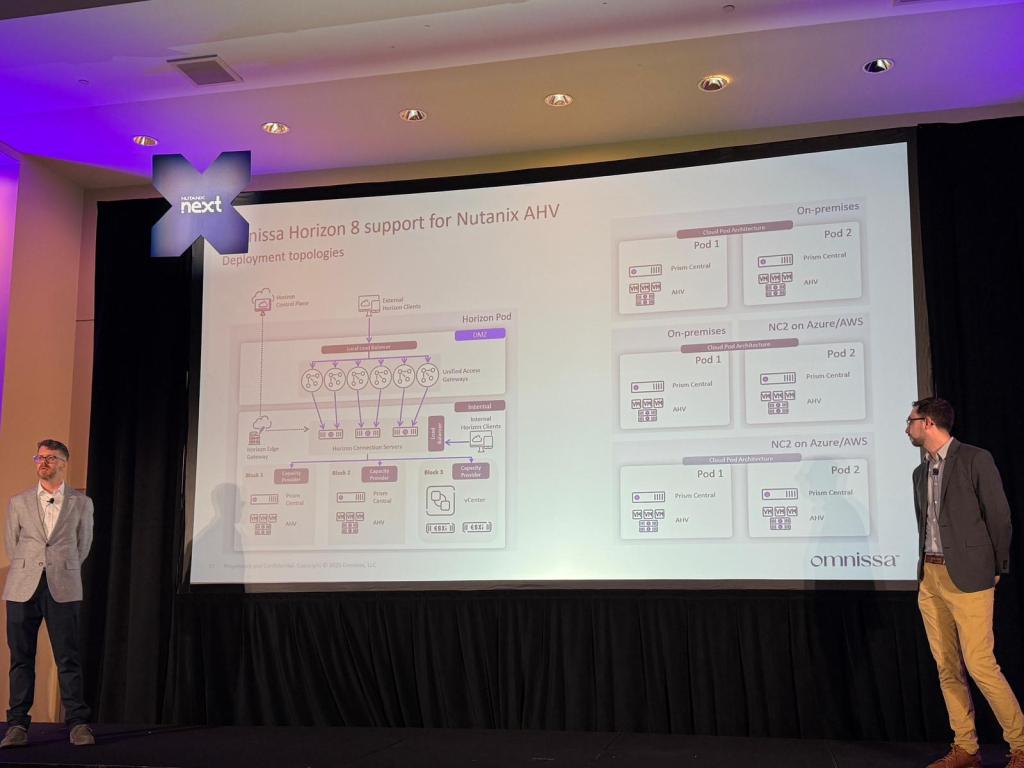
I’m not at the .Next conference this week, but I have heard from attendees that the Horizon on AHV session was well attended and included a lot of technical details including a reference architecture showing Horizon running on both Nutanix AHV and VMware vSphere in on-premises and cloud scenarios. The session also covered desktop provisioning, and Horizon on Nutanix will include a desktop provisioning model similar to “Mode B Instant Clones” using Nutanix’s cloning technologies.

Horizon on AHV reference architecture. Picture courtesy of Dane Young

My Thoughts

So what do I think about Horizon on Nutanix AHV? I’m excited for this announcement. Now that Omnissa is an independent company, they have the opportunity to diversify the platforms that Horizon supports. This is great for Horizon customers who are looking at on-premises alternatives to VMware vSphere and VCF in the aftermath of the Broadcom acquisition.

I have a lot of technical questions about Horizon on Nutanix, and I wasn’t at .Next to ask them. That’s why I’m signing up for the beta and planning to run this in my lab.

I’ve seen some great features added to both Horizon and Workspace ONE since they were spun out into their own company. These include support for Horizon 8 on VMware Cloud Director and Google Cloud and the Windows Server Management feature for Workspace ONE that is currently in beta.

If you want to learn more about Horizon on Nutanix AHV, I would check out the blog post that was released this morning. If you run Nutanix in production or use Nutanix CE in your home lab, you can register for the beta.

Cloudy with a Chance of Desktops – Episode 1: NVIDIA GTC Recap with Stephen Wagner

Back in 2021, I tried to launch a YouTube channel and podcast focused on End-User Computing. That lasted for about 1 week before I realized I was completely burnt out and took a break to play Pokemon for a year.

After taking a four year break from this (and most content creation in general), I decided to try again as I start up my own consulting business.

In my first podcast episode, Stephen Wagner joins me to talk about NVIDIA GTC, AI workstations, and World of EUC.

Keep an eye out for more as I plan on doing more podcast format and technical videos soon.

Adding or Replacing Disks in Nutanix Community Edition 2.1

In my last home lab blog post, I talked about working with Nutanix Community Edition (CE).  I’ve been spending a lot of time with CE while migrating my home lab workloads over to it.

One of the things I’ve been working on is increasing the storage in my lab cluster. When I originally built my lab cluster, I used the drives that I had on hand.  These were a mixed bag of consumer-grade 1TB SATA and NVME SSDs that worked with my PowerEdge R630s.  It worked great, and I was able to get my cluster built.  

Then I stumbled onto some refurbished Compellent SAS SSDs on eBay, and I wanted to upgrade my cluster.  

While there are some blog posts that cover adding or replacing drives in CE, those posts are for older versions.  The current version of CE at the time of this post is CE 2.1, and it has some significant changes compared to the older versions.  Those directions would work to a point – I could get the new disk imported into my CE cluster, but they would disappear if I shut down or rebooted the host.

You’re probably asking yourself why this is happening.  It’s Nutanix. I should be able to plug in a new disk and have it added into my cluster automatically, right?

Technical Differences Between CE and Commercial Nutanix   

There are some differences between the commercial Nutanix products and CE.  While CE is using the same bits as the commercial AOS offering, it is designed to run on uncertified hardware.  CE can run on NUCs or even as a nested virtual machine as long as you meet the minimum storage requirements.

Commercial Nutanix products will use PCI Passthrough to present the storage controller to the CVM, and the CVM will directly manage any SATA or SAS disks that are installed. This only works with certified SAS HBAs that are found in enterprise-grade servers. CE does not pass the storage controller through to the CVM virtual appliance. Most hardware used in a home lab will not have a supported storage controller, and even if one is present, there is a good chance that the hypervisor boot disk will also be attached to this storage controller.

CE gets around this by passing each SATA or SAS disk through to the CVM individually by reference values like the WWN and Device ID.  This means that you can move the drives to different slots and they will still mount in the same place on the CVM.  CE will also map the disk’s device name as its drive slot – so if a disk’s device name in /sda, for example, CE will map it to slot 1.  This is a little different than a commercial Nutanix system where the disk slot is mapped to a physical slot on the server or HBA.

The disk’s Device ID, UUID and WWN are also provided to the CVM, and this can cause some fun errors if the mounting order or device name changes.  If an existing disk mounted as /sda changes to /sdb, CE will still try to assign it to Slot 1. You may see errors in the Hades log that say “2 disks in one slot” that prevent you from using the new disk.

Adding or replacing disks should be pretty simple then. We just need to edit the CVM’s definition file and update it with the new drive information. Right?  

You’d think that, but that leads right into the second problem I mentioned earlier: the new drives would disappear when the host was rebooted. And to make this issue a little worse, I would see errors about unmounted or missing drives in Prism after the reboot.

So what’s happening here?

After looking into this and talking with the CE lead at Nutanix, I learned that the CVM definition file is regenerated on every host reboot. So if I make a change to the CVM definition, it will be rolled back to its “known configuration” the next time the host is powered on.  Generally speaking, this is a great idea, but in this case, we want to change our CVM configuration and don’t want it to revert on a reboot.

We’ll need to edit a file called cvm_config.json on our host to make our changes permanent. 

There is just one other little thing. The CVM’s disk device names are determined by the order they are listed in the cvm_config.json file. The first disk on the list will be named /sda, second disk as /sdb, etc. And as I said above, the Hades service that manages storage equates the new disk’s device name with the disk slot, and existing disks may also be assigned to that slot if it previously used that device name. This could prevent you from using the new disk and generate “two disks in one slot” error messages in the Hades log if the mounting order changes..

Adding and/or Replacing Disks

So how do we add or replace a disk on Nutanix CE?  Here are the steps that I took in my lab to replace SATA SSDs with SAS SSDs.  NVME drives are PCI Passthrough devices, and I won’t be covering them in this post.

This process will be making changes to your lab environment. Make sure you have backed up any important data before taking these steps, and remember that you are doing these at your own risk.

Removing an Old Disk

The first step I like to take when replacing a disk is to remove the disk I am replacing.  This step isn’t required, but I like to remove the disk first to evacuate any data from it before I make any changes.  If you’re just adding a new disk and not replacing an old one, you can skip to the next section.

To remove our disk, we need to start in Prism. Go to the dropdown menu located at the top of the screen and select Hardware

Click Table (1) and then Disks (2)

Locate the disk you want to remove. The easiest way to do this is by searching for the disk’s serial number.  Right click on the disk and select Remove.  I will also write down the serial number because I will need it later.

This will start the process of evacuating data from the disk, and it may take some time to complete. After the data has been evacuated from the disk, it will be unmounted and removed from the list.  

Entering Maintenance Mode

Before we can shut down the host to replace our disks, we need to prepare the host and/or cluster for maintenance.  There are two ways to do this, and the option you select will depend on how many hosts are in your CE cluster.

If you have a 3 or 4 node CE cluster, then you can place your host into maintenance mode.  This will migrate all running VMs to another host and shut down the CVM for you.  The steps to put a host into maintenance mode are:

Click on Table -> Hosts.

Right click on the host you want to put into maintenance mode and select Enter Maintenance Mode.

When you enter maintenance mode, all VMs will be migrated to another host in the cluster before that host’s CVM is shut down.  It will stay in maintenance mode until you take it out of maintenance mode.

If you only have a single host in your cluster, you will need to shut down all powered-on VMs, manually stop the cluster from the CVM’s command line, and then shut down the CVM.

Once our CVM is shut down, we need to shut down our host to install our new drive or drives. AHV will not detect any new drives without a reboot. So we will need to reboot the server even if we are using enterprise-grade hardware with a storage controller that supports hot-adding drives.

Configuring AHV to Use New Disks

Once our new drives are installed, we can power our host back on.  When it has finished booting, we need to SSH into AHV.  We will need root privileges for the next couple of steps, so you will need to either use the root account or use an account with sudo privileges.  When I was doing this in my lab, I logged in as the admin user and ran sudo su – root to switch to the root user to perform the next steps.

Before we do anything else, we need to back up our CVM configuration file.  This is the file that AHV will use to regenerate the CVM’s virtual machine definition.  The command to back up this file is below.

Root user: cp /etc/nutanix/config/cvm\_config.json /etc/nutanix/config/cvm_config.backup
Admin user:sudo cp /etc/nutanix/config/cvm\_config.json /etc/nutanix/config/cvm_config.backup

Next, we need to validate that our new drives are showing up and mounted properly.  We also want to get the device name for the new drive because we will need that to get other information we need in the next step.  The command we need to run is lsblk or sudo lsblk if we’re not the root user.

Next, we need to retrieve our drive’s device identifiers.  These include the SATA or SCSI name and the WWN.  We will use these when we update our CVM config file to identify the drive that needs to be passed through to the CVM.  The command to retrieve this is below.

Root User: ls -al /dev/disk/by-id/ | grep <device name>
Admin User: sudo ls -al /dev/disk/by-id/ | grep <device name>

Next, we will need to generate a unique UUID for the drive we will be installing.  The command to generate a uuid is uuidgen

Finally, we will need to retrieve the drive’s vendor, product ID, and serial number. We can use the smartctl command to retrieve this. Smartctl works with both SATA and SAS drives.  The command to get this information is below.  If you are planning to install a SATA drive, you’ll want to mark the vendor down as ATA as this is how Nutanix appears to consume these drives.

Root user: smartctl -i /dev/<device name>
Admin user: sudo smartctl -i /dev/<device name>

So now that we’ve retrieved our new disk’s serial number, WWN, and other identifiers, we need to update our CVM definition file.  We do this by editing the cvm_config.json file we backed up in an earlier step.

Root user: nano /etc/nutanix/config/cvm_config.json
Admin user:sudo nano /etc/nutanix/config/cvm_config.json

The cvm_config.json file is a large file, so we will want to navigate down to the VM_Config -> Devices -> Disks section.  If we are replacing a disk, we’ll want to locate the entry for the serial number of the disk we’re replacing and update the values to match the new disk. 

If we are adding a new disk to expand capacity, you need to create a new entry for a disk.  The easiest way to do this in my experience is to copy an existing disk, paste it at the end of our disk block, and then replace the values in each field with the ones for your new disk.

There are a few  things that I want to call out here.  

  • If your new disk is a SATA disk, the vendor should be ATA. If you are adding or replacing a SAS drive, you should use the vendor data you copied when you ran the smartctl command.
  • The UUID field needs to start with a “ua-”, so you would just add this to the front of the UUID you generated earlier using the uuidgen command.  The UUID line should look like this: “uuid”: “ua-<uuid generated by uuidgen command>”,

Once we have all of our disk data entered into the file, we can save it and reboot our host.  During the reboot process, our CVM definition file will be regenerated and the new disks will be attached to the CVM virtual machine.  Once our host is online, we can SSH back into it to validate that our CVM still exists before powering it back on.  The commands that we need to run from the host to perform these tasks are:

virsh list --all
virsh start <CVM VM>

You can also view the updated CVM config to verify that the new disks are present with the following command:

Virsh edit <CVM VM>

Once our CVM is powered on, we need to SSH into it and switch to the nutanix user.  The nutanix user account is the account that all the nutanix services run under, and it is the main account that has access to any logs that may be needed for troubleshooting.  

The main thing we want to do is verify that the CVM can see our disks, and we will use the lsblk command for that.  Our new disks should be showing up at this point, so you can take the host out of maintenance mode or restart the cluster.

The new disk should automatically be adopted and added into the storage pool after the Nutanix services have started on the host.  

Troubleshooting

Additional troubleshooting will be needed if the disk isn’t added to the storage pool automatically, and/or you start seeing disk-related errors in Prism.  This post is already over 2000 words, so I’ll keep this brief.

The first thing to do is check the hades service logs.  This should give you some insight into any disk issues or errors that Nutanix is seeing.  You can check the Hades log by SSHing into the CVM and running the following command as the nutanix user: cat data/logs/hades.out

You may also need to add your new disk to the hcl.json file.  This file contains a list of supported disks and their features.  The hcl.json file is found in /etc/nutanix/.  Due to this post’s length, how to edit the file and add a new disk is also beyond the scope of this post.  I’ll have to follow this up with another post.

I would also recommend joining the Community Edition forums on the Nutanix .Next community.  Nutanix staff and community members can help troubleshoot any issues that you have.

Home Lab Projects 2025

Happy New Year, everyone!

Back in February 2024, I posted about some of the cool and fun open-source projects I was working with in my home lab.  All of these projects were supporting my journey into self-hosting, and I was building services on top of them. As we ring in 2025, I wanted to talk about some of the fun home lab projects I worked on in the back half of last year.

Aside from the Grafana Stack (which I did not finish implementing because I was focusing on other things…), I’ve had a lot of success with self-hosting open source projects, and I wanted to talk about some of the other projects I’ve been working with this year.

Nutanix Community Edition

I want to start by talking about infrastructure and the platform that I am running my lab on.  Last spring, I was testing Dizzion Frame in my lab.  Frame, which was previously owned by Nutanix, is a cloud-first EUC solution that can also run in an on-premises Nutanix AHV environment.  So I spun up a 1-node Nutanix Community Edition cluster just for Frame.  

I really liked it.  It was easy to use and had a very intuitive interface.  It is a great platform for running EUC workloads. 

So after fighting with removing NSX-T and VCD from my home lab over the summer, I decided that it was time to move my lab to another platform. I had been using vSphere in my lab for at least a decade…and it felt like a good time to try something new.

It was also a good time to make a choice because after deciding to move some of my lab to another platform, changes to the vExpert and VMUG Advantage licenses were announced.  I had no desire to jump through those hoops.

Migrating off of vSphere is a relevant topic right now, so I wanted to approach this like any customer organization would because I didn’t want to start completely from scratch.  I went through a requirements planning exercise, evaluated alternatives including Oracle Enterprise Virtualization, Proxmox, and XCP-NG, and wrote a future state architecture.

I selected Nutanix for my new lab platform for the following reasons:

  • Enterprise-grade solution that uses the same code base as the licensed Nutanix products and integrates with Veeam
  • Has a tool to migrate from vSphere
  • Integrates with multiple EUC products
  • Allow me to streamline my lab by reducing my host count and removing the need for external storage for VMs…

Migrating from vSphere to Nutanix was painless.  Nutanix Move made the process very simple, even without using the full power of that product.  

Like any platform, it’s not perfect.  There are a few things I need to work around with Veeam and VMs that sit behind network address translation that are at the bottom of my list.  I also need to move away from using Linux virtual appliances that are configured through OVF properties and adopt a more infrastructure-as-code approach to deploying new virtual machines and services.  This isn’t a bad thing…it just takes time to get up to speed on Ansible and Terraform. 

Maybe I’ll achieve my dream of letting my kids deploy their own Minecraft Servers.

Learning these quirks has been a fun challenge, and I don’t think I’ve had this much fun diving into an infrastructure product in a long time. 

You’re probably wondering what hardware I’m using for my CE environment.  I have three Dell PowerEdge R630s with dual Intel E5-2630 v3 CPUs, 256 GB of RAM and a PERC HBA 330.  This is an all-flash setup with a mix of NVME, SATA, and SAS drives.  Each host has the same number, type of drives, and capacity but the SATA drive models vary a bit.

The biggest challenge that I’ve run into is managing disks in Nutanix CE.  While CE runs on the same codebase as other Nutanix products, it does do some things differently so it can run on pretty much anything that meets the minimum requirements.  CE does not pass through the local storage controller, so there are different processes for adding or replacing disks or using consumer-grade disks. 

The mix of SATA SSDs gave me a few challenges when getting the environment set up.  I think I need to write a post on this in 2025 because Nutanix CE 2.1 changed things and the community documentation hasn’t quite caught up.

Joplin

Joplin is an open-source multi-platform notetaking app named for composer and pianist Scott Joplin.  It’s basically an open-source version of Obsidian or Microsoft OneNote.  Like Obsidian, Joplin stores files locally as markdown files.  But, unlike Obsidian or OneNote, it has built-in sync capabilities that does not require a 3rd-party cloud service, subscription, or plugin.

Joplin supports a few options for syncing between devices including using Dropbox, OneDrive, S3, and their own self-hosted sync server.  

I use Joplin as my main notetaking application.  I’m self-hosting a Joplin sync server and using that to sync all of my notes across almost all of my devices. Joplin supports Windows, MacOS, IOS, Android, and Linux.  

One feature that Joplin is missing is a web viewer for notes.  There is a sidecar container called Joplin-webview that can address this issue, but I haven’t tried it yet.  

One feature of the Joplin Sync Server that I like is user management.  The Joplin Sync Server has a built-in user management feature that allows an administrator to set quotas and control how user notebooks are shared. Joplin Sync Server does not support OIDC, so it can’t be integrated into any SSO solution today.

I can provide a Google or OneNote alternative to my kids while maintaining privacy, control of my data, and not being tied to a cloud service.

Peppermint

There may be some benefits to running a service desk platform in your home lab.  If your family and friends use services hosted out of your home lab (or if you provide other support to them), it can be a great way to keep track of the issues they’re experiencing or the requests they’ve made.  

There are some free-tier or freemium cloud service desk solutions, and there are some self-hosted open source help desk systems like Znuny (a fork of OTRS) and RT.  In my experience, these options usually aren’t ideal for a home lab.  The freemium solutions are too limited to encourage businesses to buy a higher tier, and the open source solutions are too complex.  

Last year, I stumbled across an open-source Zendesk or Jira Service Desk alternative called Peppermint.  Peppermint is a lightweight, web-based service desk solution that supports email-based ticketing and OIDC for SSO.  

It’s basically a 1-person project, and the developer is active on the project’s discord server. 

I was planning to use Peppermint for supporting my kid’s Minecraft servers.  I wanted to have them open a ticket whenever they had an issue with their servers or wanted to request something new.  

While that is great preparation for the workforce, it’s terrible parenting.  So I dropped that plan for now, and I’m looking at other ways to use Peppermint like having my monitoring systems create tickets for new issues instead of emailing me when there are problems.

Liquidware CommandCTRL

I wanted to end this post with something that really deserves a much longer blog post –  Liquidware CommandCTRL.  

CommandCTRL is a SaaS-based Digital Employee Experience (or DeX for short) and remediation solution.  I first learned about it at VMworld 2023, and I’ve been using it on several devices in my house.

It should not be confused with Stratusphere UX – Liquidware’s other monitoring and assessment tool.  Like Stratusphere, CommandCTRL provides agent-based real-time monitoring of Windows and MacOS endpoints.

There are three things that set CommandCTRL apart from Stratusphere UX.  First, as I’ve already mentioned, CommandCTRL is a SaaS-based tool. You do not need to deploy a virtual appliance in your environment to collect data.  

Second, CommandCTRL does not provide the detailed sizing and assessment reports that Stratusphere provides.  It provides some of the same detailed insights, but it is geared more towards IT support instead of assessment.

Finally, CommandCTRL has a really cool DVR-like function that lets me replay the state of a machine at a given time.  This is great when users (or in my home environment, my kids…) report a performance issue after-the-fact.  You can pull up their machine and replay the telemetry to see what the issue was.

There are a couple of CommandCTRL features that I haven’t tried yet.  It has some RMM-type features like remote control and remote shell to troubleshoot and manage devices remotely without having to bring them into the office. 

If you install the CommandCTRL agent on your physical endpoint and a virtual desktop or published app server, you can overlay the local, remote, and session protocol metrics to get a full picture of the user’s experience. 

Liquidware provides a free community edition of CommandCTRL to monitor up to five endpoints, which is perfect for home use or providing remote support for family members.

Wrap Up

These are just a few of the tools I’ve been using in my lab, and I recommend checking them out if you’re looking for new things to try out or if one of these projects will help solve a challenge you’re having.

Apply TODAY! To Be An Omnissa Tech Insider

Are you passionate about End-User Computing technologies?  Do you like sharing your experience with the community through writing, podcasting, creating video content, organizing the community, or presenting at events?

Do you like learning about the latest technologies in the EUC space?  And do you want to help shape future products and product roadmaps?

If you answered yes to any of these questions, then I’ve got something for you.

Applications are now open for the 2025 Omnissa Tech Insiders program.

What is the Omnissa Tech Insiders Program?

Earlier this year, Omnissa launched the Tech Insiders program. Omnissa Tech Insiders is the continuation of the long-running EUC vExpert program that recognized community members who contributed back by sharing their passion and knowledge for the EUC products and a unique spin 

Membership in the program is more than just a badge that you put on your LinkedIn profile.  Tech Insiders get to peek behind the curtain and interact with Omnissa’s business and technical leaders.  This includes the opportunity to help shape Omnissa’s future product direction by providing feedback on new product features and invitations into beta and early access programs and being tapped as a subject matter expert for Omnissa blogs and webinars.

There is swag too.  Who can forget about swag?

And I hear that there is more cool stuff coming to the program in 2025.

Apply to Become a Tech Insider Today!

You can learn more about the Omnissa Tech Insiders program on the Omnissa Community forums.  Holly Lehman has a great blog post explaining what Omnissa Tech Insiders is.  And while you’re there, sign up to join the Omnissa Community.

Tech Insider applications will be open until January 5th, 2025, and members of the Class of 2025 will be announced on February 3rd.  You can learn more about the application process here, and you can apply to join the program using this link.

Why You Should Attend the First EUC World Conference…

If you’re in the EUC space, you have probably heard about EUC World: Independence. 

A couple of weeks ago, the World of EUC announced their first conference that will be taking place on October 22nd and 23rd in Silver Springs, Maryland.  

So after hearing that name, you’re probably wondering a few things.  Why is “Independence” called out so strongly in the name? And probably most importantly, why should I attend? 

The Independent EUC Conference

Independence is a big part of what EUC World will be.  But why does independence matter?  And why have we made it a big part of the conference name?

The EUC World: Independence Mission Statement is:

To empower the EUC community through open collaboration and knowledge sharing, fostering innovation and driving industry standards that prioritize user experience and technological inclusivity.

Most IT conferences are organized by a vendor or software company.  They set the agenda, messaging, and tone of the event.  Everything revolves around that vendor because its their event.

EUC World: Independence is fundamentally different in two ways:

Platform-agnostic discussion: We welcome diverse perspectives and technologies, ensuring no single vendor dictates the conversation.

Community-driven content: Attendees shape the agenda through contributions, workshops, and presentations, reflecting the collective knowledge and needs of the EUC landscape.

Collective influence: By uniting experts and IT professionals, we aim to guide the EUC industry towards a future that prioritizes user-centric solutions and equitable access to technology.

EUC World is an event organized by the EUC Community for the EUC Community.  It is a conference featuring community in everything it does, including:

  • Keynotes by notable community members Brian Madden, Shawn Bass, and Gabe Knuth
  • Technical sessions by Dane Young, Shane Kleinert, Sven Huisman, Esther Bartel, and Chris Hildrebrandt
  • An “EUC Unplugged” style unconference event on the afternoon of the 2nd day of the conference. This is an event where attendees will submit and vote on the Day 2 agenda on the first day of the conference.

As you can see, the community is at the heart of EUC World.

That doesn’t mean we won’t have sponsors.  EUC World’s four premier sponsors are Liquidware, Nerdio, NVIDIA, and Omnissa, and the other announced conference sponsors at the time of this post are 10ZiG, Apporto, Goliath Technologies, Sonet.io, and Stratodesk.

How to Attend EUC World: Independence

This probably sounds like a great event to attend if you work with EUC products or are in the EUC community.  

You can see the full conference schedule, list of speakers, and register at https://worldofeuc.org/eucworld2024

If you register by August 31st, 2024, you will receive the early bird rate of $150 for the event.  The price goes up to $200 on September 1st.  After registering, you will also receive an event code to book your hotel room at the Doubletree by Hilton Washington DC using our discounted rate of $169 per night. 

Omnissa Horizon Load Balancing Overview

I’ve been spending a lot of time in the “VMware Horizon*1” sub-Reddit lately where I’ve been trying to help others with their Horizon questions. One common theme that keeps popping up is regarding load balancing, and I decided that it would be easier to write a blog post to address the common load balancing scenarios and use cases than rewriting or pasting a long-winded reply in each thread.

Load balancing is an important part of designing and deploying a Horizon environment. It is an important consideration for service availability and scalability, and there are multiple Techzone articles that talk about load balancing. I have links to some of these articles at the end of this post.

How load balancing fits into a Horizon deployment

Horizon can utilize a load balancer in three different ways. These are:

  • load balancing the Horizon 8 Connection Servers 
  • load balancing the Unified Access Gateways in Horizon 8 deployments
  • load balancing App Volumes Managers.

While App Volumes can also benefit from a load balancer, I won’t be covering that topic in this post. I also won’t be covering global load balancing or multi-site load balancing, and I won’t be doing a comparison of different load balancers. If your question is “which load balancer should I use?” my answer is “yes” followed by “what are your requirements?”

Load balancing for Horizon Connection Servers (CS) and Unified Access Gateways (UAG) seems pretty simple. At least, it seems simple on the surface. But every load balancer or load balancer-as-a-service is implemented differently, and this may require different architectures to achieve the same outcome.

This post is going to focus on load balancing Internet-facing Unified Access Gateways in external access scenarios as this is what most people seem to struggle with.

Why Deploy A Load Balancer With Horizon

So let’s get the first question out of the way.  Why should you load balance your Horizon deployment?  What benefits does it provide?  

There are two reasons to deploy a load balancer, and they are somewhat related.  The first reason is to improve service availability, and the second reason is to support additional user sessions. Both of these are accomplished the same way – horizontally scaling the environment by adding additional CSes or UAGs. 

Adding additional CSs and UAGs increases the number of concurrent sessions that our environment can support, and it increases the availability of the Horizon service. With proper health checks enabled, you can maintain service availability even if a CS or UAG goes offline because the load balancer will just direct new sessions to other components that are available.

We can also provide a consistent user experience by using a single URL to access the service so users do not need to know the URL for each Connection Server or UAG.

Some load balancers can do more than just load balancing between components. Many load balancers can provide SSL offloading services. Some load balancers add security features, real-time analytics, web application catalogs, or other features. Those are out-of-scope for this guide, but it is important to understand what capabilities your load balancer solution can provide as this can shape your desired outcome.

Understanding Horizon Connectivity Flows

Before we talk about load balancing options for Horizon, it’s important to understand traffic flows between the Horizon Client, Unified Access Gateway, Connection Server, and the agent that is deployed on the virtual desktop or RDSH server.

Horizon uses two main protocols.  These are:

  • XML-API over HTTPS: This is the protocol used for authentication and session management. The documentation considers this the “primary protocol.”
  • Session Protocol Traffic: This is the protocol used for communication between the Horizon Client and Agent. Horizon has two protocols, PCoIP and Blast, and can use an HTTPS tunnel for side channel traffic like Client Drive Redirection (CDR) and Multimedia Redirection (MMR). The documentation refers to these protocols as “secondary protocols.”

Horizon also requires session affinity. When connecting to an environment, a load balancer will direct the user to a UAG or Connection Server to authenticate.  All subsequent primary and secondary traffic must be with that UAG or Connection Server. If you do not have session affinity, then a user will be required to reauthenticate when the load balancer directs their session to a new UAG or Connection Server, and it can interrupt their access to their sessions.

There are multiple ways to set up session affinity including Source IP Persistence, using multiple VIPs with one VIP mapped to each UAG, and providing a public IP for each UAG.

So what does session traffic flow look like?  The Omnissa Techzone page has a really good explanation that you can read here.

Figure 1: Horizon Traffic Flow with UAGs and Load Balancers (Retrieved from https://techzone.omnissa.com/resource/understand-and-troubleshoot-horizon-connections#external-connections)

High-Level Horizon Load Balancer Architectures

There are two deployment architectures I’ve regularly encountered when designing for external access.  

The first, which I will refer to as N+1, is to just use the load balancer for XML-API over HTTPS traffic.  In this scenario, the XML-API over HTTPS traffic will be sent through the load balancer, and any session protocol (or secondary) traffic will occur directly with the UAG.  When configuring your UAGs in an N+1 scenario, you need to provide a unique URL for the Blast Secure Gateway or a unique public IP address for the PCoIP Secure Gateway, and your SSL certificate needs to contain subject alternative names for the load balanced URL and the UAG’s unique URL. 

(The Unified Access Gateway also supports HTTP Host Redirection for Horizon environments, but this is only used in some specific load balancer scenarios.)

The second deployment architecture is having all Horizon traffic pass through the load balancer. This includes both the XML-API over HTTPS and session protocol traffic.  This deployment option is typically used in environments where there is a limited number of public IP addresses.  

Session Affinity and throughput are the biggest concerns when using this approach.  The load balancer appliance can become a traffic bottleneck, and it needs to be sized to handle the number of concurrent sessions.  Session affinity is also a concern as an improperly configured load balancer can result in disconnects or failure to launch a session. 

Load Balancing Options for Horizon

At a high level, here are three categories of load balancers that can be used with Horizon.  These are:

  • 3rd-Party external load balancers like NSX Advanced Load Balancer (Avi), F5, Netscaler, Kemp and others. This can also include open-source solutions like Nginx or HAProxy.
  • Cloud Load Balancer Services
  • Unified Access Gateway High-Availability

Unified Access Gateway High Availability

I want to talk about the Unified Access Gateway High-Availability feature first.  This is probably the most misunderstood option, and while it can be a great solution for some customers, it will not be a good fit for many customers. It’s worth reading the documentation on this feature if you’re considering this option.  

When deployed for Horizon, UAG HA uses Round Robin with Source IP Affinity for directing traffic between UAGs. But unlike other options, it can only provides high availability for the XML-API over HTTPs traffic.  It does not provide high availability for session protocol traffic like Blast or PCoIP.  

If you are looking to use this feature in an Internet-facing scenario, you would need N+1 public IP addresses and DNS names, where N is the number of UAGs you are deploying or plan to deploy plus one for the load balanced VIP shared by all of the UAGs. This is because the Horizon Client needs to be able to reach the UAG that it authenticated on for session traffic.

Unified Access Gateway High Availability may also not work in some public cloud scenarios where you are deploying into a native public cloud.

External 3rd-Party Load Balancers

The next option is the 3rd-party external load balancer. This is your traditional load balancer.  It can provide the most deployment flexibility, and most vendors have a guide for deploying their solution with Horizon.  

Third-party load balancers may also provide their own value-added features on top of basic load balancing. F5, for example, can integrate into Horizon when using their iApp, and the Avi documentation contains deployment guides for multiple customer deployment scenarios.

There are also open-source options here – NGINX and HAProxy being the two most common in my experience – but there may be some tradeoffs. Open-source HAProxy only supports TCP traffic with UDP load balancing included in their paid enterprise product. Open-source NGINX can support TCP and UDP traffic, but active health checks are part of the paid product (although there are ways to work around that – I just haven’t tested them any).

Cloud Native Load Balancer-as-a-Service

The final option to consider is Cloud Native Load Balancer-as-a-Service options.  These are useful if you are deploying into a cloud-based VMware SDDC Service like Google Cloud VMware Engine, Azure VMware Solution, or Oracle Cloud VMware, or into a native public cloud like Amazon Web Services for Horizon on Amazon Workspaces Core and EC2.

There are many varieties of cloud-native load balancer services. These come with different feature sets, supported network topologies, and price points. Some load balancing services only support HTTP and HTTPs, others can support all TCP and UDP traffic. Some only work with services that are in the same VCP or vNET as the load balancer while others can provide load balancing to services in other networks or even endpoints in remote data centers over a WAN or VPN connection.  

Public cloud scenarios are usually good for the N+1 IP deployment model.  Public cloud providers have large pools of IPv4 addresses that you can borrow from for a very small monthly fee.

Do I Need a Load Balancer Between My Unified Access Gateways and Connection Servers?

One of the benefits the UAG had over the old Horizon Security Server was that you didn’t need to map each UAG to a Connection Server. You could point them at a load balanced internal URL, and if a Connection Server went offline, the internal load balancer would just direct new sessions to a different Connection Server.

This was much easier than trying to load balance Security Servers, where complicated health check rules were required to detect when a Connection Server was down and take the Security Server offline.

But do you need a load balancer between the UAGs and Connection Servers?

Surprisingly, the answer is no.  While this is a supported deployment, it isn’t required. And it doesn’t require any complex health check setups.  

When configuring a load balancer health check for Horizon, you should point to favicon.ico. The UAG is a reverse proxy, and it proxies the favicon.ico file from the Connection Server (or load balanced set of Connection Servers).  If the Connection Server goes offline, the UAG health check will fail and the load balancer will mark it as down.

Questions to Ask When Getting Started with Horizon Load Balancers

Before we can start architecting a load balancer solution for Horizon, we have to define what our requirements and outcomes are. These should be defined during your discovery or design phase by asking the following questions:

  1. Where are you deploying or hosting the environment?
  2. What load balancers do you have in place today for other services? What sort of traffic types do your existing load balancers support? How much throughput can they handle?
  3. What do your internal and external user traffic flows look like (or what do you want them to look like)? Are you currently or planning on sending both internal and external user sessions through UAGs or just external users?
  4. Do you have any requirements around multi-factor authentication, Smart Card support, or TrueSSO?
  5. What requirements does your security team have?
  6. What is your budget?
  7. How many public IP addresses do you have access to or are available to you for external access?

The answers to these questions will help define the load balancer and external access architecture. 

Learning More

If you want to learn more about load balancing Horizon environments, you can check out the following resources from Omnissa and VMware by Broadcom.  You should also check with your preferred load balancer vendor to see if they have any Horizon configuration guides or reference architectures.

  1. Yes…I am aware that the new name will be Omnissa Horizon, but this is the name of the channel until someone with admin rights changes it. I don’t want to hear it, Rob… ↩︎

How to Configure the NVIDIA vGPU Drivers, CUDA Toolkit and Container Toolkit on Debian 12

As I’ve started building more GPU-enabled workloads in my home lab, I’ve found myself repeating a few steps to get the required software installed. It involved multiple tools, and I was referencing multiple sources in the vendor documentation.

I wanted to pull everything together into one document – both to document my process so I can automate it and also to share so I can help others who are looking at the same thing.

So this post covers the steps for installing and configuring the NVIDIA drivers, CUDA toolkit, and/or the Container Toolkit on vSphere virtual machines.

Install NVIDA Driver Prequisites

There are a few prerequisites required before installing the NVIDIA drivers.  This includes installing kernel headers, the programs required to compile the NVIDIA drivers, and disabling Nouveau. We will also install the NVIDIA CUDA Repo.

#Install Prerequisites
sudo apt-get install xfsprogs wget git python3 python3-venv python3-pip p7zip-full build-essential -y
sudo apt-get install linux-headers-$(uname -r) -y

#Disable Nouveau
lsmod | grep nouveau

cat <<EOF | sudo tee /etc/modprobe.d/blacklist-nouveau.conf
blacklist nouveau
options nouveau modeset=0
EOF
sudo update-initramfs -u

Reboot the system after the initramfs build completes.

sudo reboot

Install the NVIDIA Drivers

NVIDIA includes .run and .deb installer options for Debian-based operating systems.  I use the .run option because that is what I am most familiar with.  The run file will need to be made executable as it does not have these permissions by default. I also install using the --dkms flag so the driver will be recompiled automatically if the kernel is updated.

The vGPU drivers are distributed through the NVIDIA Enterprise Software Licensing portal through the NVIDIA Virtual GPU or AI Enterprise product sets and require a license to use   If you are using PCI Passthrough instead of GRID, you can download the NVIDIA Data Center/Tesla Drivers from the data center driver download page

I am using the NVAIE product set for some of my testing, so I will be installing a vGPU driver. The steps to install the Driver, CUDA Toolkit, and Container Toolkit are the same whether you are using a regular data center driver or the vGPU driver. You will not need to configure any licensing when using PCI Passthrough.

The drivers need to be downloaded, copied over to the virtual machine, and have the executable flag set on the file.

sudo chmod +X NVIDIA-Linux-x86_64-550.54.15-grid.run
sudo bash ./NVIDIA-Linux-x86_64-550.54.15-grid.run --dkms

Click OK for any messages that are displayed during install.  Once the installation is complete, reboot the server.

After the install completes, type the following command to verify that the driver is installed properly.

nvidia-smi

You should receive an output similar to the following: 

Installing the CUDA Toolkit

Like the GRID Driver installer, NVIDIA distributes the CUDA Toolkit as both a .run and .deb installer. For this step, I’ll be using the .deb installer as it works with Debian’s built-in package management, can handle upgrades when new CUDA versions are released, and contains a multiple meta package installation options that are documented in the CUDA installation documentation.

By default, the CUDA toolkit installer will try to install an NVIDIA driver.  Since this deployment is using a vGPU driver, we don’t want to use the driver included with CUDA.  NVIDIA is very prescriptive about which driver versions work with vGPU, and installing a different driver, even if it is the same version, will result in errors.  

The first step is to install the CUDA keyring and enable the contrib repository.  The keyring file contains the repository information and the GPG signing key.  Use the following commands to complete this step:

wget https://developer.download.nvidia.com/compute/cuda/repos/debian12/x86_64/cuda-keyring_1.1-1_all.deb
sudo dpkg -i cuda-keyring_1.1-1_all.deb
sudo add-apt-repository contrib

The next step is to update our Apt-Get repos and install the CUDA Toolkit. The CUDA toolkit requires a number of additional packages that will be installed alongside the main application.

sudo apt-get update && sudo apt-get -y install cuda-toolkit-12-5

The package installer does not add CUDA to the system PATH variable, so we need to do this manually.  The way I’ve done this is to create a login script that applies for all users using the following command.  The CUDA folder path is versioned, so this script to set the PATH variable will need to be updated when the CUDA version changes.

cat <<EOF | sudo tee /etc/profile.d/nvidia.sh
export PATH="/usr/local/cuda-12.5/bin${PATH:+:${PATH}}"
EOF
sudo chmod +x /etc/profile.d/nvidia.sh

Once our script is created, we need to apply the updated PATH variable and test our CUDA Toolkit installation to make sure it is working properly.  

source /etc/profile.d/nvidia.sh
nvcc --version

You should receive the following output if the PATH variable is updated properly.

If you receive a command not found error, then the PATH variable has not been set properly, and you need to review and rerun the script that contains your EXPORT command.

NVIDIA Container Toolkit

If you are planning to use container workloads with your GPU, you will need to install the NVIDIA Container Toolkit.  The Container Toolkit provides a container runtime library and utilities to configure containers to utilize NVIDIA GPUs.  The Container Toolkit is distributed from an apt repository.

Note: The CUDA toolkit is not required if you are planning to only use container workloads with the GPU.  An NVIDIA driver is still required on the host or VM.

The first step for installing the NVIDIA Container Toolkit on Debian is to import the Container Toolkit apt repository.

curl -fsSL https://nvidia.github.io/libnvidia-container/gpgkey | sudo gpg --dearmor -o /usr/share/keyrings/nvidia-container-toolkit-keyring.gpg \
  && curl -s -L https://nvidia.github.io/libnvidia-container/stable/deb/nvidia-container-toolkit.list | \
    sed 's#deb https://#deb [signed-by=/usr/share/keyrings/nvidia-container-toolkit-keyring.gpg] https://#g' | \
    sudo tee /etc/apt/sources.list.d/nvidia-container-toolkit.list

Update the apt repository packages lists and install the container toolkit.

sudo apt-get update && sudo apt-get install nvidia-container-toolkit

Docker needs to be configured and restarted after the container toolkit is installed.  

sudo nvidia-ctk runtime configure --runtime=docker
sudo systemctl restart docker

Note: Other container runtimes are supported.  Please see the documentation to see the supported container runtimes and their configuration instructions.

After restarting your container runtime, you can run a test workload to make sure the container toolkit is installed properly.

sudo docker run --rm --runtime=nvidia --gpus all ubuntu nvidia-smi

Using NVIDIA GPUs with Docker Compose

GPUs can be utilized with container workloads managed by Docker Compose.  You will need to add the following lines, modified to fit your environment, to the container definition in your Docker Compose file.  Please see the Docker Compose documentation for more details.

deploy:
 resources:
   reservations:
     devices:
       - driver: nvidia
         count: 1
         capabilities:
           - gpu

Configuring NVIDIA vGPU Licensed Features

Your machine will need to check out a license if NVIDIA vGPU or NVAIE are being used, and the NVIDIA vGPU driver will need to be configured with a license server.  The steps for setting up a cloud or local instance of the NVIDIA License System are beyond the scope of this post, but they can be found in the NVIDIA License System documentation.

Note: You do not need to complete these steps if you are using the Data Center Driver with PCI Passthrough. Licensing is only required if you are using vGPU or NVAIE features.

A client configuration token will need to be configured once the license server instance has been set up.  The steps for downloading the client configuration token can be found here for CLS, or cloud-hosted, instances and here for DLS, or delegated local, instances.

After generating and downloading the client configuration token, it will need to be placed onto your virtual machine. The file needs to be copied from your local machine to the /etc/nvidia/ClientConfigToken directory.  This directory is locked down by default, and it requires root or sudo access to perform any file operations here. So you may need to copy the token file to your local home directory and use sudo to copy it into the ClientConfigToken directory.  Or you can place the token file on a local web server and use wget/cURL to download it.

In my lab, I did the following:

sudo wget https://web-server-placeholder-url/NVIDIA/License/client_configuration_token_05-22-2024-22-41-58.tok

The token file needs to be made readable by all users after downloading it into the /etc/nvidia/ClientConfigToken directory.

sudo chmod 744 /etc/nvidia/ClientConfigToken/client_configuration_token_*.tok

The final step is to configure vGPU features.  This is done by editing the gridd.conf file and enabling vGPU.  The first step is to copy the gridd.conf.template file using the following command.

sudo cp /etc/nvidia/gridd.conf.template /etc/nvidia/gridd.conf

The next step is to edit the file, find the line called FeatureType, and change the value from 0 to 1.

sudo nano /etc/nvidia/gridd.conf

Finally, restart the NVIDIA GRID daemon.

sudo systemctl restart nvidia-gridd

You can check the service status with the sudo systemctl status nvidia-gridd command to see if a license was successfully checked out.  You can also log into your license service portal and review the logs to see licensing activity.

Sources

While creating this post, I pulled from the following links and sources.

https://docs.nvidia.com/cuda/cuda-installation-guide-linux

https://docs.nvidia.com/cuda/cuda-installation-guide-linux/#meta-packages

https://docs.nvidia.com/grid/17.0/grid-vgpu-user-guide/index.html#installing-vgpu-drivers-linux-from-run-file

https://docs.nvidia.com/grid/17.0/grid-vgpu-user-guide/index.html#installing-vgpu-drivers-linux-from-debian-package

https://docs.nvidia.com/ai-enterprise/deployment-guide-vmware/0.1.0/nouveau.html

https://docs.nvidia.com/datacenter/cloud-native/container-toolkit/latest/

https://docs.nvidia.com/datacenter/cloud-native/container-toolkit/latest/install-guide.html

https://docs.docker.com/compose/gpu-support/

https://docs.nvidia.com/license-system/latest/index.html