Integrating Microsoft Azure MFA with VMware Unified Access Gateway 3.8

One of the common questions I see is around integrating VMware Horizon with Microsoft Azure MFA. Natively, Horizon only supports RSA and RADIUS-based multifactor authentication solutions. While it is possible to configure Azure MFA to utilize RADIUS, it requires Network Policy Server and a special plugin for the integration (Another option existed – Azure MFA Server, but that is no longer available for new implementations as of July 2019).

Earlier this week, VMware released Horizon 7.11 with Unified Access Gateway 3.8. The new UAG contains a pretty cool new feature – the abilility to utilize SAML-based multifactor authentication solutions.  SAML-based multifactor identifaction allows Horizon to consume a number of modern cloud-based solutions.  This includes Microsoft’s Azure MFA solution.

And…you don’t have to use TrueSSO in order to implement this.

If you’re interested in learning about how to configure Unified Access Gateways to utilize Okta for MFA, as well as tips around creating web links for Horizon applications that can be launched from an MFA portal, you can read the operational tutorial that Andreano Lanusso wrote.  It is currently available on the VMware Techzone site.

Prerequisites

Before you can configure Horizon to utilize Azure MFA, there are a few prerequisites that will need to be in place.

First, you need to have licensing that allows your users to utilize the Azure MFA feature.  Microsoft bundles this into their Office 365 and Microsoft 365 licensing skus as well as their free version of Azure Active Directory.

Note: Not all versions of Azure MFA have the same features and capabilities. I have only tested with the full version of Azure MFA that comes with the Azure AD Premium P1 license.  I have not tested with the free tier or MFA for Office 365 feature-level options.

Second, you will need to make sure that you have Azure AD Connect installed and configured so that users are syncing from the on-premises Active Directory into Azure Active Directory.  You will also need to enable Azure MFA for users or groups of users and configure any MFA policies for your environment.

If you want to learn more about configuring the cloud-based version of Azure MFA, you can view the Microsoft documentation here.

There are a few URLs that we will need when configuring single sign-on in Azure AD.  These URLs are:

Case sensitivity matters here.  If you put caps in the SAML URL, you may receive errors when uploading your metadata file.

Configuring Horizon UAGs as a SAML Application in Azure AD

The first thing we need to do is create an application in Azure Active Directory.  This will allow the service to act as a SAML identity provider for Horizon.  The steps for doing this are:

  1. Sign into your Azure Portal.  If you just have Office 365, you do have Azure Active Directory, and you can reach it from the Office 365 Portal Administrator console.
  2. Go into the Azure Active Directory blade.
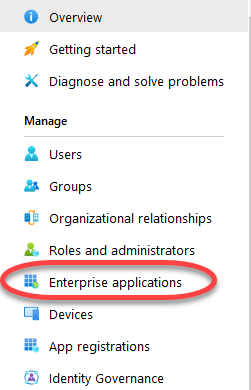
  3. Click on Enterprise Applications.
    1. Enterprise AD-Updated
  4. Click New Application.
    2. New Enterprise Application-Updated
  5. Select Non-Gallery Application.
    3. Non-Gallery Application
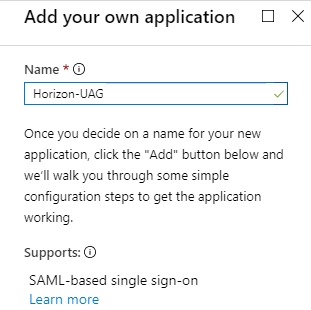
  6. Give the new application a name.
    4. Enterprise Application Name
  7. Click Add.
  8. Before we can configure our URLs and download metadata, we need to assign users to the app.  Click 1. Assign Users and Groups
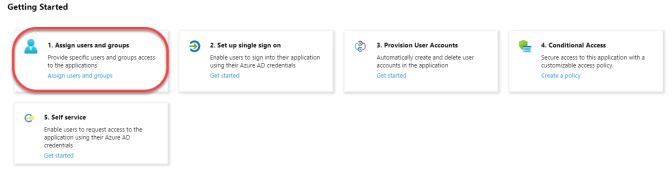
    5. Assign Users and Groups
  9. Click Add User
    5a. Add Users
  10. Click where it says Users and Groups – None Selected.
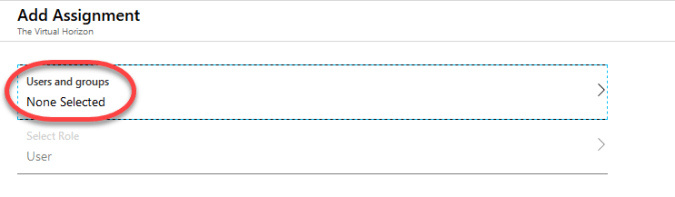
    5b. Select Users
  11. Select the Users or Groups that will have access to Horizon. There is a search box at the top of the list to make finding groups easier in large environments.
    Note: I recommend creating a large group to nest your Horizon user groups in to simplify setup.
  12. Click Add.
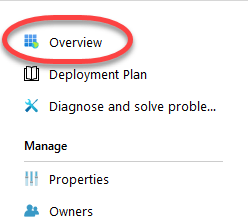
  13. Click Overview.
    5c. Return to main menu
  14. Click 2. Set up single sign on.
    6. Configure SSO
  15. In the section labeled Basic SAML Configuration, click the pencil in the upper right corner of the box. This will allow us to enter the URLs we use for our SAML configuration.
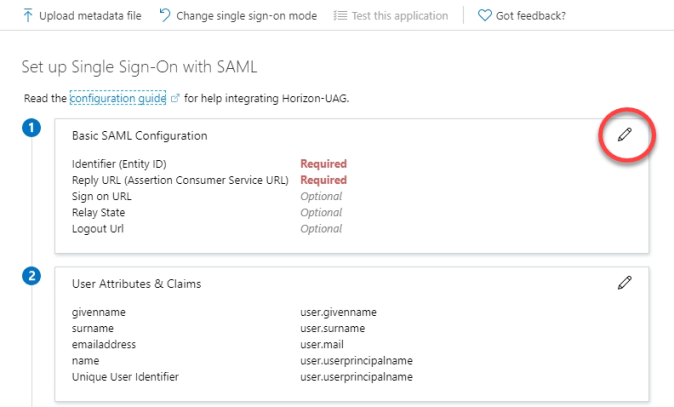
    8. Basic SAML Configuration
  16. Enter the following items.  Please note that the URL paths are case sensitive, and putting in PORTAL, Portal, or SAMLSSO will prevent this from being set up successfully:
    1. In the Identifier (Entity ID) field, enter your portal URL.  It should look like this:
      https://horizon.uag.url/portal
    2. In the Reply URL (Assertion Consumer Service URL) field, enter your uag SAML SSO URL.  It should look like this:
      https://horizon.uag.url/portal/samlsso
    3. In the Sign on URL, enter your uag SAML SSO URL.  It should look like this:
      https://horizon.uag.url/portal/samlsso
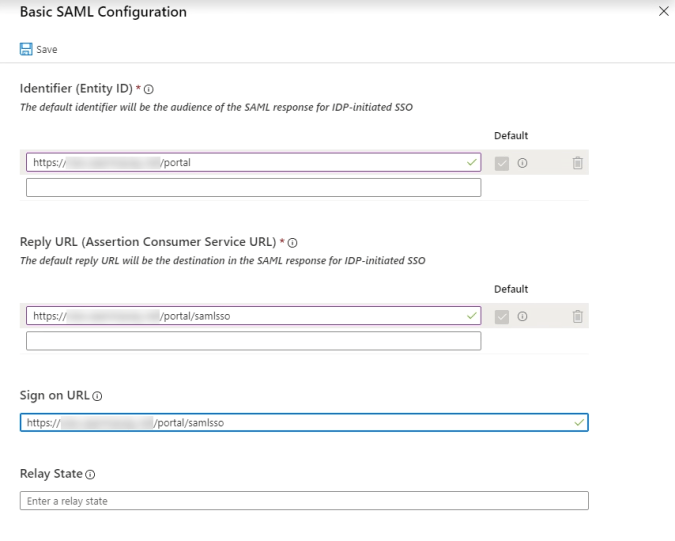
      9. Basic SAML Configuration URLS
  17. Click Save.
  18. Review your user attributes and claims, and adjust as necessary for your environment. Horizon 7 supports logging in with a user principal name, so you may not need to change anything.
  19. Click the download link for the Federation XML Metadata file.
    10. Download Metadata URL File

We will use our metadata file in the next step to configure our identity provider on the UAG.

Once the file is downloaded, the Azure AD side is configured.

Configuring the UAG

Once we have completed the Azure AD configuration, we need to configure our UAGs to utilize SAML for multifactor authentication.

In order to do these steps, you will need to have an admin password set on the UAG appliance in order to access the Admin interface.  I recommend doing the initial configuration and testing on a non-production appliance.  Once testing is complete, you can either manually apply the settings to the production UAGs or download the configuration INI file and copy the SAML configuration into the production configuration files for deployment.

Note: You can configure SAML on the UAGs even if you aren’t using TrueSSO.  If you are using this feature, you may need to make some configuration changes on your connection servers.  I do not use TrueSSO in my lab, so I have not tested Azure MFA on the UAGs with TrueSSO.

The steps for configuring the UAG are:

  1. Log into the UAG administrative interface.
  2. Click Configure Manually.
  3. Go to the Identity Bridging Settings section.
  4. Click the gear next to Upload Identity Provider Metadata.
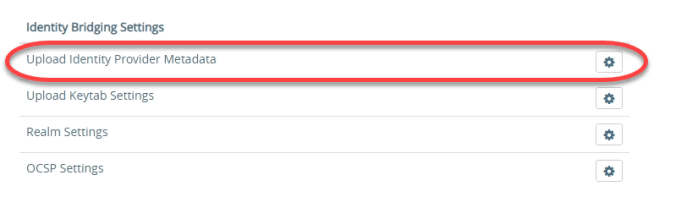
    11. Identity Provider Metadata
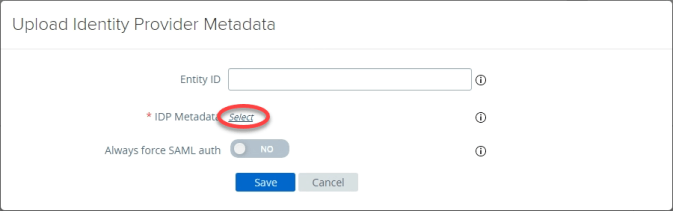
  5. Leave the Entity ID field blank.  This will be generated from the metadata file you upload.
  6. Click Select.
    12. Select IDP Metadata file
  7. Browse to the path where the Azure metadata file you downloaded in the last section is stored.  Select it and click Open.
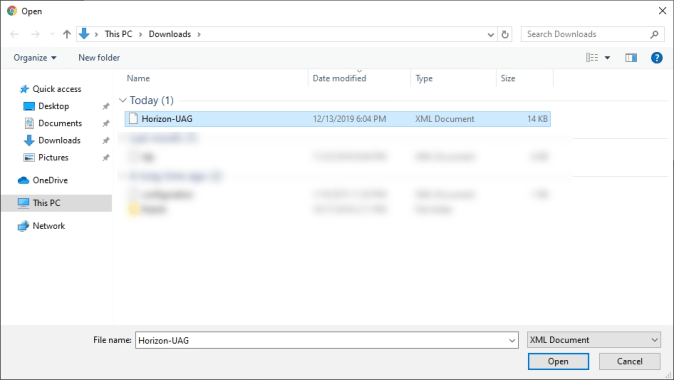
    13. Select XML File Updated
  8. If desired, enable the Always Force SAML Auth option.
    Note: SAML-based MFA acts differently than RADIUS and RSA authentication. The default behavior has you authenticate with the provider, and the provider places an authentication cookie on the machine. Subsequently logins may redirect users from Horizon to the cloud MFA site, but they may not be force to reauthenticate. Enabling the Always Force SAML Auth option makes SAML-based Cloud MFA providers behave similiarly to the existing RADIUS and RSA-based multifactor solutions by requiring reauthentication on every login. Please also be aware that things like Conditional Access Policies in Azure AD and Azure AD-joined Windows 10 devices may impact the behavior of this solution.
  9. Click Save.
    14. Save IDP Data-Updated
  10. Go up to Edge Services Settings and expand that section.
  11. Click the gear icon next to Horizon Edge Settings.
  12. Click the More button to show all of the Horizon Edge configuration options.
  13. In the Auth Methods field, select one of the two options to enable SAML:
    1. If you are using TrueSSO, select SAML
    2. If you are not using TrueSSO, select SAML and Passthrough
      15. Select MFA Configuration
  14. Select the identity provider that will be used.  For Azure MFA, this will be the one labeled https://sts.windows.net
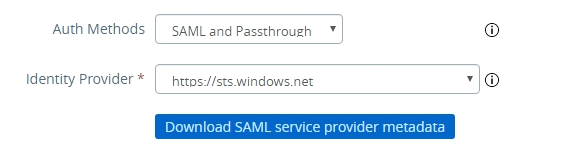
    16. Select Identity Provider
  15. Click Save.

SAML authentication with Azure MFA is now configured on the UAG, and you can start testing.

User Authentication Flows when using SAML

Compared to RADIUS and RSA, user authentication behaves a little differently when using SAML-based MFA.  When a user connects to a SAML-integrated environment, they are not prompted for their RADIUS or RSA credentials right away.

After connecting to the Horizon environment, the user is redirected to the website for their authentication solution.  They will be prompted to authenticate with this solution with their primary and secondary authentication options.  Once this completes, the Horizon client will reopen, and the user will be prompted for their Active Directory credentials.

You can configure the UAG to use the same username for Horizon as the one that is used with Azure AD, but the user will still be prompted for a password unless TrueSSO is configured.

Configuring SAML with Workspace ONE for AVI Networks

Earlier this year, VMware closed the acquisition of Avi Networks.  Avi Networks provides an application delivery controller solution designed for the multi-cloud world. While many ADC solutions aggregate the control plane and data plane on the same appliance, Avi Networks takes a different approach.  They utilize a management appliance for the control plane and multiple service engine appliances that handle load balancing, web application firewall, and other services for the data plane.

Integrating Avi Networks with Workspace ONE Access

The Avi Networks Controller appliance offers multiple options for integrating the management console into enterprise environments for authentication management.  One of the options that is avaiable is SAML.  This enables integration into Workspace ONE Access and the ability to take advantage of the App Catalog, network access restrictions and step-up authentication when administrators sign in.

Before I walk through the steps for integrating Avi Networks into Workspace ONE Access via SAML, I want to thank my colleague Nick Robbins.  He provided most of the information that enabled this integration to be set up in my lab environments and this blog post.  Thank you, Nick!

There are three options that can be selected for the URL when configuring SAML integration for Avi Networks.  The first option is to use the cluster VIP address.  This is a shared IP address that is used by all management nodes when they are clustered.  The second option is to use a fully-qualified domain name.

These options determine the SSO URL and entity ID that are used in the SAML configuration, and they are automatically generated by the system.

The third option is to use a user-provided entity ID.

For this walkthrough, we are going to use a fully-qualified domain name.

Prerequisites

Before we can begin configuring SAML integration, there are a few things we need to do.

First, we need to make sure a DNS record is in place for our Avi Controller.  This will be used for the fully-qualified domain name that is used when signing into our system.

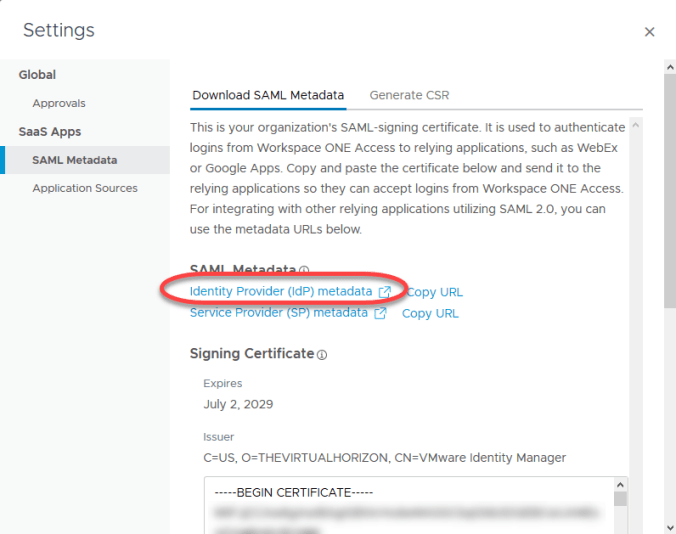
Second, we need to get the Workspace One Access IDP metadata.  Avi does not import this automatically by providing a link the idp.xml file, so we need to download this file.  The steps for retrieving the metadata are:

  1. Log into your Workspace One Access administrator console.
  2. Go to App Catalog
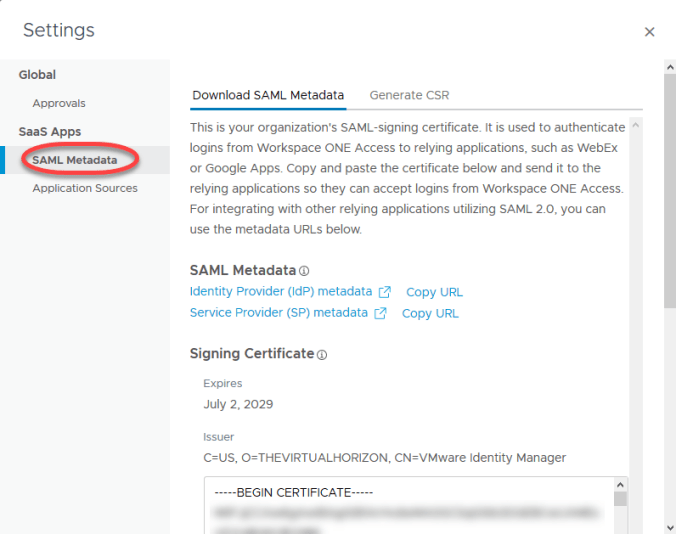
  3. Click Settings
    7a. idp metadata WS1 Catalog Settings
  4. Under SaaS Apps, click SAML Metadata7b. idp metadata WS1 Catalog Settings idp
  5. Right click on Identity Provider Metadata and select Save Link As.  Save the file as idp.xml7c. idp metadata WS1 Catalog Settings idp
  6. Open the idp.xml file in your favorite text editor.  We will need to copy this into the Avi SAML configuration in the next step.

Avi Networks Configuration

The first thing that needs to be done is to configure an authentication profile to support SAML on the Avi Networks controller.  The steps for this are:

  1. Log into your Avi Networks controller as your administrative user.
  2. Go to Templates -> Security -> Auth Profile.
  3. Click Create to create a new profile.
  4. Provide a name for the profile in the Name field.
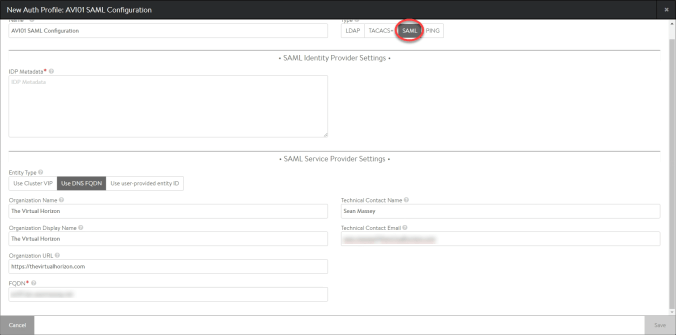
  5. Under Type, select SAML.

    6. SAML

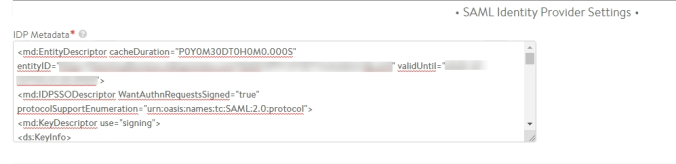
  6. Copy the Workspace ONE SAML idp information into the idp Metadata field.  This information is located in the idp.xml file that we save in the previous section.8. Copy idp metadata to AVI SAML Profile
  7. Select Use DNS FQDN
  8. Fill in your organizational details.
  9. Enter the fully-qualified domain name that will be used for the SAML configuration in the FQDN field.
  10. Click Save

Next, we will need to collect some of our service provider metadata.  Avi Networks does not generate an xml file that can be imported into Workspace ONE Access, so we will need to enter our metadata manually.  There are three things we need to collect:

  • Entity ID
  • SSO URL
  • Signing Certificate

We will get the Entity ID and SSO URL from the Service Provider Settings screen.  Although this screen also has a field for signing certificate, it doesn’t seem to populate anyting in my lab, so we will have to get the certificate information from the SSL/TLS Certificate tab.

The steps for getting into the Service Provider Settings are:

  1. Go to Templates -> Security -> Auth Profile.
  2. Find the authentication profile that you created.
  3. Click on the Verify box on the far right side of the screen.  This is the square box with a question mark in it.  10. Get Auth Profile Details
  4. Copy the Entity ID and SSO URL and paste them into your favorite text editor.  We will be using these in the next step.11. Service Provider Settings
  5. Close the Service Provider Settings screen by clicking the X in the upper right-hand corner.

Next, we need to get the signing certificate.  This is the System-Default-Portal-Cert.  The steps to get it are:

  1. Go to Templates -> Security -> SSL/TLS Certificates.
  2. Find the System-Default-Portal-Cert.
  3. Click the Export button.  This is the circle with the down arrow on the right side of the screen.13. Export System-Default-Portal-Cert
  4. The certificate information is in the lower box labeled certificate.
  5. Click the Copy to Clipboard button underneath the certificate box.
  6. Paste the certificate in your favorite text editor.  We will also need this in the next step.
  7. Click Done to close the Export Certificate screen.

Configuring the Avi Networks Application Catalog item in Workspace One Access

Now that we have our SAML profile created in the Avi Networks Controller, we need to create our Workspace ONE catalog entry.  The steps for this are:

  1. Log into your Workspace One Access admin interface.
  2. Go to the Catalog tab.
  3. Click New to create a new App Catalog entry.14. Create WS1 New SaaS Application
  4. Provide a name for the new Avi Networks entry in the App Catalog.  14. WS1 New SaaS Application
  5. If you have an icon to use, click Select File and upload the icon for the application.
  6. Click Next.
  7. Enter the following details.  For the next couple of steps, you need to remain on the Configuration screen.  Don’t click next until you complete all of the configuration items:
    1. Authentication Type: SAML 2.0
    2. Configuration Type: Manual
    3. Single Sign-On URL: Use the single sign-on URL that you copied from the Avi Networks Service Provider Settings screen.
    4. Recipient URL: Same as the Single Sign-On URL
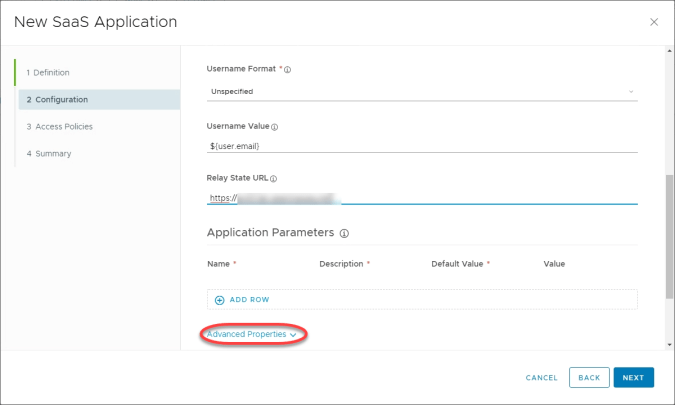
    5. Application ID: Use the Entity ID setting that you copied from the Avi Networks Service Provider Settings screen.15a. WS1 New SaaS App Configuration
    6. Username Format: Unspecified
    7. Username Value: ${user.email}
    8. Relay State URL: FQDN or IP address of your appliance15b. WS1 New SaaS App Configuration
  8. Expand Advanced Properties and enter the following values:
    1. Sign Response: Yes
    2. Sign Assertion: Yes15c. WS1 New SaaS App Configuration - Advanced
    3. Copy the value of the System-Default-Portal-Cert certificate that you copied in the previous section into the Request Signature field.15d. WS1 New SaaS App Configuration - Advanced
    4. Application Login URL: FQDN or IP address of your appliance.  This will enable SP-initiated login workflows.
  9. Click Next.
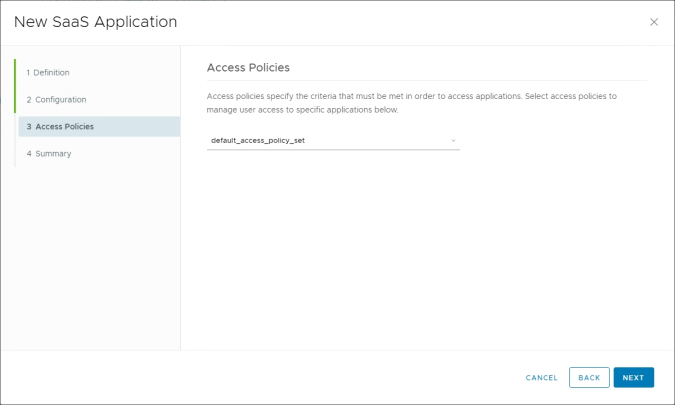
  10. Select an Access Policy to use for this application.  This will determine the rules used for authentication and access to the application.16. Assign Access Policy
  11. Click Next.
  12. Review the summary of the configuration.17. Save and Assign
  13. Click Save and Assign
  14. Select the users or groups that will have access to this application and the deployment type.18. Assign Users
  15. Click Save.

Enabling SAML Authentication in Avi Networks

In the last couple of steps, we created our SAML profile in Avi Networks and a SAML catalog item in Workspace One Access.  However, we haven’t actually turned SAML on yet or assigned any users to roles.  In this next section, we will enable SAML and grant superuser rights to SAML users.

Note: It is possible to configure more granular role-based access control by adding application parameters into the Workspace One Access catalog item and then mapping those parameters to different roles in Avi Networks.  This walkthrough will just provide a simple setup, and deeper RBAC integration will be covered in a possible future post.

  1. Log into your Avi Networks Management Console.
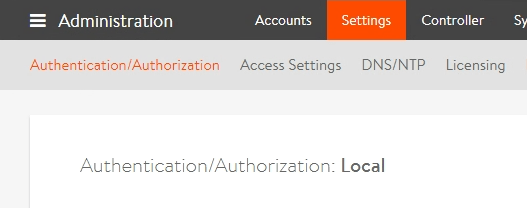
  2. Go Administration -> Settings -> Authentication/Authorization2. Settings
  3. Click the pencil icon to edit the Authentication/Authorization settings.
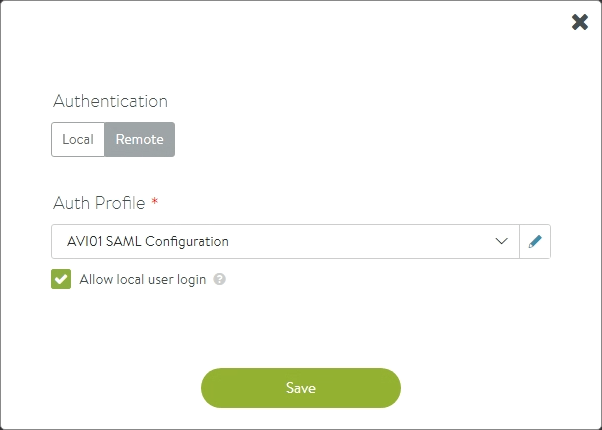
  4. Under Authentication, select Remote.
  5. 4. Authentication Remote
  6. Under Auth Profile, select the SAML profile that you created earlier.
  7. Make sure the Allow Local User Login box is checked.  If this box is not checked, and there is a configuration issue, you will not be able to log back into the controller.
  8. Click Save.9. Save AVI SAML Profile
  9. After saving the authentication settings, some new options will appear in the Authentication/Authorization screen to enable role mapping.
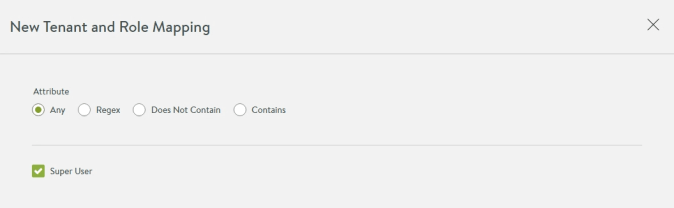
  10. Click New Mapping.9a. Create Role Mapping
  11. For Attribute, select Any
  12. Check the box labelled Super User9b. SuperUser
  13. Click Save.

SAML authentication is now configured on the Avi Networks Management appliance.

Testing SAML Authentication and Troubleshooting

So now that we have our authentication profiles configured in both Avi Networks and Workspace One Access, we need to test it to ensure our admin users can sign in.  There are two tests that should be run.  The first is launching Avi Networks from the Workspace One Access app catalog, and the second is doing an SP-initiated login by going to your Avi Networks URL.

In both cases, you should see a Workspace One Access authentication screen for login before being redirected to the Avi Networks management console.

In my testing, however, I had some issues in one of my labs where I would get a JSON error when attempting SAML authentication.  If you see this error, and you validate that all of your settings match, then reboot the appliance.  This solved the issue in my lab.

If SAML authentication breaks, and you need to gain access to the appliance management interface with a local account, then you need to provide a different URL.  That URL is https://avi-management-fqdn-or-ip/#!/login?local=1.

Minimal Touch VDI Image Building With MDT, PowerCLI, and Chocolatey

Recently, Mark Brookfield posted a three-part series on the process he uses for building Windows 10 images in HobbitCloud (Part 1, Part 2, Part 3). Mark has put together a great series of posts that explain the tools and the processes that he is using in his lab, and it has inspired me to revisit this topic and talk about the process and tooling I currently use in my lab and the requirements and decisions that influenced this design.

Why Automate Image Building?

Hand-building images is a time-intensive process.  It is also potentially error-prone as it is easy to forget applications and specific configuration items, requiring additional work or even building new images depending on the steps that were missed.  Incremental changes that are made to templates may not make it into the image building documentation, requiring additional work to update the image after it has been deployed.

Automation helps solve these challenges and provide consistent results.  Once the process is nailed down, you can expect consistent results on every build.  If you need to make incremental changes to the image, you can add them into your build sequence so they aren’t forgotten when building the next image.

Tools in My Build Process

When I started researching my image build process back in 2017, I was looking to find a way to save time and provide consistent results on each build.  I wanted a tool that would allow me to build images with little interaction with the process on my part.  But it also needed to fit into my lab.  The main tools I looked at were Packer with the JetBrains vSphere plugin and Microsoft Deployment Toolkit (MDT).

While Packer is an incredible tool, I ended up selected MDT as the main tool in my process.  My reason for selecting MDT has to do with NVIDIA GRID.  The vSphere Plugin for Packer does not currently support provisioning machines with vGPU, so using this tool would have required manual post-deployment work.

One nice feature of MDT is that it can utilize a SQL Server database for storing details about registered machines such as the computer name, the OU where the computer object should be placed, and the task sequence to run when booting into MDT.  This allows a new machine to be provisioned in a zero-touch fashion, and the database can be populated from PowerShell.

Unlike Packer, which can create and configure the virtual machine in vCenter, MDT only handles the operating system deployment.  So I needed some way to create and configure the VM in vCenter with a vGPU profile.  The best method of doing this is using PowerCLI.  While there are no native commandlets for managing vGPUs or other Shared PCI objects in PowerCLI, there are ways to utilize vSphere extension data to add a vGPU profile to a VM.

While MDT can install applications as part of a task sequence, I wanted something a little more flexible.  Typically, when a new version of an application is added, the way I had structured my task sequences required them to be updated to utilize the newer version.  The reason for this is that I wasn’t using Application Groups for certain applications that were going into the image, mainly the agents that were being installed, as I wanted to control the install order and manage reboots. (Yes…I may have been using this wrong…)

I wanted to reduce my operational overhead when applications were updated so I went looking for alternatives.  I ended up settling on using Chocolatey to install most of the applications in my images, with applications being hosted in a private repository running on the free edition of ProGet.

My Build Process Workflow

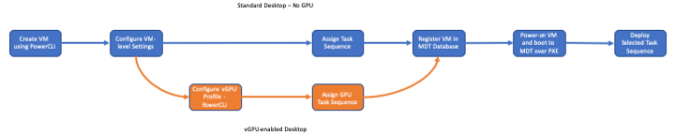
My build workflow consists of 7 steps with one branch.  These steps are:

  1. Create a new VM in vCenter
  2. Configure VM options such as memory reservations and video RAM
  3. GPU Flag Only – Add a virtual GPU with the correct profile to the VM.
  4. Identify Task Sequence that will be used.  There are different task sequences for GPU and non-GPU machines and logic in the script to create the task sequence name. Various parameters that are called when running the script help define the logic.
  5. Create a new computer entry in the MDT database.  This includes the computer name, MAC address, task sequence name, role, and a few other variables.  This step is performed in PowerShell using the MDTDB PowerShell module.
  6. Power on the VM. This is done using PowerCLI. The VM will PXE boot to a Windows PE environment configured to point to my MDT server.

Build Process

After the VM is powered on and boots to Windows PE, the rest of the process is hands off. All of the MDT prompts, such as the prompt for a computer name or the task sequence, are disabled, and the install process relies on the database for things like computer name and task sequence.

From this point forward, it takes about forty-five minutes to an hour to complete the task sequence. MDT installs Windows 10 and any drivers like the VMXNET3 driver, install Windows Updates from an internal WSUS server, installs any agents or applications, such as VMware Tools, the Horizon Agent, and the UEM DEM agent, silently runs the OSOT tool, and stamps the registry with the image build date.

Future Direction and Process Enhancements

While this process works well today, it is a bit cumbersome. Each new Windows 10 release requires a new task sequence for version control. It is also difficult to work tools like the OSDeploy PowerShell scripts by David Segura (used for slipstreaming updated into a Windows 10 WIM) into the process. While there are ways to automate MDT, I’d rather invest time in automating builds using Packer.

There are a couple of post-deployment steps that I would like to integrate into my build process as well. I would like to utilize Pester to validate the image build after it completes, and then if it passes, execute a shutdown and VM snapshot (or conversion to template) so it is ready to be consumed by Horizon. My plan is to utilize a tool like Jenkins to orchestrate the build pipeline and do something similar to the process that Mark Brookfield has laid out.

The ideal process that I am working towards will have multiple workflows to manage various aspects to the process. Some of these are:

1. A process for automatically creating updated Windows 10 ISOs with the latest Windows Updates using the OSDeploy PowerShell module.

2. A process for creating Chocolatey package updates and submitting them to my ProGet repository for applications managed by Chocolatey.

3. A process to build new images when Windows 10 or key applications (such as VMware Tools, the Horizon Agent, or NVIDIA Drivers) are updated. This process will ideally use Packer as the build tool to simplify management. The main dependency for this step is adding NVIDIA GRID support for the JetBrains Packer vSphere Plug-in.

So this is what I’m doing for image builds in my lab, and the direction I’m planning to go.

Horizon 7 Administration Console Changes

Over the last couple of releases, VMware has included an HTML5-based Horizon Console for managing Horizon 7.  Each release has brought this console closer to feature parity with the Flash-based Horizon Administrator console that is currently used by most administrators.

With the end-of-life date rapidly approaching for Adobe Flash, and some major browsers already making Flash more difficult to enable and use, there will be some changes coming to Horizon Administration.

  • The HTML5 console will reach feature parity with the Flash-based Horizon Administrator in the next release.  This includes a dashboard, which is one of the major features missing from the HTML5 console.  Users will be able to access the HTML5 console using the same methods that are used with the current versions of Horizon 7.
  • In the releases that follow the next Horizon release, users connecting to the current Flash-based console will get a page that provides them a choice to either go to the HTML5 console or continue to the Flash-based console.  This is similar to the landing page for vCenter where users can choose which console they want to use.

More information on the changes will be coming as the next version of Horizon is released.

Using Amazon RDS with Horizon 7 on VMware Cloud on AWS

Since I joined VMware back in November, I’ve spent a lot of time working with VMware Cloud on AWS – particularly around deploying Horizon 7 on VMC in my team’s lab.  One thing I hadn’t tried until recently was utilizing Amazon RDS with Horizon.

No, we’re not talking about the traditional Remote Desktop Session Host role. This is the Amazon Relational Database Service, and it will be used as the Event Database for Horizon 7.

After building out a multisite Horizon 7.8 deployment in our team lab, we needed a database server for the Horizon Events Database.  Rather than deploy and maintain a SQL Server in each lab, I decided to take advantage of one of the benefits of VMware Cloud on AWS and use Amazon RDS as my database tier.

This isn’t the first time I’ve used native Amazon services with Horizon 7.  I’ve previously written about using Amazon Route 53 with Horizon 7 on VMC.

Before we begin, I want to call out that this might not be 100% supported.  I can’t find anything in the documentation, KB58539, or the readme files that explicitly state that RDS is a supported database platform.  RDS is also not listed in the Product Interoperability Matrix.  However, SQL Server 2017 Express is supported, and there are minimal operational impacts if this database experiences an outage.

What Does a VDI Solution Need With A Database Server?

VMware Horizon 7 utilizes a SQL Server database for tracking user session data such as logins and logouts and auditing administrator activities that are performed in the Horizon Administrator console. Unlike on-premises environments where there are usually existing database servers that can host this database, deploying Horizon 7 on VMware Cloud on AWS would require a new database server for this service.

Amazon RDS is a database-as-a-service offering built on the AWS platform. It provides highly scalable and performant database services for multiple database engines including Postgres, Microsoft SQL Server and Oracle.

Using Amazon RDS for the Horizon 7 Events Database

There are a couple of steps required to prepare our VMware Cloud on AWS infrastructure to utilize native AWS services. While the initial deployment includes connectivity to a VPC that we define, there is still some networking that needs to be put into place to allow these services to communicate. We’ll break this work down into three parts:

  1. Preparing the VMC environment
  2. Preparing the AWS VPC environment
  3. Deploying and Configuring RDS and Horizon

Preparing the VMC Environment

The first step is to prepare the VMware Cloud on AWS environment to utilize native AWS services. This work takes place in the VMware Cloud on AWS management console and consists of two main tasks. The first is to document the availability zone that our VMC environment is deployed in. Native Amazon services should be deployed in the same availability zone to reduce any networking costs. Firewall rules need to be configured on the VMC Compute Gateway to allow traffic to pass to the VPC.

The steps for preparing the VMC environment are:

  1. Log into https://cloud.vmware.com
  2. Click Console
  3. In the My Services section, select VMware Cloud on AWS
  4. In the Software-Defined Data Centers section, find the VMware Cloud on AWS environment that you are going to manage and click View Details.
  5. Click the Networking and Security tab.
  6. In the System menu, click Connected VPC. This will display information about the Amazon account that is connected to the environment.
  7. Find the VPC subnet. This will tell you what AWS Availability Zone the VMC environment is deployed in. Record this information as we will need it later.

Now that we know which Availability Zone we will be deploying our database into, we will need to create our firewall rules. The firewall rules will allow our Connection Servers and other VMs to connect to any native Amazon services that we deploy into our connected VPC.

This next section picks up from the previous steps, so you should be in the Networking and Security tab of the VMC console. The steps for configuring our firewall rules are:

  1. In the Security Section, click on Gateway Firewall.
  2. Click Compute Gateway
  3. Click Add New Rule
  4. Create the new firewall rule by filling in the following fields:
    1. In the Name field, provide a descriptive name for the firewall rule.
    2. In the Source field, click Select Source. Select the networks or groups and click Save.
      Note: If you do not have any groups, or you don’t see the network you want to add to the firewall, you can click Create New Group to create a new Inventory Group.
    3. In the Destination field, click Select Destination. Select the Connected VPC Prefixes option and click Save.
    4. In the Services field, click Select Services. Select Any option and click Save.
    5. In the Applied To field, remove the All Interfaces option and select VPC Interfaces.
  5. Click Publish to save and apply the firewall rule.

There are two reasons that the VMC firewall rule is configured this way. First, Amazon assigns IP addresses at service creation. Second, this firewall rule can be reused for other AWS Services, and access to those services can be controlled using AWS Security Groups instead.

The VMC gateway firewall does allow for more granular rule sets. They are just not going to utilized in this walkthrough.

Preparing the AWS Environment

Now that the VMC environment is configured, the RDS service needs to be provisioned. There are a couple of steps to this process.

First, we need to configure a security group that will be used for the service.

  1. Log into your Amazon Console.
  2. Change to the region where your VMC environment is deployed.
  3. Go into the VPC management interface. This is done by going to Services and selecting VPC.
  4. Select Security Groups
  5. Click Create Security Group
  6. Give the security group a name and description.
  7. Select the VPC where the RDS Services will be deployed.
  8. Click Create.
  9. Click Close.
  10. Select the new Security Group.
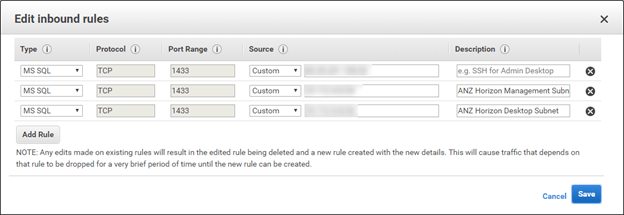
  11. Click the Inbound Rules tab.
  12. Click Edit Rules
  13. Click Add Rule
  14. Fill in the following details:
    1. Type – Select MS SQL
    2. Source – Select Custom and enter the IP Address or Range of the Connection Servers in the next field
    3. Description – Description of the server or network
    4. Repeat as Necessary
  15. Click Save Rules

This security group will allow our connection servers to access the database services that are being hosted in RDS.

Once the security group is created, the RDS instance can be deployed. The steps for deploying the RDS instance are:

  1. Log into your Amazon Console.
  2. Change to the region where your VMC environment is deployed.
  3. Go into the RDS management interface. This is done by going to Services and selecting RDS.
  4. Click Create Database.
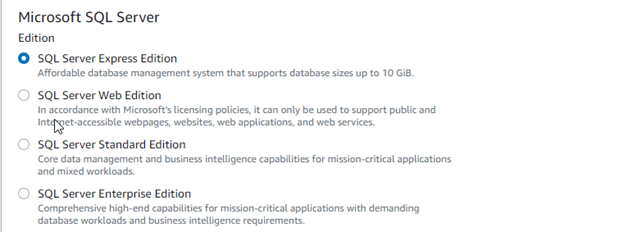
  5. Select Microsoft SQL Server.
  6. Select the version of SQL Server that will be deployed. For this walkthrough, SQL Server Express will be used.

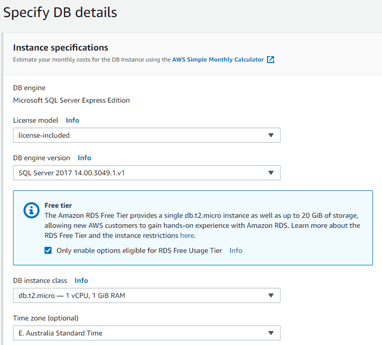
    Note: There is a SQL Server Free Tier offering that can be used if this database will only be used for the Events Database. The Free Tier offering is only available with SQL Server Express. If you only want to use the Free Tier offering, select the Only enable options eligible for RDS Free Tier Usage.

  7. Click Next.
  8. Specify the details for the RDS Instance.
    1. Select License Model, DB Engine Version, DB instance class, Time Zone, and Storage.
      Note: Not all options are available if RDS Free Tier is being utilized.
    2. Provide a DB Instance Identifier. This must be unique for all RDS instances you own in the region.
    3. Provide a master username. This will be used for logging into the SQL Server instance with SA rights.
    4. Provide and confirm the master username password.
    5. Click Next.
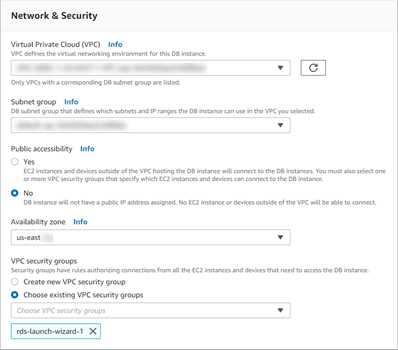
  9. Configure the Networking and Security Options for the RDS Instance.
      1. Select the VPC that is attached to your VMC instance.
      2. Select No under Public Accessibility.
        Note: This refers to access to the RDS instance via a public IP address. You can still access the RDS instance from VMC since routing rules and firewall rules will allow the communication.
      3. Select the Availability Zone that the VMC tenant is deployed in.
      4. Select Choose Existing VPC Security Groups
      5. Remove the default security group by clicking the X.
      6. Select the security group that was created for accessing the RDS instance.

  10. Select Disable Performance Insights.
  11. Select Disable Auto Minor Version Upgrade.
  12. Click Create Database.

Once Create Database is clicked, the deployment process starts. This takes a few minutes to provision. After provisioning completes, the Endpoint URL for accessing the instance will be available in the in RDS Management Console. It’s also important to validate that the instance was deployed in the correct availability zone. While testing this process, some database instances were created in an availability zone that was different from the one selected during the provisioning process.

Make sure you copy your Endpoint URL. You will need this in the next step to configure the database and Horizon.

Creating the Horizon Events Database

The RDS instance that was provisioned in the last step is an empty SQL Server instance. There are no databases or SQL Server user accounts, and these will need to be created in order to use this server with Horizon. A tool like SQL Server Management Studio is required to complete these steps, and we will be using SSMS for this walkthrough. The instance must be accessible from the machine that has the database management tools installed.

The Horizon Events Database does not utilize Windows Authentication, so a SQL Server user will be required along with the database that we will be setting up. This also requires DB_Owner rights on that database so it can provision the tables when we configure it in Horizon the first time.

The steps for configuring the database server are:

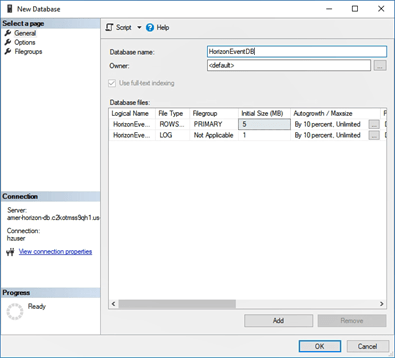
  1. Log into new RDS instance using SQL Server Management Studio using the Master Username and Password.
  2. Right Click on Databases
  3. Select New Database
  4. Enter HorizonEventsDB in the Database Name Field.
  5. Click OK.
  6. Expand Security.
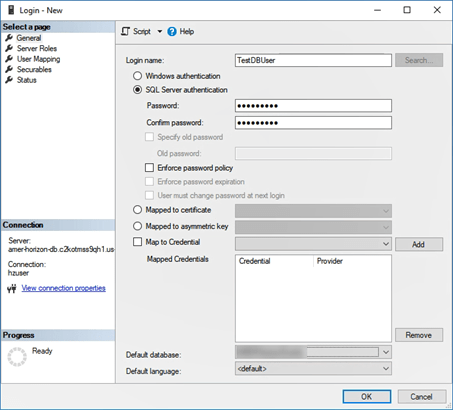
  7. Right click on Logins and select New Login.
  8. Enter a username for the database.
  9. Select SQL Server Authentication
  10. Enter a password.
  11. Uncheck Enforce Password Policy
  12. Change the Default Database to HorizonEventsDB
  13. In the Select A Page section, select User Mapping
  14. Check the box next to HorizonEventsDB
  15. In the Database Role Membership section, select db_owner
  16. Click OK

Configuring Horizon to Utilize RDS for the Events Database

Now that the RDS instance has been set up and configured, Horizon can be configured to use it for the Events Database. The steps for configuring this are:

  1. Log into Horizon Administrator.
  2. Expand View Configuration
  3. Click on Event Configuration
  4. Click Edit
  5. Enter the Database Server, Database Name, Username, and Password and click OK.

Benefits of Using RDS with Horizon 7

Combining VMware Horizon 7 with Amazon RDS is just one example of how you can utilize native Amazon services with VMware Cloud on AWS. This allows organizations to get the best of both worlds – easily consumed cloud services to back enterprise applications with an platform that requires few changes to the applications themselves and operational processes.

Utilizing native AWS services like RDS has additional benefits for EUC environments. When deploying Horizon 7 on VMware Cloud on AWS, the management infrastructure is typically deployed in the Software Defined Datacenter alongside the desktops. By utilizing native AWS services, resources that would otherwise be reserved for and consumed by servers can now be utilized for desktops.